
Global App Settings
A small set of application-wide settings steers a surprising amount of REDA: the status stamped on a converted inquiry, whether record types default automatically, whether multi-currency is on, how many records each nightly job chews through at a time, and which extension products are switched on. This is the reference for those settings. Other articles in the Help Center send you here for the value; each row below names what a setting drives and links to the article that explains the behavior in full. You don't need to read it top to bottom — jump to the setting you came for.
Access you'll need. The REDA - Master Data - Admin permission set — the only set that unlocks the REDA Admin Console; without it the console shows "You do not have permission to perform this action in the REDA Admin Console." Because a setting is a configuration record, changing its value is a Salesforce administrator task, so the person who edits these typically holds both the Master Data Admin set and Salesforce administrator rights.
How settings work
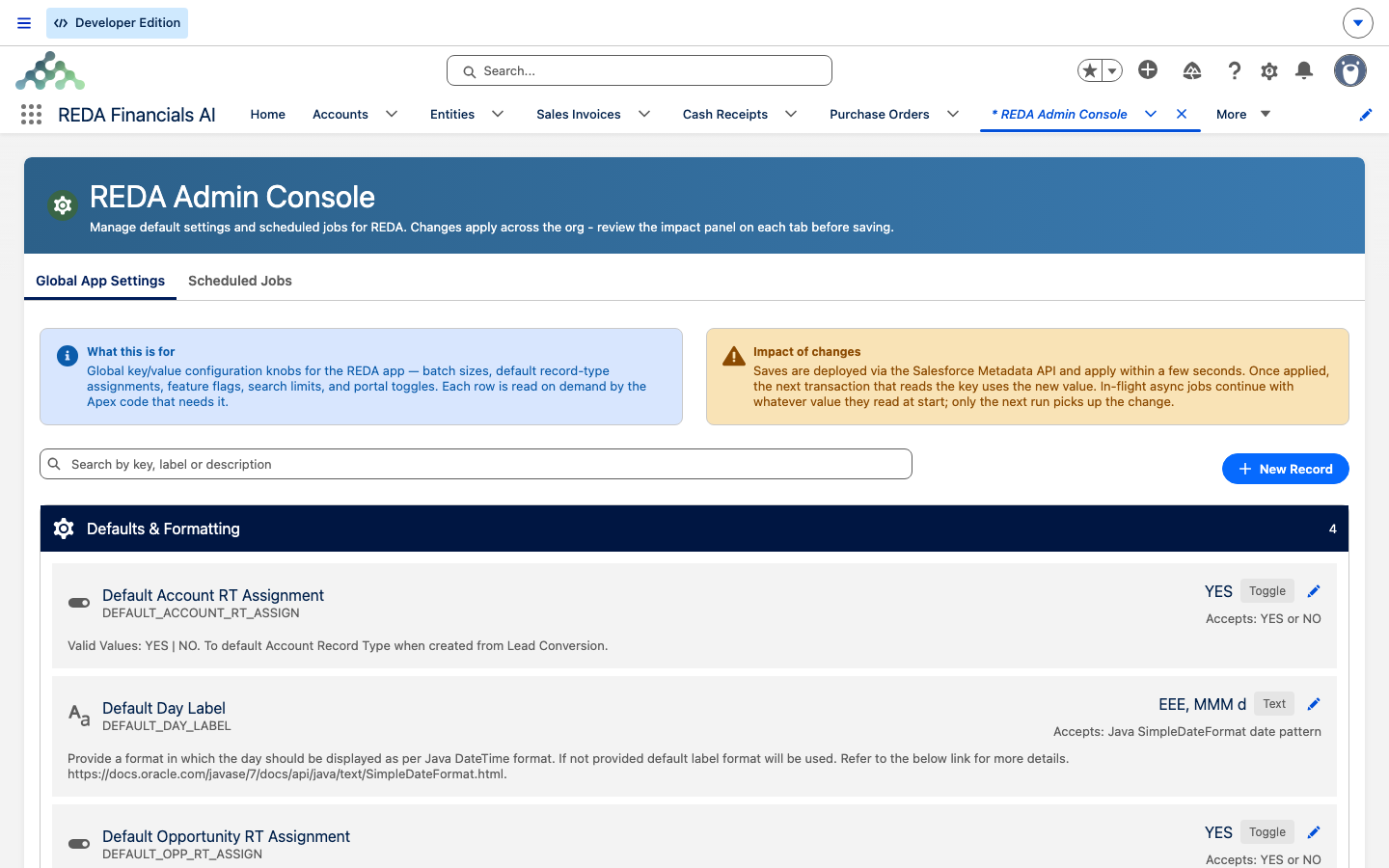
Each setting is one record with three parts: a name that identifies it, a value, and a required description. REDA reads these values as it works, so a change takes effect the next time the relevant operation runs — there's nothing to restart and, for the nightly jobs, nothing to reschedule.
Some of these records ship with REDA and carry sensible defaults; a few are added during your implementation (the environment-specific ones below). Touch only the settings named on this page — leave anything else you find alongside them to the articles that own it.
Behavior toggles
These decide how REDA behaves in a handful of common moments — mostly around inquiry conversion and record-type defaulting.
| Setting | Value in a stock org | What it drives |
|---|---|---|
| Default Opportunity Record Type Assignment | YES | Auto-assigns a new deal's record type from the converting inquiry's type. See Converting an Inquiry. |
| Default Account Record Type Assignment | YES | Auto-assigns the account record type (Lease or Client) during conversion. |
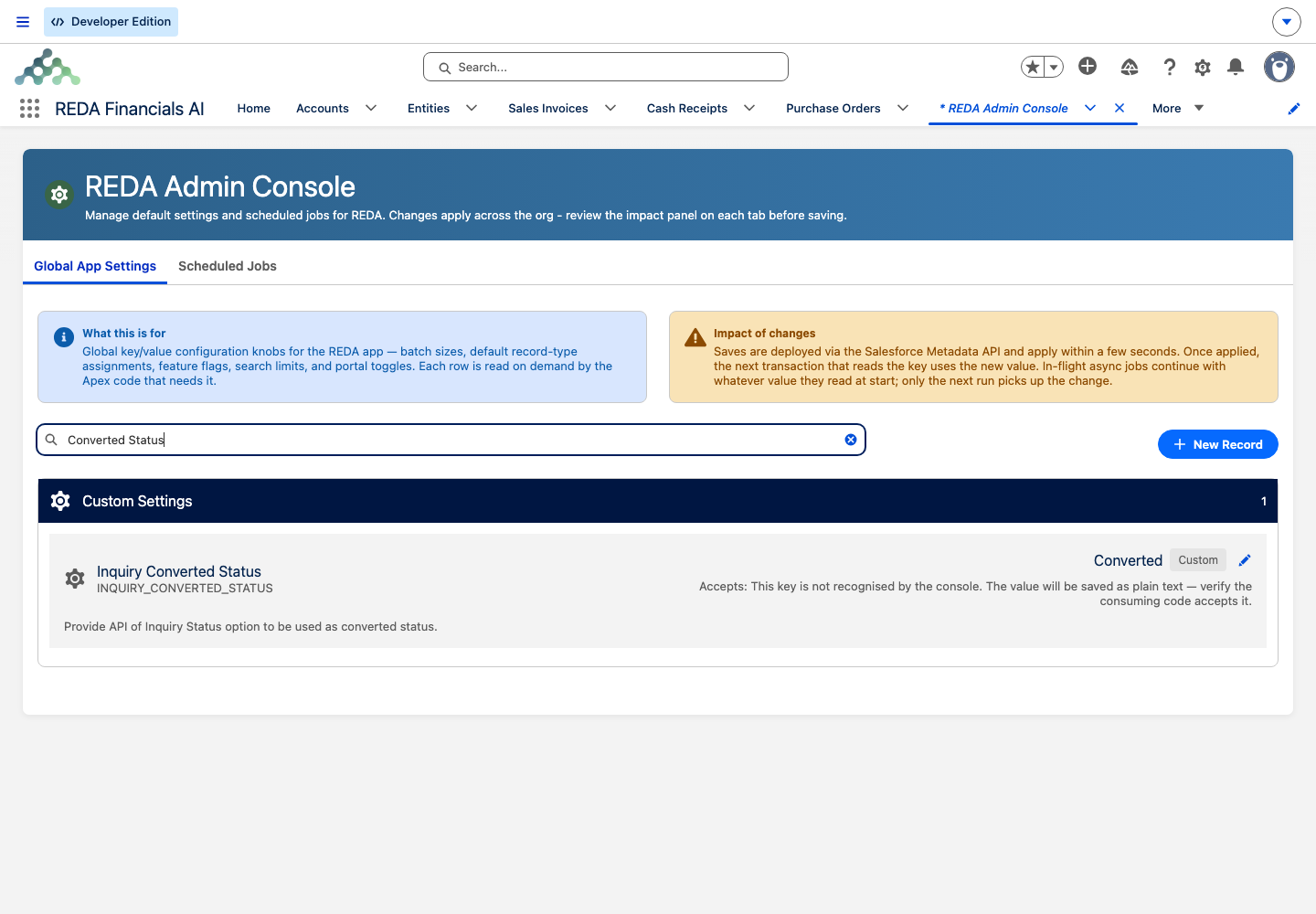
| Inquiry Converted Status | Converted | The status stamped on an inquiry when it converts. See Customizing Inquiry Conversion. |
| Create Property Ownership Trail | TRUE | Writes ownership-history rows when a property's owner changes. |
| Multi-Currency Enabled | 0 | The master gate for all REDA currency stamping. See Multi-Currency Behavior. |
| Error Stack Trace | TRUE | Appends technical diagnostic detail to surfaced errors — useful while implementing, worth reviewing for a settled production org. |
| Email Internal Domains | reda.one | Lists your own email domains so REDA can tell an internal sender from an external one. Ships as reda.one — replace it with your organisation's domains. |
Display formats and limits
These shape what REDA's own screens show — date and time formats, a search cap, and the report behind the booking availability screen.
| Setting | Value in a stock org | What it drives |
|---|---|---|
| Default Day Label | EEE, MMM d | How dates display on REDA's custom screens. |
| Default Time Label | h:mm a | How times display on REDA's custom screens. |
| Property Leasing Search Results Limit | 200 | The cap on leasing property-search results. Above the cap, REDA shows "Search results are limited to 200 rows. Please use search filters to narrow down search results." |
| Property Booking Slots Report | Property Booking Slots | The report behind the booking-slot availability screen. |
Batch sizes
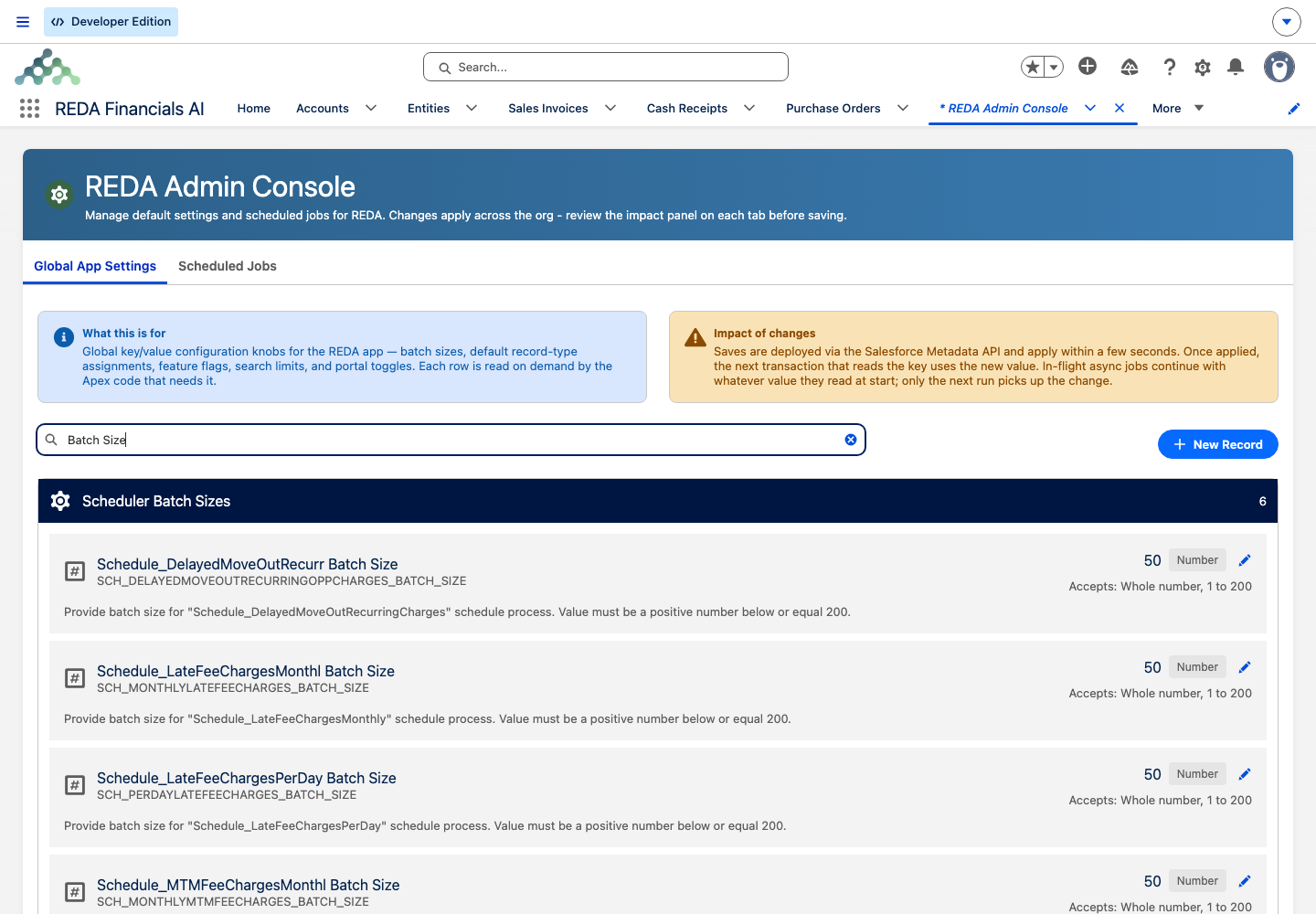
Each nightly billing job processes records in groups; the group size is a setting. All six ship at 50, and each job reads its size when it runs — so if you change one, you don't reschedule anything; the next run simply uses the new number.
| Setting | Value in a stock org | Job it sizes |
|---|---|---|
| Recurring Charges Batch Size | 50 | Recurring-charge invoicing (all three period jobs) |
| Delayed Move-Out Recurring Charges Batch Size | 50 | Delayed move-out billing |
| Monthly Late Fee Batch Size | 50 | Monthly late fees |
| Per-Day Late Fee Batch Size | 50 | Per-day late fees |
| Monthly MTM Fee Batch Size | 50 | Monthly month-to-month fees |
| Per-Day MTM Fee Batch Size | 50 | Per-day month-to-month fees |
| Reconciliation Snapshot Batch Size | 50 | Reconciliation snapshots |
The inflation-adjustment jobs have no batch-size setting — by design they process one record at a time. See Scheduling Background Jobs for the jobs these sizes apply to.
Extension flags
REDA can connect to a family of extension products. Each has an on/off flag, and in a stock org they're all off except the ones your implementation turns on. In the reference org, the only one switched on is REDA Financials.
| Setting | Value in the reference org | Extension it gates |
|---|---|---|
| REDA Accounting (AS) | 0 | The REDA Accounting extension |
| REDA Accounting (Accountify) | 0 | The Accountify accounting extension |
| Leasing Application | 0 | The Leasing Application extension. See Online Lease Applications. |
| Portal experiences (agent / community / owner / resident) | 0 | The portal-experience extensions. See The Resident Portal. |
| REDA Construction | 0 | The REDA Construction extension. |
| REDA Financials | 1 | The REDA Financials integration — the only extension on in the reference org. See How REDA Works with REDA Financials. |
Environment-specific settings
A few settings hold links that are unique to your environment — the base web addresses REDA uses to build resident-portal ledger links and lease-application form links. These are created and filled in during your implementation, and their values differ for every customer, so this article doesn't print them. If one is blank or wrong, that's an implementation question for your project team, not a value to guess.
Which settings are safe to change
Not every setting invites tinkering. As a rule of thumb:
| Kind of setting | How to treat it |
|---|---|
| Batch sizes, date/time formats, converted status | Adjustable defaults. Change them deliberately; the description explains each. |
| Multi-Currency Enabled | A go-live decision, not a casual toggle. See Multi-Currency Behavior before touching it on a live org. |
| Extension flags | Set during implementation when a product is connected — leave them as your project team configured them. |
| Environment links | Owned by your implementation team; don't hand-edit. |
Two quick scenarios
Tuning a nightly run. At Meridian Properties, the nightly recurring-charge run has to work through roughly 600 leases. The administrator opens the recurring-charges batch-size setting, sees the default of 50, and — knowing the change would take effect on the next run with no rescheduling — decides the default is fine and leaves it.
Renaming the converted status. The team wants a converted inquiry to read "Won - Converted" instead of "Converted". The Inquiry Converted Status setting is the single place that word is set, so they change it there. The one caution: the value has to remain a real inquiry status, or the stamp at the end of conversion has nothing valid to write.
Where to go next
- Scheduling Background Jobs — the jobs the batch sizes apply to.
- Multi-Currency Behavior — what the multi-currency master gate turns on.
- How REDA Works with REDA Financials — the extension the Financials flag connects.
- Converting an Inquiry — the conversion the record-type and status settings shape.
- Searching for Properties — where the 200-row search limit is felt.
Frequently asked questions
No. Each job reads its size setting when it runs, so the next run uses the new value automatically.
The REDA Financials extension flag, which is on in a Financials-connected org. It's set during implementation — see How REDA Works with REDA Financials.
No — REDA has no automation-bypass switch. The only functional gates are the documented settings on this page. Plan your data loads with automation running.
The Property Leasing Search Results Limit setting, which is 200 by default. Raise it deliberately if you must, and expect the "Search results are limited to 200 rows" message until your filters narrow the list.
No — they're org-wide. One value applies to everyone.
Was this article helpful?