
Finding Properties: Leasing Search
When a prospect wants a two-bed under a certain rent for a move-in next month, Property Search - Leasing is how you find their match. This article explains exactly which properties qualify to appear (and why one might be missing), how to filter down to the right units, how to read the result cards, how to start a search straight from an inquiry or deal, and what to do when you hit the 200-row cap. No prior REDA experience is assumed.
Access you'll need. The tab ships with the REDA - Property Management User and REDA - Property Sales User sets (plus at least property read). REDA - Property Leasing User does not carry the tab — leasing agents typically get visibility from their administrator.
What the search shows (and hides)
The most important thing to understand about this tool is that it only shows properties that pass the availability gate. It isn't a list of every unit — it's a list of units that are genuinely lettable for what the prospect wants. So when a unit you expected is missing, it's almost always the gate, not the search. Let's look at exactly what that gate checks.
Who appears: the qualification rules
A property qualifies to appear only when both of these are true:
Filtering
Narrow the results with the tool's facets: Region, Neighbourhood, Beds, Baths, and property type. You can also filter by amenity — the amenity filters match a property's active amenities, and only amenity codes marked as searchable are offered (grouped into their amenity groups). Combining these lets you go from "everything available" to "two-bed in Old Harbour with a pool" quickly.
Reading the results
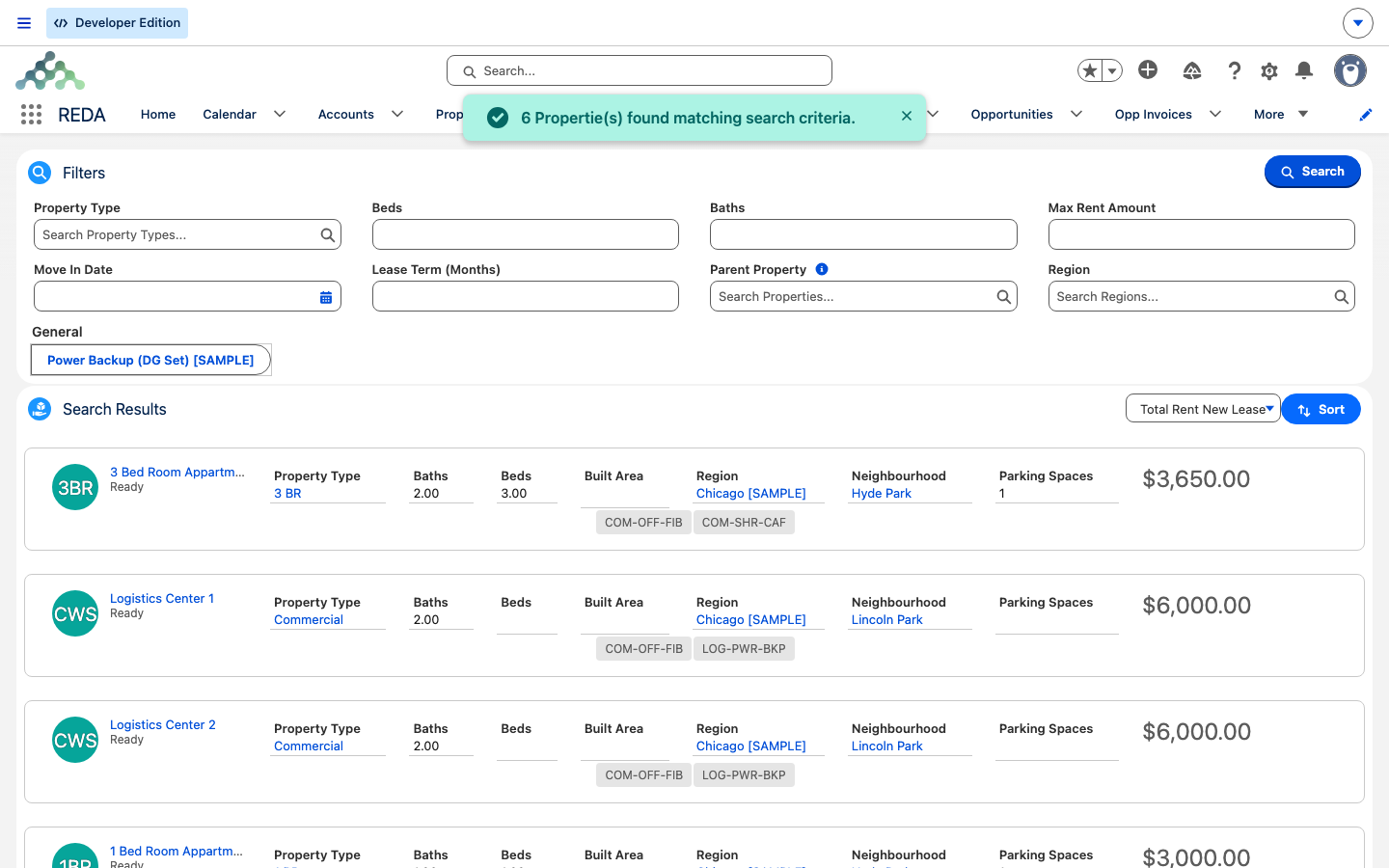
Each result is a card. Here's what's on it:
| On the card | Where it comes from |
|---|---|
| Rent | The property's rent cards, showing the Best Leasing Term by default — the pinned card, or otherwise the lowest new-lease price. |
| Thumbnail | The property's thumbnail image. |
| Type abbreviation | The three-letter abbreviation from the property's type. |
| Detail columns | Property Type, Beds, Baths, Built Area, Region, Neighbourhood, Parking Spaces — your administrator can tune these. |
Searching from an inquiry or deal
Rather than starting cold, you can search from a record. On an inquiry, click Matching Properties and REDA opens the search pre-filled from the inquiry's criteria — Property Type, Beds, Baths, Max Rent Amount, Move In Date, Lease Term, Parent Property and Region. There's a same-named action on deals (which swaps Parent Property for Neighbourhood). Your administrator can retune which criteria carry across. This is the fastest way to match a specific prospect to what's available.
The 200-row cap
The tool returns at most 200 results at a time. Run a search too broad and you'll see:
The fix is simply to add filters — a region, a bed count, a rent ceiling — until the result set is manageable. The cap is a prompt to narrow, not a problem with your data. It is also a setting rather than a hard limit: 200 is the shipped default of Property Leasing Search Results Limit, and an administrator can raise it — see Global App Settings. Higher values make the search slower, which is why the default is where it is.
When a search does return matches within the cap, the tool confirms it with "Propertie(s) found matching search criteria." — that's just its success message, so you know the search ran, not an error.
From result to action
From a result you can move a prospect forward — for example, scheduling a showing, which uses the region's showing calendar, or selecting the property to work with it. The detail of scheduling and booking showings lives in the bookings and showings articles; from here, treat the result card as the jumping-off point.
Worked example: matching a prospect
A prospect wants the Old Harbour neighbourhood, 2 beds, a maximum rent of 1,300.00, moving in 1 Aug 2026. The agent runs Property Search - Leasing with those filters. Meridian Court #101 comes back at 1,250.00 (its 12-month best-term card plus the amenity addition), thumbnail and all. A sibling unit that's currently on hold from a pending application correctly doesn't appear — the gate excludes it. Adding a Pool amenity filter keeps #101 in the results, since it carries that amenity. The agent could have started the same search straight from the prospect's inquiry via Matching Properties.
Where to go next
- Making a Property Available for Leasing — why a unit is missing from search.
- Property Statuses Explained — the availability gate, in depth.
- Rent Cards — the price the result card shows.
Frequently asked questions
Run through the gate: Is Available For Leasing on? Is the status not on hold or not-available? Is the availability date on or before the searched move-in date? And are the filters — region, beds, amenities, a rent ceiling — not excluding it? (A unit with no rent set up has no price to weigh against a Max Rent filter, so a rent ceiling can quietly drop it.)
That's the row cap — the tool never returns more than 200 results at once. Add filters to narrow the search.
Search shows the property's suggested best term. To change it, pin a different rent card as the best term. The actual lease price is set on the deal, not here.
The tab ships with the property management and sales sets. Leasing agents need their administrator to grant visibility.
Only amenity codes marked as searchable are offered as filters, and only a property's active amenities match. Ask your administrator to mark the amenity searchable if it should appear.
Was this article helpful?