
The Lease Stages Reference
A lease in REDA lives its whole life on a fixed ladder of Stages, shown as a Path across the top of the record. Read the Stage and you know exactly where the lease is: is it still an application, is it approved, is it billing, has it ended? This is the reference companion to the leasing how-to articles — it lists and defines every stage in its exact order, tells you which ones REDA treats as active, won, billable, and closed, and shows which stages you drive by hand versus which ones the automation writes for you. Keep it open when you need to look a stage up; the click-by-click walkthroughs live in the lifecycle articles it points to. No prior REDA experience is assumed.
Access you'll need. Viewing a lease requires the REDA - Property Leasing User or REDA - Master Data - Read Only permission set; advancing one requires REDA - Property Leasing User (or REDA - Master Data - Admin for administrators). Note that most stage moves are written by ticket automation, not by editing the Path.
The stage ladder
A lease is a record on the Opportunities tab — REDA's single "deal" hub — and the leasing face of that record advances through exactly twelve stages, in this order:
Application - New → Application - Completed → Application - Approved → Application - Denied → Application - Cancelled → Agreement - In Process → Occupied - Pending Move In → Occupied - No Notice → Occupied - Notice (Move Out) → Occupied - Notice (Termination) → Occupied - Notice (Eviction) → Expired
A healthy lease doesn't touch all twelve — it runs down the spine (New → Completed → Approved → Agreement → Pending Move In → No Notice) and then leaves through one of the notice stages to Expired. The Application - Denied and Application - Cancelled stages are the two early exits: a lease that never becomes a tenancy leaves the ladder there.
What each stage means
One line per stage, in order:
| Stage | What it means |
|---|---|
Application - New | A fresh lease application — the stage a lease opens at, whether created by hand or from a converted inquiry. |
Application - Completed | The application is filled out — property, dates, term, and charges are all in place. Application-stage fees switch on and are billed. |
Application - Approved | The application is approved and the lease locks for editing. REDA creates the Lease Agreement ticket. |
Application - Denied | The application was rejected; a denial reason can be recorded. The lease closes and is not counted as won. |
Application - Cancelled | The application was withdrawn or abandoned. The lease closes and is not counted as won. |
Agreement - In Process | The lease agreement is underway — the Lease Agreement ticket has moved to In Process or Contract Sent. |
Occupied - Pending Move In | The agreement is signed and the lease turns billable. The Move In ticket and the first invoices generate. |
Occupied - No Notice | A healthy, active lease with no pending end — the tenant has moved in and no move-out, termination, or eviction notice is on file. This is the steady state a lease sits in for most of its life, and the first Renewal ticket is armed here. |
Occupied - Notice (Move Out) | The tenant has given notice to leave; a scheduled move-out date is set. |
Occupied - Notice (Termination) | An early termination is in progress. |
Occupied - Notice (Eviction) | An eviction is in progress. |
Expired | The lease has ended and the move-out is complete. Billing stops and open future renewal tickets are cancelled. |
System states: active, won, billable, closed
Behind the visible stage, REDA keeps four internal states in step with it. You never set these — REDA recomputes them on every save — but knowing which stage flips which one explains most of what the rest of REDA does with a lease.
| State | On at these stages | Field on the lease | Why it matters |
|---|---|---|---|
| Active | From Application - Approved through every Occupied stage | Is Active (Sys) | The general "this is a live lease" flag used across reports and list views. |
| Billable (the billing gate) | The five Occupied stages only — Pending Move In, No Notice, and the three notice stages | Accounting Active (Sys) | The master switch of the leasing billing engine. Recurring rent, late fees, month-to-month fees, straight-line recognition, resident-portal provisioning, and referral payouts all key on it. |
| Won | The five Occupied stages and Expired | Won | The lease actually became an occupancy — this is what commissions and won-business reporting count. |
| Closed | Application - Denied, Application - Cancelled, the five Occupied stages, and Expired | IsClosed | The lease is no longer "open" work — it has either fallen through or advanced into (and beyond) occupancy. |
Occupied - Pending Move In and stops the moment it reaches Expired. Everywhere else in REDA that talks about "when the lease is billing," this is the state it means.
Notice that "won" and "billable" are not the same thing. A lease at Expired is still won — it was a real tenancy and reports it as such — but it is no longer billable, because billing shut off when it expired. And a lease at Application - Approved is active but not yet won or billable: it's a live piece of work that hasn't become an occupancy.
Who moves each stage
The single most important thing to understand about the ladder is that you drive only the top of it. The rest is written for you.
Application - New → Completed → Approved (or the Denied / Cancelled exits) are stages you advance by hand, subject to the application gates below.Agreement - In Process, the Occupied stages, the three notice stages, and Expired are written by the lifecycle tickets — Lease Agreement, Move In, Renewal, Move Out, Termination, and Eviction. You work the ticket, and the ticket moves the lease.The application branch
The first three stages are the application, and REDA gates each move so a lease can't skip a step:
Application - Denied (rejected — a denial reason can be recorded) or Application - Cancelled (withdrawn). Both close the lease without counting it as won.The full walkthrough of these three stages, including the Lease Agreement ticket that appears at approval, is in From Application to Move-In.
The occupancy branch
From approval onward, the tickets take over. There is one gate you should know about here: to enter Occupied - Pending Move In (or any notice stage), the lease must have a Lease Start Date. If it's blank, REDA stops you with: "You must provide the value of Lease Start Date prior updating the stage."
Notice (Move Out) is written by the Move Out ticket; Notice (Termination) and Notice (Eviction) by their own tickets. All three are still Occupied and still billing — the lease keeps being invoiced right up until it expires.Worked example: Aisha's lease, stage by stage
Here is Aisha Rahman's 12-month lease on Meridian Court #101 — 1,200.00 per month, in a building owned by Continental Holdings — traced down the ladder, one line per stage:
| Stage | What's happening |
|---|---|
Application - New | The lease opens here when Aisha's inquiry is converted. |
Application - Completed | Property, dates, term, and charges are in; the application fee is billed. |
Application - Approved | Submitted and approved; the lease locks and the Lease Agreement ticket appears. |
Agreement - In Process | The contract goes out on the Lease Agreement ticket. |
Occupied - Pending Move In | The contract is signed — the lease turns billable, and the first 1,200.00 rent and deposit invoices generate. |
Occupied - No Notice | Aisha moves in; the Move In ticket closes and the first Renewal ticket is armed. |
Occupied - Notice (Move Out) | At term end she gives notice; a scheduled move-out is set. |
Expired | The move-out completes; billing shuts off. |
The click-by-click versions of these transitions are in From Application to Move-In and Notice, Move-Out & Lease End.
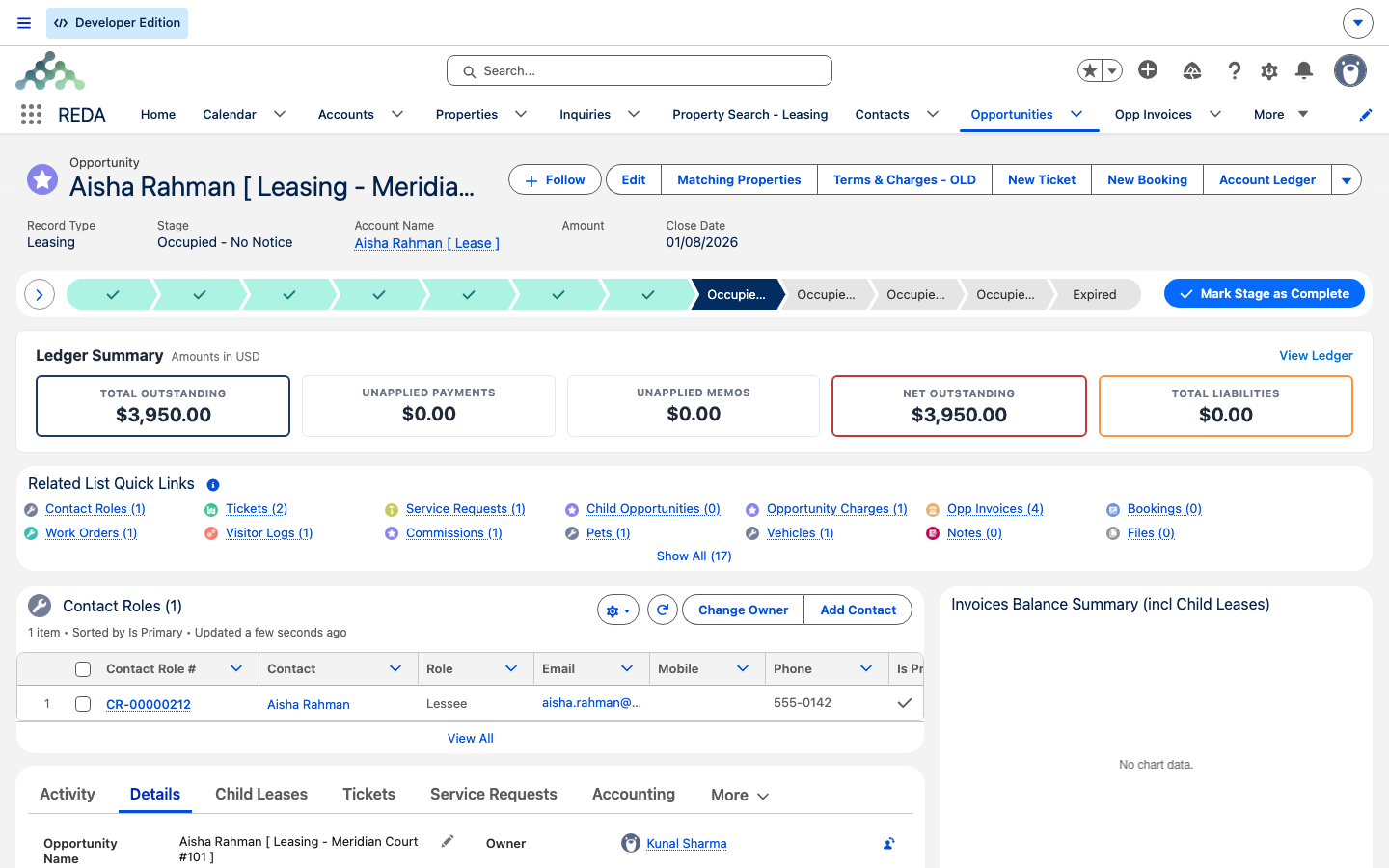
Application through the Occupied stages to Expired. This lease has advanced to Occupied - No Notice, so the earlier chips are completed and the current stage is highlighted.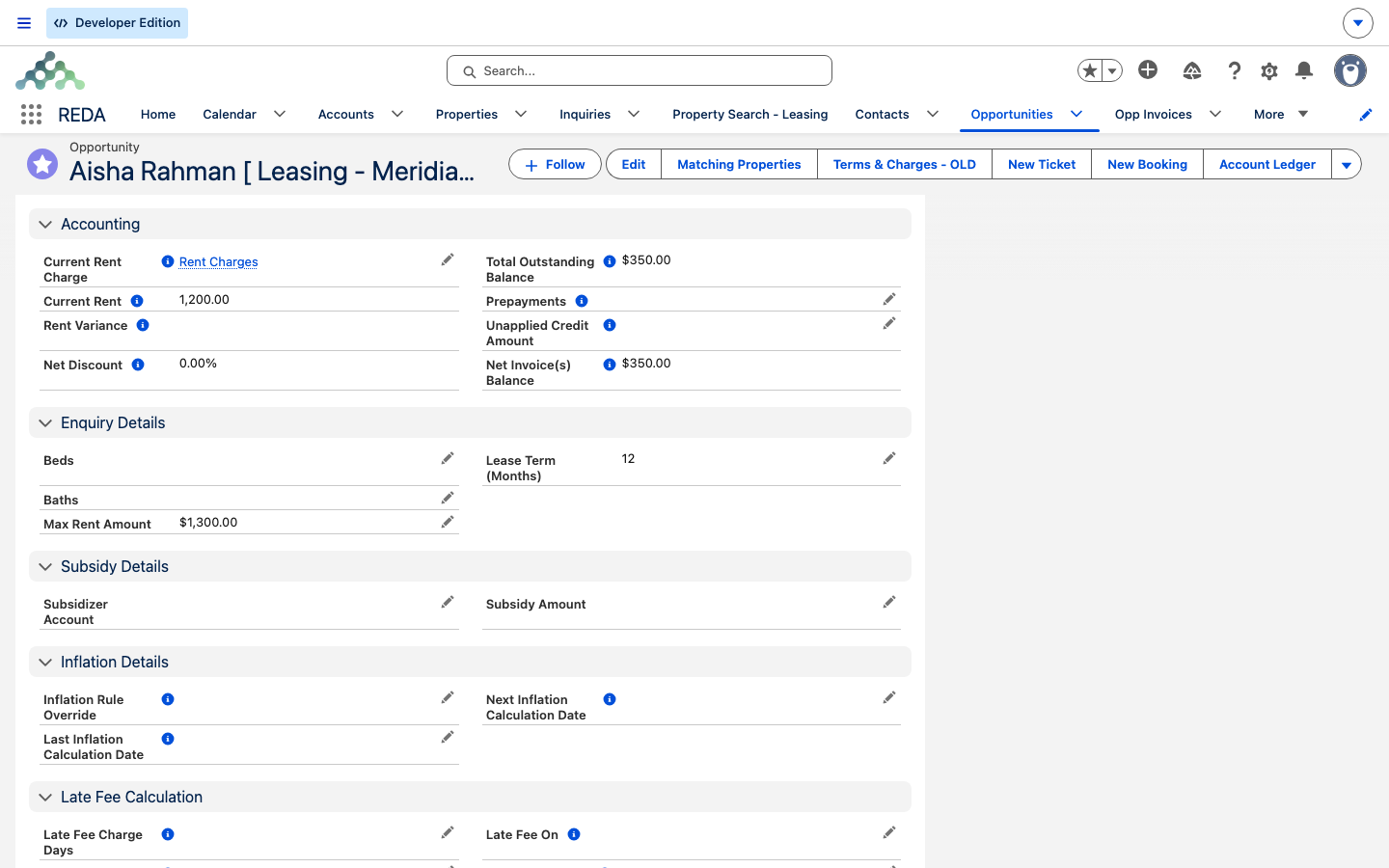
Occupied stage, billing is live: the Details tab's Accounting section carries the resolved Current Rent Charge and the running balances (Total Outstanding and Net Invoice(s) Balance both 350.00 here), so invoices generate against the lease.Full stage reference
One row per stage: its meaning, whether it counts as active, won, billable, and closed, who moves it, and what REDA does as the lease lands there.
| Stage | Active | Won | Billable | Closed | Set by | What REDA does |
|---|---|---|---|---|---|---|
Application - New | — | — | — | — | Default / conversion / Reset Lease | Nothing automatic beyond defaulting the lease from its rule |
Application - Completed | — | — | — | — | You (gated) | Application-stage charges switch on → application-fee invoices |
Application - Approved | Yes | — | — | — | You, after submitting for approval | Lease Agreement ticket created; approval-stage charges switch on; the lease locks |
Application - Denied | — | — | — | Yes | You | Denial reason recorded; lease closes (not won) |
Application - Cancelled | — | — | — | Yes | You | Lease closes (not won) |
Agreement - In Process | Yes | — | — | — | Lease Agreement ticket | — |
Occupied - Pending Move In | Yes | Yes | Yes | Yes | Lease Agreement ticket (Contract Signed / Closed) | Billing gate ON; Move In ticket; remaining charges switch on → first invoices; referral credits; portal access |
Occupied - No Notice | Yes | Yes | Yes | Yes | Move In ticket (Closed) | Actual Move In Date stamped; Renewal ticket armed when automation is on |
Occupied - Notice (Move Out) | Yes | Yes | Yes | Yes | Move Out ticket (In Process) | Scheduled Move Out stamped; property availability date computed |
Occupied - Notice (Termination) | Yes | Yes | Yes | Yes | Termination ticket | Scheduled Move Out stamped; a child Move Out ticket on close |
Occupied - Notice (Eviction) | Yes | Yes | Yes | Yes | Eviction ticket | Scheduled Move Out stamped; a child Move Out ticket on close |
Expired | — | Yes | — | Yes | Move Out ticket (Closed) | Actual Move Out stamped; billing gate OFF; future renewal tickets cancelled; portal users deactivated |
Where to go next
- From Application to Move-In — the walkthrough that drives the early stages.
- Managing an Active Lease — what to do at each occupied stage.
- Renewing a Lease — the cycle that keeps a lease at
Occupied - No Notice. - Notice, Move-Out & Lease End — the notice stages through to
Expired. - The Lease Record — the stage-derived flags and the record anatomy.
- Understanding Tickets — the automation that writes the occupancy stages.
Frequently asked questions
Application - New → Completed → Approved (or the Denied / Cancelled exits) → Agreement - In Process → Occupied - Pending Move In → Occupied - No Notice → the three notice stages (Move Out, Termination, Eviction) → Expired. Those twelve are the only stages a lease ever offers.
At Occupied - Pending Move In, when the billing gate turns on. It stays on through every Occupied stage and turns off at Expired.
That's expected. The occupancy stages are written by the lifecycle tickets — Lease Agreement, Move In, Renewal, Move Out, Termination, and Eviction — as you work them. Read the stage rather than typing it.
The Lease Start Date has to be set first: "You must provide the value of Lease Start Date prior updating the stage." Fill in the start date, then let the ticket advance the stage.
No. A lease counts as won only from the first Occupied stage onward, and it stays won through Expired. At Application - Approved it's active but not yet won.
Notice (Move Out) is a tenant's ordinary notice to leave, Notice (Termination) is an early termination, and Notice (Eviction) is an eviction. All three are Occupied, still billing, and each is driven by its own ticket.
Was this article helpful?