
Scheduling Showings
A showing is a scheduled tour of a unit for a prospective tenant. This article explains the three moving pieces behind a showing in REDA — the availability that decides when tours can happen, the calendar appointment that records one, and the inquiry status that tracks the prospect through your funnel — and shows how they fit together. You'll see how to make a property showable, where an appointment lands, and how to keep the prospect's record in step. No prior REDA experience is assumed.
Access you'll need. Working leasing inquiries requires the REDA - Property Leasing User permission set. Setting up slot rules requires REDA - Master Data - Admin. Calendar entries are standard records — access to the Events tab is granted separately by your administrator and isn't part of the REDA permission sets.
The three pieces
Every showing draws on three records that each answer a different question. Keeping them straight makes everything else clear:
| Piece | Record | Where you see it | Answers |
|---|---|---|---|
| Availability | Showing slot rule on the property | Property record / admin setup | When can tours happen? |
| Appointment | Calendar entry | The Events tab calendar | When is this tour? |
| Funnel state | Inquiry status | The inquiry's path | Where is the prospect? |
The rest of this article takes them in that order: set up availability, schedule an appointment against it, then move the inquiry along.
Making a property showable
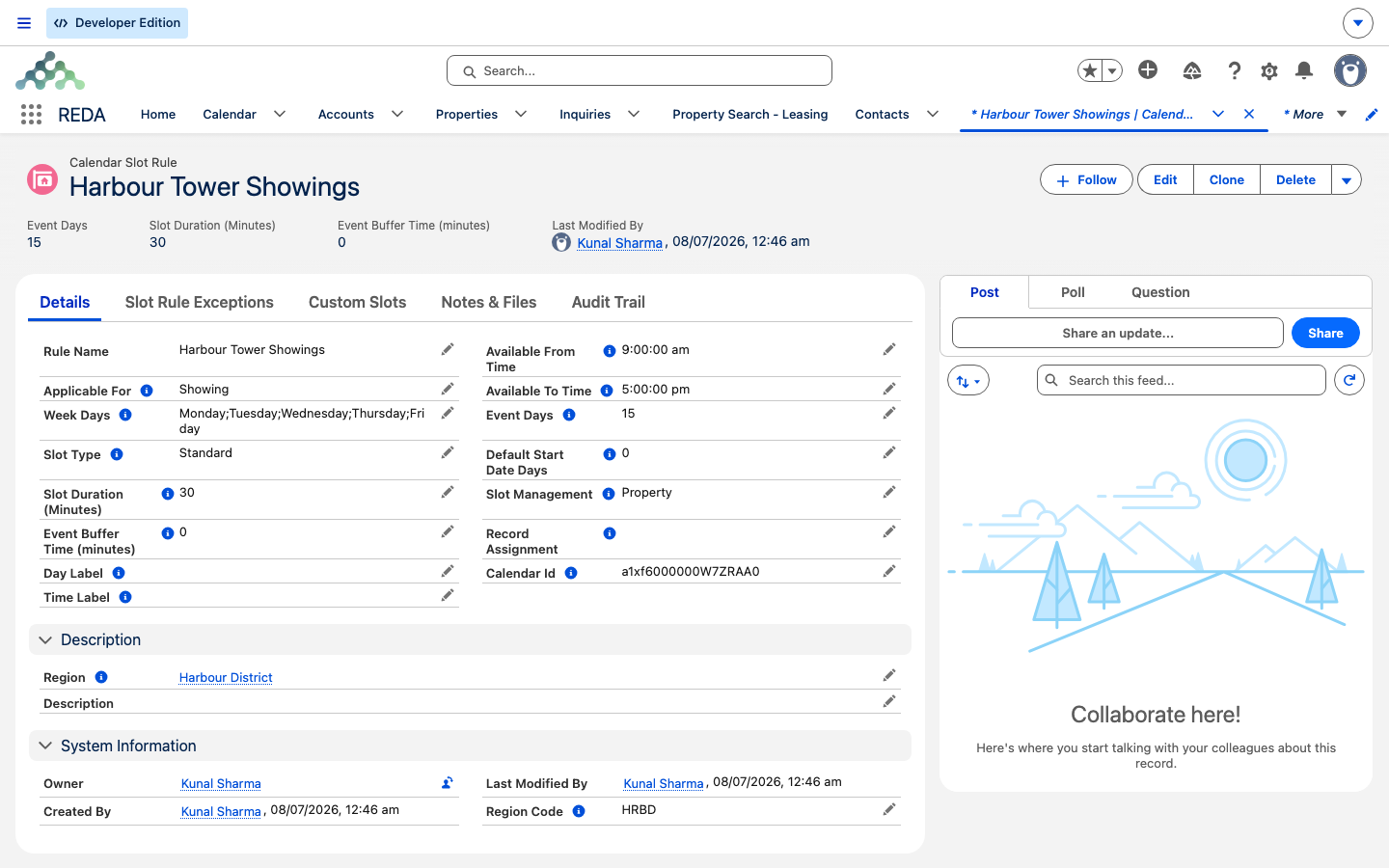
A unit offers tour times through its Showing Slot Rule — a calendar slot rule whose type is Showing. The property's showing field only accepts a Showing-type rule, so there's no risk of wiring in the wrong calendar. All the rule mechanics live in Calendar Slot Rules; here's the short version of the setup:
What the prospect is then offered follows the same computation as every other REDA calendar: busy times are removed, buffers applied, blackouts win, and past times drop off. This table is your troubleshooting reference when a slot you expect isn't showing:
| Cause | Effect on the slot |
|---|---|
| An existing non-cancelled showing | That slot is skipped; the next one starts after the tour ends plus the buffer |
| An all-day event | The whole day is gone |
| A blackout exception covering the window | The covered slots disappear |
| A day not in the rule's Week Days | That day is never offered |
| A time already past | Dropped |
| Parent management, with a busy sibling unit | Blocked building-wide |
The appointment
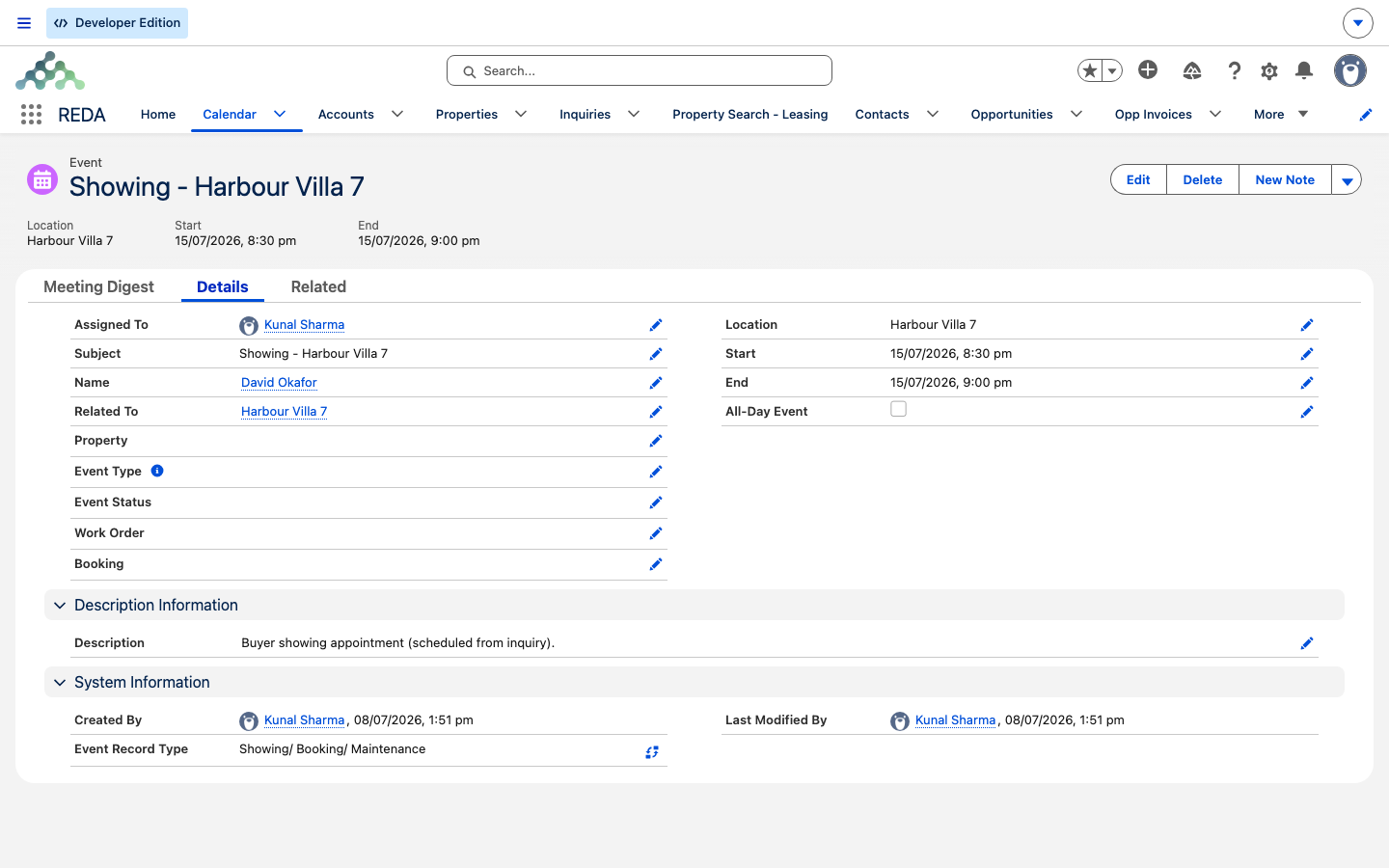
A scheduled showing is a calendar Event — it appears on the Events tab, assigned to the agent or queue named in the rule's Record Assignment. To schedule one, you check the property's available tour times (the picker already excludes busy times, buffers, blackouts, and anything in the past) and pick a slot; the appointment lands on the showings calendar for the chosen agent.
A no-show is a business call rather than a system state: the appointment simply stays on the calendar and the inquiry doesn't advance to Showing Attended. A short note on the inquiry keeps the history clear.
Tracking on the inquiry
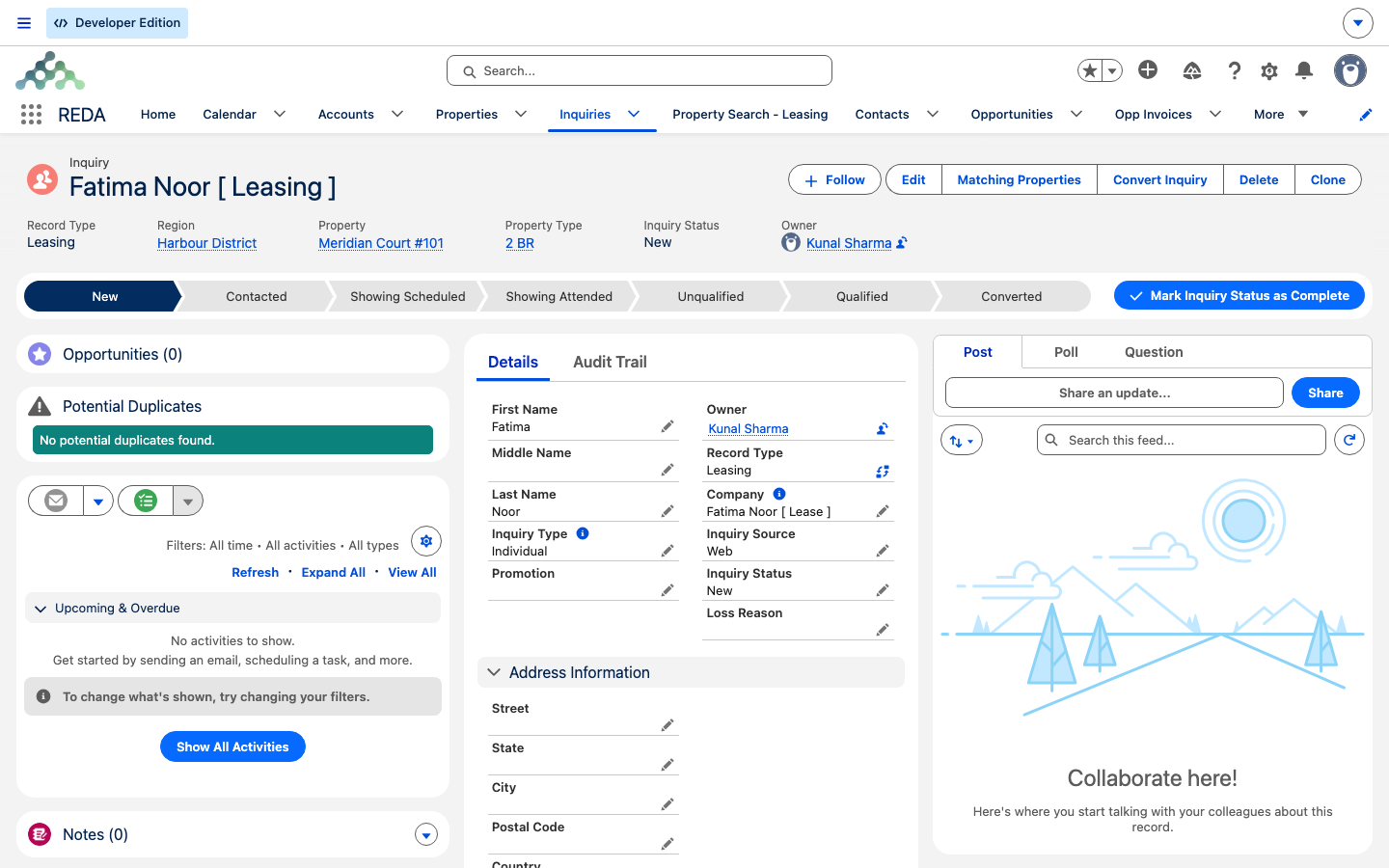
An inquiry is the prospect's record in your leasing funnel. A leasing inquiry moves through a fixed ladder of statuses, and two of them mark the showing:
New → Contacted → Showing Scheduled → Showing Attended → Qualified / Unqualified → Converted
The key thing to know is that these statuses never move on their own. After you book a tour, you set the inquiry to Showing Scheduled by hand; after the prospect visits, you set it to Showing Attended. Booking the appointment doesn't advance the funnel for you — which is exactly why an inquiry can sit in an earlier status even though the tour is on the calendar.
The Matching Properties action on the inquiry helps you shortlist the right unit to show in the first place. For the full funnel, see Qualifying Inquiries.
Tour requests from your website
Worked example: Aisha's tour
Meridian Court #101 uses the Residential Showings — Weekdays rule (09:00–17:00, 30-minute slots, 10-minute buffer, Mon–Fri, 14 days ahead — the same rule from the Calendar Slot Rules example). Prospect Aisha Rahman wants a tour:
| You do | What happens |
|---|---|
| Open Aisha's inquiry; confirm the unit with Matching Properties | The unit is shortlisted for the tour |
| Check availability and pick Thursday 10:55 (the post-buffer slot after an existing 10:00–10:45 tour) | A showing appointment lands on the calendar, assigned per the rule |
| Move the inquiry to Showing Scheduled | The funnel reflects the booked tour |
| After the tour, move it to Showing Attended | The funnel advances; continue to Qualified / Converted |
Had Aisha instead submitted "request a tour" on the website, her inquiry and its linked showing appointment would have arrived automatically, with her preferred date already filled in.
Where to go next
- Calendar Slot Rules — the rule anatomy behind every tour calendar.
- Blackouts & Slot Exceptions — closing tour times for holidays or downtime.
- Qualifying Inquiries — the status ladder this feeds.
- Understanding Inquiries — inquiry basics.
- Work Orders — the same calendar engine on the maintenance side.
Frequently asked questions
Usually one of these: no Showing-type slot rule is attached, the day you want isn't in the rule's Week Days, the look-ahead window is exhausted, an all-day event or a blackout covers the time, or — for a Custom rule — no custom slots have been defined. Work down the "what hides a slot" table above.
Inquiry statuses never move automatically. Booking a showing doesn't advance the funnel — set the inquiry to Showing Scheduled (and later Showing Attended) yourself.
The rule's Applicable For must be Showing. Each property field accepts only its own rule type, so a Booking rule won't appear in the Showing Slot Rule lookup.
The rule's Slot Management is Parent — one shared busy calendar for the whole building. Switch it to Property if each unit should have an independent tour calendar.
An inquiry carrying the requested tour details, plus a linked showing calendar entry. This happens when your organization runs REDA's website extensions.
Yes — set the slot rule's Record Assignment to that agent (or a queue), and every generated appointment is assigned to them.
Yes. Only non-cancelled events count as busy, so cancelling a showing returns its slot to the picker with no extra step.
Was this article helpful?