
Email Services: Setup & Enablement
This is the administrator's runbook for switching on REDA Email Services — the inbound capability that auto-syncs customer email onto records and turns email into Inquiries and Service Requests. Enablement is a short, ordered sequence: assign a permission set, activate the inbound email service and obtain the address Salesforce generates for it, point your mail flow at that address, and set a handful of configuration records and page-layout fields. There's no single org-wide switch to flip — activating the email service and routing mail to it is the enablement. Work through the steps below in order and you'll have all three capabilities live.
Before you start
- The REDA OEM package is installed in your org (its objects, permission set, tab, record page, and configuration records are present).
- You have Setup access to create Email Services, edit custom metadata, and edit page layouts.
- You've chosen a context user — a licensed Salesforce user the intake will run as. This user needs the permission set (Step 2) and should be a stable, non-personal account.
- Your mail administrator (Google Workspace or Microsoft 365) is available to set up a copy or redirect rule (Step 4).
Enablement, step by step
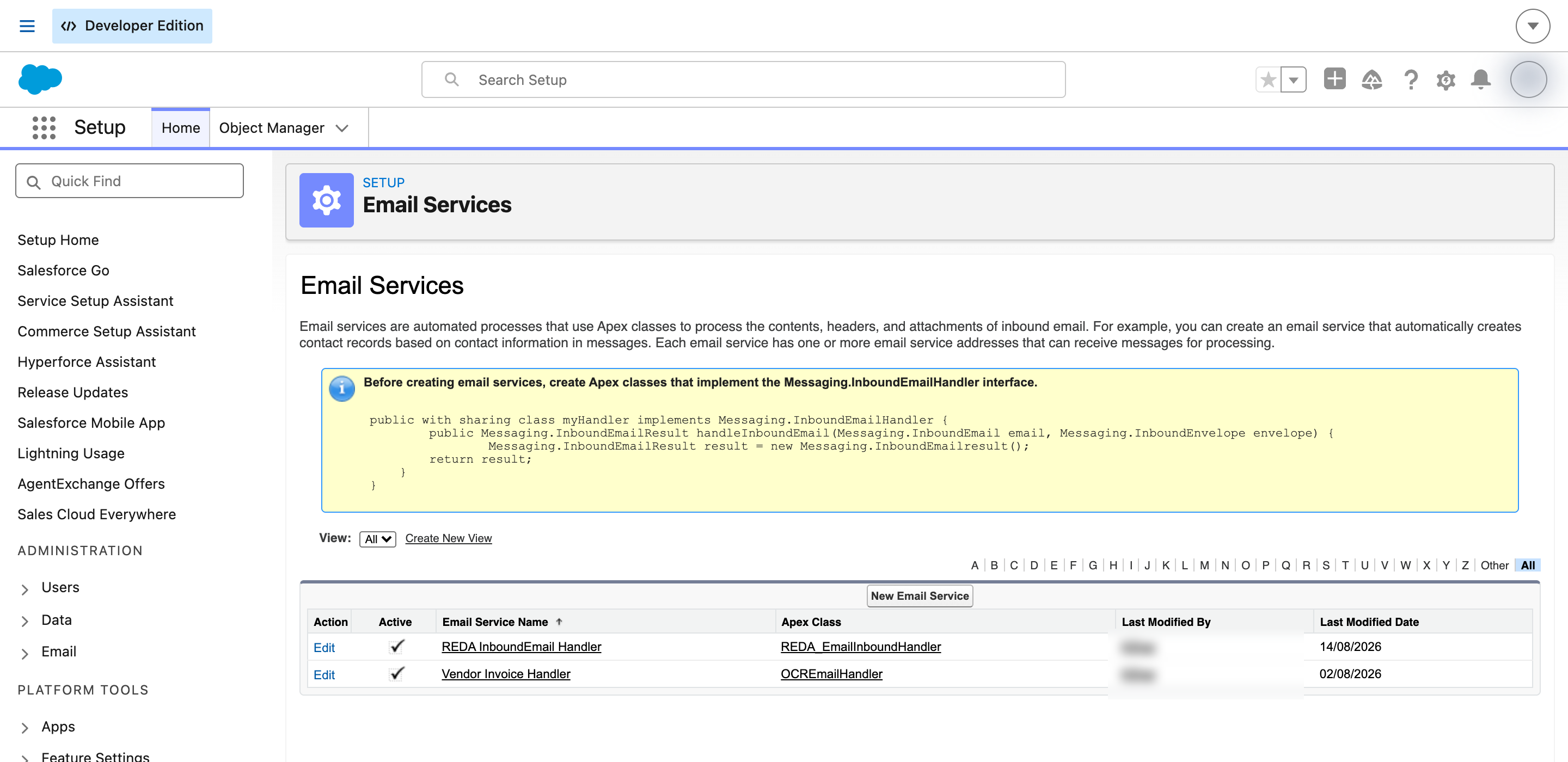
REDA_Email_Integration permission set. Assign REDA - Email Integration to the context user and to every triage admin or agent who will work the queue. See Who gets the permission set below for guidance on personas.…@…apex.salesforce.com address — this address is provisioned per org and is not shipped in the package.Who gets the permission set
Access to Email Services is granted entirely through the REDA - Email Integration permission set (API name REDA_Email_Integration). It grants create/read/edit/delete and tab visibility on the Unmatched Email object, edit access to the two contact-routing fields, and the underlying processing components. Two personas need it:
| Persona | Why they need it |
|---|---|
| Context user (the account the intake runs as) | The inbound processing runs as this user; it must be able to create Unmatched Email records and read the routing fields. Assign the permission set here first. |
| Triage admins / agents | Anyone who works the Unmatched Email queue — opening held emails, matching them to records, or ignoring them — needs the tab, the records, and the Match-to-Record panel. |
The inbound email-service settings
When you open the REDA InboundEmail Handler email service in Step 3, set it up as follows. The processing logic ships with the package; you're confirming the runtime settings and adding the address.
| Setting | Set it to | Why |
|---|---|---|
| Processing handler | Provided by the package — not something you configure | This is what reads each message and files or creates records. It ships with the install; there's nothing to build or select. |
| Active | Checked | The service must be active to receive mail. |
| Accept Attachments | All | So customer attachments are captured and saved to the record's Files. Anything less drops attachments. |
| Over-limit action | Requeue | If daily processing limits are hit, mail is requeued rather than lost. Never set this to Discard. |
| Advanced Email Security | Unchecked (authentication not required) | Leave off unless you have a specific reason; requiring authentication can reject legitimate copied mail. |
| Deactivated-address / deactivated-service / authentication-failure / authorization-failure actions | Choose deliberately — Bounce is the recommended, sender-visible choice | A fresh setup may show these as Discard, which silently drops mail. The package does not enforce a choice here, so set each one on purpose. Bounce tells the sender something went wrong; Discard hides it. |
Routing your mail to Salesforce
REDA doesn't log into your mail provider; instead, your mail system delivers a copy of inbound mail to the Salesforce email-service address. The how matters:
| Method | Use it? | Notes |
|---|---|---|
| Server-side copy (Bcc / "also deliver to") | Recommended | Delivers a copy to Salesforce while the original still reaches your mailbox. Preserves the real sender, which matching depends on. |
| Server-side redirect | Acceptable | Redirects the message to Salesforce, preserving the original sender. Use where a copy isn't available. |
| Personal / client Forward | Do not use | A forward rewrites the From address to the forwarder, so every message looks like it came from staff — matching fails and everything lands in the Unmatched queue. |
Set the copy or redirect rule up in Google Workspace routing or a Microsoft 365 mail-flow rule, targeting the address you copied in Step 3. Your mail administrator owns this piece; REDA only receives what your mail system sends it.
The internal-domains record
REDA needs to know which email domains are yours, so it can tell a customer's message from internal staff mail and route accordingly. That list lives in a single internal-domains configuration record.
Page-layout fields
A few fields need to be visible on the right layouts so both routing and triage work. Add these:
| Object / layout | Field | What it does |
|---|---|---|
| Region | Omni Inbox Contact | The regional default Contact that Inquiry-email activities are logged against when the sender isn't a known Contact. |
| Inquiry | Omni Inbox Contact (Override) | A per-Inquiry override of the regional default, for when a specific Inquiry should route its email activity to a different Contact. |
| Inquiry | Inquiry Source (confirm present), Email | So email-created Inquiries are attributed to the Email source and the sender's address is visible. |
| Service Request | Subject, Description, Contact | The fields intake populates from an email — its subject, its body, and the linked sender Contact when known. |
Intake configuration (Email-to-Inquiry / -to-Service-Request)
Auto-Sync needs no per-address configuration — activating the service and routing mail is enough. The two intake capabilities do: each intake address is defined by one configuration record that says which address it is and whether it creates an Inquiry or a Service Request. The package ships two example rows to show the shape:
| Example row | Intake type | Meaning |
|---|---|---|
| REDA Example - Leasing | Inquiry | Mail to the leasing intake address creates a new Inquiry. |
| REDA Example - Support | Service Request | Mail to the support intake address creates a new Service Request. |
Replace these examples with your real intake addresses — one active configuration row per address, each set to the correct intake type. Each row can also carry a record type and default field values for the records it creates. The behavior of each capability is covered in Email-to-Inquiry and Email-to-Service-Request.
reda.example. Those aren't real addresses — they're there to illustrate the format. Nothing routes to them until you replace them with your own intake addresses.
The configuration rows are a Custom Metadata Type, Email Service Config, so they live in org setup rather than in a REDA tab. Each row carries:
| Field | What to put in it |
|---|---|
| Email Service Address | The intake address itself — the one your mail flow routes to. |
| Intake Type | Inquiry or Service Request: what mail to this address creates. |
| Record Type Developer Name | Optional. The record type to give the records it creates. |
| Default Field Values (JSON) | Optional. Field values to stamp on every record created from this address. |
| Active | Clear this to stop an address without deleting its row. |
Verifying it works
Once the steps are done, confirm each capability end to end:
Where to go next
- REDA Email Services: Overview — the big picture and how the three capabilities relate.
- Email Auto-Sync — the matching order and reply threading in detail.
- Email-to-Inquiry — intake-to-Inquiry behavior and dedupe.
- Email-to-Service-Request — intake-to-Service-Request behavior.
- Triage: the Unmatched Email Queue — working held messages.
- Email Services: Troubleshooting — when mail doesn't arrive or lands unmatched.
Frequently asked questions
Salesforce generates it when you add an email address under the service after install — it's provisioned per org and isn't shipped in the package. Activate the service, add an address, and copy the generated …apex.salesforce.com address it gives you.
No. Activating the inbound email service and routing your mail to its address is the enablement — there's no separate "sync" toggle to find.
Use a server-side copy (Bcc / also-deliver-to) or a redirect in Google Workspace or Microsoft 365 — not a personal Forward. A forward rewrites the sender, which breaks matching and sends everything to the Unmatched queue.
It ships as a placeholder. Until you set it to your organization's real email domains, REDA can't reliably tell internal staff mail from customer mail, so replacing it is required.
Set the over-limit action to Requeue, and set the deactivated-address, deactivated-service, and authentication/authorization-failure actions deliberately — Bounce is recommended so senders are told, rather than Discard, which silently drops mail.
Was this article helpful?