
Implementation Roadmap
REDA's setup data is a dependency chain: leasing rules reference charge codes and regions, properties reference rules and types, rent depends on all of it. Build it out of order and REDA stops you with a validation message. This roadmap walks a fresh org through setup in the order that always works — regions first, then the billing vocabulary, the policy rules, the property classifications, the properties themselves, then rent, then the optional engines, and finally people and go-live. Each phase names the exact tab it lives on and links to that object's deep-dive article. Work it top to bottom and you won't hit a dependency wall.
Access you'll need. Setting up master data requires the REDA - Master Data - Admin permission set; REDA - Master Data - Read Only can view but not change it. One exception: Settlement Codes can also be edited by REDA - Property Acquisition User.
Why order matters
Master data in REDA isn't a flat list of settings — it's a chain, where each layer leans on the one before it. A leasing rule belongs to a region and points at charge codes; a property points at a type and a rule; a property can't be made leasable until it has a rent charge period. REDA enforces those dependencies with validation rules, so building out of order doesn't quietly half-work — it blocks the save. Try to mark a property available for leasing before its rent is set up, for instance, and you'll see:
The roadmap below is sequenced precisely to keep you ahead of those checks. There's one small loop to be aware of — a region wants a default leasing rule, but rules are built after regions — and the walkthrough calls it out where it happens.
The roadmap at a glance
Nine phases, each on its own tab. Tick them off as you go — your progress is saved on this page.
- Phase 1 — Regions. Your operating geographies, currency, and default leasing rule. Tab: Regions.
- Phase 2 — Charge Codes. The billing vocabulary rules will reference. Tabs: Charge Codes (and Settlement Codes if you sell).
- Phase 3 — Leasing Rules. The policy engine for leases. Tab: Leasing Rules.
- Phase 4 — Property Types & Amenity Codes. Classification and shared amenities. Tabs: Property Types · Amenity Codes.
- Phase 5 — Properties. Buildings first, then units. Tab: Properties.
- Phase 6 — Rent cards. Per-term pricing on each property.
- Phase 7 — Optional rule engines. Commissions, inflation, profit and holding, calendar slots, inspections.
- Phase 8 — People & access. Assign permission sets per role.
- Phase 9 — Go live. Schedule jobs, set flags, clean sample data.
Phase 1 — Regions
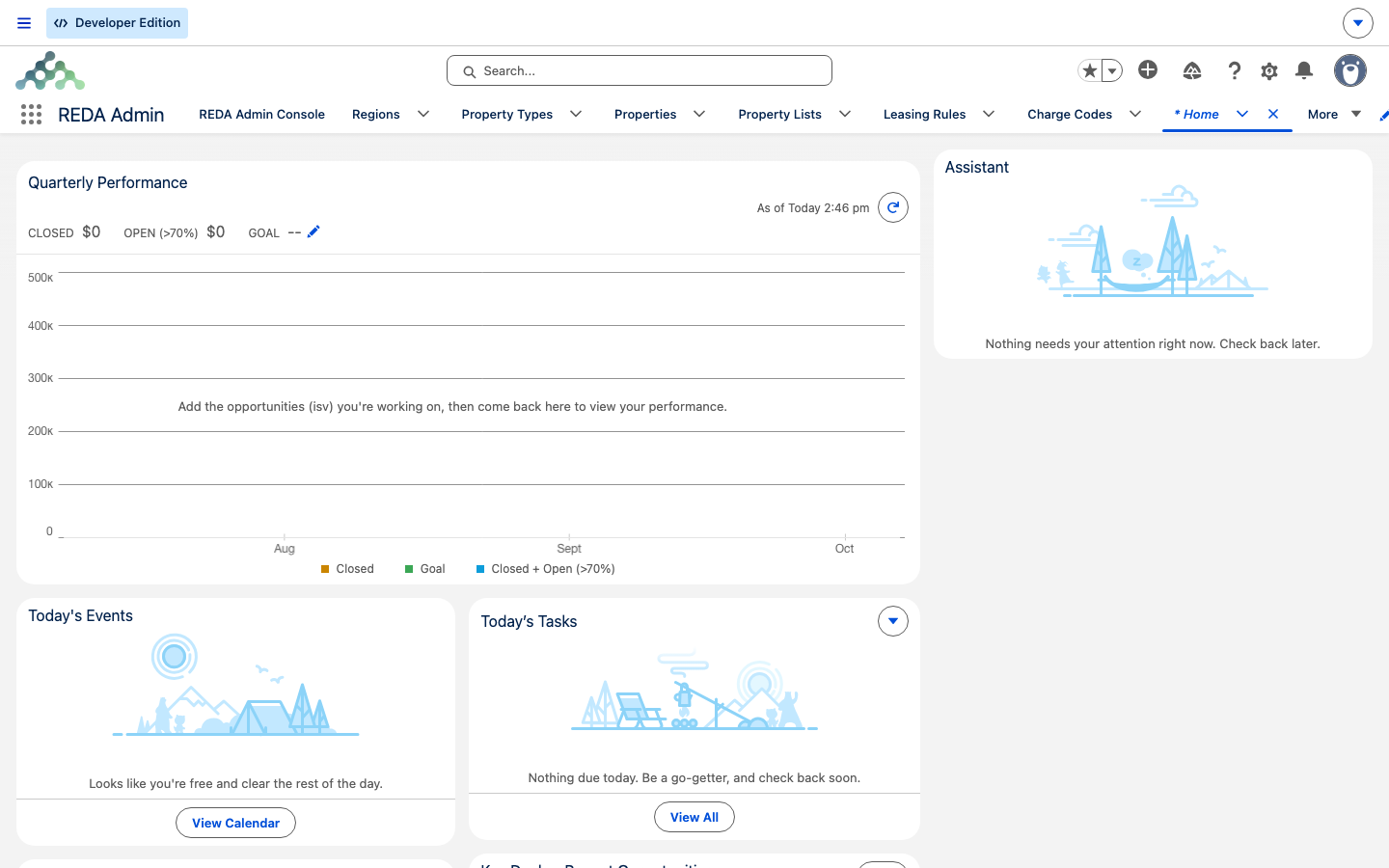
A Region is an operating geography — a market you do business in. Start here because a region sets the currency that every record beneath it inherits, supplies a default leasing rule as a fallback, controls record visibility, drives resident-portal setup, and provides the showing calendar. It also stamps a short Region Unique Code onto many child records automatically, so keep that code short and deliberate — you'll see it in a lot of places.
See Regions for the full field walkthrough. If your org runs multiple currencies, note that a region additionally requires a currency ("Currency is required when Multi-Currency is enabled.") and that portal-enabled regions require a portal profile ("Resident Portal User Profile Id must be provided if the region has a active resident portal.").
Phase 2 — Billing vocabulary: Charge Codes
A Charge Code is a line of your billing vocabulary — rent, admin fee, late fee, and so on — carrying how it's grouped, whether it's a pass-through, and any grace days. You build charge codes before leasing rules because rules reference them (a booking charge code, a month-to-month fee code, late-fee handling). Set up the codes your business bills against on the Charge Codes tab; see Charge Codes for the required fields.
If you run Property Sales, this is also where you set up Settlement Codes on their own tab — the one setup catalog an operational set (Property Acquisition User) can edit. Skip them if you don't sell.
Phase 3 — Leasing Rules
A Leasing Rule is REDA's policy engine for leases: proration, end-of-month handling, multi-year step-ups, late fees, month-to-month terms, the recurring billing cycle, straight-line accounting, and the referral and booking charge codes. It's the biggest functional lever in the whole setup, and it references the region and charge codes you just built. Build your rules on the Leasing Rules tab — see Leasing Rules for the full field-by-field guide — then return to Phase 1 and set each region's default rule.
Phase 4 — Property Types & Amenity Codes
A Property Type classifies a property, and its Is Building/Community flag has real structural consequences: a building or community needs a Property Code, cannot have a parent property, and is left out of property-level inflation runs. Set your types up on the Property Types tab before you create any properties, so each property has a type to point at.
Amenity Codes are a shared catalog on their own tab. Only amenities that are active and flagged "Addition To Rent" will raise rent later, so define them deliberately.
Phase 5 — Properties
Now build the properties. The order within this phase matters too: create buildings and communities first, then the units beneath them.
Properties live on the Properties tab (also reachable from the REDA app). Deep dive: Making a Property Leasable. For booking-ready properties you'll also need a Booking Type and a rule with a booking charge code — REDA will remind you with "Provide Leasing Rule and the Leasing Rule should be associated to the Booking Charge Code to mark this Property Available for Booking." and "Booking Type must be provided to make Property Available for Booking."
If your org uses multiple currencies, the property's region must match its rule's region: "Property Region must match Leasing Rule Region when Multi-Currency is enabled."
Phase 6 — Rent cards
A rent card (rent charge setup) sets per-term rent on a property — for example a rate for a 12-month lease and another for a 6-month lease, with separate new-tenant and renewal rents. Rent cards feed the leasing search and the Terms & Charges editor. You set them up on the property's Leasing | PM | Booking tab. Deep dive: Rent Charge Setups.
Phase 7 — Optional rule engines
These are optional and can come later — turn on only what your business needs:
| Engine | What it does | Deep dive |
|---|---|---|
| Commission Rules | Commission calculation, items, and splits | Commissions |
| Inflation Rules | Rent escalation — but you must also add a monthly index entry, or runs report the index missing for that period | Inflation Adjustment |
| Profit & Holding Rules | Acquisition-side calculations | Profit & Holding Rules |
| Calendar Slot Rules | Availability for showings, bookings, and maintenance | Calendar Slot Rules |
| Inspection catalog | Item masters, locations, and templates for inspections | Inspection Setup |
Phase 8 — People & access
With the data in place, assign people their access. Match each role to its permission set — the persona table in Permission Sets & Personas is your starting point, and What Access Do I Need? is the lookup your users send you when they're blocked. Remember that Accounts, Contacts, reports, and the guided-action buttons are granted separately, at the organization level, not by any REDA set.
Phase 9 — Go live
The final phase is the launch gate — and it holds REDA's single most important setup fact: the jobs that run your business aren't scheduled when REDA is installed. Rent won't invoice, late fees won't accrue, inflation won't apply, and inspections won't recur until an administrator schedules each one. A fresh org runs only two schedules on its own — a payment-schedule posting run and a calendar-slot top-up — and neither bills anyone; everything that moves money or recurs on a lease is a deliberate scheduling step you take here. That, plus extension flags, web-form connections, and sample-data cleanup, is a checklist of its own: Go-Live Checklist. Do not skip it.
Dependency errors, at a glance
If you do get ahead of yourself, here's the safety net — the message you'll see and the phase that clears it.
| You tried to… | You'll see |
|---|---|
| Mark a property leasable with no rent | "Rent Charge Period must be provided if property is available for Leasing." |
| Attach a rule from another region | "Invalid leasing rule. The selected leasing rule can only be assigned to the region provided on leasing rule." |
| Save a building without a code | "Property Code is required for Buildings/Communities." |
| Give a building a parent | "Parent property cannot be provided for building or communities." |
| Make a property bookable without booking config | "Booking Type must be provided to make Property Available for Booking." |
| Set an ownership date without an owner | "The Owner Account must be provided if the Ownership Start Date is specified." |
Worked example: Meridian's setup, end to end
Meridian Properties runs a single-currency operation. Here's their setup threaded through the roadmap:
The same Meridian company continues into Go-Live Checklist, where the first rent invoice for Meridian Court #101 finally appears.
Where to go next
- Go-Live Checklist — the launch gate; schedule the jobs or nothing bills.
- Regions — Phase 1 in full.
- Charge Codes — Phase 2 in full.
- Leasing Rules — the policy engine, field by field.
- Making a Property Leasable — Phase 5's validation chain in depth.
- Testing REDA in a Sandbox — try the whole roadmap safely first.
Frequently asked questions
It needs a rent charge period first: "Rent Charge Period must be provided if property is available for Leasing." Finish the chain — Region, then Leasing Rule, then a rent card — before flipping the property leasable.
The rule belongs to a different region: "Invalid leasing rule. The selected leasing rule can only be assigned to the region provided on leasing rule." Pick a rule built for this region, or build one.
Its Property Type has the Is Building/Community flag on, and those require a code: "Property Code is required for Buildings/Communities." Provide the code, and remember such properties can't have a parent.
No — Phase 7 engines are optional and can come later. The mandatory tail is people and access (Phase 8) and the go-live checklist (Phase 9). Turn on the optional engines when your business needs them.
Because the background jobs aren't scheduled by installation — an administrator must schedule them. Nothing bills on a timer until then. See Go-Live Checklist.
Was this article helpful?