
Converting an Inquiry
Conversion is the payoff. One click turns a qualified inquiry into a working deal — and it does more than flip a status: REDA creates the customer's Account, their Contact, the Opportunity (the deal itself), and the primary Contact Role that links the person to the deal. This article shows you how to run Convert Inquiry, which records get created and which can be reused, why the whole thing succeeds or fails as one unit, what carries onto the new deal, and how to read the three errors you might meet. No prior REDA experience is assumed.
Access you'll need. Converting requires one of the line-of-business permission sets — REDA - Property Leasing User, REDA - Property Sales User, REDA - Property Acquisition User, REDA - Property Management User, or REDA - Property Lending User. Because conversion creates a new Account and Contact, you also need your org's standard access to create those records.
What Convert does
Converting a qualified inquiry creates four records in one motion:
- An Account — the customer as an organization or household on your books.
- A Contact — the person, with their name, email, phone, and address.
- An Opportunity — the deal: a lease, a purchase, a loan, a sale, or a management agreement, depending on the inquiry type.
- A primary Contact Role — the link that says "this contact plays this role on this deal."
They are created together, in that order, and — this is the important part — either all of them appear or none of them do.
Before you click
A minute of preparation saves a failed conversion:
The Convert dialog
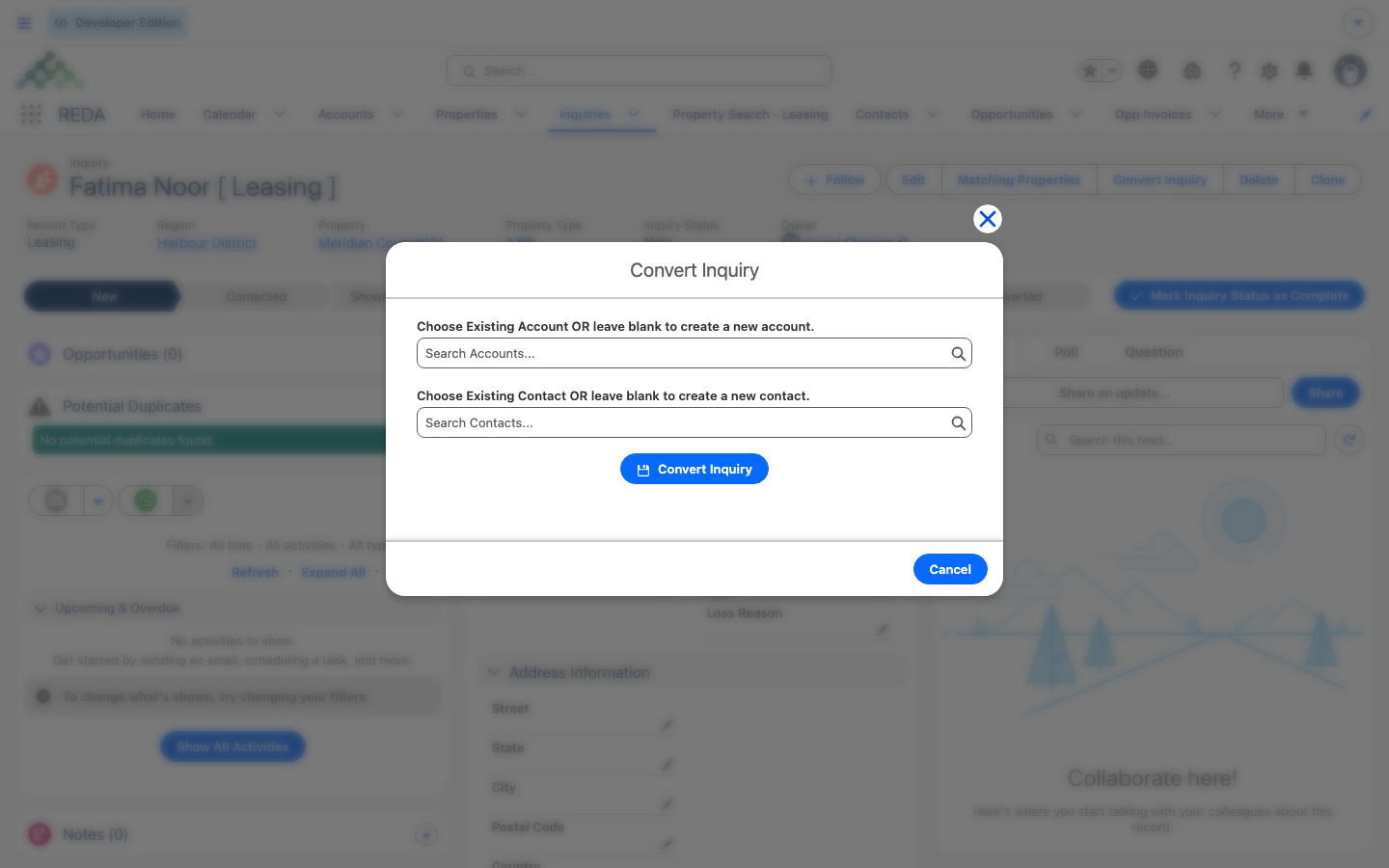
The dialog offers two optional pickers. Leave a picker blank and REDA creates a fresh record; choose an existing one and REDA reuses it. This is how you avoid duplicates for a customer you already know — searching before converting (step 2 above) tells you which to pick. When you're set, the Convert Inquiry button runs the conversion; a success toast confirms it and you're redirected to the new deal:
What gets created
REDA creates the four records in a fixed order: Account (unless you picked one) → Contact (unless you picked one) → Opportunity (always new) → Contact Role (always new, flagged primary). A few details are set for you along the way:
- The deal matches the inquiry's line of business. A Leasing inquiry creates a Leasing deal, an Acquisition inquiry an Acquisition deal, and so on.
- The primary role fits the deal type. The contact role defaults to the natural role: Lessee on a lease, Buyer on a sale, Seller on an acquisition, Lender on a loan, and PM Client on a management deal.
- The deal opens at its starting stage. Leasing deals start at Application - New; Property Sale deals at Property Selection; Acquisition at Qualification; Lending and Property Management at Prospecting. The deal's lifecycle begins fresh, regardless of how far the inquiry got.
- The inquiry is stamped as converted. Its status becomes the converted value your administrator configured — out of the box, that's Converted — and it links back to the new deal.
All-or-nothing
The whole conversion runs as a single transaction. If anything fails at any point, REDA rolls the entire thing back — you never end up with "half a conversion" where an Account exists but the deal doesn't. In practice, this means a single error message tells you that nothing was created; fix the cause and convert again.
What carries over (and what doesn't)
Conversion spreads the inquiry's information across the new records. Identity lands on the Contact and Account; the deal picks up everything about the property, the terms, and the analysis. Here's the shape of it:
| Group | Carries to the deal? | Details |
|---|---|---|
| Who (names, email, phone, address) | No — lands on the Contact/Account | The Contact gets the identity and address fields; the Account gets Company, Phone, Inquiry Type, and Region |
| Property interest | Yes | Property, Property Type, Neighbourhood, Region, address and zip |
| Move In Date | Yes — writes three deal fields | Close Date, Lease Start Date, and Scheduled Move In Date |
| Leasing terms | Yes | Lease Term (Months), Max Rent Amount |
| Unit specs | Yes | Beds, Baths, Built Area, Gross Area, Parking, Parcel #, Year Built |
| Acquisition underwriting | Yes | Acq Type, Asking Price, ARV, the three cost estimates, Estimated Rent, Exit Strategy, Loan on Property, Profit & Holding Rule, condition notes, Underwrite Date, Reason for Selling |
| Source & referrals | Yes | Inquiry Source; Referral Account, Referral Fee, Referral Ticket |
| Marketing attribution (UTM, click IDs, web context) | No — stays on the inquiry | Report through the inquiry linkage; see Marketing Attribution |
| Notes, Description, Loss Reason | No | Stay on the inquiry |
| Maximum Allowed Offer (MAO) | Recomputed, not copied | The same formula recalculates on the deal |
The Move In Date writing three fields at once is worth remembering — it's why a freshly converted lease already carries its close, start, and scheduled-move-in dates.
After conversion
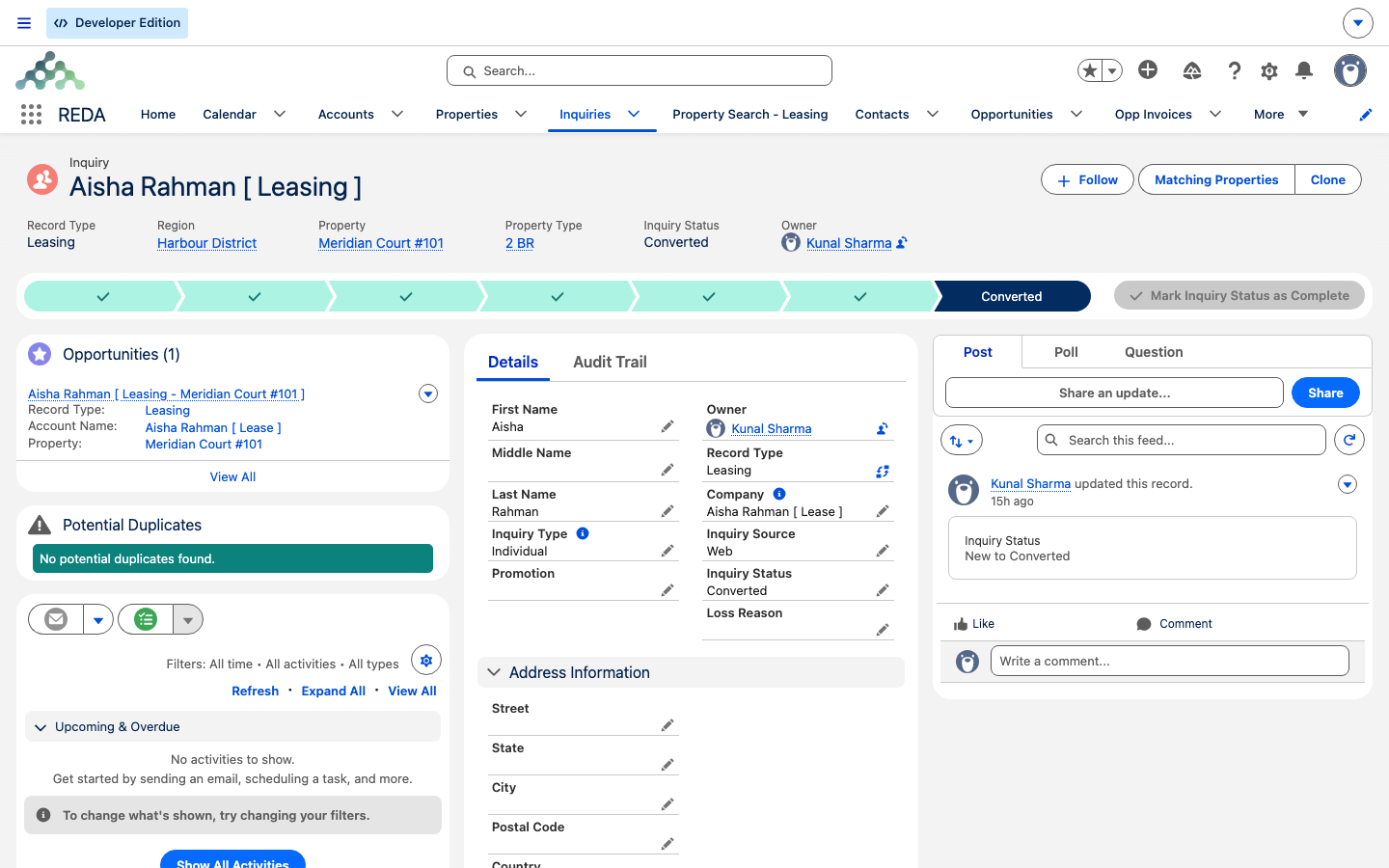
Once the inquiry is converted, the Convert Inquiry button disappears and the inquiry's status reads Converted (or whatever your admin renamed it to). The new deal links back to the source inquiry, and the inquiry's Opportunities related list shows the deal — so you can always trace one to the other. There's no separate "read-only" lock on the inquiry, but you can't re-run Convert, and you can't hand-set the Converted status: "Please convert inquiry prior updating status to "Converted"." If you reopen the Convert action from a stale tab on an already-converted record, REDA tells you plainly:
Worked example: converting Aisha
Aisha Rahman's inquiry (Aisha Rahman [ Leasing ]) is Qualified: Move In Date 1 Aug 2026, Lease Term 12, property Meridian Court #101. The agent clicks Convert Inquiry, leaves both pickers blank (she's a new customer), and clicks Convert Inquiry again. The toast confirms, and they land on a new lease — Aisha Rahman [ Leasing - Meridian Court #101 ] — at stage Application - New, with Close Date, Lease Start Date, and Scheduled Move In Date all set to 1 Aug 2026. A new Account (Aisha Rahman [ Lease ]), a Contact (Aisha Rahman), and a primary Lessee contact role are attached. The inquiry now reads Converted and shows no Convert button.
Reference: the three errors
| When | Message | Fix |
|---|---|---|
| Opening Convert on an already-converted or inaccessible record | "Bad Request. Either the inquiry is already converted OR you do not have sufficient privileges to convert an inquiry. Please contact your system administrator." | Check the status; if it's not converted, ask your admin about access |
| Converting a leasing inquiry without a move-in date or lease term | "Move-in date and lease terms must be provided prior to converting the leasing inquiry." | Fill Move In Date and Lease Term, then convert again — nothing was created |
| Hand-picking the Converted status | "Please convert inquiry prior updating status to "Converted"." | Use the Convert Inquiry action instead |
Where to go next
- Opportunities: the Deal Hub — what the new deal is and how its stages work.
- From Application to Move-In — the leasing lifecycle that begins right after conversion.
- Qualifying & Working Inquiries — the readiness step, including the leasing date/term requirement.
- Marketing Attribution — why the UTM fields stay on the inquiry.
- Customizing Conversion — for admins, how to change what maps where.
Frequently asked questions
No. Conversion is all-or-nothing: an error means everything was rolled back and no records were created. Fix the cause and convert again.
A leasing inquiry needs both before it can become a lease. The check runs as conversion completes, so fill Move In Date and Lease Term on the inquiry first.
The inquiry is already converted (often a stale browser tab) or you lack access to convert. Refresh and check the status; if it isn't converted, ask your administrator about your access.
Reuse is manual. Search for the customer before converting, then pick the existing Account and Contact in the dialog. Nothing auto-matches, so leaving the pickers blank creates new records.
Attribution stays on the inquiry by design. Report on it through the link between the deal and its source inquiry — see Marketing Attribution.
Conversion drops each deal type at its opening stage — Leasing at Application - New, Property Sale at Property Selection, others at their type default — regardless of how far the inquiry got. The deal's lifecycle starts fresh.
Was this article helpful?