
Sending Email from REDA
You can email a tenant, buyer, owner, or vendor without leaving REDA — straight from a contact or deal record — and every send is logged automatically to that record's timeline, so the whole team can see the correspondence. This article covers sending an email from a record, inserting a template, choosing the From address, and understanding where the email goes afterward. This is the one-to-one, record-level email guide; sending to many people at once (the council mass-email path) is covered separately and linked at the end.
Access you'll need. Sending email needs your own address configured in your Salesforce profile and org-wide email deliverability enabled — both are set by your administrator. You'll also need standard access to the record you're emailing from (Contact and Account access are granted org-side).
What sending email from REDA does
The point of emailing from within REDA is context and memory. You email people from the record that's about them, and REDA keeps a copy on that record. Nobody has to dig through a personal inbox to find out what was said — the send lands on the timeline for everyone with access to see.
Sending an email from a record
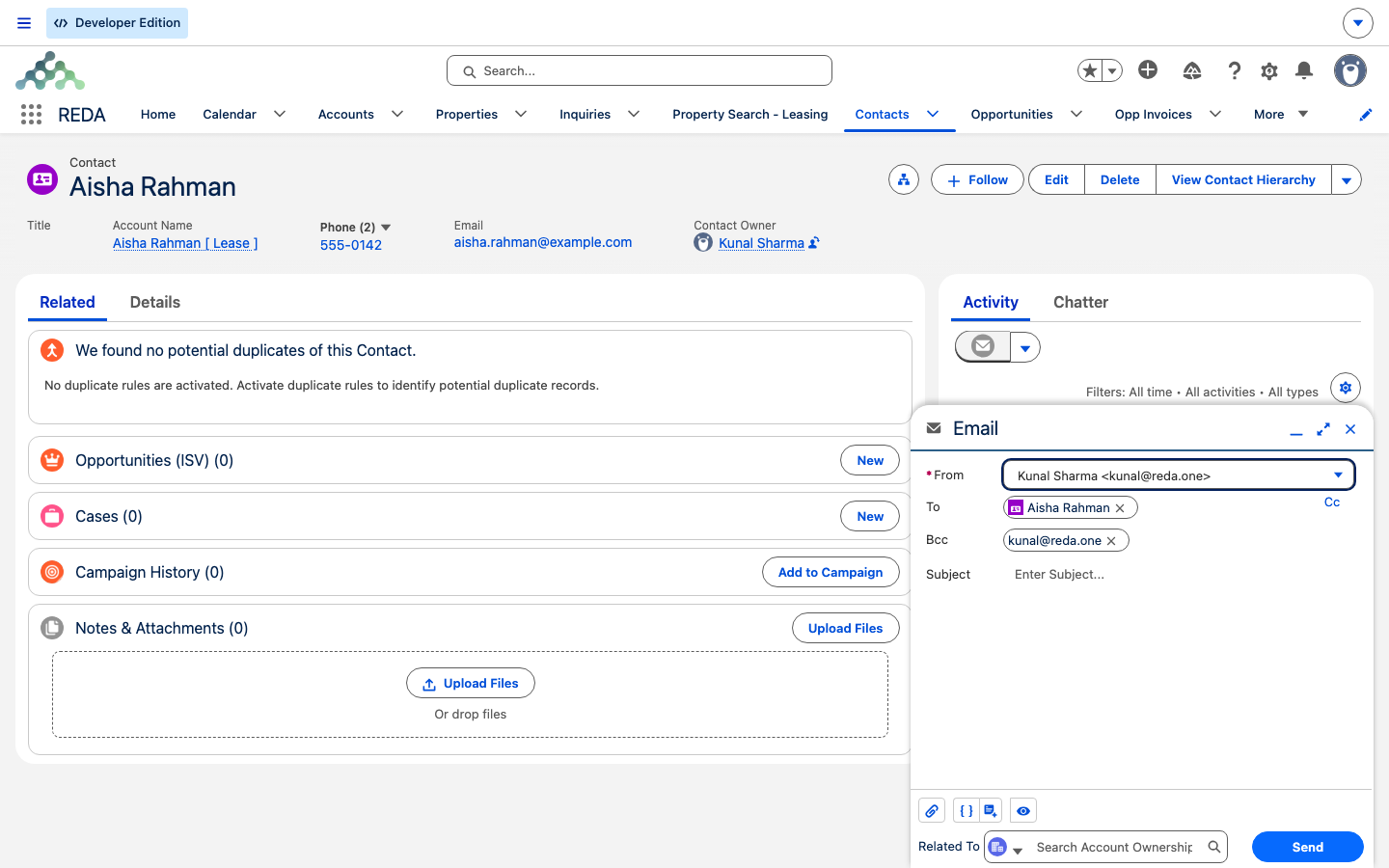
From a record's Activity composer, the Send Email tab lets you compose against Contact, Account, Inquiry, and Opportunity records:
See The Calendar & Activity Timeline for how the sent email appears afterward.
Using an email template
Insert a template from the composer's template picker; the subject and body pre-fill, with merge fields replaced by values from the record — the contact's first name, the property address, the lease start date, and so on. Always review the result before sending: if a source field on the record is empty, its merge field can show as blank or a placeholder, so fill it on the record (or type the value) first.
Templates are admin-managed — they live on the Email Templates tab in REDA Admin, and their access is org-side. As an end user you insert existing templates; you don't build them. If you need a new template, ask your administrator (see Managing Email Templates).
The From address
By default, email sends from your own address — the email on your Salesforce profile. If your administrator has configured org-wide email addresses (a shared team address like a leasing inbox), you can pick one of those as the From address instead.
Where the email goes afterward
Every send logs as a completed activity on the record's timeline, with the full body available on expansion. What happens to replies depends on your org: capturing inbound replies back onto the record is an org-side setting (Enhanced Email or activity capture). If your org hasn't configured it, replies arrive in your own inbox only — that's a platform-level choice, not a REDA feature.
Sending to many recipients
The Send Email composer is for one-to-one correspondence. For a bulk send, REDA provides a separate path: the Mass Email action on a Council Event record, which emails the event's participants at once. It's covered separately because it's backed by its own configuration and needs different access:
| Send Email (record) | Mass Email (Council Event) | |
|---|---|---|
| Where | Any Contact / Account / Inquiry / deal record → Activity → Send Email | A Council Event record → Mass Email action |
| Recipients | To / CC / BCC (contacts or typed) | The event's participants |
| Access | Record access + org-side deliverability | REDA - Council Management Admin + deliverability |
| Covered in | This article | Mass-Emailing Council Participants |
Worked example: emailing David
Leasing agent Nadia Khan opens David Okafor's contact and clicks Send Email. She inserts the "Lease renewal reminder" template — merge fields fill his name and the Meridian Court #101 unit address — reviews it for any blanks, attaches the renewal-terms PDF from the deal's Files, and sends. The email logs to David's and the lease's Activity History for the whole team to see. Because this org hasn't set up a shared leasing@ address, it sends from Nadia's own address — there's no From dropdown to choose from. When the community's HOA later needs to notify all residents of a meeting, that's a Mass Email from the Council Event — a different path.
Where to go next
- The Calendar & Activity Timeline — where the sent email appears.
- Tasks, Events & Activities in REDA — the other activity types.
- Mass-Emailing Council Participants — the bulk-email path.
- Managing Email Templates — how templates and merge fields are built.
Frequently asked questions
Open their Contact (or the deal) → the Activity area → the Send Email tab → compose and send. It logs to the record automatically.
Email deliverability and your profile email are org-side settings. Ask your administrator to confirm they're enabled. (These are platform-level — see the Salesforce documentation.)
Only if your administrator has configured an org-wide email address; then you can pick it as the From address. If none is set up, email sends from your own address.
Templates are admin-managed (REDA Admin → Email Templates); you insert existing ones from the composer. Ask your administrator for a new template — see Managing Email Templates.
The source field on the record is empty. Fill it on the record, or type the value into the email, before sending.
Only if your org has inbound capture configured (Enhanced Email or activity capture); otherwise replies go to your own inbox. This is an org-side setting.
For council participants, use Mass Email on the Council Event record — see Mass-Emailing Council Participants.
Was this article helpful?