
From Application to Move-In
This is the heart of leasing in REDA: moving a lease from a brand-new application to a tenant who has moved in and is being billed. Along the way you complete the application, add the charges, get it approved, and work two short checklists REDA hands you — the Lease Agreement and the Move In. This article walks the whole journey and, just as importantly, explains which records REDA creates for you at each step, so nothing that appears on the screen is a surprise. No prior REDA experience is assumed — every stage and term is defined as we reach it.
Access you'll need. Working a lease through its lifecycle — the lease, its charges, its tickets, and its invoices — requires the REDA - Property Leasing User permission set. System administrators can use REDA - Master Data - Admin instead.
The journey at a glance
A lease is a record on the Opportunities tab — REDA's single "deal" object — and it advances through a fixed set of Stages shown as a Path across the top of the record. For a lease, the path from application to occupancy runs:
Application - New → Application - Completed → Application - Approved → Agreement - In Process → Occupied - Pending Move In → Occupied - No Notice
You drive the first three stages by hand. The last three are driven for you by the two tickets REDA creates — you work the ticket, and the ticket moves the lease. That division is the single most important thing to understand about leasing in REDA:
Step 1 — Complete the application
A lease usually starts life when you convert an inquiry; the new lease opens at Application - New. Fill in the essentials — the Property (the unit being leased), the Lease Start Date, the Term, and the charges the applicant will pay (see Setting Up Lease Charges for the chargebook). Then move the Stage to Application - Completed.
REDA will stop you if the basics are missing. Try to complete an application with no property or no charges and you'll see:
When the application is completed, any charge you flagged as due at the application stage — a holding or application fee, for example — switches on and its invoice is raised. Everything else waits until later.
Step 2 — Submit for approval
Approval is a two-part gate: you use the Submit for Approval action at the top of the lease, and only then can you set the Stage to Application - Approved. Skip the submission and REDA responds:
Approval also insists the charges are in place — on the lease and on any co-living child leases beneath it:
Once the lease is approved it locks for editing — a deliberate control so an approved application can't be quietly changed. If you try to edit it you'll see "The leasing record is approved and locked for editing." To make changes, you'll rewind the lease (see If plans change).
The moment the lease is approved, REDA creates the first ticket for you.
Step 3 — The Lease Agreement ticket
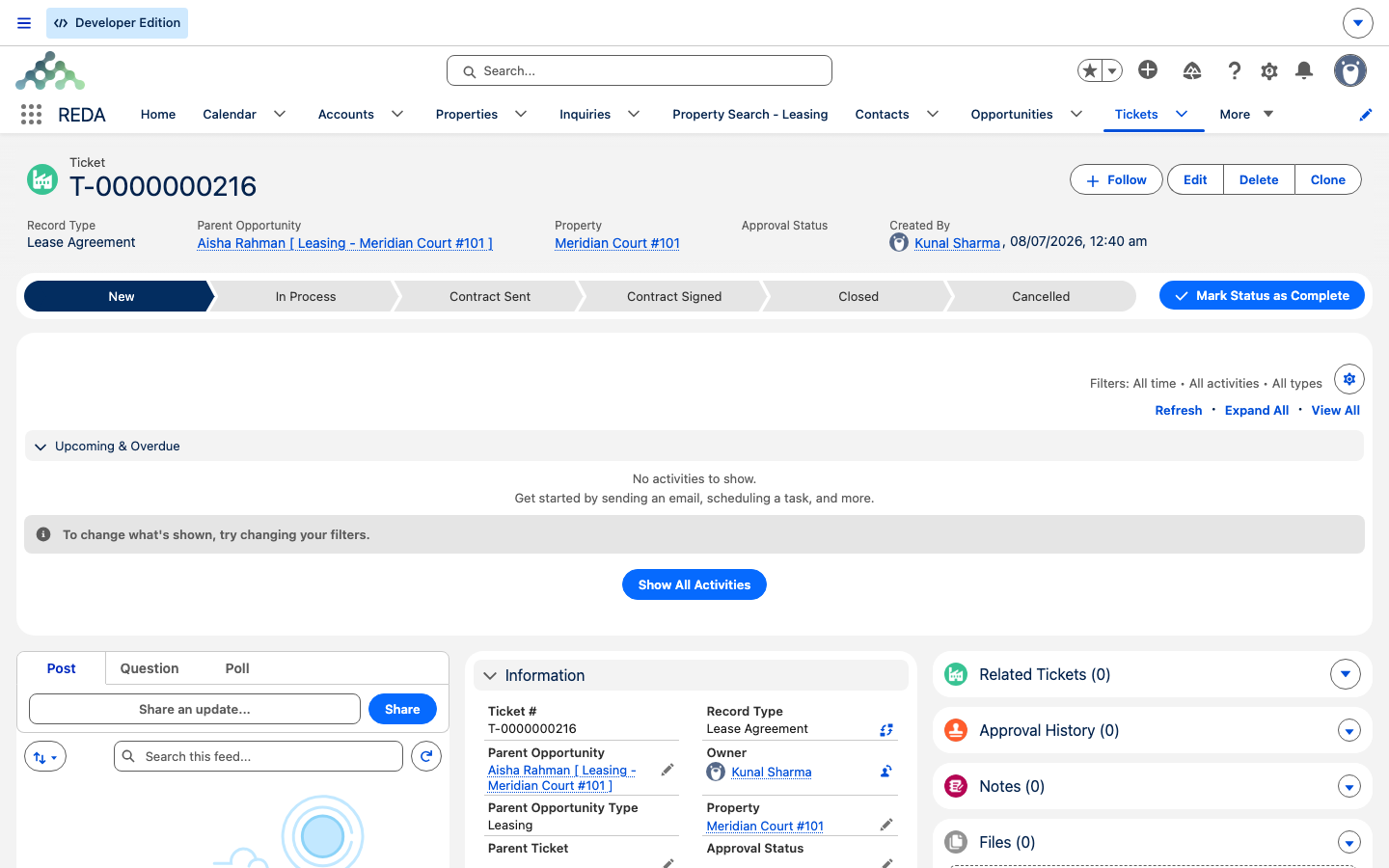
A ticket in REDA is a short, tracked checklist for one step in a record's life — it has its own status Path and, when you finish it, it moves the parent record forward. As soon as a lease is approved, a Lease Agreement ticket appears on the lease's Tickets tab, already filled with a proposed move-in date taken from the lease start. (Only the parent lease gets one; child leases in a co-living arrangement are handled together with the parent — see Child Leases.)
Work it down its status Path. The status you set writes the lease's Stage:
| Ticket status | What it does to the lease |
|---|---|
| New | Nothing yet — confirm the Move In Date and the document details. |
| In Process | Lease Stage → Agreement - In Process |
| Contract Sent | Lease Stage → Agreement - In Process |
| Contract Signed | Lease Stage → Occupied - Pending Move In; stamps the signing date and the scheduled move-in date |
| Closed | Same as Contract Signed — the agreement is done |
| Cancelled | Lease Stage rolls back to where it was before this ticket; the planned move-in date is cleared |
Two things happen automatically while you work this ticket. First, every charge line on the lease (and its children) is linked to this agreement, so the paperwork and the money stay together. Second, the ticket marks its own approval as complete during that step — so if you notice it reads "Approved" without you touching it, that's expected; you don't need to approve it by hand.
If the contract was signed on paper, REDA won't let you close the ticket until the signed document is actually attached, and it checks that a file is really there:
"Please attach Document prior closing Ticket."
"No document found associated to this ticket. Please upload document prior provide Document Attached as "Yes"."
Step 4 — Pending move-in (the lease turns billable)
Setting the Lease Agreement ticket to Contract Signed (or Closed) moves the lease to Occupied - Pending Move In — and this is the busiest moment in the whole workflow. The lease's billing switch (Accounting Active) turns on, and REDA raises a cascade of records in one go:
Step 5 — Close the Move In ticket
On the day the tenant takes possession, open the Move In ticket and set it to Closed. REDA stamps the lease's Actual Move In Date from the ticket and advances the Stage to Occupied - No Notice — the steady state of an occupied lease with no notice to leave on file.
If your Leasing Rule has renewal automation switched on, REDA immediately looks ahead: it creates the first Renewal ticket, dated the configured number of days before the lease ends, so the renewal conversation is never missed (see Renewing a Lease).
If plans change
Plans fall through, and REDA is built for it. Every lifecycle ticket remembers the stage the lease was on when the ticket was created. Cancel the ticket and the lease rewinds to that remembered stage — but only if the lease is still on the stage this ticket set, so a cancellation never overwrites a step some other process has since moved. Cancelling a Move In ticket also cancels the related move-in inspection.
To start an application over from scratch, use the Reset Lease action. It clears the lease's charges, tickets and invoices, returns the Stage to Application - New, and wipes the lease and move dates — a clean slate. Reset is available only while the lease is still in its application, agreement or pending-move-in stages; once a tenant has actually moved in, the lease can't be reset.
Worked example: Aisha's lease
Aisha Rahman applies for Meridian Court #101 — a 12-month lease at 1,200.00 per month starting 1 Aug 2026, with a 100.00 application fee (due at application) and a 1,200.00 security deposit (due at move-in). Here is how the whole file plays out:
| You do | REDA does |
|---|---|
| Complete the application (property, dates, charges in) | Raises the 100.00 application-fee invoice |
Submit for approval, then set Application - Approved | Locks the lease; creates the Lease Agreement ticket on the Tickets tab |
| Set the ticket to Contract Sent | Lease moves to Agreement - In Process |
| Attach the signed lease PDF, set Contract Signed | Lease moves to Occupied - Pending Move In; raises the first rent 1,200.00 + deposit 1,200.00 invoices; creates the Move In ticket; schedules the move-in inspection for 1 Aug |
| On 1 Aug, close the Move In ticket | Stamps Actual Move In Date 1 Aug; lease moves to Occupied - No Notice; creates the first Renewal ticket (~90 days before lease end) |
Reference: gate → automation
One row per stage, showing who moves it and what REDA creates as it lands there:
| Stage | Who / what moves it | What REDA creates or updates |
|---|---|---|
Application - New | Conversion, or a manual new lease | Stage is forced here on leases born from a conversion |
Application - Completed | You (gated by the completeness check) | Application-fee invoices |
Application - Approved | You, after submitting for approval | Lease Agreement ticket; approval/admin-fee invoices; lease locks |
Agreement - In Process | Lease Agreement ticket → In Process / Contract Sent | — |
Occupied - Pending Move In | Lease Agreement ticket → Contract Signed / Closed | Signing stamps; charges linked; Move In ticket; first invoices; inspection; portal access; referral credit |
Occupied - No Notice | Move In ticket → Closed | Actual Move In Date; Renewal ticket (if automation is on) |
| Rewind (any) | Ticket → Cancelled | Stage reverted to snapshot; move dates cleared; move-in inspection cancelled |
Where to go next
- Setting Up Lease Charges — build the chargebook before you complete the application.
- Renewing a Lease — the Renewal ticket that appears at move-in, worked through.
- Notice, Move-Out & Lease End — the other end of the lifecycle.
- How Recurring Invoicing Works — what bills after move-in, and the first-month double invoice.
- Understanding Tickets — the process engine behind every step here.
- Child Leases — how co-living and multi-unit applications move together.
Frequently asked questions
The lease is missing a property, dates, a term, or charges. REDA shows: "The leasing application can only be marked as completed if property and charges are provided." Add the missing pieces and try again.
The application hasn't been submitted for approval yet: "Submit the leasing application for approval prior to updating stage to "Application - Approved"." Submit it first, then set the stage.
Either the move-in date is blank — "Move In Date must be provided for Closed Lease Agreement." — or, for a paper contract, the signed document isn't attached: "Please attach Document prior closing Ticket." Provide the date and attach the file, then close it.
REDA checks that a file really exists on the ticket before you flag it as attached: "No document found associated to this ticket. Please upload document prior provide Document Attached as "Yes"." Upload the document first.
Move In tickets belong to a lease that has reached pending-move-in. If you create one against another stage you'll see: "Only "Occupied - Pending Move In" Leasing Opportunity can be selected." In practice you rarely create one by hand — REDA raises it for you when the agreement is signed.
That's by design. REDA bills rent in advance, so the first billing run can raise the opening period and the next period together. It's the single most common first-month question — see How Recurring Invoicing Works for the full explanation.
Cancelling a lifecycle ticket rewinds the lease to the stage it was on when that ticket was created. It's the safety net that keeps the lease and its paperwork in step.
Was this article helpful?