
Blackouts & Slot Exceptions
A slot exception is a blackout: a window during which a calendar slot rule offers no availability, laid over the rule without changing it. Exceptions are how you close a public holiday, block weekly cleaning time, or shut one building for renovation — without touching your carefully built slot rules. This article, written for administrators, shows you how to add a one-off or recurring blackout, scope it from every property down to a single one, and understand how a recurring series keeps itself topped up automatically. Blackouts always win over availability, so a well-placed exception is the cleanest way to take time off the calendar.
Access you'll need. Creating and editing exceptions requires the REDA - Master Data - Admin permission set. The REDA - Master Data - Read Only set can view them but not change them.
What an exception is
An exception belongs to one Calendar Slot Rule and carries a blackout window — an Unavailable From and an Unavailable To. During slot computation, any exception whose window and scope apply knocks out the slots it covers. This holds for both Standard and Custom rules, and the rule is simple: a blackout always wins over availability. If a time is both offered by the rule and covered by an exception, it disappears from the picker.
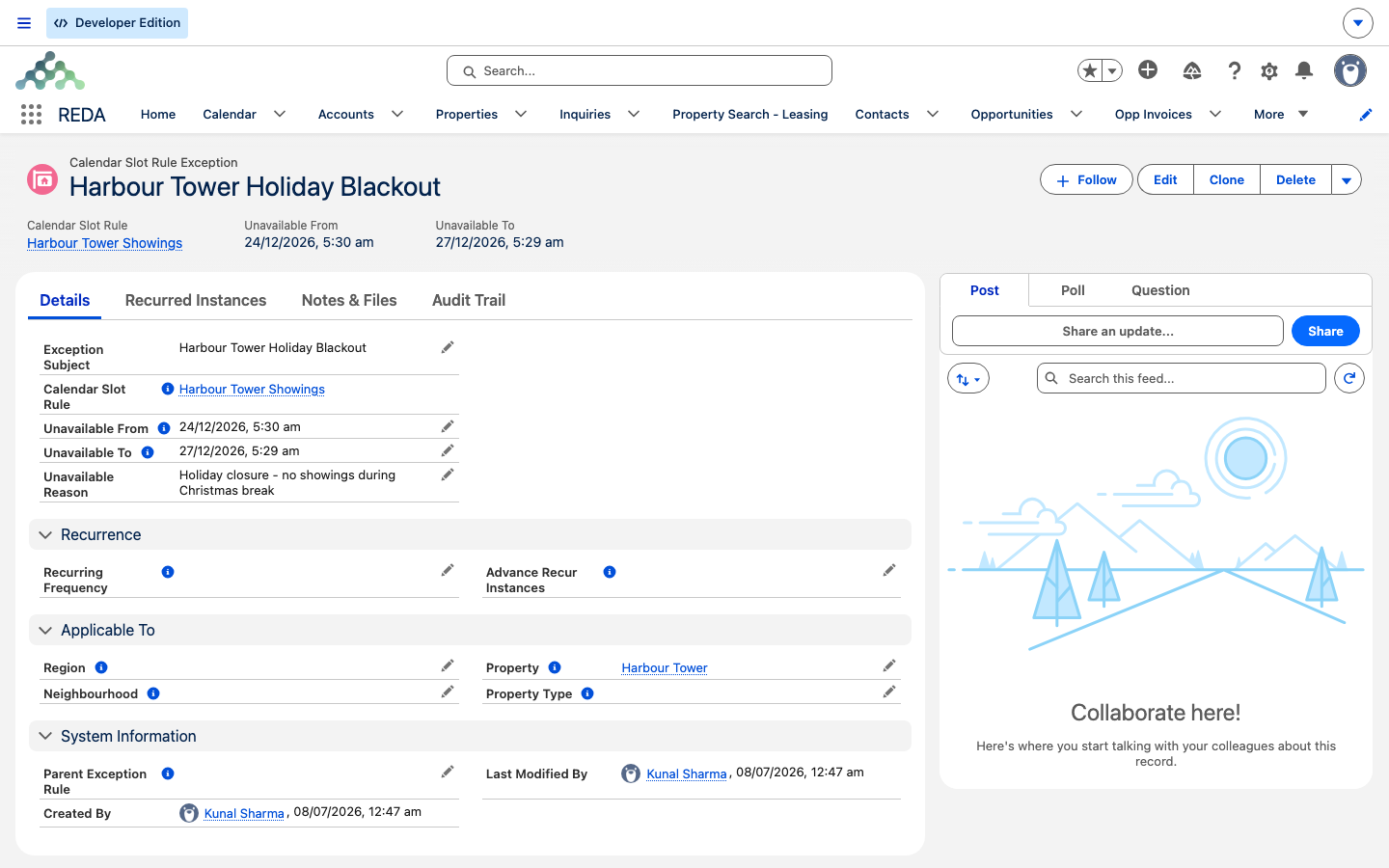
An exception carries a name (Exception Subject), the window, an Unavailable Reason you can leave for your team, a set of optional scope fields, and — if it recurs — a frequency. We'll take each in turn.
Creating a one-off blackout
The simplest exception is a single window — a public holiday, a one-day closure:
REDA checks the window makes sense — the end can't come before the start:
Scoping a blackout
By default a blackout covers every property using the rule. You narrow it with any of four scope lookups — Region, Neighbourhood, Property Type, or a single Property. A blank scope field is a wildcard; a filled one must match the property being scheduled for the blackout to apply to it. Fill more than one and all the filled fields must match — for example Region and Property Type together hits only properties that are both in that region and of that type.
| Scope fields filled | Blackout applies to |
|---|---|
| None | Every property using the rule |
| Region only | Properties in that region |
| Neighbourhood only | Properties in that neighbourhood |
| Property Type only | Properties of that type |
| Property only | That single property |
Recurring blackouts
For a blackout that repeats — a weekly deep clean, a monthly closed day — set a Recurring Frequency and an Advance Recur Instances. The frequency decides how far apart the occurrences fall; the advance count decides how many future occurrences REDA keeps generated ahead of time.
| Recurring Frequency | The series steps by |
|---|---|
| DAILY | 1 day |
| WEEK | 1 week |
| 2 WEEKS | 2 weeks |
| MONTH | 1 month |
| 3 MONTHS | 3 months |
| 6 MONTHS | 6 months |
| YEAR | 1 year |
A recurring exception needs its advance count, and REDA insists on it:
Save the parent and REDA immediately creates the future occurrences as child records — one for each of your advance instances, their windows shifted by the frequency and their names carrying a numbered suffix. Each child links back to the parent, so the whole series is easy to see under the rule. The children are copies of the parent, so the scope and reason you set on the parent carry to every occurrence — you don't set them again per date.
How the series stays topped up
You never have to extend a recurring series by hand. A nightly REDA job — running shortly after midnight — checks each series and regenerates consumed occurrences, so the series always looks the configured number of instances ahead. This job is one of the few REDA jobs scheduled to run automatically out of the box; you can confirm it in the scheduled-jobs console (see Scheduled Jobs).
Editing and deleting a series
Once a recurring parent has generated its children, REDA blocks changes to the parent's end date — it prevents the edit and tells you why, to keep the parent and its children consistent. The supported way to change a running series is to delete it and recreate it with the new settings.
Deleting the parent is clean: it cascade-deletes the whole series, removing every generated child along with it. That's by design — one delete clears the entire recurring blackout.
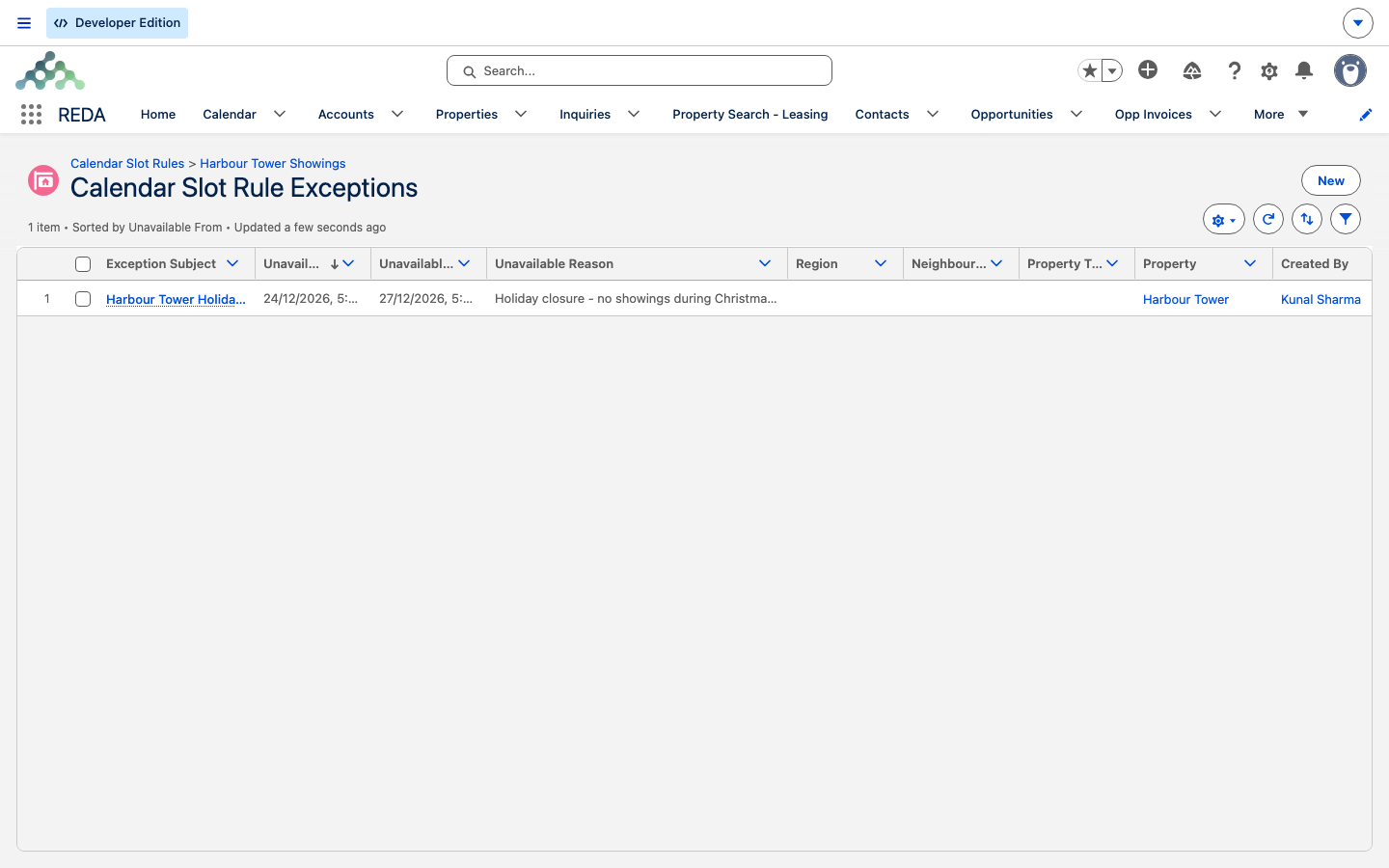
Worked example: two blackouts
Both sit on the Residential Showings — Weekdays rule from the Calendar Slot Rules example:
Field reference
| Field | What it controls | Constraint |
|---|---|---|
| Exception Subject | Names the blackout | The record's name |
| Unavailable From / Unavailable To | The blackout window | Required; To must be on or after From |
| Property | Narrow to one property | Optional scope |
| Region | Narrow to a region | Optional scope |
| Neighbourhood | Narrow to a neighbourhood | Optional scope |
| Property Type | Narrow to a property type | Optional scope |
| Unavailable Reason | Why it's closed (shown to staff) | Optional |
| Recurring Frequency | DAILY / WEEK / 2 WEEKS / MONTH / 3 MONTHS / 6 MONTHS / YEAR | Optional; makes it a series |
| Advance Recur Instances | Future occurrences kept generated | Required when recurring |
| Parent Exception Rule | Links a generated child to its series | Set by REDA |
Where to go next
- Calendar Slot Rules — the parent object and how slots are computed.
- Short-Term Bookings — where a blackout is felt on the booking side.
- Scheduling Showings — where a blackout is felt on the tour side.
- Scheduled Jobs — the nightly top-up job and the jobs console.
- Work Orders — maintenance blackouts on the same engine.
Frequently asked questions
A recurring exception needs its advance count: "Advance recur instances must be provided for recurring slot exceptions." Fill in Advance Recur Instances, then save.
The end falls before the start: "Unavailable To cannot be earlier than Unavailable From Date." Set Unavailable To on or after Unavailable From.
Once a recurring series has generated its children, REDA blocks changes to the parent's end date to keep the series consistent. To change a series, delete it and recreate it with the new settings.
Check REDA Async Logs in the REDA Admin app: the nightly top-up job records failures there instead of stopping visibly. Also confirm the nightly job is still scheduled in the jobs console.
Yes. Deleting a recurring parent cascade-deletes its whole series, by design. Delete the parent when you want to remove the entire recurring blackout.
It does when all four scope fields are blank. Fill in Region, Neighbourhood, Property Type, or Property to narrow it — a filled scope must match the property for the blackout to apply.
No. An exception belongs to a single rule, so a holiday that should close both showings and bookings needs its own entry on each rule.
No. A blackout only hides future slots from the pickers; it leaves already-scheduled bookings and showings untouched. Cancel or reschedule those by hand if the blackout affects them.
Was this article helpful?