
Making a Property Available for Leasing
Getting a unit from "just created" to "appears in leasing search with a rent" is the most-travelled setup path in REDA — and it runs along a short chain, each link with its own save error if you skip it. This article walks the whole chain: Region, Leasing Rule, Rent Charge Period, rent cards, and the Available For Leasing switch. You'll learn what each step does, the exact message you'll see if a link is missing, and how to confirm the unit really surfaces in search at the right rent. No prior REDA experience is assumed.
Access you'll need. Editing the property requires a property-operations set — REDA - Property Sales User / Acquisition / Management / Lending User — or REDA - Master Data - Admin. Leasing Rules themselves are set up under REDA Admin by REDA - Master Data - Admin.
The chain at a glance
Five links take a unit to market. Do them in order and each one has what it needs:
Step 1: Region
The Region sets the unit's currency and filters its neighbourhood and rule lookups, so it's the natural first step. In orgs where multi-currency is switched on, there's one rule to know: the property's region and its leasing rule's region must match, or REDA blocks the save — "Property Region must match Leasing Rule Region when Multi-Currency is enabled." Where multi-currency is off, this doesn't apply.
Step 2: Leasing Rule
A Leasing Rule is the leasing and billing policy for the property — it carries the charge codes, the late-fee and month-to-month policy, the recurring-invoice schedule and escalation treatment. A property needs one before it can be leased. If the property has no rule of its own, a new lease falls back to the property's rule if set, otherwise to the Region's Default Leasing Rule. Best practice is to set the rule on the property anyway, for clarity — other checks look at the property-level rule. Two of the rule's settings feed later steps in this chain: its Default Make Ready Days (which the availability date is calculated from) and its New Application Hold Period (Days) (which sets how long a hold lasts). Leave those blank on the rule and the corresponding behaviour simply doesn't add any days.
Step 3: Rent Charge Period
The Rent Charge Period says how the rent is quoted: per month (the default), per week, or per day. It becomes required once you set a Leasing Rule or switch on Available For Leasing. Skip it and REDA stops you:
Step 4: Rent cards
A rent card (a Rent Charge Setup) holds the actual rent amount for the property. Each card sets a New Lease Base Amount and a Renew Lease Base Amount, and is one of two kinds: term-independent (a single price that covers any lease length) or term-specific (a price tied to one Term (Months)). One term-independent card is the simplest way to price a unit and is enough to take it to market. Leasing search reads these cards and, by default, advertises the property's Best Leasing Term — the card REDA picks as the headline price. With no rent card, there's nothing to advertise, so add at least one.
One save error is worth knowing before you build a card (full detail in Rent Cards). A card can't be both kinds at once: "Rent Charge Setup can either be Term Independent OR Term specific. For Term Independent setup do not provide Term (Months) and vice versa."
Step 5: Switch on Available For Leasing
Available For Leasing is the gate for leasing search. There are two ways it turns on. You can tick it yourself on a fresh vacant unit — but be aware the status machine takes over as soon as lease stages start moving, turning it on and off to match the current lease (see Property Statuses Explained). So for a brand-new unit, tick it; from then on, let REDA manage it. Alongside the switch, REDA maintains Leasing Availability Date — when the unit can next be moved into — which search compares against a prospect's desired move-in date.
Verify it worked
Two quick checks confirm the unit is live. On the Properties tab, the Available for Leasing list view shows every unit with the flag on, along with its Leasing Status, Availability Date and active lease stage — your unit should be there. Then open the Property Search - Leasing tool and confirm the unit appears at its best-term rent. (Note: that search tab ships with the property management and sales sets — leasing agents may need their administrator to grant visibility.)
Error walk-through
The whole chain, with the message each missing link produces:
| What you did | Message REDA shows |
|---|---|
| Set a Leasing Rule (or ticked Available For Leasing) with no Rent Charge Period | "Rent Charge Period must be provided if property is available for Leasing." |
| (Multi-currency orgs) Attached a rule from another region | "Property Region must match Leasing Rule Region when Multi-Currency is enabled." |
| Built a rent card with both a term and Term Independent set | "Rent Charge Setup can either be Term Independent OR Term specific. For Term Independent setup do not provide Term (Months) and vice versa." |
| Named a region default rule from another region | "Invalid leasing rule. The selected leasing rule can only be assigned to the region provided on leasing rule." |
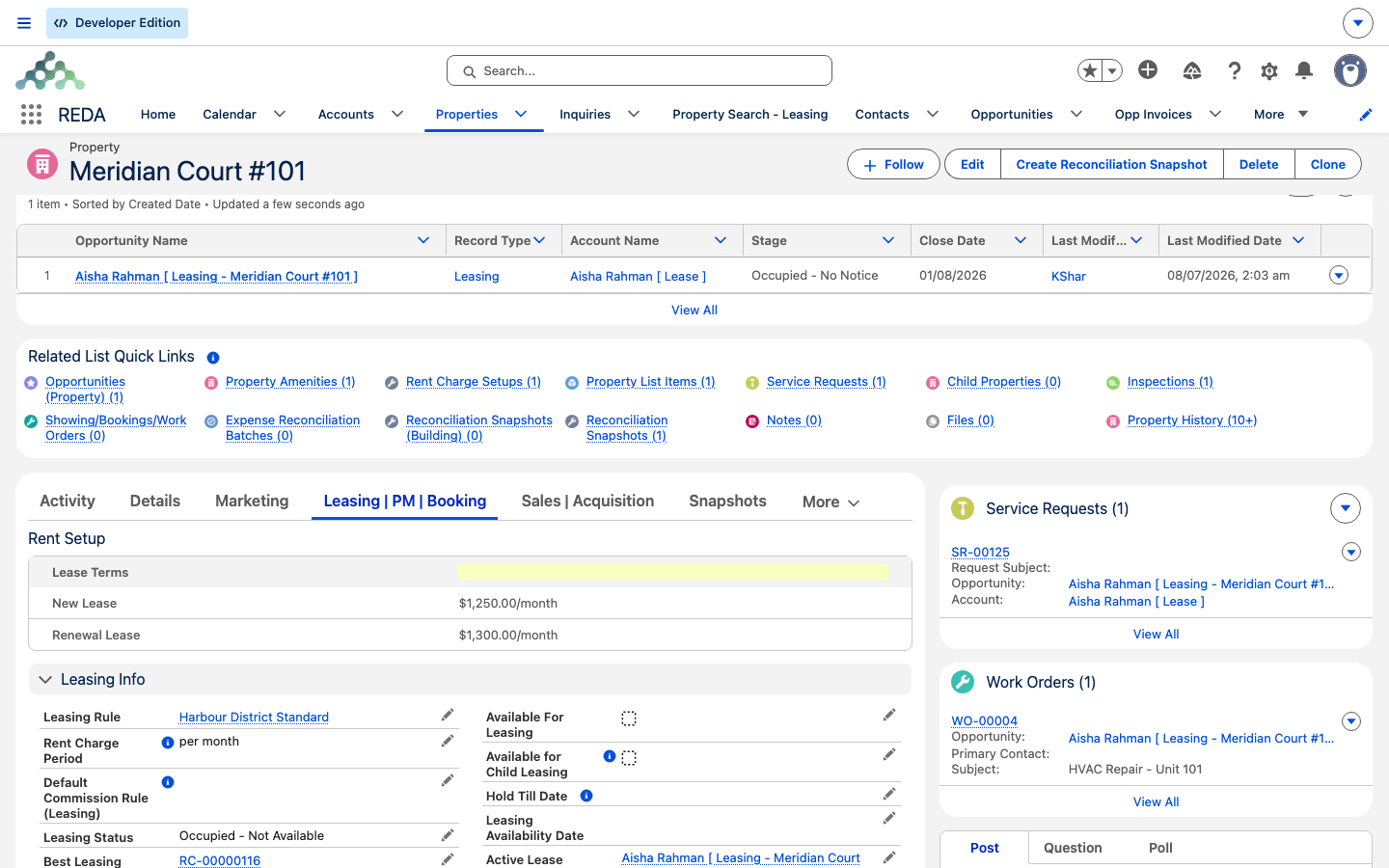
Worked example: taking Meridian Court #101 to market
Meridian Properties prepares its unit for leasing:
| Step | What happens |
|---|---|
| Region | Confirm Harbour District is set. |
| Leasing Rule | Set Harbour District Standard. |
| Save without a period | Blocked: "Rent Charge Period must be provided if property is available for Leasing." |
| Rent Charge Period | Set to per month; the save goes through. |
| Rent card | Add a term-independent card: New Lease 1,200.00, Renewal 1,250.00 . It becomes the Best Leasing Term. |
| Availability | Set the status to Vacant - Available and tick Available For Leasing. |
| Result | The unit shows in Property Search - Leasing at its advertised new-lease rent of 1,200.00. |
Where to go next
- Rent Cards — the full detail on pricing a property.
- Property Statuses Explained — why the availability flag moves by itself.
- Finding Properties: Leasing Search — where your unit now appears.
- Regions — the region and its default leasing rule.
Frequently asked questions
The property needs a Rent Charge Period first: "Rent Charge Period must be provided if property is available for Leasing." Set it to per month, week or day, then try again.
Run through the gate: Is Available For Leasing actually on (the status machine may have it on hold)? Is there a rent card? Is the availability date on or before the searched move-in date? And check the search filters — region, beds and amenities can all exclude it.
Search advertises the Best Leasing Term — a card pinned as best wins, otherwise the lowest new-lease amount. Pin the card you want shown.
A new lease falls back to the Region's Default Leasing Rule when the property has none — but the property-level rule is what other checks look at, so setting it is recommended.
That's the hold lifecycle: application stages put the property on hold and clear the flag until the hold date. See Property Statuses Explained.
The property's region and the rule's region must match: "Property Region must match Leasing Rule Region when Multi-Currency is enabled." Use a rule from the same region.
Was this article helpful?