
Scheduling Background Jobs
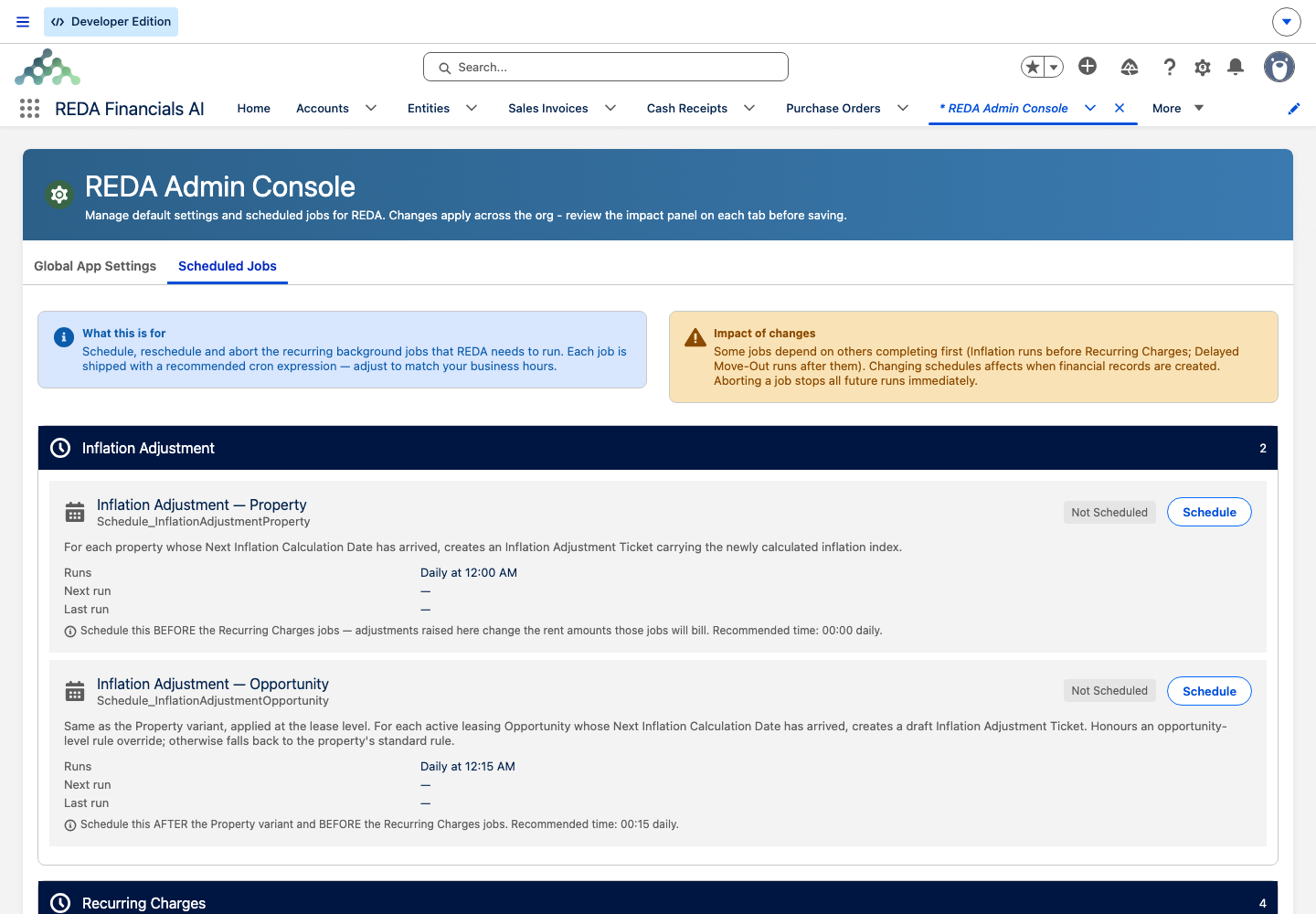
This is the most important setup step in REDA, and the easiest to miss. A brand-new REDA org creates leases perfectly well — and then never bills them, because the recurring invoicing, late fees, month-to-month fees, inflation, straight-line schedules, snapshots, and recurring inspections are all background jobs, and REDA ships with none of them scheduled. Scheduling them from the Admin Console is a mandatory go-live task. This article shows you what runs out of the box, the full catalog of jobs, how to schedule and abort them, how big the batches are, and how to diagnose the classic silent failure where "the invoices just never happened."
Access you'll need. The console requires the REDA - Master Data - Admin permission set — the only set that grants access to it. Anyone else sees "You do not have permission to perform this action in the REDA Admin Console." Ask your administrator to assign that set.
What ships running, and what you must schedule
Two things run in a fresh REDA org without you doing anything. Both are daily housekeeping schedules, and neither appears in the console's job catalog:
| Already running | What it does | Where it's documented |
|---|---|---|
| Payment-schedule auto-posting | Marks due payment schedules as posted, daily | Payment Schedules |
| Calendar-slot exception top-up | Creates upcoming recurring calendar-slot exception instances, daily | Slot Exceptions |
Everything else — all 13 of the jobs in the next section — waits for you to schedule it. The cadence of each is an administrator's decision, not something fixed at install.
The 13-job catalog
These are the jobs you schedule in the console. The default times below stagger the work across the night; the last column is what silently doesn't happen if you leave a job unscheduled.
| # | Job | What it does | Default schedule | If left unscheduled |
|---|---|---|---|---|
| 1 | Inflation Adjustment — Property | Applies due inflation rules to property rent setups (re-rating them) | Daily 12:00 AM | Property rent never indexes for inflation |
| 2 | Inflation Adjustment — Leases | Applies due inflation rules to active leases, re-rating their charges | Daily 12:15 AM | Lease rents never adjust; due dates pile up (self-heals once scheduled) |
| 3 | Recurring Charges — Monthly | Generates the period's invoices for monthly charges due today | Daily 1:00 AM | No recurring rent invoices — the flagship consequence |
| 4 | Recurring Charges — Daily | Same, for daily-cycle charges | Daily 1:15 AM | Daily-cycle charges never invoice |
| 5 | Recurring Charges — Weekly | Same, for weekly-cycle charges | Daily 1:30 AM | Weekly-cycle charges never invoice |
| 6 | Delayed Move-Out Recurring Charges | Bills one extra period for tenants past their scheduled move-out with no actual move-out recorded | Daily 3:00 AM | Holdover tenants stop being billed |
| 7 | Straight-Line Schedule Calculation | Builds straight-line rent schedules for leases flagged as pending | Daily 4:30 AM | Flagged leases keep "pending" schedules forever (the per-lease action still works) |
| 8 | Recurring Inspections | Clones the next occurrence of recurring inspections due today | Daily 5:00 AM | Recurring inspections stop regenerating |
| 9 | Reconciliation Snapshots | Builds the prior month's billing and occupancy snapshots for flagged properties | 1st of month, 6:00 AM | No monthly snapshots (the per-property action still works) |
| 10 | MTM Fees — Per Day | Bills per-day month-to-month fees on expired leases | Daily 10:00 AM | Per-day month-to-month fees never bill |
| 11 | MTM Fees — Monthly | Bills monthly month-to-month fees | Daily 10:15 AM | Monthly month-to-month fees never bill |
| 12 | Late Fees — Per Day | Creates per-day late-fee invoices on overdue invoices | Daily 10:00 PM | Per-day late fees never charge |
| 13 | Late Fees — Monthly | Creates monthly late-fee child invoices on overdue invoices | Daily 10:15 PM | Monthly late fees never charge |
A few anchors worth remembering: recurring charges run at 1:00 AM, late fees at 10:00 PM, and the only job that defaults to the 1st of the month is the snapshots (6:00 AM). Note that the two monthly fee jobs still default to running daily — 10:15 AM and 10:15 PM, fifteen minutes after their per-day siblings. That is deliberate: the fee is monthly (charged once per invoice), but the job has to run every day to catch invoices as they become eligible. Schedule those two monthly and most fees will never be charged. Late-fee and month-to-month invoices are created as children linked to the overdue or parent record, and they're safe to run daily — REDA tracks what it has already charged and won't double up.
Scheduling a job
Aborting a job
To stop a scheduled job, abort it from the same tab. REDA asks you to confirm with "Abort this scheduled job? Future runs will stop immediately. In-flight executions complete normally." — so a run already underway finishes, and only future runs stop. Abort is deliberately restricted to REDA's own catalog jobs; you can't abort unrelated platform jobs from here.
Batch sizes
Several jobs process records in batches, and the batch size is a setting. There are six batch-size settings, all set to 50 by default: recurring charges, delayed move-out, monthly late fees, per-day late fees, monthly month-to-month fees, and per-day month-to-month fees. They live in Global App Settings, and each job reads its setting at run time — so a change takes effect on the next run with no need to reschedule.
Two jobs are fixed and not configurable: both Inflation Adjustment jobs process one record at a time by design. There's no size setting for them, so don't try to speed them up with one. You'll only need to revisit batch sizes if a run is slow or bumping platform limits.
Timing, time zones, and missed days
Two operational facts matter here, and both can catch out a new administrator.
Jobs run in the time zone of the user who scheduled them. If you schedule the 1:00 AM recurring-charge job from a user whose time zone differs from your operating region, it will run at 1:00 AM their time. Schedule from a user set to the org's operating time zone so the times mean what you expect.
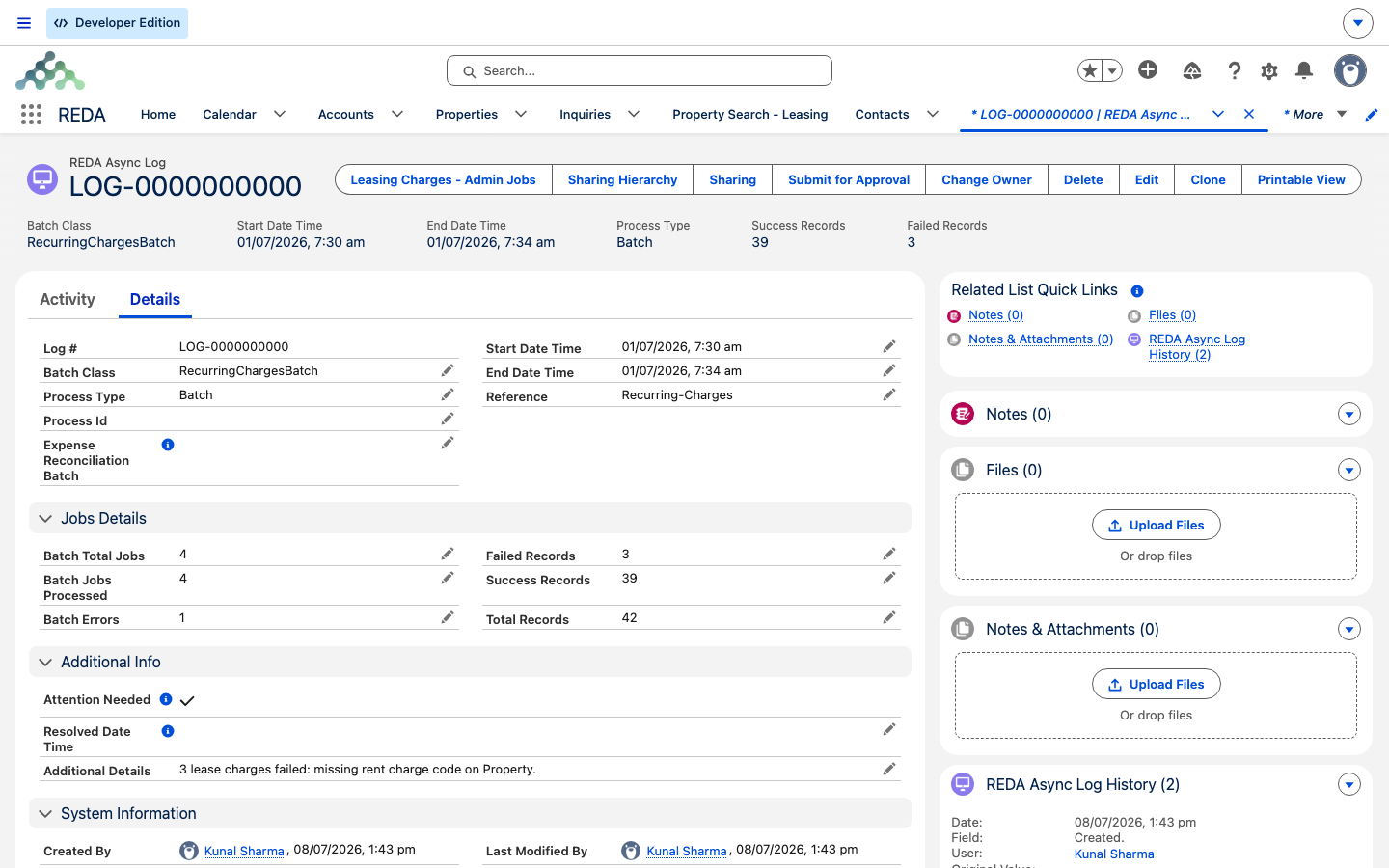
Every batch writes a run log with success and failure counts, and failures email your administrators. Monitor the runs in REDA Async Logs.
The go-live checklist
- Log in as a user set to the org's operating time zone, with REDA - Master Data - Admin.
- Open the Admin Console → Scheduled Jobs and schedule all 13 jobs — at the defaults, or shifted into your quiet hours while keeping their relative order.
- Confirm in Salesforce's Scheduled Jobs list that 13 REDA-prefixed entries now sit alongside the 2 housekeeping schedules that shipped running.
- The next morning, check REDA Async Logs for the first runs and confirm the expected invoices exist.
- Only revisit batch sizes if a run is slow or limit-bound (see Global App Settings).
The defaults are staggered so that dependencies hold — inflation re-rates a lease before the 1:00 AM recurring invoicing bills it. When you shift the times, keep inflation before recurring charges.
Worked example: Meridian goes live
On go-live day, the administrator at Meridian Properties schedules all 13 jobs at their default times. Three leases each carry monthly rent of 1,200.00, all due to bill on the 1st. The next morning, the 1:00 AM recurring-charge run has created three invoices of 1,200.00; the 10:00 PM late-fee run created nothing, because nothing was overdue.
Contrast that with the same org where the jobs were never scheduled: the same three leases, the same 1st of the month — and no invoices anywhere, and no error anywhere. The only symptom is absence. That absence, in a fresh org, is almost never a bug; it's an unscheduled job.
Where to go next
- Go-Live Checklist — this scheduling step is at its core.
- REDA Async Logs — monitor what each job did and catch failures.
- Global App Settings — where the six batch-size settings live.
- How Recurring Invoicing Works — what the recurring-charge job produces, and recovery after a missed day.
- Late Fees and Inflation Adjustments — the other automations these jobs drive.
Frequently asked questions
The recurring-charge jobs aren't scheduled. REDA ships with no billing jobs scheduled, so this is expected until you act. Schedule jobs 3–5 in the console, and check REDA Async Logs after the next run.
No. REDA keeps a single instance of each job; scheduling it again replaces the existing schedule rather than adding a second one.
A run of that job is still executing. Wait for it to finish, then try again.
Jobs run in the time zone of the user who scheduled them. Reschedule from a user set to your operating time zone.
Late fees, month-to-month fees, and inflation catch up automatically on their next run ("due on or before today"). Recurring charges do not — they match today's date exactly, so skipped days need manual attention (see How Recurring Invoicing Works).
Abort is deliberately restricted to REDA's own catalog jobs, so you can't accidentally stop an unrelated platform job.
Was this article helpful?