
Setting Up Property-Management Accounting
This is the master setup guide for property-management accounting in REDA — the configuration that lets your property records on one side and your books on the other work as one system. When it's done, rent invoices post to the right owner's ledger, management fees bill themselves, owners get paid and get statements, and every figure can be reported by property, building, and portfolio. This page walks the entire setup end to end, in the order you should do it, and explains every item: what it is, why it matters, and what breaks if it's wrong. It's the hub — each phase links to a detailed article — but you can execute the whole thing from here. No prior accounting-integration experience is assumed; every concept is defined as we reach it.
Access you'll need. This is administrator work. You'll need access to Accounts, Properties, Portfolios and Charge Codes (granted by your administrator) and the accounting-side setup fields. If you can't see the accounting fields on an account or a charge code, that's the first thing to check with your admin.
The two-party model you're configuring
Before the steps, hold one picture in mind. Property-management accounting always involves two sets of books:
- The landlord entity — each property owner's own books. Rent a tenant pays is collected into the owner's books; owner payouts come out of them.
- The PM entity — your property-management company's own books. This is where the management fee you earn lands as revenue.
An Entity in REDA Financials is simply a separate set of books — its own ledger, currency and fiscal year. Every landlord you manage typically has one, and your management company has one too. A property ties the two together: it names its Owner Account (→ the landlord entity) and its PM Entity (→ your company's entity). Almost everything in this setup is about giving each entity the banks, products and mappings it needs so money moves correctly between the two.
Throughout this guide we'll use one worked example: Meridian Properties is the management company; Continental Holdings is a landlord who owns two buildings, Meridian Court and Harbour Tower, that Meridian manages on its behalf.
The setup, in order
Here is the whole thing as a checklist — tick each item as you complete it. Every phase has its own detailed section below and, where it's deep, its own article. Do them roughly in this order: later phases depend on earlier ones.
- 1. Turn on the accounting extension. The master switch that connects REDA to accounting. Usually already on — confirm it.
- 2. Activate each entity and configure its banks & products. Turn each landlord and your PM company into a set of books, then give each one its Operations Bank, Settlement Bank, fee products, owner-draw product and administration property.
- 3. Map each charge code to accounting. Tell every charge code its Product, GL Account, Cost Center and Tax Profile.
- 4. Tag the property-management GL accounts. Flag the rent-income, expense, asset and liability accounts so the fee, draw and statement runs know what to count.
- 5. Set the property dimensions. Give each property its Portfolio, Region, Property Type and Parent Property so finance can report by property, building and portfolio.
- 6. Mark payees. Confirm who can be selected when recording a tenant payment (lessees are handled for you).
- 7. Configure NSF fees (optional) — auto-bill a fee when a payment bounces.
- 8. Set up electronic payments (EFT) (optional) — bank originator details and standing instructions for ACH collections and payouts.
- 9. Set the owner-statement send day (optional) — build each portfolio and choose the day of month its statement emails, then schedule the statement job.
- 10. Confirm the billing bridge. Raise a test invoice and confirm it posts to accounting with no error.
Phase 1 — Turn on the accounting extension
The accounting extension is the single master switch that connects REDA to REDA Financials. Every accounting automation — posting invoices, syncing payments, creating entities, running fees, draws and statements — checks this switch first. With it off, the whole integration sits dormant: nothing posts, nothing syncs, no entity is ever created.
You'll find it in the REDA Admin Console (App Launcher → REDA Admin → REDA Admin Console) on the Global App Settings tab, as the accounting extension setting. In most orgs your implementation partner enables it during onboarding, so your job here is usually just to confirm it's on.
Phase 2 — Activate each entity, then configure its banks & products
This is the biggest phase, and the foundation everything else stands on. You'll do it once for your PM company and once for each landlord.
Activating the entity
Turning an account into a set of books is a one-checkbox job. On the account (App Launcher → REDA → Accounts), check Financial Active and save — REDA automatically creates a matching Entity and links it back to the account. But three things must be true before you check the box, or no entity is created:
| Prerequisite | Why it's required |
|---|---|
| The account is a Client (or an internal-company account) | Only these account types become entities; a tenant or vendor account won't. |
| Account Code is set — unique, up to 10 characters | Becomes the new Entity's code. It must be unique across your org, so two entities never collide. |
| Region / Territory is set | The entity takes its currency from the region, so finance knows what currency this set of books runs in. |
When you save, the new Entity arrives ready — name, code, region, currency, territory, an accrual accounting basis and an active status are all filled in for you. There's nothing to key in on the Entity to bring it into existence. The full walkthrough (and exactly what the Entity looks like) is in Activating a Client Account as a Financial Entity.
Configuring the entity's banks & products
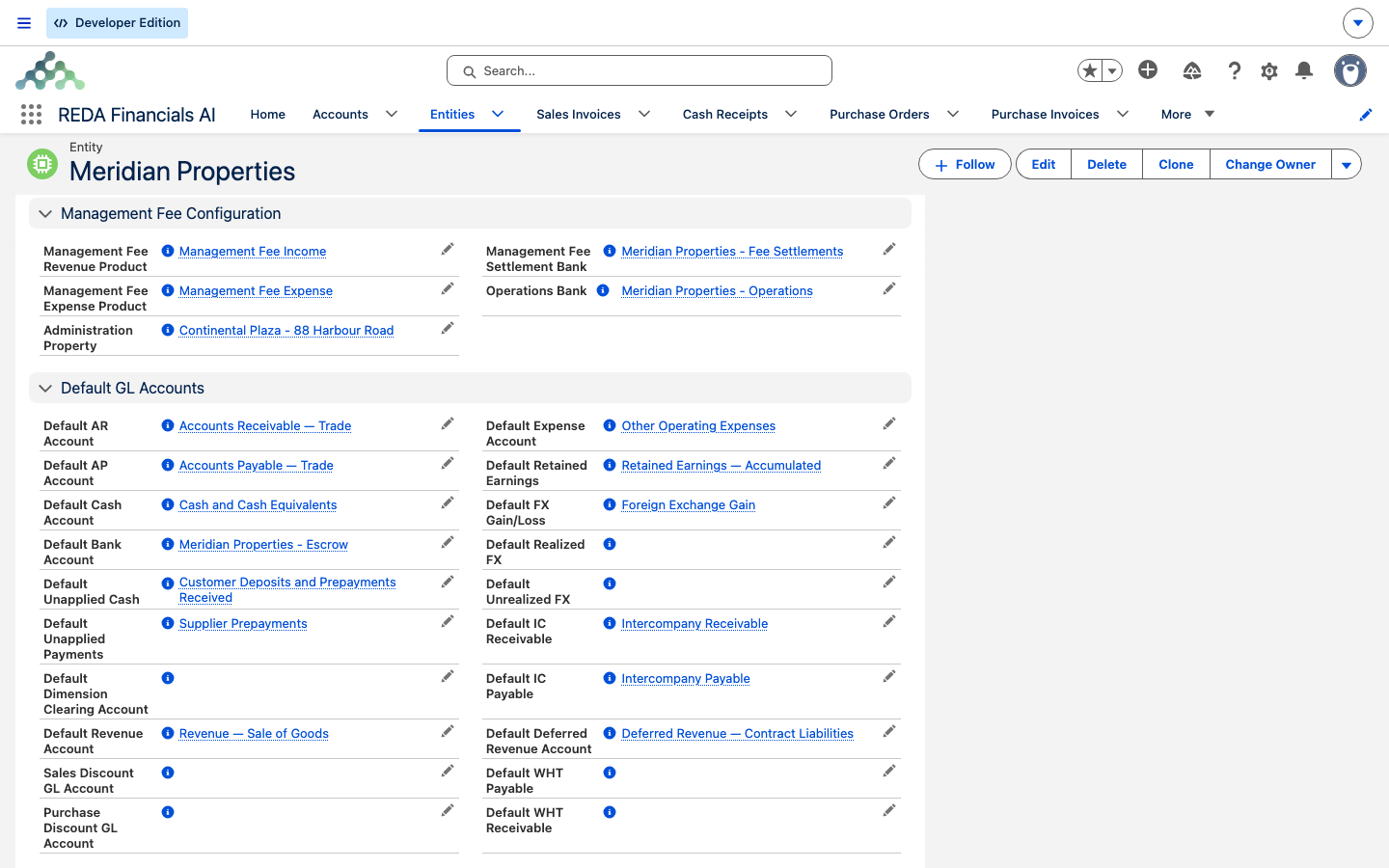
An activated entity is a set of books, but the property-management runs need to know which banks the money moves through and which products carry the right general-ledger accounts. You set these on the entity record. Not every field applies to every entity — some belong on the PM company, some on the landlord:
| Setting | Set it on | What it is & what it drives |
|---|---|---|
| Operations Bank | PM company | Your management company's operating bank. When a management fee is earned, the settlement entry moves that cash into this bank from the rent-escrow account. |
| Management-Fee Settlement Bank | PM company and landlord | The bank the fee run uses for the receipt (on your books) and the payment (on the landlord's books). Set it on both entities. |
| Management-Fee Revenue Product | PM company | Carries the revenue general-ledger account the fee is booked to when you bill it. Without it, the fee run can't raise your revenue. |
| Management-Fee Expense Product | Landlord | Carries the expense account the fee is booked to on the owner's books (the mirror of your revenue). |
| Owner Draw Product | Landlord | Carries the account owner payouts are booked to when you run an owner draw. |
| Administration Property | Either | An optional "house" property. When set, the settlement and admin-level entries are booked against it so those figures have a home. |
Two more entity defaults — set as part of standard accounting onboarding — matter here because the runs rely on them: a Default Bank Account (the rent-escrow account the fee settlement draws from) and a Default Cash Account and Default Ledger (used when you record a tenant payment). Configuring those accounts is covered in the REDA Financials help center.
Phase 3 — Map each charge code to accounting
A charge code is REDA's reusable definition of something you bill — rent, a deposit, a late fee, a move-in fee. When a lease bills one, accounting needs to know how to turn it into a ledger line. You teach it that on the charge code itself: App Launcher → REDA Admin → Charge Codes, then open each one.
| Field | What it means | What it drives |
|---|---|---|
| Product (required) | The accounting product this charge maps to. | Required — every accounting line must carry a product. This is the single most important mapping. |
| GL Account | The revenue account the charge posts to. | If you leave it blank, accounting falls back to the product's own default revenue account. Set it when a charge needs a different account than its product's default. |
| Cost Center | An optional reporting dimension. | Tags the accounting line with a cost center for reporting. |
| Tax Profile | The tax treatment for a single invoice. | Applies tax on charges billed one invoice at a time. |
| Tax Profile (Batch) | The tax treatment for grouped/batch invoices. | Applies tax when many charges are billed together on one invoice. |
| Cash Application Sort Order | A priority number. | Decides which charges a tenant's payment is applied to first (lower number = higher priority). |
Phase 4 — Tag the property-management GL accounts
The fee, draw and statement runs don't read your whole ledger — they only look at the accounts you've told them are property-management money. You do that by flagging each relevant general-ledger account as a Property Management GL Account. This single flag is the master switch for what "counts":
| Flag these account types | So that… |
|---|---|
| Revenue (rent collected) | the management-fee run can measure the rent collected on a property (its Collected Amount), and statements can show income. |
| Expense (fees already billed) | the fee run knows what fee has already been billed this period (its Billed Amount) and doesn't double-bill; statements can show expenses. |
| Asset & Liability (cash, receivables, deposits, accruals) | the owner-draw run can compute each owner's drawable balance. |
| Equity (distributions) | statements can show owner disbursements. |
Phase 5 — Set the property dimensions
Property-level accounting is only useful if you can report on it — income by property, by building, by portfolio. REDA makes that possible by carrying five dimensions from each property onto every accounting document it generates. You set them on the property record (App Launcher → REDA → Properties):
| Dimension | What it enables in reporting |
|---|---|
| Property | Income & costs for a specific unit or building. |
| Parent Property | Roll-up of unit-level figures under a building or development. |
| Portfolio (Residential / Commercial / Industrial) | Broad investment category analysis. |
| Property Type (Apartment, Office, Warehouse…) | Granular type-level reporting. |
| Region | Geographic / territory-level analysis. |
You don't need to register these dimensions with accounting — that's already built in and active. Your only job is to make sure each property actually has its Portfolio, Region, Property Type and Parent Property filled in, because a blank dimension shows up as a blank column in the reports. The reporting side is covered in Property Dimensions in Financial Reports.
Phase 6 — Mark payees
When you record a tenant's payment (Phase 10 and the everyday Recording Tenant Payments flow), you pick a payee — the person the payment is attributed to. For standard leases this needs no setup: anyone whose role on the lease is Lessee is automatically eligible and appears in the payee list. You only take action for a non-lessee payer (say a guarantor or a company paying on a tenant's behalf) — in that case an administrator marks that contact role as a payee so it shows up in the dropdown.
Phase 7 — Configure NSF fees (optional)
An NSF fee ("non-sufficient funds") is what you charge when a tenant's payment bounces. REDA can raise it automatically: when a recorded payment is later voided, it creates a fresh fee invoice that flows straight back through the billing bridge. You switch this on per account. On the tenant's (or landlord's) Account, set:
| Field | What it does |
|---|---|
| Charge NSF Fee | Turns the automation on for this account. |
| NSF Fee Amount | The fee to charge when a payment is voided. |
| NSF Fee Charge Code | The charge code used to raise the fee — so it must itself be mapped to a Product and account (Phase 3). |
Leave these blank and voiding a payment simply reverses it, with no fee. This phase is optional — set it up only for accounts where you want automatic bounce fees.
Phase 8 — Set up electronic payments, EFT (optional)
If you collect rent or pay owners electronically, REDA can generate the bank file (ACH / NACHA) for you. There are three layers to configure, and each is optional depending on whether you use electronic banking at all:
When you run the processor for a date, REDA gathers the instructions that are due, creates the matching receipts or payments, and produces a bank file you download and upload to your bank. The full walkthrough is in Bank EFT / NACHA Processing.
Phase 9 — Set the owner-statement send day (optional)
REDA can email each owner a branded statement — income, expenses, distributions and balances for their properties — on a schedule. Statements are organized by Portfolio (a grouping of owner accounts and properties). To turn on automatic statements:
Owner draws (paying owners their money) and statements are covered together in Owner Draws & Owner Statements.
Phase 10 — Confirm the billing bridge
The billing bridge is the runtime path that turns a property invoice into a posted invoice in accounting. You don't switch it on per invoice — new standalone invoices arm themselves automatically, and invoice batches are armed when you set them to create the accounting entry. What you do need is for the earlier phases to be complete, because the bridge relies on them:
- The invoice's Default Receivable Account must be set, and that account must be an activated entity (Phase 2).
- The charge code behind each line must be mapped (Phase 3).
To confirm everything is wired up, raise one test invoice on an activated account and check that it produced a posted invoice in accounting with no error. If it did, the bridge is working; if it shows an Accounting Error Message, read the message — it names what's missing — fix it, then clear the message to let the invoice retry. How posted amounts and payments sync back is covered in Payments & Balance Sync-Back, and the whole integration picture is in How REDA Works with REDA Financials.
How it all flows once set up
With the setup complete, here's the sequence that runs on its own — no per-transaction configuration:
Through all of it, the five property dimensions ride every posted document — so finance can report profit and loss by property, building, portfolio, type and region without any extra tagging.
Reference: the setup at a glance
One row per phase — what you set, where, and what breaks if it's wrong:
| Phase | Where | If it's wrong… |
|---|---|---|
| 1. Accounting extension on | REDA Admin Console → Global App Settings | Nothing accounting-related happens at all — silently. |
| 2. Entity active + banks/products | Account (Financial Active) → Entity fields | Fees/draws skip the property; recording a payment errors on the entity. |
| 3. Charge code mapping | REDA Admin → Charge Codes | Invoices fail to post with an accounting error. |
| 4. PM GL accounts flagged | Financials GL accounts (the flag) | Fee/draw/statement runs return empty. |
| 5. Property dimensions | Property record | Reports show blank property/portfolio/region columns. |
| 6. Payees marked | Lessee auto; others on the contact role | A non-lessee payer can't be selected on a payment. |
| 7. NSF fee config | Account (Charge NSF Fee, Amount, Charge Code) | Bounced payments raise no fee (optional feature). |
| 8. EFT setup | Bank account, Account defaults, EFT Instruction | Instructions won't process; no bank file (optional feature). |
| 9. Statement send day | Portfolio + scheduled job | No statements are emailed (optional feature). |
| 10. Billing bridge confirmed | A test invoice on an active account | Invoices park with an error until the missing setup is fixed. |
Reference: entity settings
| Setting | Entity | Drives |
|---|---|---|
| Operations Bank | PM company | Destination of the earned fee (settlement entry). |
| Management-Fee Settlement Bank | Both | Bank for fee-run receipts & payments. |
| Management-Fee Revenue Product | PM company | Revenue account when the fee is billed. |
| Management-Fee Expense Product | Landlord | Expense account for the fee on the owner's books. |
| Owner Draw Product | Landlord | Account for owner payouts. |
| Administration Property | Either | Property booked on settlement/admin entries. |
| Default Bank Account (escrow) | Landlord/PM | Source the fee settlement draws from; set up in accounting. |
| Default Cash Account & Ledger | Owner entity | Used when recording a tenant payment; set up in accounting. |
Reference: what each run produces
| Run | Reads | Produces |
|---|---|---|
| Management Fee | Rent collected on flagged revenue accounts | Fee revenue on your books, a mirror expense on the owner's books, and a settlement entry moving the cash to your operations bank. |
| Owner Equity Draw | Asset & liability balances, minus the escrow reserve | A payout on the owner's books, split by ownership share. |
| Owner Statement | Income, expense & equity on the portfolio | A branded PDF emailed to the owner — posts nothing. |
| Bank EFT | Due standing instructions | Receipts/payments plus a NACHA bank file to upload. |
Worked example: onboarding Continental Holdings
Meridian Properties takes on a new owner, Continental Holdings, who owns Meridian Court and Harbour Tower. Here's the whole setup applied to them:
| You do | Result |
|---|---|
| Set Continental Holdings' Account Code and region, then check Financial Active | A landlord Entity is created — Continental Holdings now has its own books. |
| On that Entity, set the Settlement Bank, Management-Fee Expense Product and Owner Draw Product; set the escrow reserve on the account | The fee and draw runs can now bill and pay Continental Holdings. |
| On Meridian Court and Harbour Tower, set Owner Account = Continental Holdings, PM Entity = Meridian Properties, a fee agreement (say 8%), and Portfolio / Region / Type | Both buildings are wired to both sets of books, with reporting dimensions. |
| Confirm the rent charge code maps to a Product, and the rent-income account is flagged as a PM GL | Rent invoices post to Continental Holdings' books; the fee run can measure collected rent. |
| Raise a test rent invoice | It posts to accounting with no error — the bridge is live. |
Where to go next
- Activating a Client Account as a Financial Entity — Phase 2 in full, with everything the auto-created Entity contains.
- Charge Code Accounting Setup — Phase 3 field by field.
- Management Fee Automation — how the fee run calculates and bills once set up.
- Owner Draws & Owner Statements — Phase 9, plus paying owners their balances.
- Bank EFT / NACHA Processing — Phase 8 in detail.
- Property Dimensions in Financial Reports — Phase 5 and the reports it powers.
- Recording Tenant Payments — the everyday payment flow this setup enables.
- How REDA Works with REDA Financials — the whole integration at a glance.
Frequently asked questions
Activation only runs when the account qualifies. It must be a Client (or an internal-company account) and it must already have an Account Code and a Region/Territory. Fill those in first, then check the box again.
The Entity takes its currency from the region. If the region's currency and the entity's currency don't line up, REDA blocks it: "Entity Currency must match the Region Currency. Please ensure both currencies are aligned." Correct the region's currency so the entity is created aligned.
The property's Owner Account hasn't been activated as an entity yet. Complete Phase 2 on that owner account (Financial Active, with its banks and products), then try the payment again.
The owner's entity needs a default cash account before it can receive a payment. Setting up an entity's default cash account is an accounting task — see the REDA Financials help center.
Phase 1 isn't done. Turn on the accounting extension in the REDA Admin Console (Global App Settings), then retry.
Most often the charge code behind it has no Product or no account (Phase 3). Read the error message — it names the cause — fix the charge-code mapping, then clear the error message on the invoice so it retries.
Your rent-income accounts aren't flagged. REDA shows: "No Property Management GL Accounts found with Type = Revenue. Please flag rent collection GL Accounts as Property Management GL Accounts." Flag the revenue (and expense, asset, liability) accounts in Phase 4.
An entity setting is missing. The exclusion reason tells you which: "PM Entity not configured", "Landlord Entity not configured", "Entity missing: …", or "Currency mismatch (PM: …, Landlord: …)". Finish Phase 2 on both the PM and landlord entities. If it's a currency mismatch, note that "The Landlord Entity and PM Entity must have the same Currency ISO Code. Management Fee calculations cannot be performed across different currencies."
Three things are needed: a Statement Send Day on the portfolio, the portfolio marked active with valid contact emails, and the daily statement job scheduled (Phase 9). All three must be in place.
Statements send only on a day the month actually has, so a send day of 29, 30 or 31 is skipped in shorter months. Choose a day between 1 and 28.
REDA checks each instruction and blocks incomplete ones: the amount must be greater than zero; the bank must have its Originator ID, Originator Name, Destination Routing and a GL account; the payee routing number must be exactly 9 digits; the payee account number and type are required when the instruction is active; and the end date must be on or after the start date. Complete the bank and payee details in Phase 8.
Only the entity itself and its banks/products are per-landlord (Phase 2). Charge-code mapping and GL tagging are shared across your whole org, and property dimensions are set once per property. So each new owner is really just: activate, then fill in a handful of entity fields.
Was this article helpful?