
Finding & Merging Duplicate Inquiries
Sooner or later the same prospect arrives twice — once through your website form, once typed in after a phone call. Merging collapses the pair into one clean inquiry (REDA's prospect record) while keeping its full history. This article shows where duplicate candidates appear, how to run the merge and choose which record survives, exactly what carries over to the survivor, and the limits to be aware of in the current release — chiefly that this tool is set up for inquiries, and that most related records other than activities, emails, and files don't carry across.
Access you'll need. Merging requires the REDA - Duplicate Management User permission set (an add-on capability), in addition to the inquiry-edit access that comes with one of the five line-of-business sets.
Why duplicates happen and what merging does
Whenever you capture prospects two ways — a website form and manual entry — collisions are inevitable. The same person fills in your site on Monday and calls the office on Tuesday, and you end up with two inquiries. Merging keeps one of them as the surviving record, folds the chosen field values and the history from the other into it, and removes the loser — so you're left with a single inquiry that has everything.
Where candidates come from
REDA doesn't invent its own definition of "duplicate." It reads the duplicate rules your administrator has set up for inquiries and lists the matches. So what counts as a duplicate is your org's decision — your administrator's rules determine which records are flagged and whether they alert or block at entry.
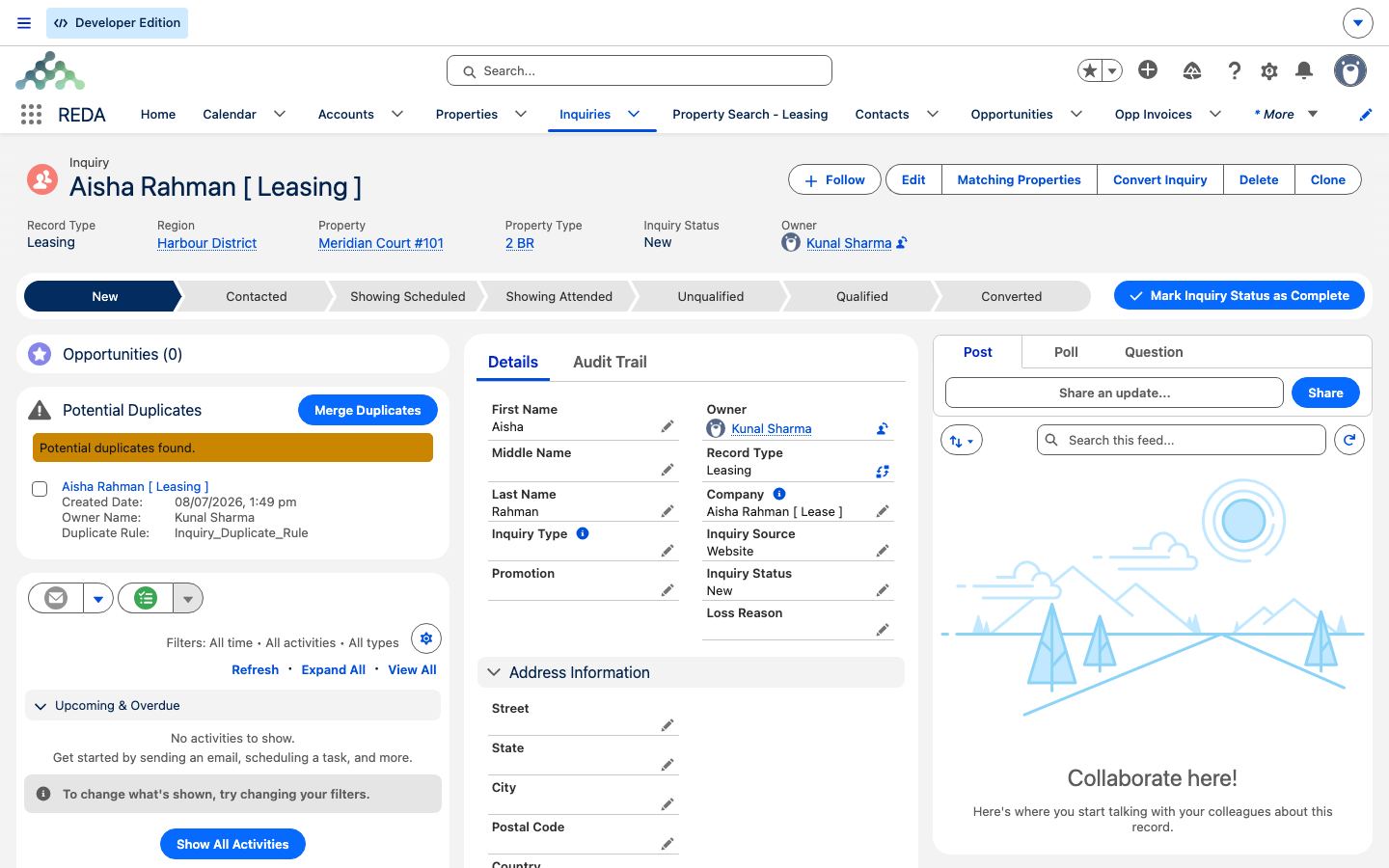
On an inquiry, the Potential Duplicates card lists each candidate with its name, owner, created date, and the rule that matched. When it finds matches it reads "Potential duplicates found."; when it finds none it reads "No potential duplicates found." If you see that empty-state message even though you can spot two look-alike inquiries, it means no active rule matched them — which is a signal to check the rules with your administrator, not a bug.
Merging step by step
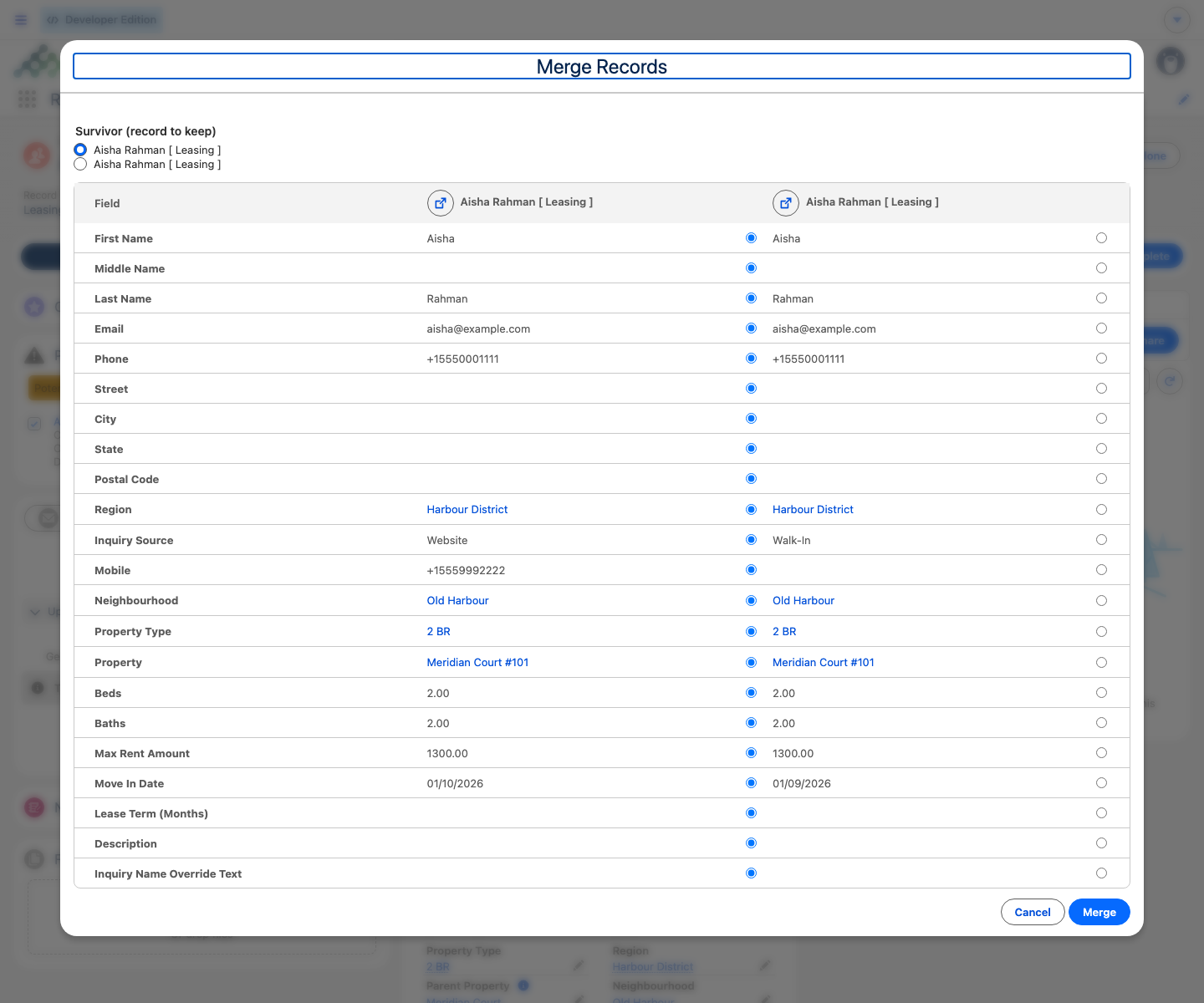
The merge walks you through choosing which records to combine, which one survives, and which values to keep:
What always moves to the survivor
Regardless of your field picks, three kinds of history are always carried to the surviving inquiry: activities (tasks and events, including logged calls and showings), emails, and files and notes (files are re-linked to the survivor). That's the point of merging early — the record you keep inherits the full trail.
What happens to the losing records
The merge runs all-or-nothing: if anything fails partway through, the whole merge rolls back and nothing changes, so you're never left half-merged. It also runs with your own permissions, so it can only do what you could do by hand. When the merge succeeds, the losing inquiry is removed.
Limits in this release
Two limits are worth planning around:
If one of the duplicates is already converted, keep the converted record as the survivor so its deal linkage stays intact, and merge the unconverted copy into it.
Preventing duplicates
Merging cleans up after the fact; a few habits stop duplicates forming in the first place. Your org's duplicate rules can alert you at entry when a new inquiry looks like an existing one (see Capturing Inquiries). Search before you create. And at conversion time, reuse an existing account and contact rather than creating new ones (see Converting an Inquiry). For web-born prospects, your website form can update the same inquiry on a repeat submission rather than creating a fresh one — see The Inbound Data Service.
Reference: what the matrix shows and what carries over
The merge matrix presents a configured set of inquiry fields to compare and choose from. These fall into a few natural groups:
| Group | Fields in the matrix |
|---|---|
| Person | First Name · Middle Name · Last Name · Email · Phone · Mobile |
| Address | Street · City · State · Postal Code |
| Interest | Property · Property Type · Region · Neighbourhood · Beds · Baths |
| Leasing preferences | Move In Date · Lease Term (Months) · Max Rent Amount |
| Context | Inquiry Source · Description |
Fields not shown in the matrix aren't chosen during the merge — the survivor simply keeps its own values for them. Here's the outcome at a glance:
| On the losing record | After the merge |
|---|---|
| Field values you picked in the matrix | On the survivor |
| Fields not in the matrix | Survivor keeps its own values |
| Tasks & events (calls, showings) | Moved to the survivor |
| Emails | Moved to the survivor |
| Files & notes | Re-linked to the survivor |
| Other related records (e.g. a deal from the loser) | Not moved in this release — plan the survivor accordingly |
| The losing record itself | Removed |
If something goes wrong
| Symptom | Likely cause | What to do |
|---|---|---|
| Merge Duplicates visible but the action fails with "Insufficient Access" | Missing the add-on permission set | Ask your administrator for REDA - Duplicate Management User |
| The card reads "No potential duplicates found." | No active duplicate rule matched the pair | Check the active inquiry duplicate rules with your administrator |
| Merge won't start: "No records selected for merging." | You opened the merge without ticking any candidate | Select at least one candidate alongside the current record, then continue |
| Merge fails midway | A record failed validation during the merge | Nothing changed — fix the reported field and retry |
Worked example: two Aishas
Aisha Rahman exists twice: Aisha Rahman [ Leasing ] from the web (carrying her campaign attribution and a promotion link) and Aisha R [ Leasing ] from a phone entry (carrying the showing history logged as events). The Potential Duplicates card on either record shows the other. The agent clicks Merge Duplicates, keeps the web record as survivor because it holds the attribution, and in the matrix picks the phone record's corrected Mobile value. On completion the survivor keeps its campaign attribution and promotion link and inherits the showing events, call logs, and the signed pre-qualification PDF; the phone record is removed.
Where to go next
- Capturing Inquiries — entry-time duplicate alerts that stop duplicates forming.
- Converting an Inquiry — reusing an account and contact to avoid duplicates.
- Web & Campaign Attribution — why the survivor keeps its own attribution.
- Understanding Inquiries — the inquiry record and its lifecycle.
- Configuring Record Merge — extending the merge fields (admin).
Frequently asked questions
Candidates come only from your org's duplicate rules. If no active rule matched the pair (or rules are off), the card reads "No potential duplicates found." Ask your administrator to review the active inquiry duplicate rules.
You need the REDA - Duplicate Management User permission set in addition to inquiry access. Attempting the merge without it returns "Insufficient Access".
They move to the surviving inquiry automatically — activities, emails, and files and notes always carry across.
Not with this tool in the current release — it's configured for inquiries. Accounts, contacts, and deals use standard Salesforce merge, which is set up org-side.
There's no documented undo, and the losing record is removed. Merge carefully and pick the survivor first.
Keep the converted one as the survivor so its deal linkage stays intact, and merge the unconverted copy into it.
The survivor keeps its own attribution unless you pick the other record's values in the matrix. Inquiry Source is in the matrix; the web campaign fields are not, so they stay as the survivor has them. See Web & Campaign Attribution.
Was this article helpful?