
The Sales Agreement Ticket
The Sales Agreement ticket is the controlled way to move a sale through its contract phase — the recommended alternative to dragging the deal's stage by hand. You work the ticket down its own status Path, and each status writes the deal's stage and keeps the property's Sale Status in step, so the contract, the deal, and the property all stay together. This article shows how to create the ticket, walk its statuses, attach the signed document before closing, and cancel cleanly if the deal falls through. No prior REDA experience is assumed.
Access you'll need. Creating and working the ticket requires the REDA - Property Sales User permission set. Administrators use REDA - Master Data - Admin.
Why use the ticket
A sale's stages in the middle of the pipeline — Contract Out and Under Contract — are meant to be driven by this ticket, not set by hand. The ticket does three things a manual stage change doesn't: it moves the deal's stage, it stamps the Under Contract Date on signing, and it keeps the property's Sale Status (its inventory state) in step. Editing the deal's stage directly skips all of that and can leave the deal and the property out of sync. Running the ticket keeps everything moving together.
Creating the ticket
On the sale deal, create a ticket of type Sales - Purchase & Sales Agreement. Two rules apply as you create it:
- Only a Property Sale deal can be linked. Point the ticket at any other kind of deal and REDA responds: "Only Property Sale Opportunity can be selected."
- The ticket's property must match the deal's property. If they differ, you'll see: "The property on the ticket must match the property on the Opportunity or Acquisition Opportunity in the case of a Loan Disbursement ticket."
A new ticket opens with its status at New and its approval status at Draft.
The status walkthrough
Work the ticket down its status Path. Each status writes the deal's stage and moves the property's Sale Status forward:
Contract Out.Under Contract and the Under Contract Date is stamped. Enter the Sale / Purchase Price on the deal first, or the deal's own stage gate will block this move (see The Sale Stages Reference).Under Contract with the date stamped, and the agreement is done.The document gate
When the agreement is signed on paper, REDA won't let the ticket close until the signed document is actually attached — and it verifies a real file is present, not just that a flag is set. Two checks apply:
"No document found associated to this ticket. Please upload document prior provide Document Attached as "Yes"."
So the order is: upload the signed file, set Document Attached = Yes (REDA confirms the file exists), then close the ticket. The Document Signed Type field records whether the agreement was signed on Paper or Electronic.
Cancelling
If the deal falls through, set the ticket to Cancelled. REDA rewinds the deal to the stage it was on when the ticket was created, and reverts the property's Sale Status to that same moment. The rollback is careful:
Worked example: Harbour Villa 7
On Meridian's sale of Harbour Villa 7 to David Okafor (Sale / Purchase Price 1,000,000.00), the agent runs the ticket like this:
| Agent does | REDA does |
|---|---|
| Creates the Sales - Purchase & Sales Agreement ticket on the deal | Opens the ticket at New; notes the deal stage and the property's Sale Status |
| Sets Contract Sent on 20 Jun | Deal moves to Contract Out; property Sale Status moves into the Under Contract - In Progress family |
| Enters the Sale / Purchase Price 1,000,000.00; uploads the signed PDF; sets Document Attached = Yes; sets Contract Signed on 1 Jul | Deal moves to Under Contract; stamps the Under Contract Date as 1 Jul |
| Closes the ticket | Ticket done; deal remains at Under Contract |
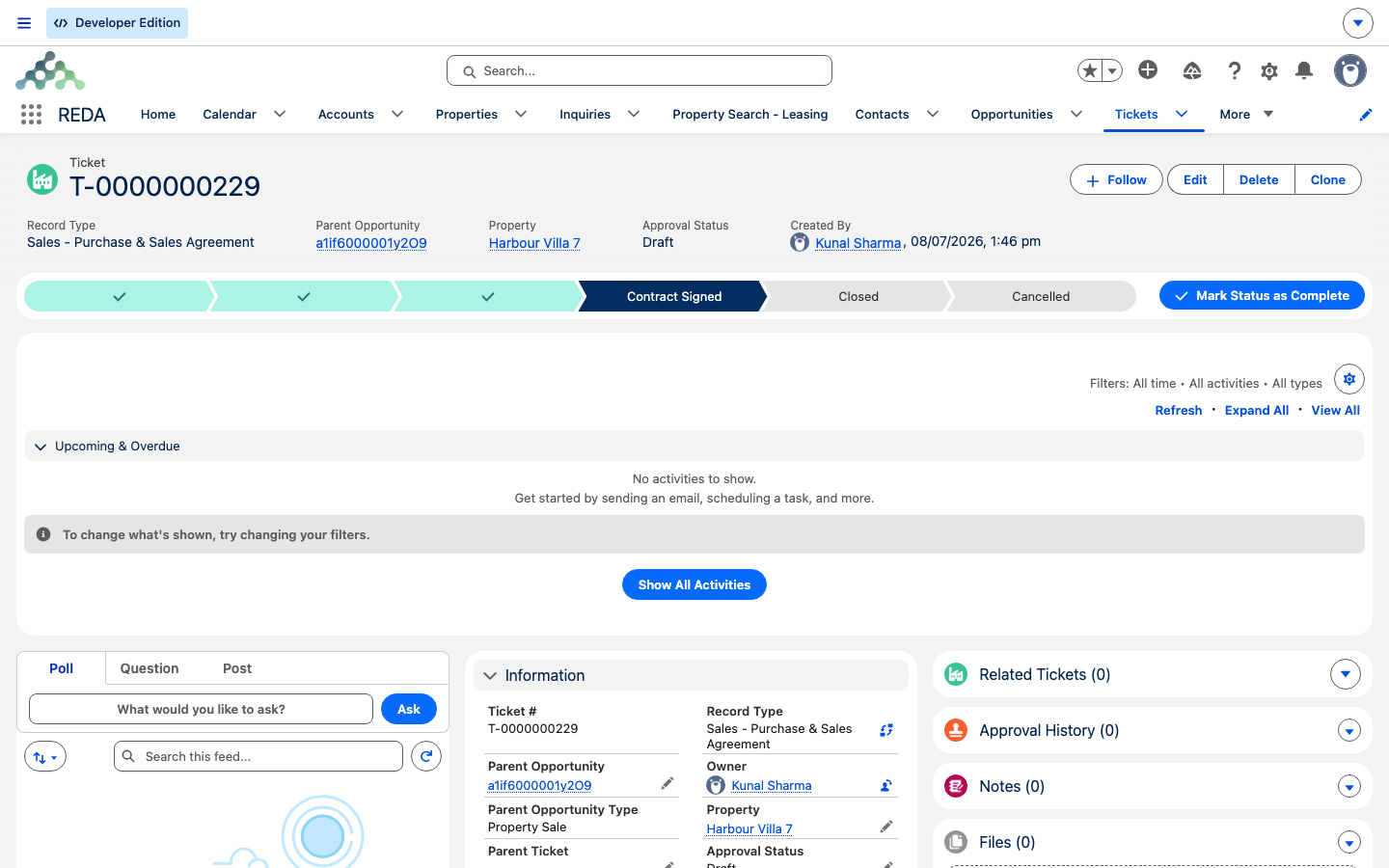
Reference: ticket status to effect
| Ticket status | Deal stage effect | Property Sale Status effect | Notes |
|---|---|---|---|
| New (default) | — | — | Notes the deal stage and property Sale Status at creation |
| In Process | — | Moves toward the Under Contract - In Progress family | Work underway |
| Contract Sent | → Contract Out | Under Contract - In Progress family | Agreement sent to buyer |
| Contract Signed | → Under Contract + Under Contract Date stamped | Under Contract family | Paper-signed docs must be attached before closing |
| Closed | → Under Contract + date stamped (same branch) | Under Contract family | The document gate applies |
| Cancelled | Reverts to the noted stage (only if still unchanged) | Reverts to the noted Sale Status | Never overwrites a later stage |
Where to go next
- Selling a Property — the full sale walkthrough this ticket fits into.
- The Sale Stages Reference — the stages this ticket drives, and their gates.
- Settlement Charges & Closing Statements — building the closing statement.
Frequently asked questions
The Sales Agreement ticket drives it: setting the ticket to Contract Sent moves the deal to Contract Out, and Contract Signed or Closed moves it to Under Contract and stamps the Under Contract Date. That's the intended behavior.
Only a Property Sale deal can be selected: "Only Property Sale Opportunity can be selected." The ticket's property must also match the deal's property, or you'll see "The property on the ticket must match the property on the Opportunity or Acquisition Opportunity in the case of a Loan Disbursement ticket."
A paper-signed agreement needs its document attached first: "Please attach Document prior closing Ticket." And you can't set Document Attached to Yes without an actual file: "No document found associated to this ticket. Please upload document prior provide Document Attached as "Yes"." Upload the file, then close.
The deal stage and the property's Sale Status revert to what they were when the ticket was created — unless another process moved the deal on since, in which case the deal is left as it is.
Yes. Moving to Under Contract requires the Sale / Purchase Price and the Under Contract Date on the deal — enter them before the ticket flips the stage. See The Sale Stages Reference.
Was this article helpful?