
The REDA Admin Console
If you're setting REDA up, this is where you start. The REDA Admin Console is the administrator's control tower — one screen with two areas: scheduling REDA's background jobs, and REDA's application-wide settings. This article is the tour of the whole Administration section: it shows you the two REDA apps, the console and its two areas, and a map of which setup tab configures which part of the product, with a link to the detailed article for each. It maps the territory; the deeper articles walk it. No prior REDA experience is assumed.
Access you'll need. The console requires the REDA - Master Data - Admin permission set — the only set that grants access to it. Anyone else who opens the tab sees "You do not have permission to perform this action in the REDA Admin Console." The read-only twin, REDA - Master Data - Read Only, can view the master-data tabs of the REDA Admin app but does not get the console. Ask your administrator to assign the set that matches your role.
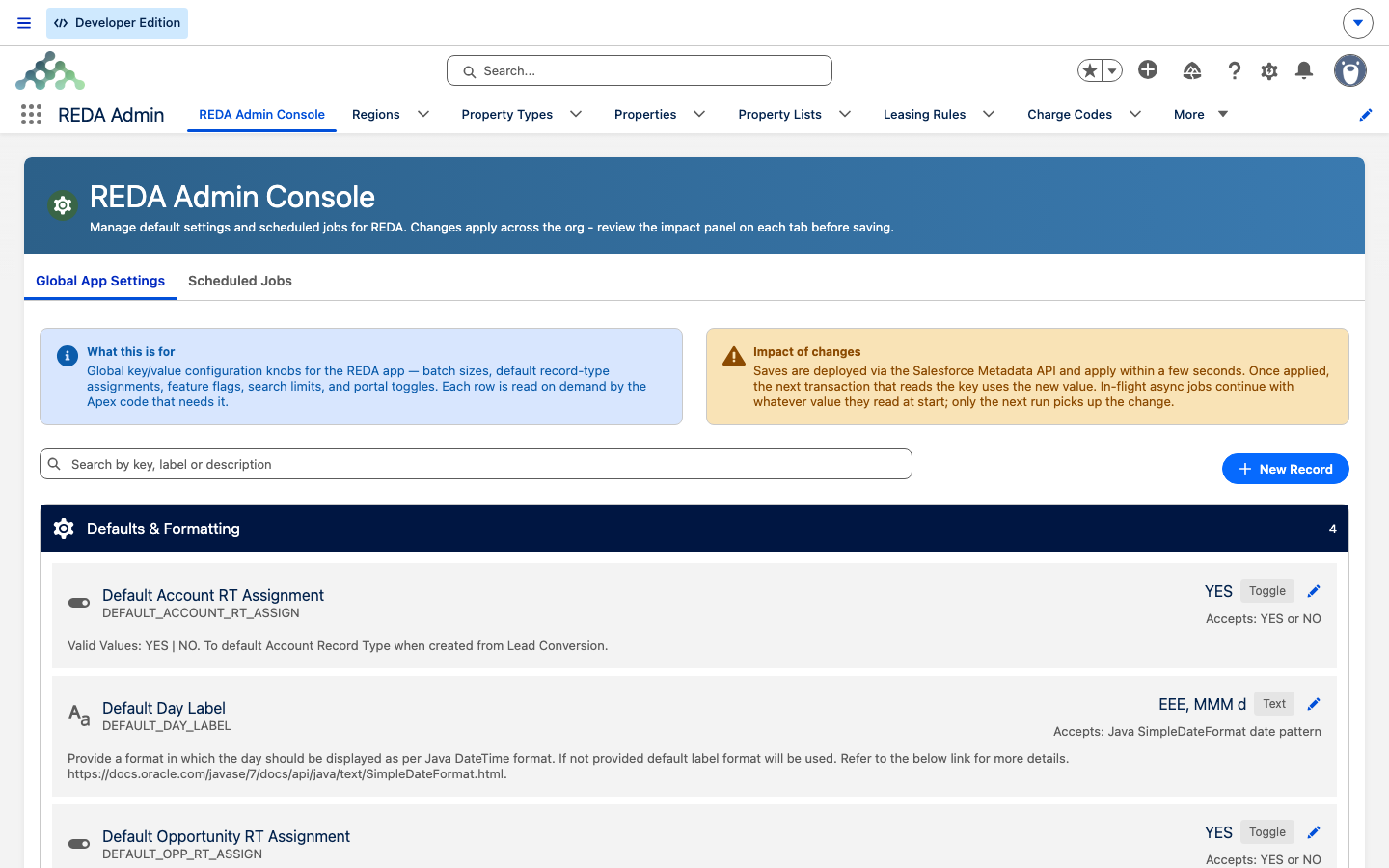
What the REDA Admin Console is
The REDA Admin Console is a single tool inside the REDA Admin app, and it does exactly two things:
- Scheduled Jobs — schedule and abort the background jobs that produce REDA's recurring invoices, late fees, inflation adjustments, and more.
- Global App Settings — REDA's application-wide settings.
It's important to see what the console is not. The console sits first in the REDA Admin app's navigation, beside the ordinary setup tabs — Regions, Charge Codes, Leasing Rules, and so on. Those tabs are not "inside" the console; they're their own tabs. The console covers jobs and app settings only. We'll map every setup tab below.
The two apps, one minute
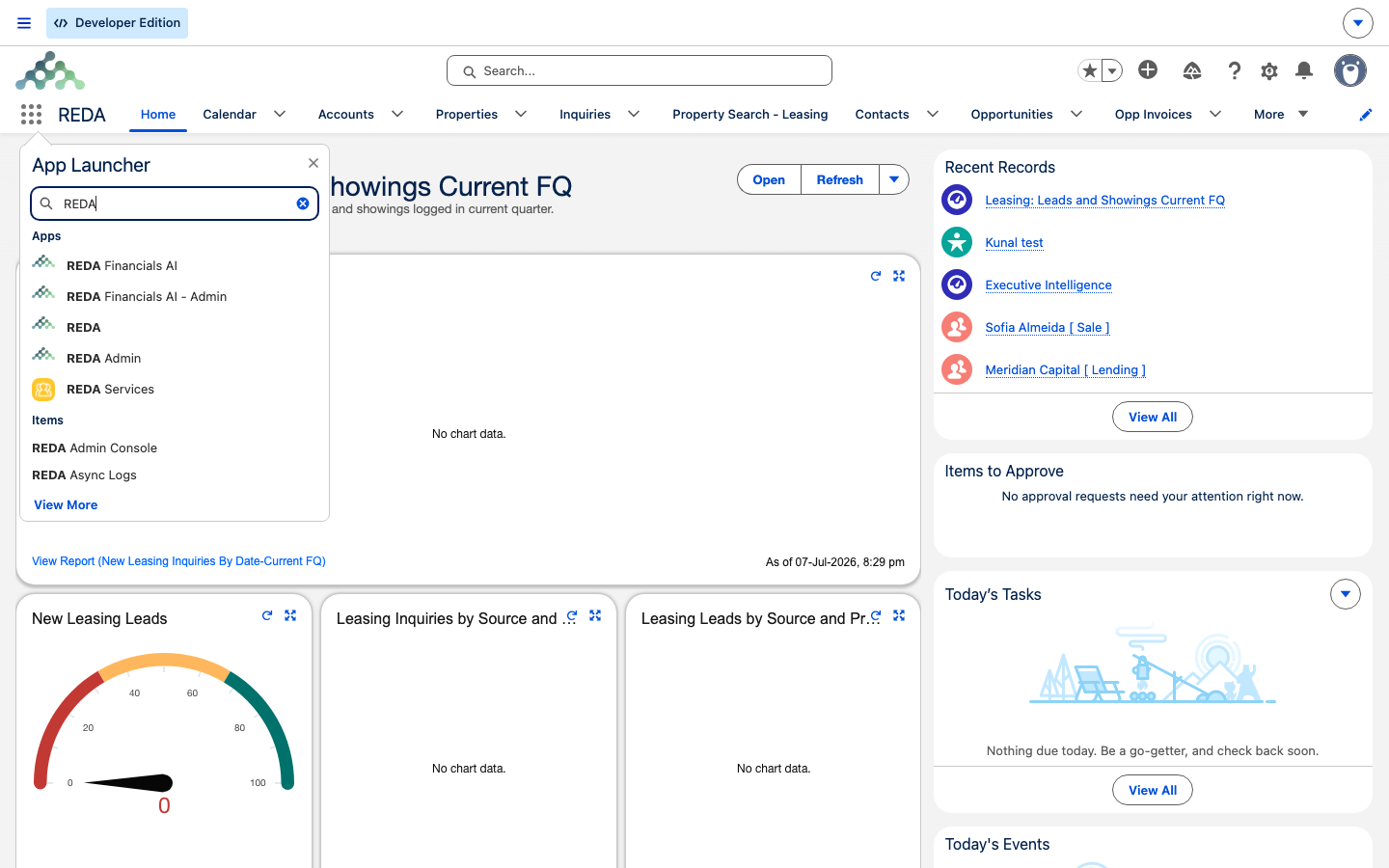
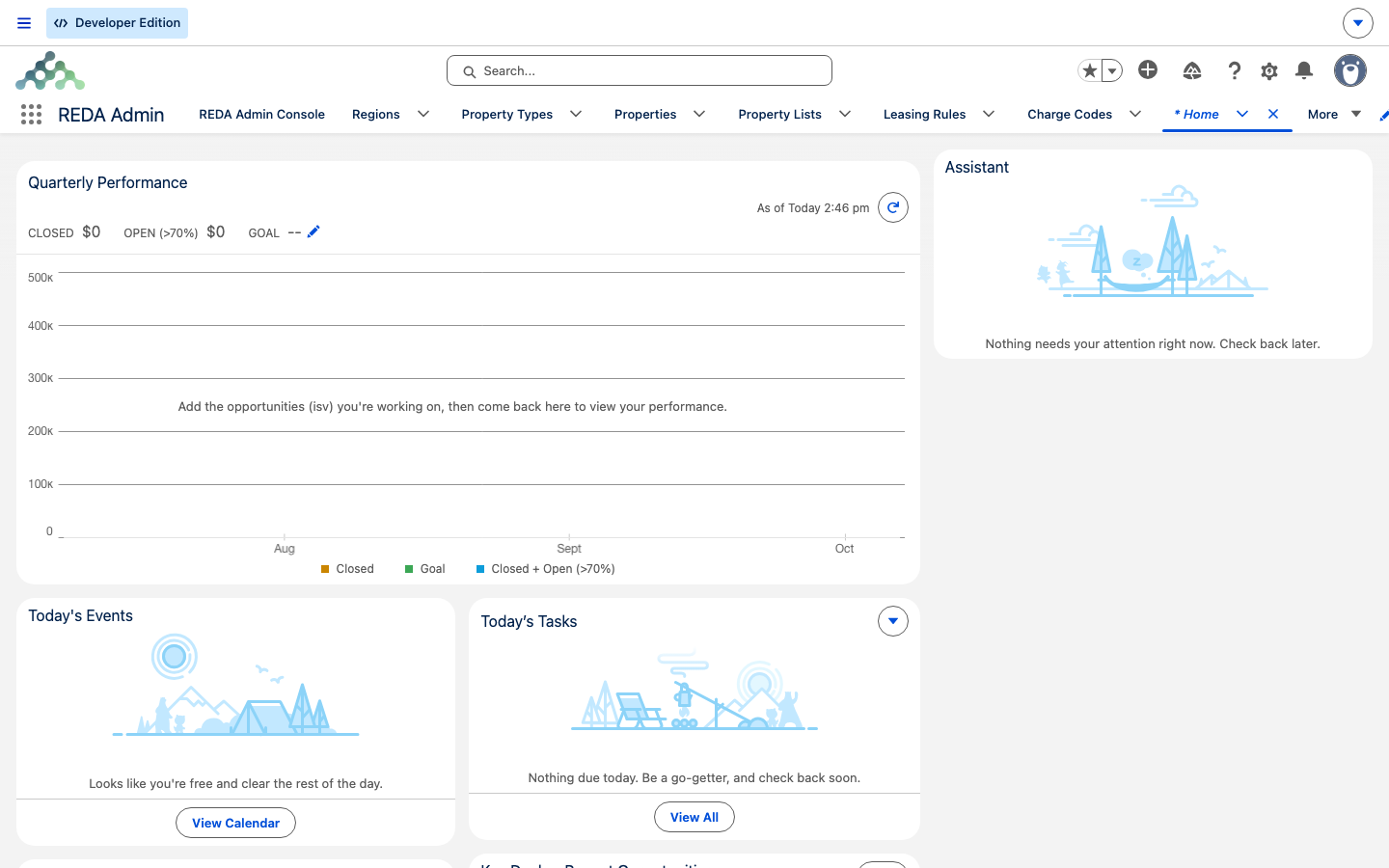
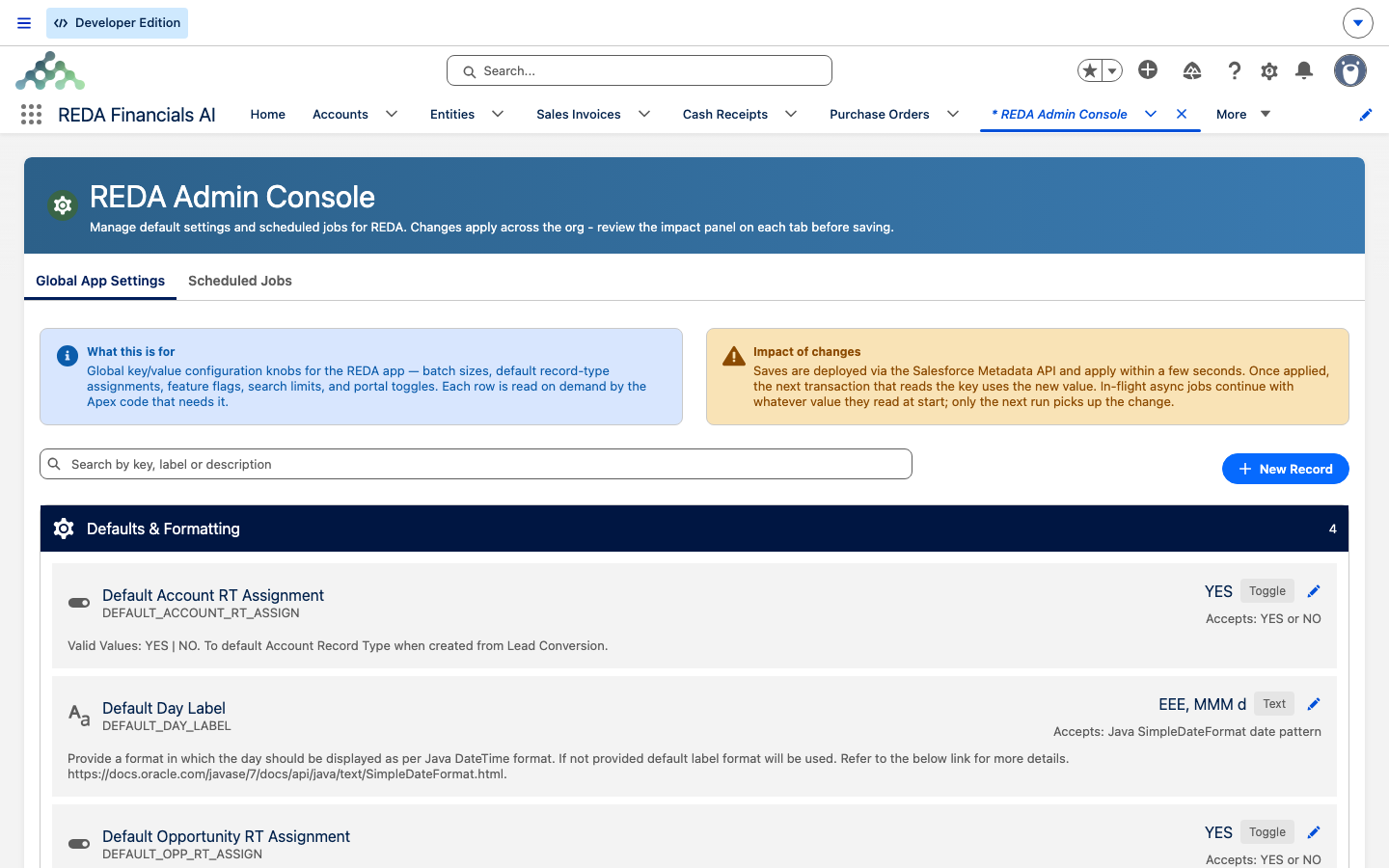
REDA ships as two apps, and knowing which is which saves confusion on day one:
| REDA | REDA Admin | |
|---|---|---|
| What it's for | Day-to-day operations | Admin and Master Data setup for REDA |
| Who works here | All operational roles — leasing, sales, acquisition, property management, lending, invoicing, booking, inspection, maintenance, commission, and more | The REDA system administrator (Master Data Admin), plus auditors who need read-only visibility |
| What's in it | The REDA Home dashboard and the operational tabs (deals, properties, tickets, work orders…) | The Admin Console plus the master-data setup tabs |
You do the actual property work in REDA. You configure the product in REDA Admin. The Properties tab appears in both apps — it's the same tab with a second home, so you can reach properties whether you're operating or configuring; there's only one set of property records behind it.
The two console areas
Open the REDA Admin Console and you'll see two tabs inside it.
Scheduled Jobs
This is where you schedule and abort REDA's background jobs. It matters more than it sounds: a fresh REDA org ships with none of its billing jobs scheduled, so scheduling them here is a mandatory go-live step. When you abort a job, REDA confirms with "Abort this scheduled job? Future runs will stop immediately. In-flight executions complete normally." The full catalog of jobs, sensible times, and what breaks if you skip one are covered in Scheduling Background Jobs — read it before go-live.
Global App Settings
This area holds REDA's application-wide settings. See Global App Settings for what it controls, including the batch-size settings the scheduled jobs read.
Where every setup tab lives
The REDA Admin app's navigation lists the console first, then the setup tabs. Here's what each one configures, who can touch it, and the article that covers it in depth. As a rule, each setup object is documented where users actually feel it — Leasing Rules in Leasing, Charge Codes in Billing, inspection setup in Property Management — so this table is the map, and those articles are the territory.
| Tab | What it configures | Who can touch it | Covered in |
|---|---|---|---|
| REDA Admin Console | Scheduled jobs and app settings (this article) | Master Data Admin only | Scheduling Background Jobs, Global App Settings |
| Regions | Operating regions and their currency | Edit: Master Data Admin · View: Master Data Read Only | Regions |
| Property Types | Property classification | Edit: Master Data Admin · View: Master Data Read Only | Property Types |
| Properties | The asset records themselves (a second home for the tab) | View: Property Leasing, Master Data Read Only · Create/edit: Sales, Acquisition, Property Management, Lending · Full: Master Data Admin | Understanding Properties |
| Property Lists | Property lists and tags | Edit: Master Data Admin · View: Master Data Read Only | Property Lists |
| Leasing Rules | The leasing policy and automation engine | Edit: Master Data Admin · View: Master Data Read Only, Property Leasing | Leasing Rules |
| Charge Codes | The billing catalog | Edit: Master Data Admin · View: Master Data Read Only | Charge Codes |
| Amenity Codes | Amenity catalog and pricing | Edit: Master Data Admin · View: Master Data Read Only | Amenities |
| Settlement Codes | Closing and settlement charge catalog | Edit: Master Data Admin · Create/edit: Acquisition · View: Master Data Read Only | Settlement Codes |
| Calendar Slot Rules | Booking and showing calendar supply | Edit: Master Data Admin · View: Master Data Read Only, Property Leasing, Work Order, Service Request | Calendar Slot Rules |
| Inspection Templates | Inspection blueprints | Edit: Master Data Admin, Inspection Manager · View: Master Data Read Only, Inspection User | Inspection Setup |
| Inspection Item Masters | Reusable inspection items | Edit: Inspection Manager · View: Inspection User | Inspection Setup |
| Inspection Locations | Inspection locations | Edit: Inspection Manager · View: Inspection User | Inspection Setup |
| Commission Rules | Commission rules and splits | Edit: Master Data Admin · Create/edit: Commission Manager · View: Master Data Read Only, Commission User | Commission Rules |
| Inflation Rules | Rent inflation and indexation rules | Edit: Master Data Admin · View: Master Data Read Only, Inflation Adjustment User | Inflation Adjustments |
| Email Templates | Standard email templates (used by mass email and more) | Granted org-side by your administrator | Mass Email Configuration |
| REDA Async Logs | The system job log (records REDA creates as jobs run) | View/create: Master Data Read Only, Expense Reconciliation Admin, Inflation Adjustment User; the tab is also granted to Property Leasing | REDA Async Logs |
| Reports | Standard reports | Granted org-side by your administrator | Reports & Dashboards |
| Dashboards | Standard dashboards | Granted org-side by your administrator | Reports & Dashboards |
A couple of notes from the map. Settlement Codes is the one setup catalog an operational role (Acquisition) can edit; every other setup tab is Master Data Admin's to change. And Email Templates, Reports, and Dashboards are granted by your Salesforce administrator outside REDA's own permission sets — no REDA set includes the ability to run reports at runtime.
The access model, briefly
Two permission sets frame the whole Administration section:
- REDA - Master Data - Admin — the administrator's set. It's the only set that includes the console, and it's the set that can change master data across the product.
- REDA - Master Data - Read Only — the auditor's twin. It can view the master-data tabs but not change them, and it does not get the console.
REDA has no packaged bundles that pre-group these into named "roles," so persona bundles are an implementation decision. When asking for access, say "please assign me REDA - Master Data - Admin," not "my role should include it."
A first walk through REDA Admin
A newly assigned administrator at Meridian Properties is given the REDA - Master Data - Admin set and opens REDA Admin for the first time. They walk the navigation top to bottom: the REDA Admin Console first (seeing its two tabs, but scheduling nothing yet), then confirm the master data is in place in the order the rest of the product depends on it — Regions, then Charge Codes, then Leasing Rules, then Property Types and Amenity Codes, then Properties. With that foundation confirmed, they return to the console to schedule the background jobs before go-live.
Where to go next
- Scheduling Background Jobs — the go-live-critical area; schedule these or billing silently won't run.
- Global App Settings — the application-wide settings, including batch sizes.
- REDA Async Logs — how to monitor what the jobs did each night.
- Setup Roadmap — the order to configure master data in.
- Go-Live Checklist — everything to confirm before you switch on.
Frequently asked questions
You need REDA - Master Data - Admin. The console is separately gated, so opening the app isn't enough. The message is "You do not have permission to perform this action in the REDA Admin Console." — ask your administrator to assign that set.
No. Those are ordinary tabs in the same REDA Admin app, beside the console. The console itself covers Scheduled Jobs and Global App Settings only.
Yes — assign REDA - Master Data - Read Only. It views the master-data tabs, can't edit them, and doesn't get the console.
Report and dashboard access is granted by your Salesforce administrator outside REDA — no REDA permission set includes it.
Only two small daily housekeeping schedules ship already running. Every billing and maintenance batch job needs scheduling in the console first — see Scheduling Background Jobs.
Was this article helpful?