
Property Management Agreements
When you agree to manage a property on an owner's behalf, you and the owner settle a handful of things: what you'll be paid, for how long, and which of your companies is doing the managing. REDA records all of that on a Property Management Agreement. This article shows you how to create one, how to capture the fee terms so every check passes, how to walk the agreement from draft to signed to closed, and — most importantly — what REDA does automatically when you close it: it marks the property as being under your management. No prior REDA experience is assumed; every term is defined as we reach it.
Access you'll need. Creating and editing the agreement requires the REDA - Property Management User permission set. Ask your administrator to assign it if you can't create a new ticket.
What a Property Management Agreement is
A Property Management Agreement — REDA records it as a ticket, a short tracked record with its own status Path — is the agreement of record between you and the owner. The fee terms live on the agreement, not on the property. The property simply points back to the agreement once it's closed. Throughout this article we'll call it the PMA ticket on first mention, and "the agreement" after that — you think in terms of an agreement; REDA stores it as a ticket.
The agreement is always tied to a management deal. In REDA a deal is an Opportunity — REDA's single "deal" record — and for property management that deal is a Property Management opportunity: the pursuit of an owner's business. The agreement is the contract that closes that pursuit. As you move the agreement's status forward, REDA advances the deal's stage to match, and when you close the agreement it stamps the property. That three-way handshake — agreement status, deal stage, property stamps — is the heart of this article.
Before you start
An agreement can only attach to a qualifying deal. The deal must be a Property Management opportunity, or a closed-won Property Sale opportunity (a property you sold and now manage for the buyer). Pick anything else and REDA stops you:
The agreement's Property must also match the property on that deal:
So have the management deal (and the property it names) ready before you create the agreement.
On a Property Management deal, the owner's representative sits on the deal as its primary Contact Role of PM Client — the person on the owner's side you're contracting with. You don't set this on the agreement itself; it lives on the deal, and it's a useful sanity check that you're building the agreement against the right owner.
Creating the agreement
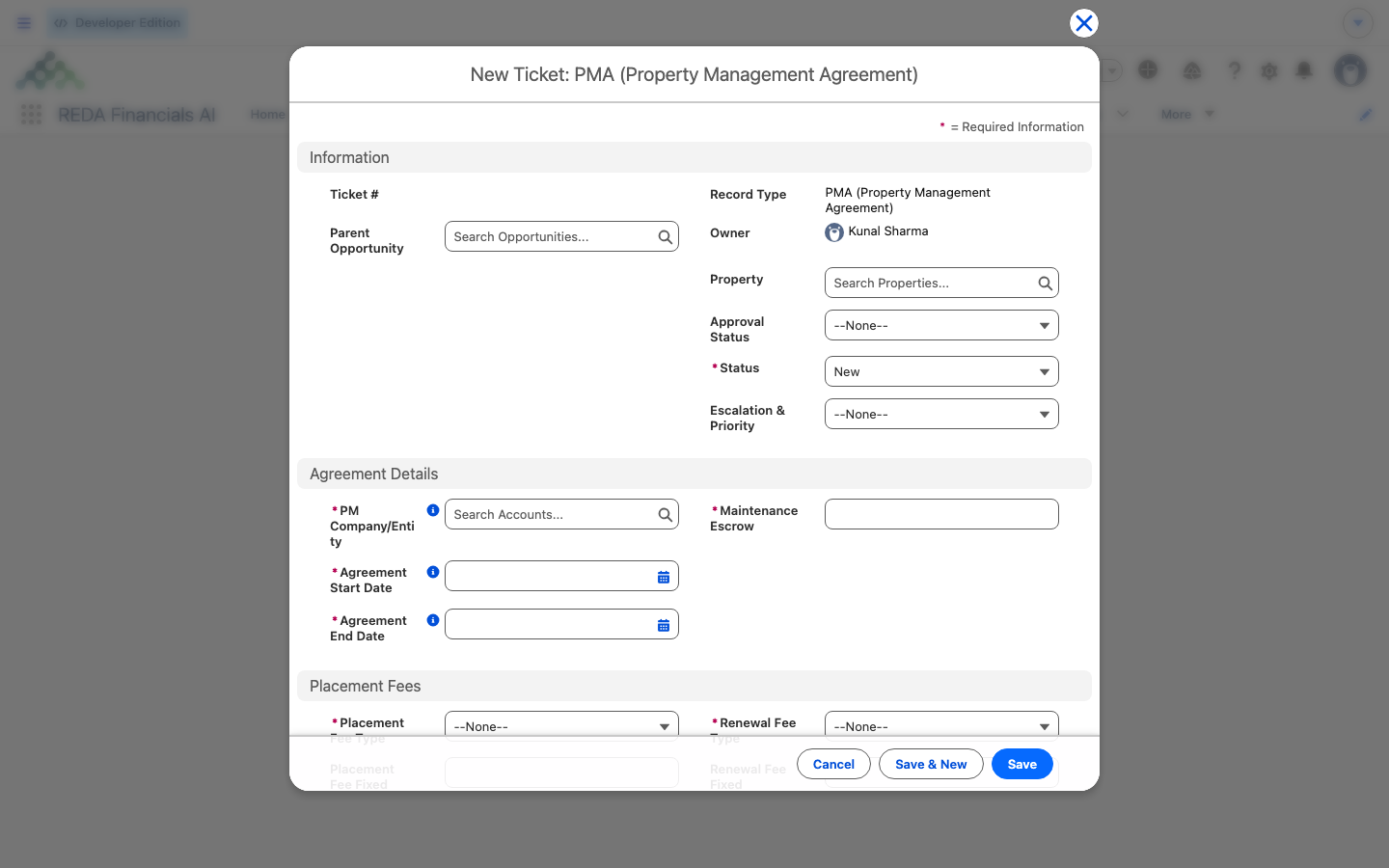
From the Tickets tab, click New, choose PMA (Property Management Agreement), and fill in the terms. The agreement is organized into a few groups of fields:
The agreement also carries an Escalation & Priority field (Low, Medium, or High) and a free-text Description for your own notes.
The management fee
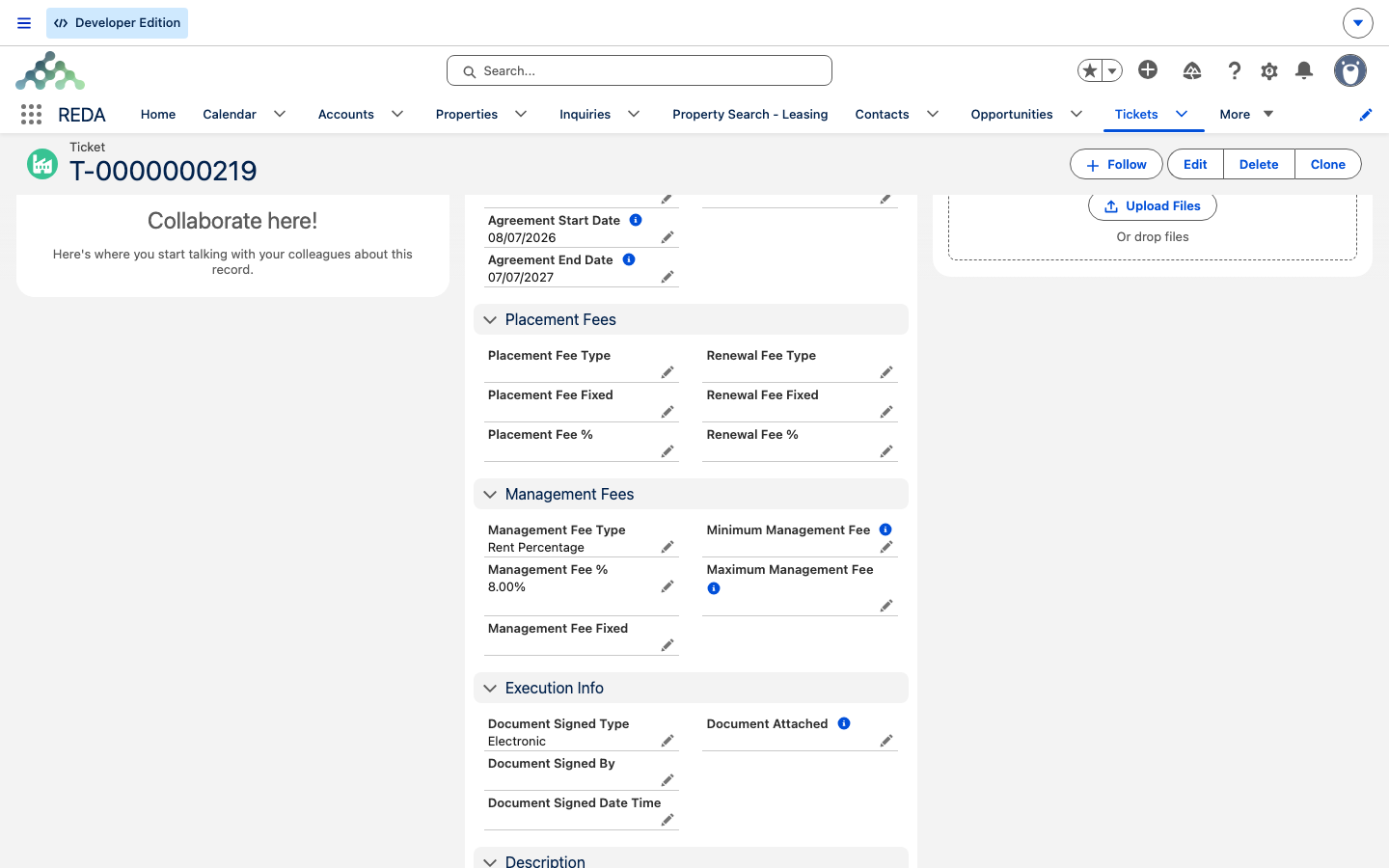
The Management Fee Type is either Fixed or Rent Percentage:
- Fixed — a flat amount in Management Fee Fixed.
- Rent Percentage — a percentage in Management Fee %, and only for this type may you also set a Minimum Management Fee and Maximum Management Fee to floor and cap the amount.
Whichever type you pick, its matching amount is required:
And the minimum/maximum belongs to the percentage type alone. Set them on a fixed fee and REDA responds:
Placement and renewal fees
The Placement Fee (for finding and placing a tenant) and the Renewal Fee (for renewing one) each take a type of Fixed - One Time, Fixed - Per Year, or Rent Percentage, with the matching amount field. As with the management fee, the type you choose decides which amount is required:
"If Renewal Fee Type is Fixed then Renewal Fee Fixed must be provided or If Renewal Fee Type is Rent Percentage then Renewal Fee % must be provided."
Moving the agreement through its stages
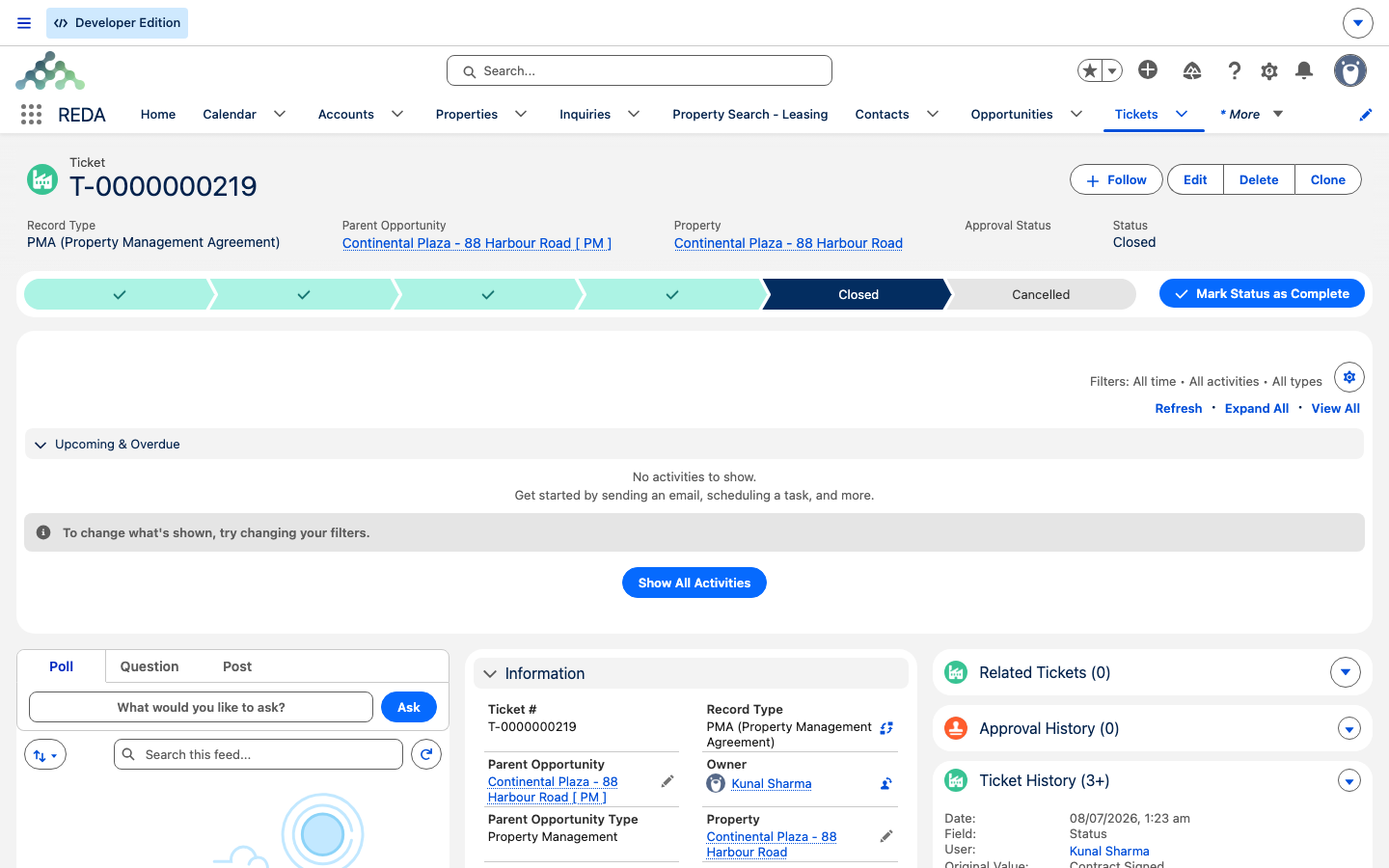
The agreement moves along a Status Path: New → In Process → Contract Sent → Contract Signed → Closed. As you advance the status, REDA advances the management deal's stage to match:
| Agreement status | What REDA does to the deal |
|---|---|
| New / In Process | Records system snapshot details; no deal-stage change yet |
| Contract Sent | Deal stage → Contract Out |
| Contract Signed | Deal stage → Under Contract; the deal's Under Contract Date is set from the signed date |
| Closed | Deal stage → Under Contract; the Property is stamped (see below) |
Signing and documents
Before you can set Contract Signed or Closed, REDA needs to know when the agreement was signed. Fill in the Document Signed Date Time first, or you'll see:
The Document Signed Type is either Electronic (an e-signature is on file) or Paper. For a paper agreement, REDA insists the signed document is actually attached before you close, and it checks that a file really exists before you can flag Document Attached as Yes:
"No document found associated to this ticket. Please upload document prior provide Document Attached as "Yes"."
Closing is also a two-step gate: you cannot jump straight to Closed without signing first. Try, and REDA responds:
So the reliable path is always: sign (set the signed date, attach the paper document if any), set Contract Signed, then set Closed.
What closing does automatically
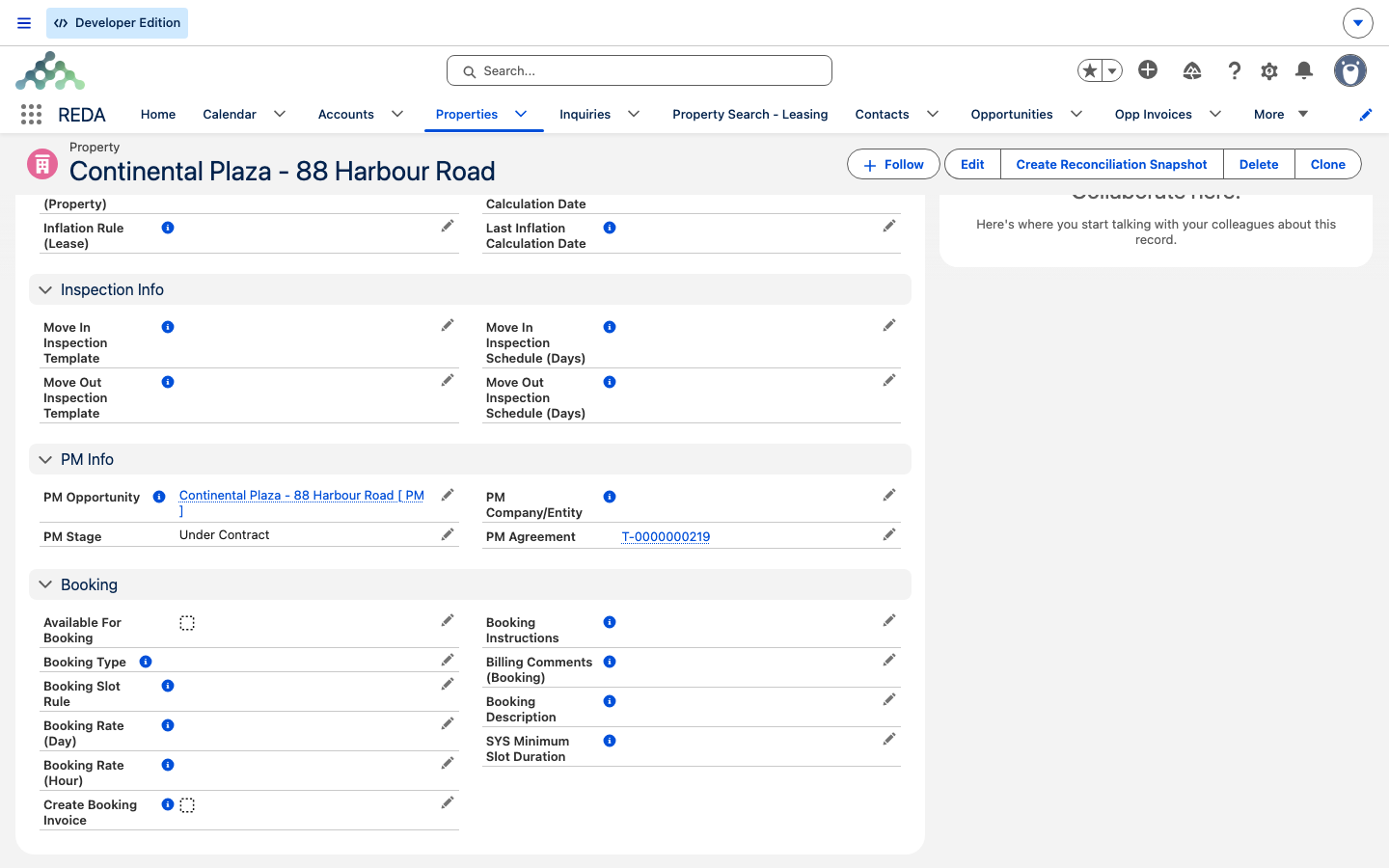
Closing the agreement is the moment the property becomes "under management." On the move to Closed, REDA:
Under Contract, its Under Contract Date taken from the signed date.From here, the property's Details tab shows the management link, and the day-to-day work described in Managing a Property Under a PM Agreement takes over.
Worked example: Meridian Court under 5% management
Meridian Properties signs a management agreement with owner Continental Holdings for the building Meridian Court. Here's the whole agreement, start to finish:
| You do | REDA does |
|---|---|
| Create a PMA ticket on the Meridian Court management deal; dates 1 Jan 2026 – 31 Dec 2027; Management Fee Type Rent Percentage 5.00%, Minimum 100.00, Maximum 500.00; Placement Fee Fixed - One Time 500.00; Renewal Fee Rent Percentage 2.00%; Maintenance Escrow 2,500.00; PM Company/Entity Meridian Properties | Saves the agreement once every fee has its matching amount |
| Set status Contract Sent | Deal shows Contract Out |
| Sign electronically on 5 Jan 2026 — set Document Signed Date Time — then set Contract Signed | Deal shows Under Contract, Under Contract Date 5 Jan 2026 |
| Set status Closed | Stamps Meridian Court with PM Agreement = this agreement and PM Company/Entity = Meridian Properties |
Reference: statuses and fees
What each status requires and what it does:
| Status | Gate before you can set it | Automatic effect on save |
|---|---|---|
| New (default) | — | System snapshot details recorded |
| In Process | — | No deal-stage change |
| Contract Sent | — | Deal stage → Contract Out |
| Contract Signed | Document Signed Date Time filled | Deal stage → Under Contract; Under Contract Date set |
| Closed | Signed first; for paper, Document Attached = Yes with a real file | Deal stage → Under Contract; Property stamped with PM Agreement + PM Company/Entity |
| Cancelled | — | Nothing — no reversal automation |
The three fee blocks and their types:
| Fee | Type choices | Amount required | Minimum / Maximum? |
|---|---|---|---|
| Management Fee | Fixed / Rent Percentage | Management Fee Fixed or Management Fee % | Only with Rent Percentage |
| Placement Fee | Fixed - One Time / Fixed - Per Year / Rent Percentage | Placement Fee Fixed or Placement Fee % | No |
| Renewal Fee | Fixed - One Time / Fixed - Per Year / Rent Percentage | Renewal Fee Fixed or Renewal Fee % | No |
Where to go next
- Managing a Property Under a PM Agreement — what changes once the agreement is stamped, and the day-to-day work.
- Service Requests — the intake record for anything a tenant or owner reports.
- Work Orders — scheduling and billing the maintenance on a managed property.
- Understanding Tickets — the engine behind every agreement status.
Frequently asked questions
The deal must be a Property Management opportunity or a closed-won Property Sale opportunity. REDA shows: "Opportunity on Ticket type "PMA" must of type closed won "Property Sale" or "Property Management"." Choose a qualifying deal.
You have to sign it first. REDA shows: "You can not update PMA ticket status directly to Closed. Agreement must be signed prior the PMA ticket can be closed." Move through Contract Signed, then Closed.
A signed date is required before Contract Signed or Closed: "The Document Signed Date Time must be provided before updating the stage to "Contract Signed" or "Closed."" Fill in Document Signed Date Time first.
Those apply only to a percentage-based fee: "Minimum and Maximum for management fees can only be defined if the management fee is calculated based on rent percentage." Set Management Fee Type to Rent Percentage.
REDA checks that a file really exists first: "No document found associated to this ticket. Please upload document prior provide Document Attached as "Yes"." Upload the signed document, then set Document Attached to Yes.
No. Cancelling a Property Management Agreement runs no automation — it reverts nothing. To stop managing a property, update the property and its deal by hand.
Was this article helpful?