
Creating a Lease
Most leases in REDA are born automatically — when someone converts a leasing inquiry, REDA creates the tenant, the contact, and the lease in one move. But you will often need to start a lease directly: a walk-in tenant, a lease that was never captured as an inquiry, or a second lease for a tenant you already know. This article teaches that deliberate path — the New Lease action, the handful of choices that matter at creation, and everything REDA fills in for you the moment you save. No prior REDA experience is assumed; every term is defined as we reach it.
Access you'll need. Creating a lease requires the REDA - Property Leasing User permission set; system administrators can use REDA - Master Data - Admin instead. You also need access to the tenant's Accounts and Contacts, which your administrator grants separately.
Two ways a lease is born
There are exactly two ways a lease comes into being, and choosing the right one saves rework:
| Path | Use it when | What it does for you |
|---|---|---|
| Convert an inquiry (the common path) | The tenant came in as a captured leasing inquiry that hasn't been converted yet | Creates the tenant account, the contact, the lease, and the primary contact role in one save |
| New Lease (this article) | A lease not tied to an un-converted inquiry — a walk-in, or a second lease for an existing tenant | Opens a fresh lease you fill in yourself; you supply the tenant account |
Both produce the identical result: a lease that opens at Stage Application - New, ready for charges and approval. If the tenant already exists as an inquiry, prefer converting the inquiry — it builds the surrounding records for you. Everything below covers the direct path.
Before you start
Three things must exist before a lease will work end to end. Two you pick at creation; the third is defaulted for you but must be set up upstream.
Walkthrough: the New Lease action
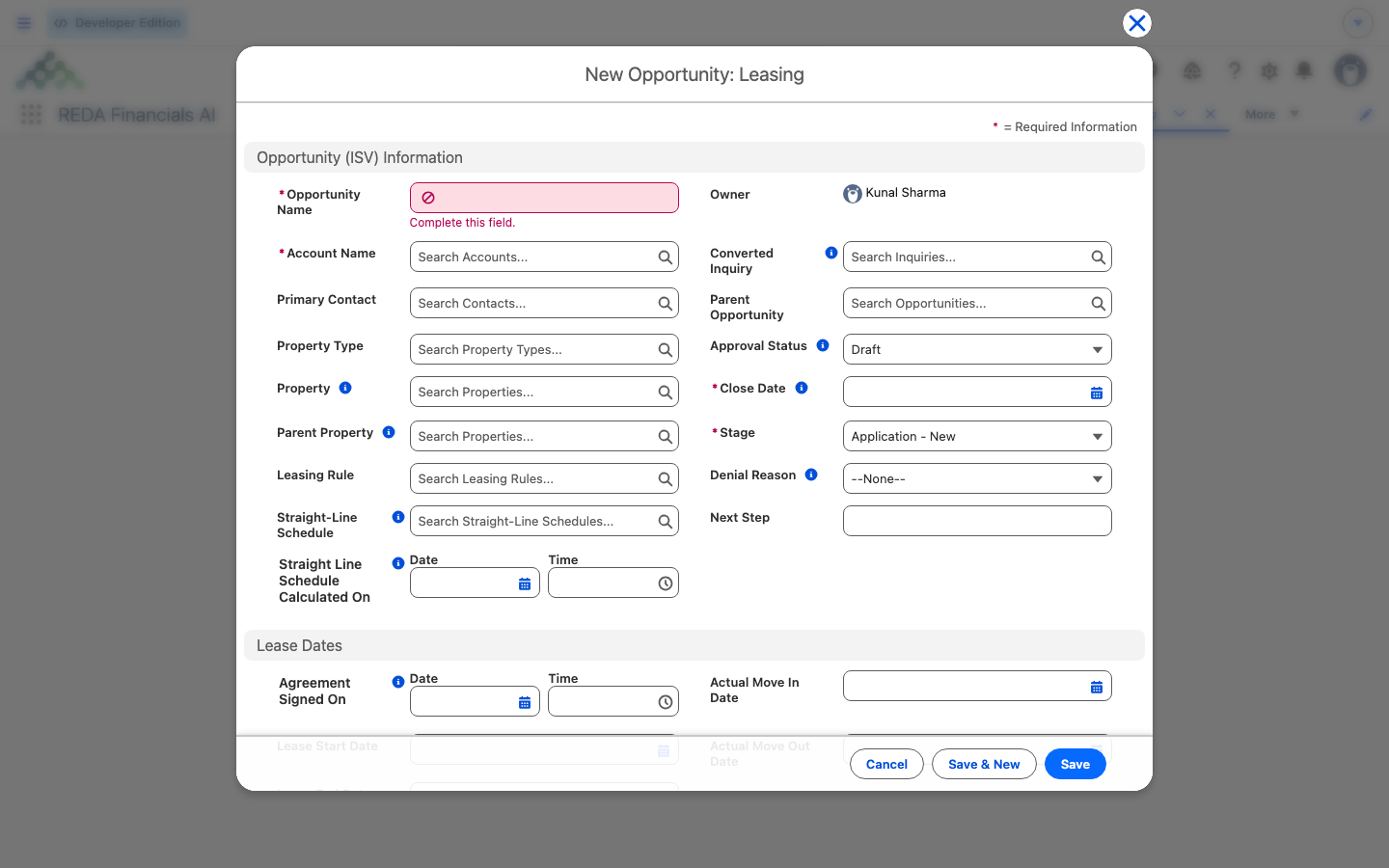
From the Opportunities tab, click New Lease and work through the guided dialog:
Application - New and fills in the rest for you — covered next.What REDA fills in the moment you save
A new lease is never a blank record. As soon as you save, REDA populates a set of fields so you don't have to hunt for them:
| You set | REDA sets for you on save |
|---|---|
| Account Name (tenant) | Stage = Application - New |
| Property | Lease name, composed from the tenant and the unit |
| Primary Contact | Leasing Rule — the property's rule, or the region's default rule if the property has none |
| Lease Start / End Date, Term (Months) | Commission Rule, from the property's default |
| — | Parent Property, Property Type, Region, Neighbourhood — copied from the property |
The tenant, the property, and the rule
Three choices at creation quietly steer everything that follows:
- The tenant account is the bill-to for every invoice and the anchor of the tenant ledger (see The Tenant Ledger). Choose the right account, not just the right name.
- The property locks in once charges exist. REDA will stop a later change with "Property can not be changed on leasing Opportunity if Opportunity charges are defined." Pick the correct unit before you build the chargebook.
- The rule — defaulted from the property — silently governs billing cadence, proration, late fees, month-to-month behavior, and renewals. Get the property's rule right upstream and the lease inherits it correctly.
After creation
Right after you save, the lease sits at Application - New with no charges. Two things come next:
Worked example: Aisha's lease
You are creating a lease for tenant Aisha Rahman on Meridian Court #101, a unit owned by Continental Holdings. Open New Lease, pick Aisha Rahman as the tenant account, pick Meridian Court #101 as the property, set Lease Start 1 Aug 2026 and a 12-month term (Lease End 31 Jul 2027), and save.
REDA opens the lease at Application - New, names it for Aisha and the unit, defaults the Leasing Rule from the property (Meridian's residential rule), and copies the property type and region onto the lease. There are no charges yet — so next you click Terms & Charges, and the rent line resolves to 1,200.00 per month from the property's rent card. From there the lease is ready to complete and submit for approval.
Reference: save-blocking rules you may hit
These are the checks REDA runs while you create or advance a lease, quoted exactly as they appear on screen:
| When | What REDA shows |
|---|---|
| Advancing a won lease with no tenant account | "Account is required to update an opportunity." |
| Moving to an occupied or notice stage with no start date | "You must provide the value of Lease Start Date prior updating the stage." |
| Changing the property after charges exist | "Property can not be changed on leasing Opportunity if Opportunity charges are defined." |
Where to go next
- Setting Up Lease Charges — build the chargebook the new lease needs.
- From Application to Move-In — advance the lease through its whole lifecycle.
- The Lease Record — what every field and tab on the lease means.
- Converting Inquiries — the common path that creates the lease for you.
- Leasing Rules — the rule REDA defaults onto the lease.
- Child Leases — add extra units under one master lease.
Frequently asked questions
Convert when the tenant arrived as a captured leasing inquiry that hasn't been converted yet — conversion also creates the account, contact, and primary contact role for you. Use New Lease for a lease not tied to an un-converted inquiry, such as a walk-in or a second lease for an existing tenant. Both produce the same lease at Application - New.
The inquiry needs its own Move In Date and Lease Term (Months) before it can convert. REDA shows: "Move-in date and lease terms must be provided prior to converting the leasing inquiry." Fill in both on the inquiry, then convert.
Once the lease is won, the account is required: "Account is required to update an opportunity." Set the tenant account at creation so it's always in place.
The property locks once the chargebook exists: "Property can not be changed on leasing Opportunity if Opportunity charges are defined." Pick the right unit before adding any charges.
REDA defaults the rule from the property's own Leasing Rule, or from the region's default rule if the property has none. You never choose it by hand at creation.
REDA composes the lease name from the primary contact and the unit, so records stay consistent and searchable. You don't type it (unless your administrator has set a naming override).
No. The late-fee and month-to-month values copy from the Leasing Rule when the lease turns billable, not on a brand-new Application-stage draft. An empty late-fee section on a fresh lease is expected.
Was this article helpful?