
Creating & Editing Properties
This article walks you through adding a property to REDA — whether that's a single unit or a whole building of them — and editing one afterwards. You'll learn the order to create records in (parents before children), which field groups matter for your business line, how to sail past the handful of rules that block a save, and which fields REDA fills in for you. It also explains the properties that appear on their own, created automatically when an acquisition or management deal goes live. No prior REDA experience is assumed.
Access you'll need. Creating and editing properties requires one of the property-operations sets — REDA - Property Sales User, REDA - Property Acquisition User, REDA - Property Management User, or REDA - Property Lending User — or REDA - Master Data - Admin. REDA - Property Leasing User can view. Deleting a property is reserved for REDA - Master Data - Admin.
Before you start
A property leans on master data that should already exist. Set these up first (an administrator usually does):
| Needed first | Why |
|---|---|
| Region | Sets the property's currency and helps decide who can see it, and filters the Neighbourhood list. Set the Region first. |
| Property Type | Required on every property — it says what kind of asset this is. You can't save without one. |
| Neighbourhood (optional) | A finer location; its list is filtered to the property's Region. |
| Leasing Rule (optional now) | Needed before a unit can be leased, but can be added later — see Making a Property Available for Leasing. |
Create order: building or community, then units
Create the top-level building or community first, then its units. Link each unit to its container with Parent Property; that parent must exist before you save the unit. A property whose type has Is Building/Community selected cannot itself have a parent, so do not nest a container building under a community.
Containers (any property whose type has Is Building/Community ticked) follow two rules you'll meet at save time: they cannot have a parent of their own, and they must carry a Property Code. We'll see both in the walkthrough below.
Walkthrough: creating a building
Walkthrough: creating a unit
The unit is where the leasing and ownership detail lives. Work through the field groups — you don't have to fill everything now; some can wait until you prepare the property for leasing.
Fields REDA fills in for you
Some fields on the saved property are written by REDA, not by you. Don't try to edit them — the next save overwrites your change:
| Field | How REDA fills it |
|---|---|
| Region Code | Copied from the Region on every save. To change it, change the Region lookup. |
| Parent Property Code | Set to the parent property's code. To change it, change the Parent Property. |
| Available For Sale | Recomputed each save from Sale Status (on only while it's Inventory - Available). |
| Deal links + stage texts | Kept in sync with the property's leasing, sale, acquisition and PM deals. |
| Best Leasing Term, Amenity Additional Rent, SYS Amenities, List Tags | Computed from the property's rent cards, amenities and list memberships. |
Properties created automatically from deals
Not every property is created by hand. When an acquisition or a property management deal becomes active with no property linked to it, REDA creates the property record for you and links it back on the deal. So if you find a property nobody remembers creating, check whether it came from a deal — that's usually the answer.
Creating a property against an Acquisition Opportunity goes one step further: REDA also opens a Lending Opportunity at the Prospecting stage for the buying account, carrying over the close date and the property's region, neighbourhood and type — so the financing conversation is ready to go.
Editing an existing property
Editing is mostly straightforward, with two things to keep in mind. First, ownership edits ripple into the property's ownership history, and a problem there will block the property save itself: "Failed to update Property Ownership Trail. Missing ownership information on Property." — usually because you cleared the owner or the start date while an open ownership entry exists. Restore both fields to save. Second, the system-maintained fields above can't be edited — change the source field (the Region, the Parent Property, the Sale Status) instead.
Worked example: Meridian Court and its units
Meridian Properties is adding a building. First they create Meridian Court — a container-type property (its Property Type has Is Building/Community ticked). They save without a code and REDA blocks it: "Property Code is required for Buildings/Communities." They add the code MC and it saves. They leave the parent blank, since a building sits at the top of its tree.
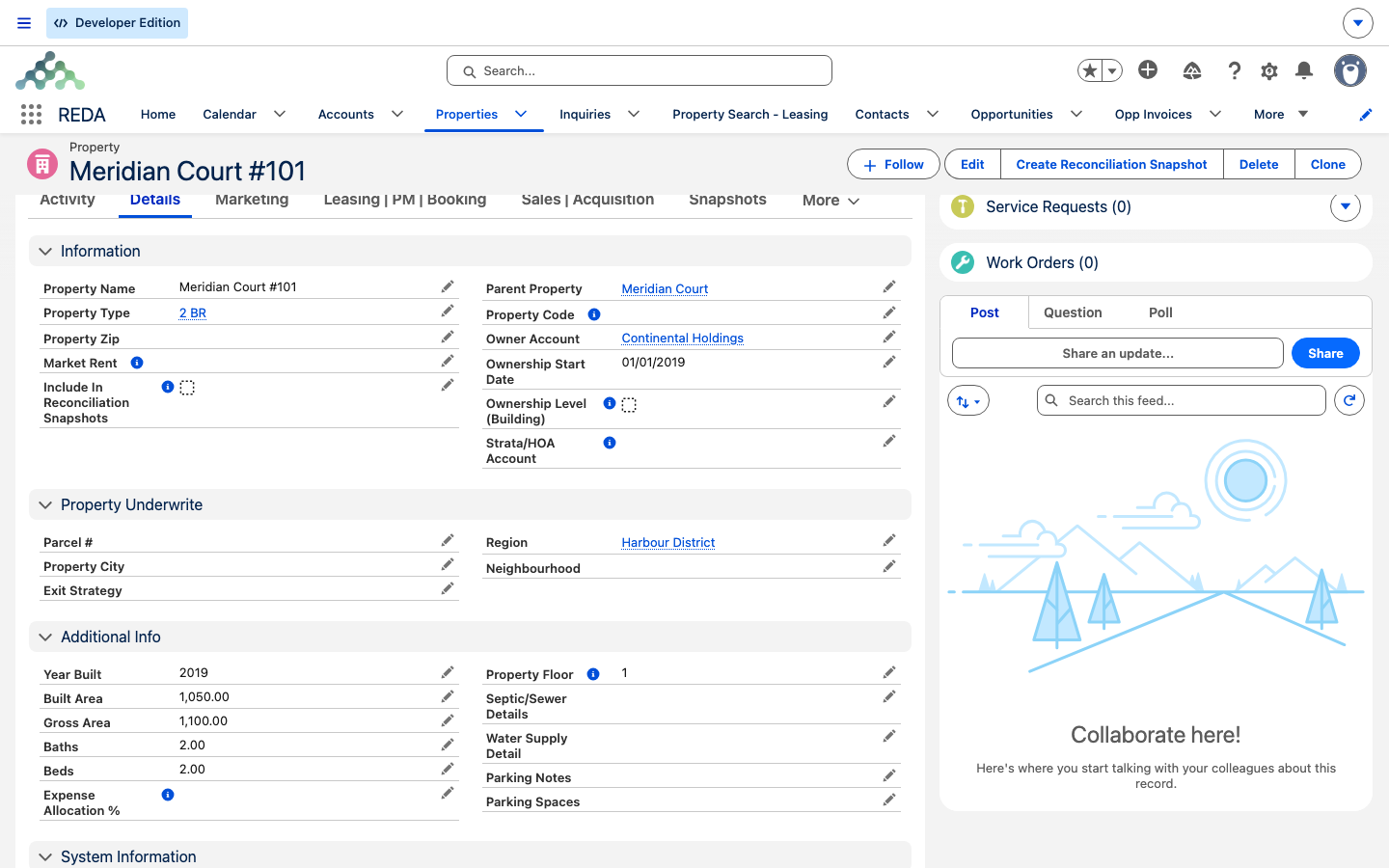
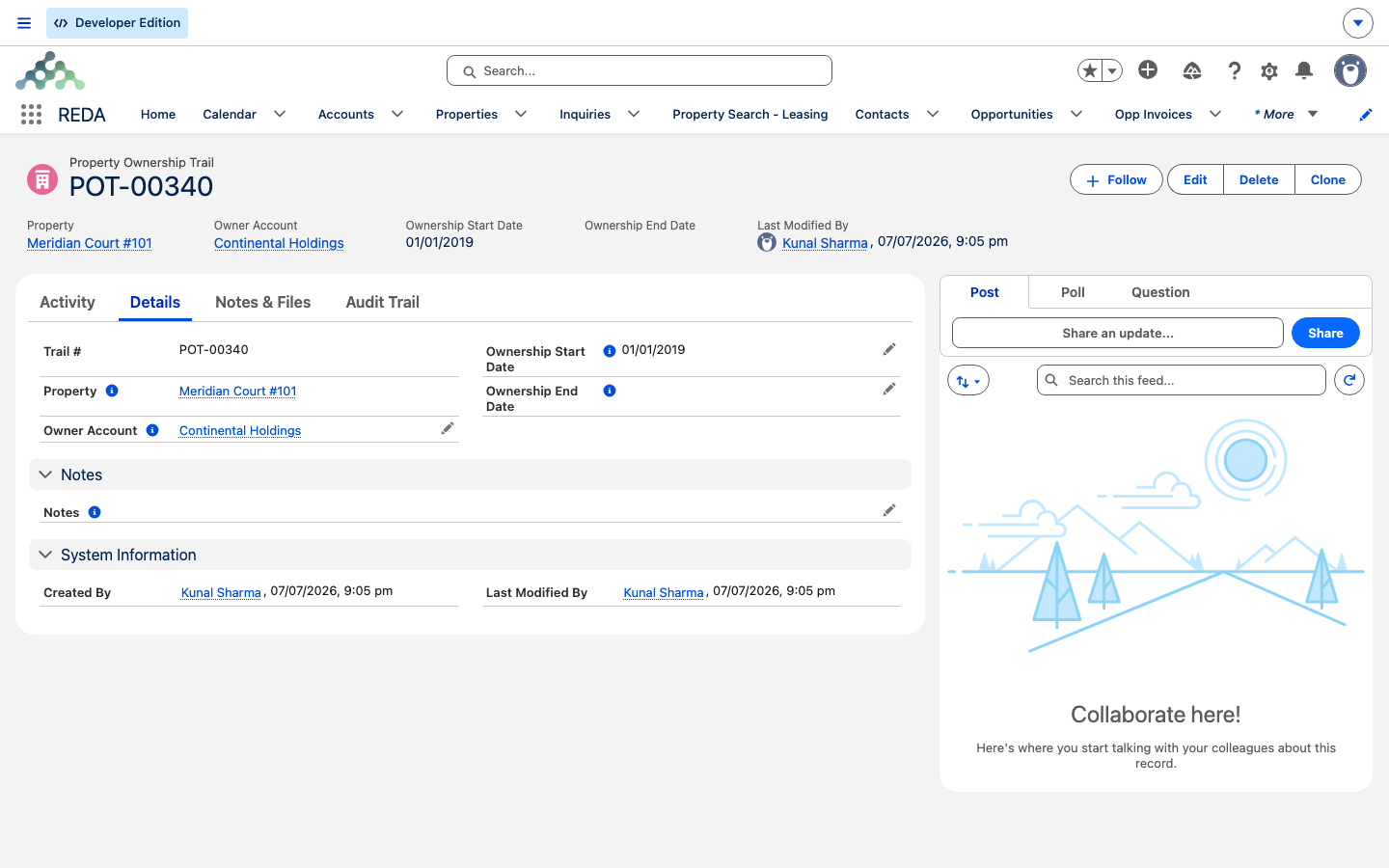
Then they create the unit Meridian Court #101 — a unit-level Property Type (2 BR), Parent Property Meridian Court, Region Harbour District. They fill the physical facts (beds, baths, area) for the unit, and record ownership too: Owner Account Continental Holdings, Ownership Start Date 1 Jan 2026. On save, REDA stamps the unit's Region Code and Parent Property Code, and creates the first ownership-trail entry for Continental Holdings automatically.
Reference: save-blocking rules you may hit
| What you did | Message REDA shows |
|---|---|
| Saved a building/community with no Property Code | "Property Code is required for Buildings/Communities." |
| Gave a building/community a parent | "Parent property cannot be provided for building or communities." |
| Set an Ownership Start Date without an owner | "The Owner Account must be provided if the Ownership Start Date is specified." |
| Set an owner without a start date | "Please provide the Ownership Start Date." |
| Managed ownership at the building level with no parent | "Ownership can be managed at the building level only if parent property is provided." |
| Left ownership incomplete while a history entry is open | "Failed to update Property Ownership Trail. Missing ownership information on Property." |
Where to go next
- Property Types — set up the asset kinds and the Is Building/Community flag before you create properties.
- Property Statuses Explained — how a property's status behaves once deals attach.
- Making a Property Available for Leasing — finish the leasing setup on your unit.
- Understanding Properties — the record and its hierarchy, from the top.
Frequently asked questions
Buildings and communities must carry a Property Code: "Property Code is required for Buildings/Communities." Add a short, unique code and save again.
A building or community sits at the top of its own tree and can't have a parent: "Parent property cannot be provided for building or communities." Only units and other non-container types can have one.
The owner and the start date go together. REDA shows "The Owner Account must be provided if the Ownership Start Date is specified." — and, for the reverse case, "Please provide the Ownership Start Date." Fill both, or clear both.
You cleared the owner or the ownership start date while an open ownership-history entry still exists for that property. Restore both fields, then save.
REDA creates properties automatically when an acquisition or property management deal goes active without a property linked. The deal is linked back on the new record — open it to see the source.
Creating a property with an Acquisition Opportunity set also opens a Lending Opportunity at the Prospecting stage for the buying account, so financing is ready to work.
Was this article helpful?