
Ads Connector: Testing & Troubleshooting
The Ads Connector has two jobs: pull leads in from Google and Meta, and push conversions back out. Before you rely on it, it's worth proving both directions with your own eyes — a test lead that actually lands in REDA, and a test conversion that actually reports. This article walks through both tests, then hands you a diagnosis-and-fix matrix for the things that go wrong most often: leads that never appear, conversions that never fire, the master switch that's quietly off, a disconnect that won't complete, and access that's missing. Each problem is paired with its usual cause and the fix, so you can move from "it's not working" to "here's why" quickly. It assumes only that your ad account has been set up and connected — if it hasn't, start with the setup guide linked at the end.
Access you'll need. Testing and troubleshooting is an administrator task — the same access used to connect ad accounts and manage them. Some fixes (the master lead-capture switch, remote site settings, permission sets) are configured by your Salesforce administrator.
Before you test
A meaningful test needs the setup already in place. Confirm these first, so a failed test points at a real fault rather than an unfinished step:
- The ad account exists on the Ad Account tab, shows Active, and has a Connected Date.
- Lead capture is switched on for your platform (the master Meta / Google setting — see the troubleshooting matrix if unsure).
- For conversions, the ad account has a Conversion Target set (and, for Meta, a Conversion Token). See Closed-loop Conversions & Conversion Target.
Test 1: prove a lead flows in
The cleanest inbound test is to submit your own lead through the real form and watch it arrive in REDA. Both Google and Meta provide a way to send a test submission from their form tools, which avoids spending ad budget.
Test 2: prove a conversion fires
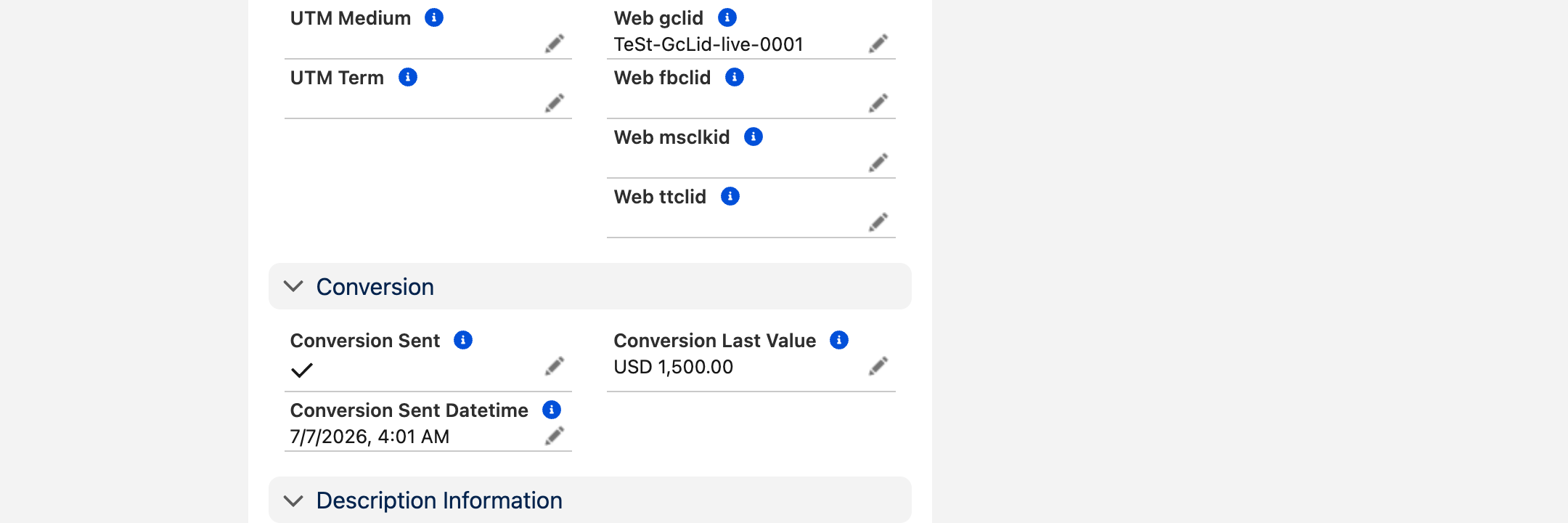
The outbound test is to take a captured lead all the way to converted and confirm REDA stamps it as sent. You don't send anything by hand — converting the lead is the trigger.
Troubleshooting matrix
Work top to bottom — the earlier rows are both the most common and the cheapest to check.
| Problem | Likely cause | Fix |
|---|---|---|
| No leads appear from a platform at all | The master lead-capture switch for that platform is off. There's a separate on/off for Meta lead ads and for Google lead forms; if the one for your platform is off, nothing is ingested. | Ask your administrator to turn on the switch for your platform, then re-run Test 1. |
| A single lead didn't arrive (others do) | The ad account is inactive, or its Page ID / Lead Webhook Key or Webhook Base URL doesn't match the form's setup, so the lead couldn't be routed to it. | Open the ad account: confirm Active is set, and that the Page ID / Lead Webhook Key and Webhook Base URL match what the form points to. |
| Leads arrive but carry no ad attribution | The lead reached REDA but wasn't matched to an ad account — often a Webhook Key mismatch, or the attribution fields aren't on your page layout so they only look empty. | Confirm the Webhook Key ties the form to the right ad account, and that the Ad Platform / Ad Account / Ad Campaign Id / Ad Form Id fields are on the lead layout. |
| Conversion didn't fire — Conversion Sent is blank | The record wasn't actually marked converted, so nothing triggered. | On the Inquiry edition, mark the Inquiry converted; on the Opportunity edition, convert the Lead into an Opportunity. Confirm the field then stamps. |
| Converted, but still no conversion sent | The ad account has no Conversion Target (Google action / Meta dataset), so REDA has nowhere to report. | Set the target: use Select Conversion Target for Google, or enter the dataset ID and Conversion Token for Meta. See Closed-loop Conversions. |
| Conversion sent but the platform never counts it | The lead is missing its original click identifier (Web gclid / Web fbclid), so the platform can't match the conversion back to a click. | Check the lead carries the click identifier. Leads captured without one (e.g. entered by hand) can't be matched by the platform. |
| Disconnect Ad Account fails with a support reference | The disconnect step needs the REDA_Router remote site setting to reach REDA's service, and it's missing or misnamed. Disconnect fails safe, so the account stays connected. | Ask your administrator to confirm the REDA_Router remote site setting exists, then retry — disconnect is safe to run again. Quote the LOG reference to support if it persists. |
| Buttons or the Ad Account tab aren't visible | The user is missing the Ads integration permission set (or, on the edition that doesn't ship one, the equivalent profile access), so the tab, buttons and fields are hidden. | Ask your administrator to grant the Ads integration access. See Ads Connector Setup for the access model. |
The lead-capture switch
One setting sits above everything else in this connector: a master on/off for lead capture, held separately for each platform — one for Meta lead ads, one for Google lead forms. When a platform's switch is off, no leads from that platform are ingested, regardless of how correctly the ad account, form and webhook are configured. It's the fastest thing to rule out and the easiest to overlook, which is why it heads the matrix.
Because it's a global switch, it's managed by your Salesforce administrator, not from the ad account record. If an entire platform has gone silent — every lead, not just one — this is the first place to look. Turning the right switch back on restores capture immediately; no reconnection is needed.
When disconnect won't complete
Disconnecting an ad account isn't just a local flag — for Meta it also releases the page's connection at REDA's routing service so the page can move to another org. That release is what makes disconnect occasionally fail: it depends on a remote site setting named REDA_Router, which grants REDA permission to reach its own service. Without it, the release call can't go out.
The important part is that disconnect fails safe. If the release doesn't succeed, the ad account stays fully connected rather than ending up half-disconnected — no leads are silently lost. You'll see a short LOG reference you can quote to support. Once the REDA_Router remote site setting is confirmed present, retrying disconnect is completely safe; it simply picks up where it left off.
When access is the problem
If someone can't see the Ad Account tab, the connect/disconnect buttons, or the ad fields on a lead, the cause is almost always access rather than a broken connection. Managing ad accounts requires the connector's permission set, which grants the tab, the buttons, and read access to the ad fields.
Two nuances are worth knowing. First, the ad fields are granted read-only by that permission set — the connector writes them itself, in the background — so an administrator who needs to edit an ad account (for instance to set a Meta Conversion Target) needs that edit access through their profile, not only the permission set. Second, only REDA One (OEM) ships a dedicated Ads permission set, REDA - Ads Integration. On REDA on Sales Cloud (ISV) the same access to the tab, the record and the buttons is part of REDA - Master Data - Admin, so assign that set instead — there is nothing to configure by hand. Either way, if access is missing, it's your Salesforce administrator who grants it.
Worked example: Meridian Court's silent Meta forms
Meridian Court reports that its Facebook and Instagram lead forms suddenly stopped producing leads, while its Google forms keep working. Following the matrix top-down, the administrator starts with the master switch — and finds the Meta lead ads capture switch had been turned off during an unrelated change. Google's switch was untouched, which is exactly why Google kept flowing.
They turn the Meta switch back on and re-run Test 1: a test submission from Meta's form tool lands as an Inquiry within moments, correctly stamped with its ad account, campaign, form and Web fbclid. With capture restored, they move to Test 2 — convert the test lead and confirm Conversion Sent stamps with its date and time. Both directions proven, Meridian is back in business without a single reconnection.
Where to go next
- Ads Connector Setup — the one-time admin setup, access model and layout fields these checks assume.
- Closed-loop Conversions & Conversion Target — set a Conversion Target and understand how a conversion fires.
- Google Lead Connector — the inbound setup for Google forms.
- Meta Lead Connector — the inbound setup for Facebook and Instagram, including moving a page.
- Ads Connector Overview — how the pieces fit together.
Frequently asked questions
Check that lead capture is switched on for that platform. There's a master on/off for each of Meta and Google; if the one for your platform is off, no leads are ingested no matter how well everything else is configured. Then confirm the ad account is Active and that its Page ID / Lead Webhook Key and Webhook Base URL match your form's setup.
Open the converted lead or deal and check Conversion Sent. If it's blank, the conversion hasn't been reported. Confirm the record was actually marked converted, that the ad account has a Conversion Target set, and that the lead carries the original click identifier (Web gclid / Web fbclid) that lets the platform match it back.
Disconnect fails safe — the ad account stays connected rather than half-released — and shows a LOG reference for support. The usual cause is a missing REDA_Router remote site setting, which the disconnect step needs to reach REDA's service. Ask your administrator to confirm that setting exists, then retry; disconnect is safe to run again.
Yes — Meta and Google have independent lead-capture switches, so one can be off while the other keeps flowing. If an entire platform goes silent at once, its master switch is the first thing to check.
That's an access issue, not a broken connection. Managing ad accounts needs the connector's Ads integration access, which grants the tab, buttons and ad fields. Your Salesforce administrator grants it. End users who only view leads don't need it — they just need normal read access to Inquiries or Leads.
Was this article helpful?