
How Commissions Calculate
You marked a payout Paid, someone recalculated the deal, and now the record is gone. This article explains why — and everything else about how REDA turns a commission rule into actual payout records when a deal closes. You'll learn what triggers a calculation, how each rule item becomes one or more Commission records, how the amounts are figured, and the single most important caveat in the whole feature: recalculation deletes and rebuilds every commission on the deal. No prior REDA experience is assumed.
Access you'll need. Full commission control requires the REDA - Commission Manager permission set; REDA - Commission User can create and edit their own work; REDA - Commission User Read Only can view. Running the recalculation action needs commission-create rights.
When commissions calculate
A calculation runs in two situations:
| Event | What happens |
|---|---|
| A property sale reaches Closed Won (with a rule attached and a commission base — the dollar figure, such as the sale price or annual rent, that percentage commissions are calculated against — present) | REDA queues the calculation automatically. |
| The sale is re-opened (un-won) | The deal's commissions are deleted. |
| You click Calculate / Recalculate Commissions | A confirmation appears, then REDA deletes and rebuilds the deal's commissions. Works for both sales and leases. |
For a lease, there is no automatic close-and-calculate step the way a sale has; you run the calculation with the Calculate / Recalculate Commissions action once the lease is where you want it. There is a deliberate guard on mass runs — the action processes one deal at a time, so a bulk attempt returns "Only one record can be processed in one job. Please limit batch size to 1."
From rule to records
When a calculation runs, REDA walks the deal's rule item by item and builds the payout records. Here is the sequence:
| Step | What happens |
|---|---|
| 1 | Every existing commission on the deal is deleted. |
| 2 | The deal's rule, commission base, and key dates are read. |
| 3 | For each rule item, the recipient is resolved — either the item's specific account, or the account held by the deal field the item points at, read at this moment. |
| 4 | The payout's Due Date is set to the deal's key date plus the item's Due After Days (only when both are present). The key date is the lease start date on a lease, or the under-contract date on a sale. |
| 5 | If the recipient account has splits, one record is created per split (with the earning account kept as Parent Account); if it has none, one record is created at a 100% share. |
| 6 | The deal is stamped as calculated. |
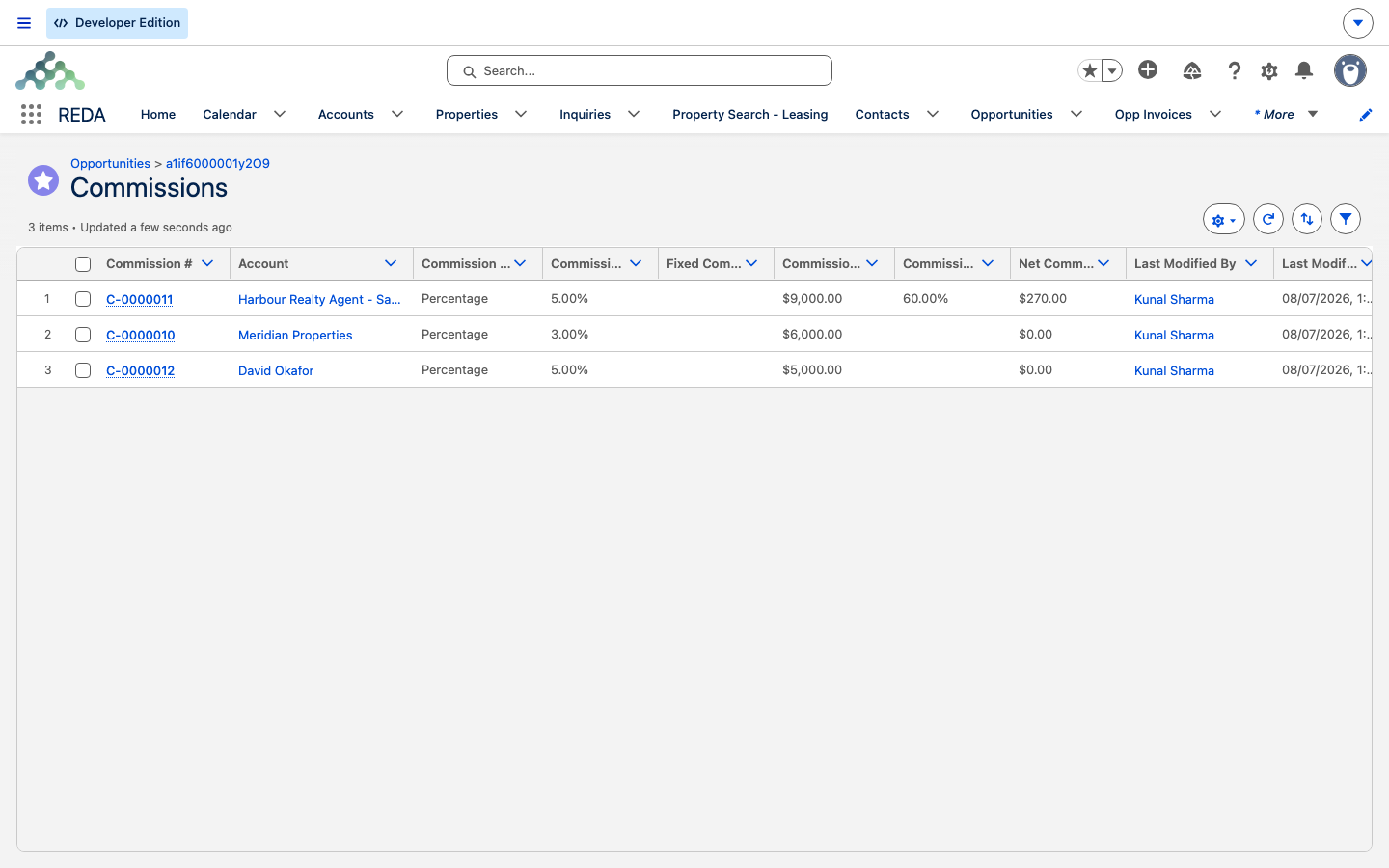
Because step 5 fans splits out, a single rule item can produce several Commission records — which is why one item sometimes yields two or more payouts. And because splits are applied per account regardless of the item's role, the payout's role is taken from the split, not the item (see Commission Rules & Splits for that behavior).
The amount formula
Each Commission record carries a Net Commission Amount — the actual payout — figured from the item's type and the split share:
- Fixed item: the fixed amount, multiplied by the split share.
- Percentage item: the deal's commission base, multiplied by the commission percentage, multiplied by the split share.
A recipient with no splits has a share of 100%, so the split multiplier simply leaves the amount unchanged. When splits exist, each split's percentage is the share applied.
Worked example: a sale to David Okafor
The figures below are illustrative, chosen to show the math clearly; your own rates, amounts, and splits will differ.
A property sale to David Okafor closes with a commission base of 1,000,000.00, under the rule from Commission Rules & Splits. The rule has two items:
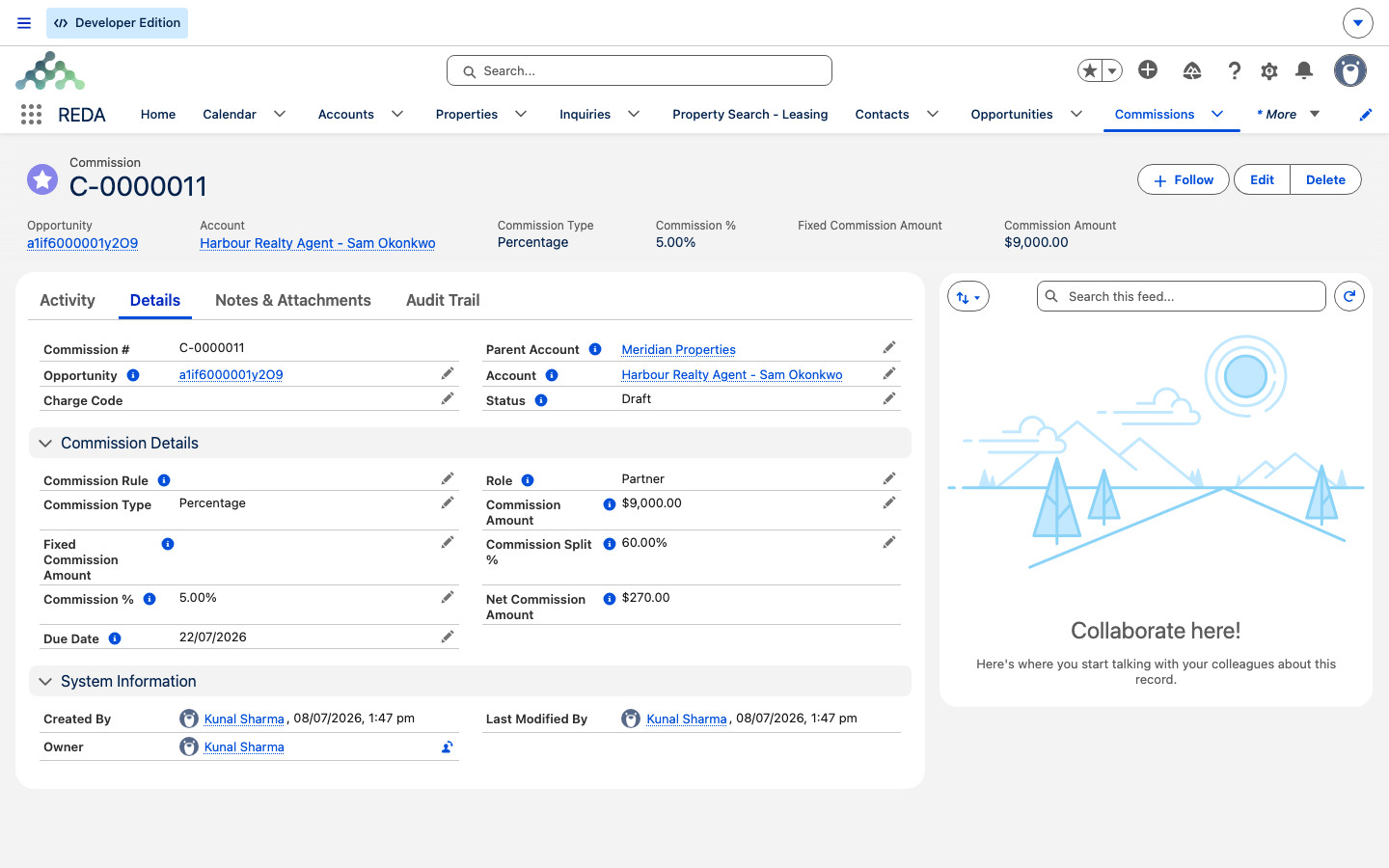
- Item A — Percentage 1.5%, recipient the brokerage Meridian Properties, which has splits House 40% and Agent 60%.
- Item B — Fixed 5,000.00 to the marketing-source account, with no splits.
The calculation produces three payout records:
| Payee | Source item | Math | Net Commission |
|---|---|---|---|
| House (Meridian Properties split, 40%) | 1.5% Percentage | 1,000,000 × 0.015 × 0.40 | 6,000.00 |
| Agent (Meridian Properties split, 60%) | 1.5% Percentage | 1,000,000 × 0.015 × 0.60 | 9,000.00 |
| Marketing account | Fixed 5,000.00 | 5,000.00 × 100% | 5,000.00 |
The House and Agent records both keep Meridian Properties as their Parent Account. With Due After Days of 30 and an under-contract date of 1 July, each payout's Due Date lands on 31 July.
A leasing example: Nadia Khan's commission on Aisha's lease
Illustrative figures again — swap in your own rule when you read this.
Commissions aren't only for sales. At Meridian Properties, leasing agent Nadia Khan earns a commission each time a tenancy she brought in goes live. When she signs tenant Aisha Rahman to a lease on Meridian Court #101, the lease carries a commission rule with a single item: Percentage 2%, recipient the leasing agent's account, role Opportunity Owner, Due After Days 15. Suppose the lease's commission base is 14,400.00 (illustrative — a year of rent). Because the leasing agent's account has no splits, the calculation produces a single payout at a 100% share:
| Payee | Source item | Math | Net Commission |
|---|---|---|---|
| Nadia Khan's account (no splits, 100%) | 2% Percentage | 14,400 × 0.02 × 1.00 | 288.00 |
A lease has no automatic close-and-calculate step, so you run Calculate / Recalculate Commissions on the lease once it's set the way you want. The payout's key date is the lease start date, so with Due After Days 15 the Due Date lands 15 days after the tenancy begins. If Nadia's account later gained a house/agent split, that same item would fan out into one record per split instead — exactly as the sale example above does.
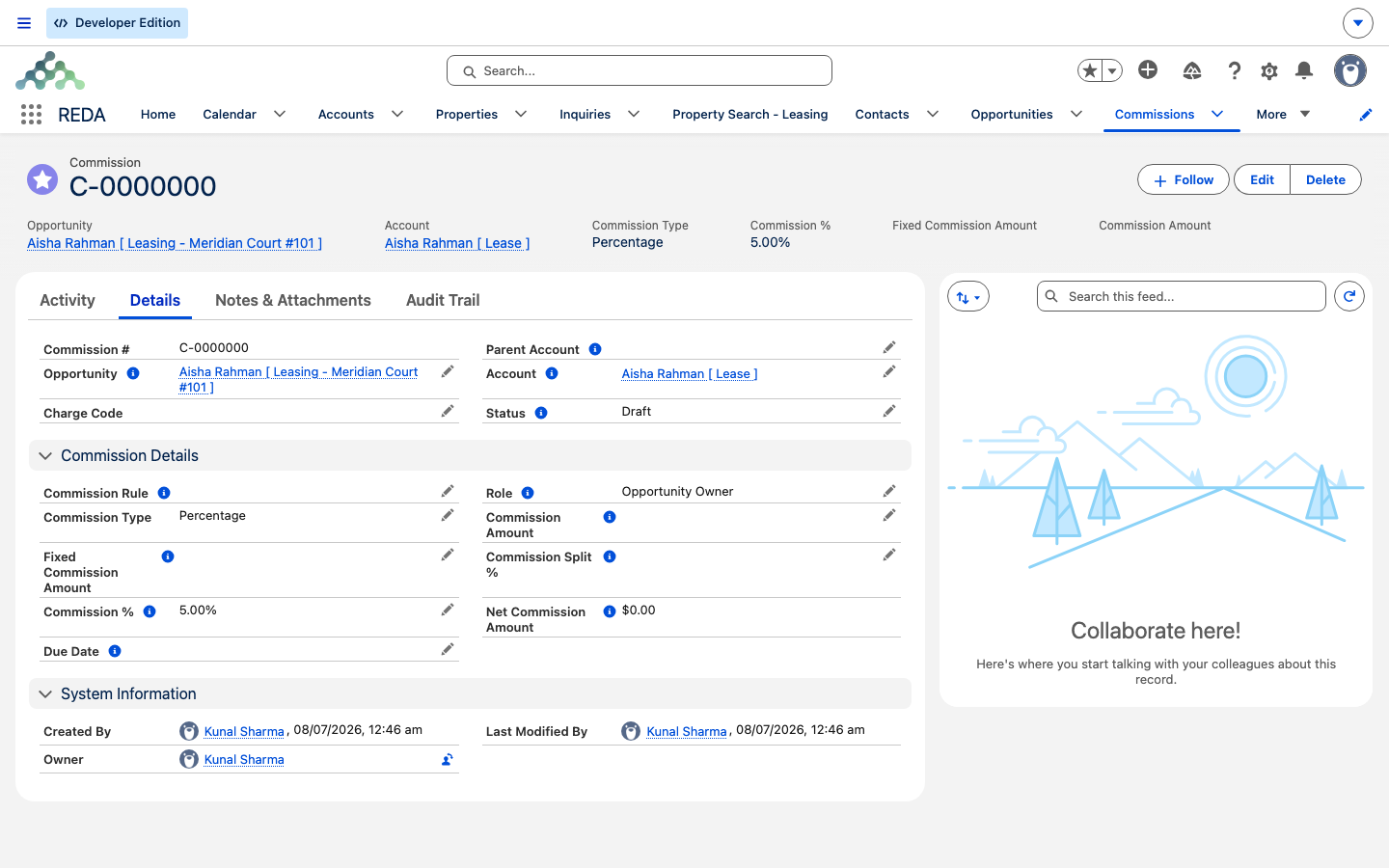
The Commission record
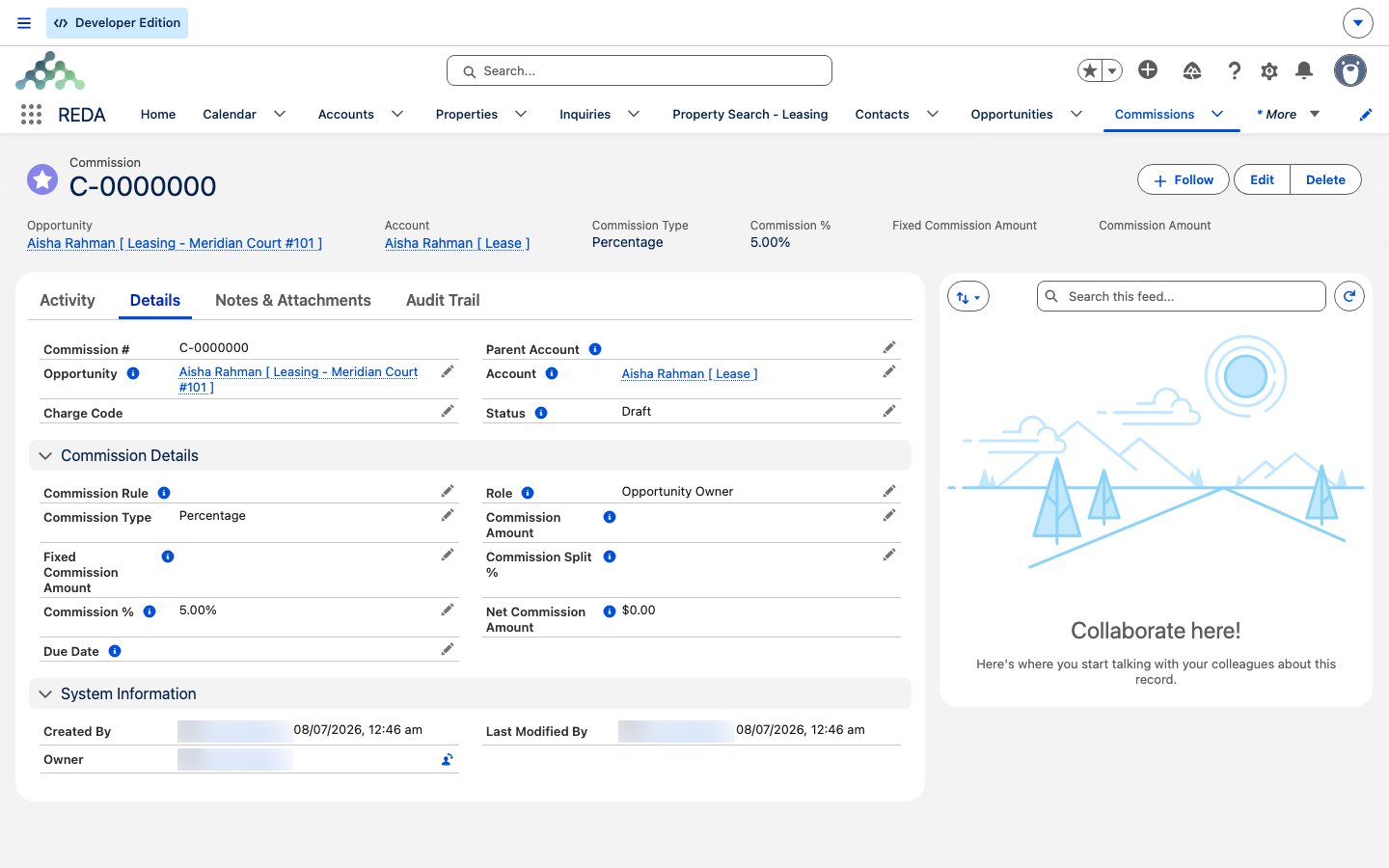
Each payout is a Commission record. Its key fields:
| Field | What it holds |
|---|---|
| Opportunity / Commission Rule | Where the payout came from — the deal and its rule. |
| Account | The payee. For a split-generated record, this is the split account. |
| Parent Account | The earning account, on split-generated records. |
| Role | Copied from the split, or from the rule item when there's no split. |
| Commission Type | Fixed · Percentage. |
| Commission Amount | The base a Percentage payout is figured on, copied from the deal. |
| Commission % / Fixed Commission Amount | The item's rate or flat amount. |
| Commission Split % | The split's share (100 when there's no split). |
| Net Commission Amount | The payout: fixed × share, or base × % × share. |
| Due Date | Key date + Due After Days. |
| Status | Draft (default) · Approved · Cancelled · Paid. |
The Status ladder — Draft, Approved, Cancelled, Paid — is a set of labels you move by hand to track where a payout stands. It carries no automation of its own, so treat it as a manual marker, and remember that a recalculation resets every record to Draft. If you edit a record directly, REDA still enforces the type-matched amount, so you'll see "Please provide the Fixed Commission Amount." or "Please provide the Commission %." if the matching amount is blank.
Where to go next
- Commission Rules & Splits — how to build the rule, items, and splits this calculation reads.
- How Billing Works in REDA — the mental model behind charges, invoices, and payouts.
- Charge Codes — the category set on each rule item.
Frequently asked questions
Recalculation deletes and rebuilds every commission on the deal, so statuses and manual edits don't survive it. Recalculate only while payouts are still Draft — and snapshot them first if any have been approved or paid.
The recipient account has splits. REDA creates one record per split, keeping the earning account on each as its Parent Account.
For split-generated records, the split's own role is copied onto the payout — and splits apply regardless of whether their role matches the item. See Commission Rules & Splits.
A due date needs both a key date on the deal (lease start, or under-contract date) and a Due After Days value on the rule item. Miss either and no due date is set.
Un-winning a sale deletes its commissions automatically. Close it again and recalculate to rebuild them.
The amount has to match the type: "Please provide the Fixed Commission Amount." for a Fixed payout, or "Please provide the Commission %." for a Percentage one.
Was this article helpful?