
Council Meetings & Notifications
This article walks you through running an owners'-association meeting in REDA end to end: create the meeting, invite exactly the right people, record who came, and keep the minutes. Along the way you'll meet a second, lighter kind of event — a Notification — that can borrow a meeting's audience for a follow-up blast. You'll learn how REDA builds a meeting's participant list from your community rosters, the freeze that protects a finalized list, and the one gate that stops you marking a meeting as invited before invitations have actually gone out. If you haven't set up your community's rosters yet, start with Councils & HOA Rosters — this article assumes they exist.
Access you'll need. Creating and editing events requires the REDA - Council Management Admin permission set; REDA - Council Management Read Only can view but not change them.
Two kinds of council event
A council event is a record on the Council Events tab, tied to one owners' association through its Council Account. Its name is the Subject. When you create one, you choose between two types:
| Type | What it's for | Statuses available |
|---|---|---|
| Meeting | A full meeting — schedule, agenda, voting, attendance, minutes. | Planning · Invitation Sent · Completed · Postponed · Cancelled |
| Notification | A lightweight blast — a follow-up or announcement, optionally reusing a meeting's audience. | Planning · Completed only |
Most of this article is about meetings; notifications get their own short section near the end. Status always begins at Planning, the working state where you build the event before anything goes out.
Create the meeting
From the Council Events tab, click New and pick the Meeting type. Fill in the essentials:
Choose the audience
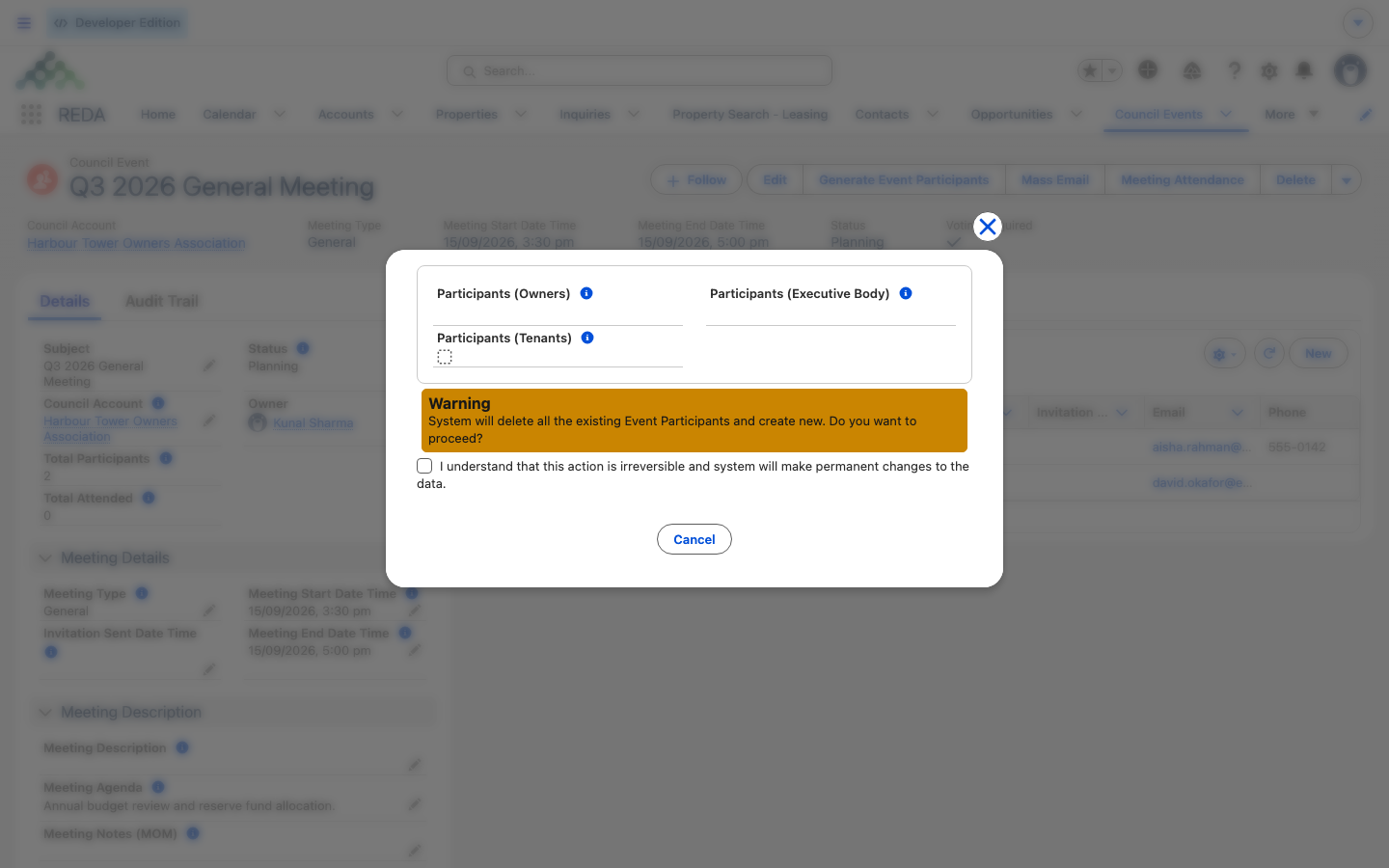
A meeting decides who to invite through three selectors that map to your three rosters. Set the ones you want; leave the rest blank:
| Selector | Pulls from | Values you can pick |
|---|---|---|
| Participants (Owners) | The owner roster (Council Members) | Owner · Developer · Sale Title Holder · Owner Trustee |
| Participants (Executive Body) | The board roster | Manager · Section Executive · General Secretary · Chairperson · Member |
| Participants (Tenants) | Tenants with a council role on an active lease | A single checkbox — on or off |
Only the roles you tick are invited. If you select Owner and Owner Trustee but not Developer, developers on the roster are skipped. The tenants checkbox is all-or-nothing: tick it and every tenant with a council role on an active lease in the community is included.
Generate the participant list
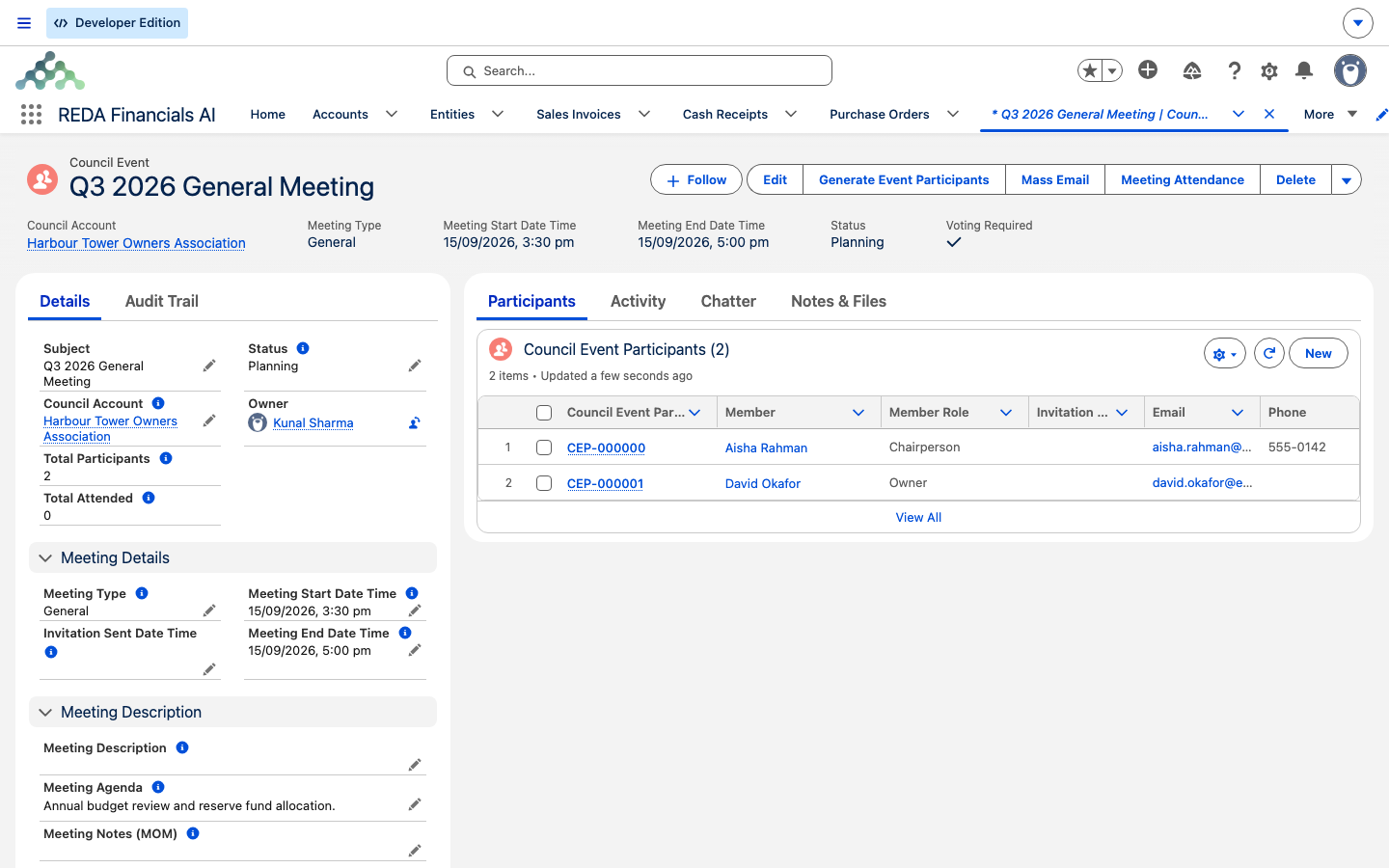
Once the audience is chosen, REDA builds the actual invitee list — the participants. Trigger it by ticking Generate Event Participants or using the quick action of the same name. REDA then creates one participant record (numbered CEP-000000) for:
- each active owner whose role you selected,
- each active board member whose role you selected, and
- each tenant with a council role on an active lease, if the tenants box is ticked.
For every participant, REDA copies across the member's role and their voting rights from the roster, so votes and roles track to the right people. Each participant record also carries the member's contact echoes, an Invitation Sent Date Time (stamped later, when invitations go out), a Meeting Attended flag, and a Comments field. Two running totals appear on the event: Total Participants (how many were invited) and Total Attended.
The copied role tells you where each person came from: owners arrive with their owner role (Owner, Developer, and so on), board members with their board role, and tenants with the Council Role from their lease — Lease Hold Tenant or Tenant for Life. So a participant list read top to bottom shows owners, board, and tenants side by side, each labeled by how they belong to the community.
Freezing the list
When your invitee list is final, you can freeze it by ticking Is Locked on the event. Once locked, no new participants can be added — a deliberate guard so a finalized list can't be quietly changed after invitations have gone out. Try to add a participant to a locked event and REDA stops you:
If you genuinely need to change it, untick Is Locked first (if your community's policy allows), add the participant, then lock it again.
Send the invitations
Invitations go out through the Mass Email action, covered in full in Mass Email to the Community. The important connection to know here is that sending a meeting invitation stamps the Invitation Sent Date Time on the event automatically — and that timestamp is what lets you advance the Status to Invitation Sent. Try to set that status before invitations have gone out and REDA stops you:
In practice you don't fill that datetime by hand — you send via Mass Email, which stamps it for you, and then the status change is allowed.
Record attendance
On the day, use the Meeting Attendance quick action (available once participants have been generated). It opens a roster check-off screen where you mark who showed up; each person you mark updates their Meeting Attended flag, and the Total Attended count on the event reflects the number marked present.
Minutes and completion
After the meeting, record the minutes in Meeting Notes (MOM) — a rich-text field for the full write-up — then move Status to Completed. If a meeting doesn't go ahead, set Postponed or Cancelled; these are bookkeeping states, with no further automation attached, so use them to keep the record honest.
Notifications: lightweight blasts
A Notification event is a stripped-down cousin of a meeting, meant for announcements and follow-ups. It carries only two statuses — Planning and Completed — and no schedule, voting, or attendance. Its most useful trick is that it can point at a Parent Council Meeting (a lookup to an existing meeting). When it does, a mass email to the notification reaches the meeting's participants — you don't regenerate a separate list. That's the clean way to send "here are the minutes" to exactly the people who were invited to the meeting. The send mechanics live in Mass Email to the Community.
Worked example: the Harbour Tower AGM
The manager of Harbour Tower Owners Association runs the annual general meeting:
| You do | REDA does |
|---|---|
| Create a Meeting, Subject "2026 Annual General Meeting", Meeting Type General, with start/end times and the agenda pasted in | Opens the event at Status Planning |
| Select owner roles Owner + Owner Trustee, all five board roles, and tick the tenants box; run Generate Event Participants | Builds 17 participants — 12 owners, 3 board, 2 tenants — copying each one's role and voting rights |
| Send invitations via Mass Email | Stamps Invitation Sent Date Time, letting you move Status to Invitation Sent |
| On the night, run Meeting Attendance and mark 11 present | Sets Total Participants 17, Total Attended 11 |
| Paste the minutes into Meeting Notes (MOM); set Status Completed | Closes out the meeting record |
| A week later, create a Notification "AGM Minutes Distribution" with Parent Council Meeting = the AGM, and blast it | Reuses the same 17 recipients — no regeneration |
Reference: the event and its participants
Key fields on a council event:
| Field | What it holds |
|---|---|
| Subject | The event's name |
| Council Account | The owners' association it belongs to |
| Status | Meeting: Planning / Invitation Sent / Completed / Postponed / Cancelled. Notification: Planning / Completed only |
| Meeting Type | General / Emergency / Arbitrary / Other |
| Meeting Start / End Date Time | The schedule |
| Meeting Description / Agenda | Summary and full agenda (agenda is rich text) |
| Meeting Notes (MOM) | The minutes (rich text) |
| Voting Required / Voting Method | Whether a vote is held, and Electronic or Paper |
| Participants (Owners) / (Executive Body) / (Tenants) | The three audience selectors |
| Generate Event Participants | The control that builds the invitee list |
| Parent Council Meeting | The meeting a Notification borrows its audience from |
| Invitation Sent Date Time | When invitations went out (stamped by Mass Email) |
| Is Locked | Freezes the participant list against additions |
| Total Participants / Total Attended | Running counts (read-only) |
Each generated participant record holds the Member (the contact), their Member Role and Council Voting Rights copied from the roster, a Meeting Attended flag, an Invitation Sent Date Time, read-only email and phone echoes, and a free-text Comments field.
Where to go next
- Councils & HOA Rosters — the rosters this article generates participants from.
- Mass Email to the Community — send the invitations and notification blasts.
- Contact Roles — where a tenant's council role on the lease lives.
- Understanding Tickets — for contrast: council events are their own engine, not tickets.
Frequently asked questions
Invitations haven't gone out yet. REDA shows: "Invitation Sent Date Time must be provided to update the Status to Invitation Sent." Send the invitations through Mass Email, which stamps that datetime for you, then set the status.
Regenerating deletes the existing participants and rebuilds the list from the rosters. Edit the rosters rather than individual participant rows, and add any one-off attendees only after your final generation.
The event is frozen — its Is Locked box is checked, which blocks new participants. Untick it first if your community's policy allows changes.
That's by design. The Notification type is a lightweight blast and exposes only those two statuses — the meeting-only statuses (Invitation Sent, Postponed, Cancelled) don't apply to it.
Either their active window has closed (so they're inactive), or their role wasn't among the roles you selected on the event. Only active members with a selected role are included.
Yes — you can add a participant by hand on an unlocked event. But remember that regenerating the list will delete manual rows, so add them after your final generation, or put the person on a roster instead.
Was this article helpful?