
Councils & HOA Rosters
Before you can run an owners' meeting or send a community-wide email in REDA, the system needs to know who belongs to the community — which owners sit on the association, who is on its board, and which tenants take part. This article shows you how to build the three rosters REDA draws on: the owners, the executive body (the board), and the tenants. You'll learn the active-date windows that expire a membership automatically, and the three per-member flags that decide who gets invited, who votes, and who receives general notifications. No prior REDA experience is assumed — every term is defined as we reach it.
Access you'll need. Creating and editing rosters requires the REDA - Council Management Admin permission set; REDA - Council Management Read Only can view but not change them. You also need access to Accounts and Contacts, which your administrator grants separately — it is not part of the REDA permission sets.
The three rosters
A community in REDA is an owners' association — often called a strata, an HOA, or a council — represented by an Account record. Everything you set up in this article hangs off that one account. Three separate groups of people can take part in its meetings and mailings, and each comes from its own place:
| Roster | Who it holds | Where it lives |
|---|---|---|
| Owners | The unit owners in the community — the members of the association itself | Council Member records on the account |
| Executive body (the board) | The elected board — chairperson, secretary, manager and so on | Council Executive Body Member records on the account |
| Tenants | Renting occupants who take part in community matters | No roster record — they come from a council role on their lease (see below) |
The owners and the board are lists you build by hand on the account. Tenants are different — they need no roster record at all, which is the part most people miss, so it gets its own section below.
The account is the anchor
Every roster record points back to one owners' association account, and so does every meeting and every mailing. That account is the single anchor for the whole community. Before you start adding members, confirm the community's buildings actually link to it: a unit's building (its parent property) carries the link to the owners' association account, and that link is what lets REDA count a building's tenants as community members later. If the building isn't linked, tenant participation won't resolve — so this is the first thing to check (see Understanding Properties for the property-to-association link).
Adding owners (Council Members)
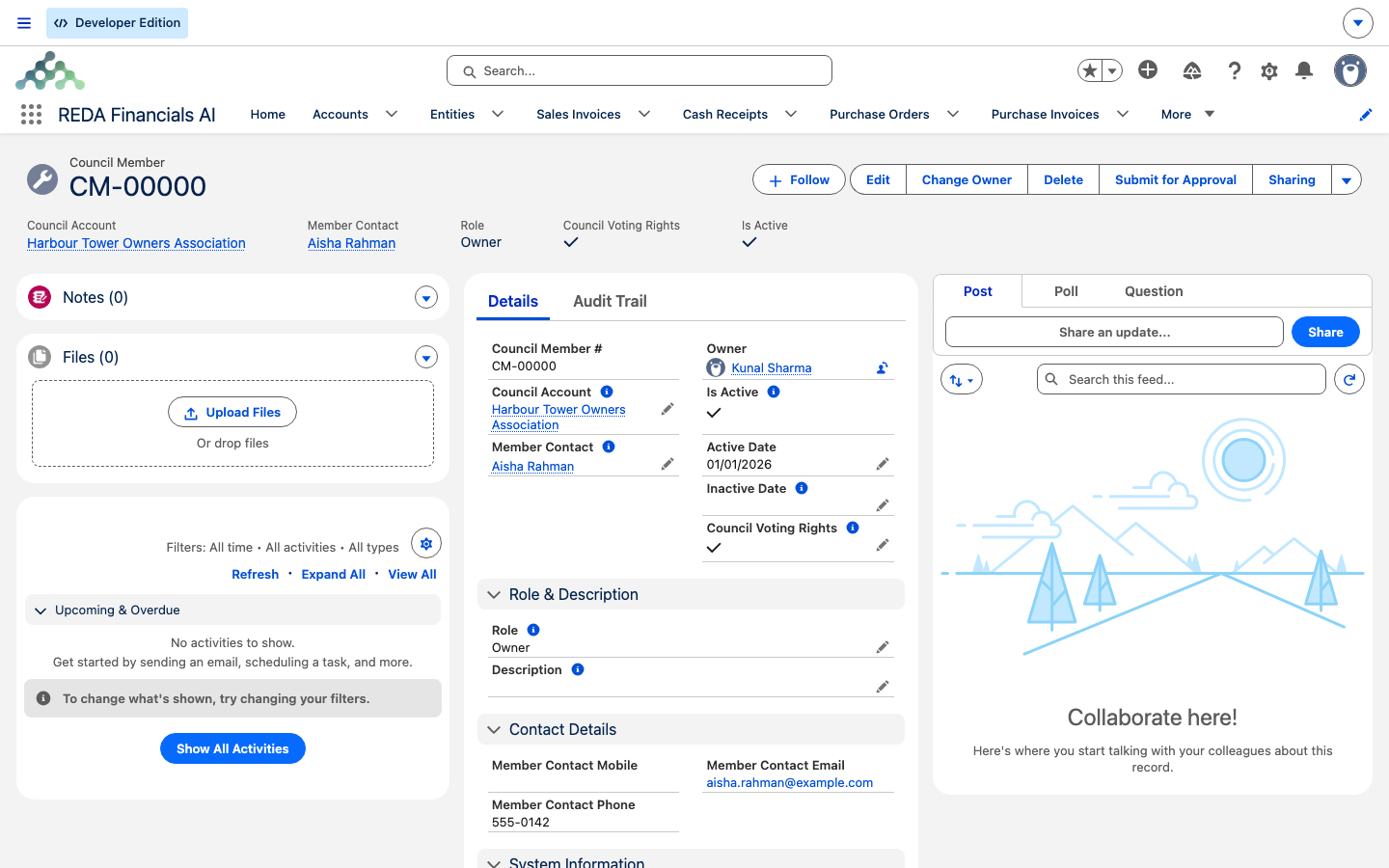
Each owner in the community is a Council Member record on the association account (numbered CM-00000). From the account's Council Members related list, click New and fill in:
The three participation flags
Both the owner roster and the board roster carry the same three checkboxes. They are the switches that decide what a member is pulled into:
| Flag | What it controls |
|---|---|
| Council Meeting Invitation | Marks the member as one to invite to meetings. |
| Council Voting Rights | Carries voting rights — this value is copied onto the member when a meeting builds its participant list, so votes can be tracked against the right people. |
| General Notification | Opts the member into community-wide mass email — "included in the mass email communication." |
Adding the board (Executive Body Members)
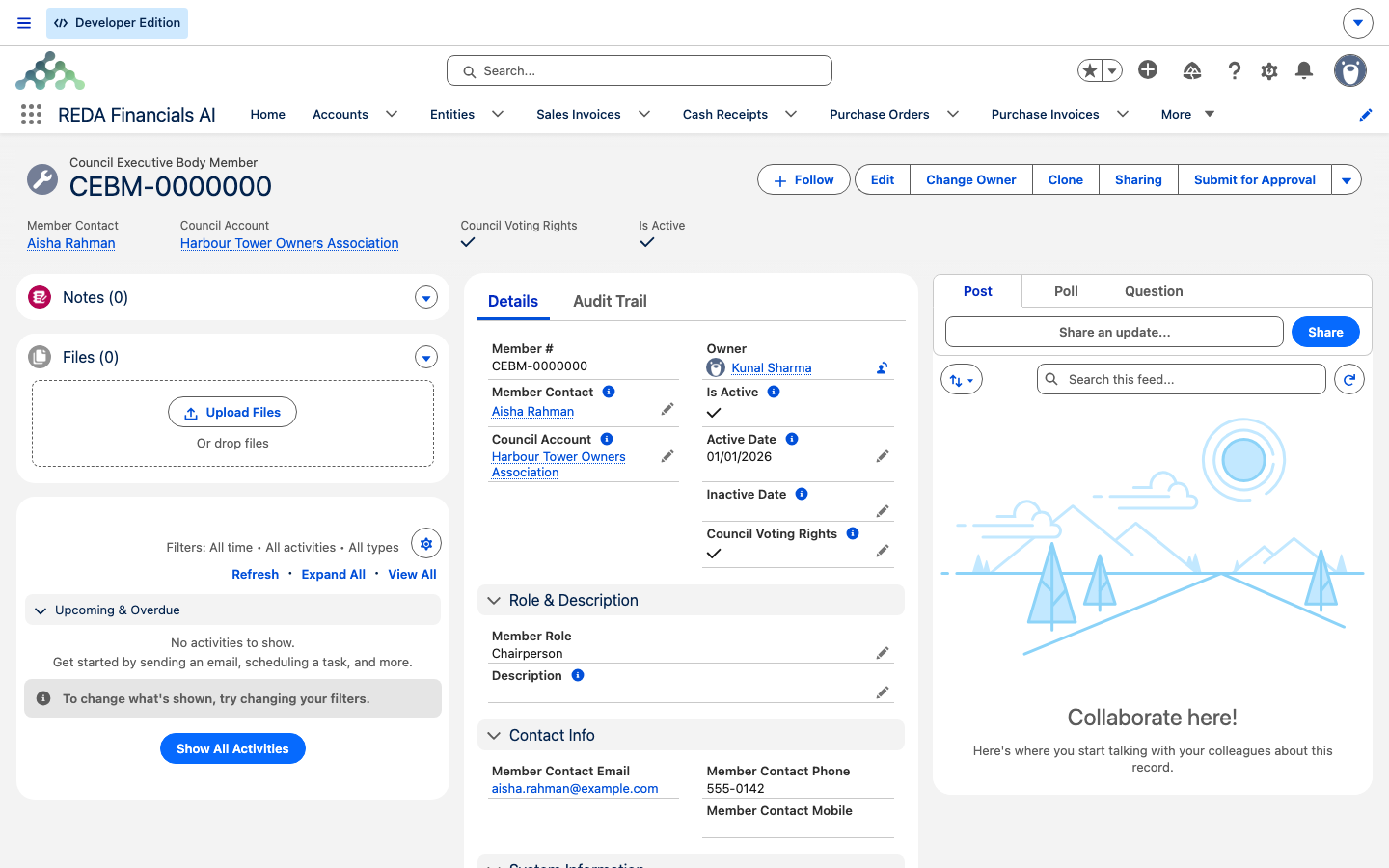
The elected board is a second roster: Council Executive Body Member records (numbered CEBM-0000000), also on the association account. They follow the same pattern as owners — a required Member Contact and Active Date, a calculated Is Active from the date window, and the same three participation flags. The one difference is the role list. Member Role for the board is one of:
Manager · Section Executive · General Secretary · Chairperson · Member
Tenants — no roster record needed
Tenants take part without ever appearing on a roster. Instead, a tenant is pulled in through a Council Role set on their lease — specifically on the lease's contact roles (the people attached to a lease). REDA resolves the chain in the background, and it's worth understanding in plain words:
the tenant's lease → the unit being leased → that unit's building (the parent property) → the building's owners' association account.
So when a lease contact role carries a Council Role, and the lease is active, that tenant counts as a member of the community that owns the building — no roster row required. REDA only ever pulls in tenants on active leases.
The Council Role field on a contact role is one of two values, chosen to reflect the tenancy:
| Council Role | Use it for |
|---|---|
| Lease Hold Tenant | A standard renting tenant who takes part in community matters. |
| Tenant for Life | A tenant with a lifetime right of occupancy in the community. |
Alongside the Council Role, a contact role also has its own Council Voting Rights checkbox — tick it if that tenant votes in community matters. Just as with owners and board members, this value travels onto the tenant when a meeting builds its participant list, so votes track to the right people. Setting the Council Role and its voting flag is usually done by leasing staff on the lease (see Contact Roles).
Why the rosters matter downstream
These rosters are the raw material for everything else in the community section. When you run a meeting, REDA builds its participant list by picking only active members whose role you selected on the event, plus tenants when you tick the tenants box — inactive members and unselected roles are skipped. Each chosen member's voting rights and role are copied onto the meeting's participant record. The table below shows which roster feeds which activity:
| Audience source | Feeds meetings via | Feeds mass email via |
|---|---|---|
| Owners (Council Members) | The event's owner-role selector + the active window | General Notification flag, then the generated participant list |
| Board (Executive Body Members) | The event's board-role selector + the active window | Same pattern |
| Tenants (council role on the lease) | The event's tenants checkbox | Via the generated participant list |
Setting up a community from scratch
For a first-time setup, order matters. Work through this checklist:
Keeping rosters current
Rosters change with the community. Handle the common changes by date, never by rewriting a person's identity on an old record:
- Ownership change. When an owner sells, set the seller's Inactive Date to the sale date — Is Active flips off automatically and they stop appearing in generated lists. Create the buyer's record with the transfer date. History is preserved.
- Board election. End-date outgoing members and add incoming ones with the election date. Roles live per record, so a member who is re-elected into a different seat gets a new record for the new role.
- Audit tip. Both rosters are plain lists under the account. A list view filtered to Is Active = true is your "current community" view.
Worked example: Harbour Tower Owners Association
The building Harbour Tower has an owners' association account, Harbour Tower Owners Association. The manager sets it up as follows:
- Twelve Council Member records — Role Owner, Active Date set to the association's formation date, each with Council Meeting Invitation and Council Voting Rights ticked.
- Three Executive Body Members — a Chairperson, a General Secretary, and a Manager.
- One owner sells their unit in March, so the manager sets that member's Inactive Date to the sale date. Is Active flips off, and they no longer appear in generated participant lists.
- Two leases in the building carry a council role on a contact role, so those tenants are included whenever an event ticks the tenants box.
Reference: roster fields
The Council Member (owner) record:
| Field | What it holds | Required? |
|---|---|---|
| Council Account | The owners' association account | Yes |
| Member Contact | The owner (a person) | Yes |
| Role | Owner / Developer / Sale Title Holder / Owner Trustee | — |
| Active Date | Membership start | Yes |
| Inactive Date | Membership end | No |
| Is Active | Calculated from the active window | Read-only |
| Council Meeting Invitation | Include in meeting invitations | Checkbox |
| Council Voting Rights | Carries voting rights (copied to participants) | Checkbox |
| General Notification | Included in community mass email | Checkbox |
| Description | Notes | No |
The Council Executive Body Member (board) record follows the same shape, with Member Contact and Active Date required, a calculated Is Active, the same three checkboxes, and a Member Role of Manager / Section Executive / General Secretary / Chairperson / Member.
Where to go next
- Council Meetings & Notifications — run a meeting off these rosters and generate its participants.
- Mass Email to the Community — reach the community; the General Notification flag feeds it.
- Contact Roles — where a tenant's council role on the lease lives.
- Understanding Properties — the building-to-association link the tenant chain depends on.
Frequently asked questions
Either their active window has closed — Is Active is a date calculation, so a past Inactive Date drops them — or their role isn't among the roles you selected on the event. Check both.
No. Set the Inactive Date instead. Is Active is calculated from the date window, so the membership expires cleanly and the history stays intact.
Through a council role on their lease's contact role. REDA resolves it up the chain — lease → unit → building → the building's owners' association account — and includes the tenant on active leases only.
The REDA - Council Management Admin permission set. The REDA - Council Management Read Only set can view rosters but not change them.
Council Meeting Invitation marks the member for meeting invites, Council Voting Rights is copied onto generated participants so votes track to the right people, and General Notification opts the member into community mass email.
Yes. Create one Council Member for the owner role and one Council Executive Body Member for the board role. Each roster feeds its own selector on an event, so both roles are honored.
The lease's building doesn't link to an owners' association account, so the lease isn't part of a community. REDA shows: "You cannot provide Council Role for this Contact Role because related Opportunity is not available for Council Events." Confirm the building-to-association link, then set the role.
Was this article helpful?