
Working with Contacts
A Contact in REDA is a person — a tenant, a co-signer, an owner, a buyer, a vendor's site manager. Like the Account, it's the ordinary Salesforce person record, not a REDA-specific object. This article shows how to create a contact, explains the one rule that trips people up — a contact attaches to a deal through a Contact Role, never directly — and points out the handful of contact fields that quietly feed downstream features like the resident portal and payment payees. No prior REDA experience is assumed.
Access you'll need. Contact is a standard Salesforce object, so its access is granted separately by your administrator — it is not part of the REDA permission sets. You'll need Contact access in addition to the line-of-business set that lets you work inquiries and deals.
What a Contact is in REDA
A contact is a single person record. It belongs to exactly one Account — its parent company or household — through the account link. It does not connect to a deal on its own: to put a person on a lease or a sale, you add a Contact Role, the junction record that says "this person is on this deal, as this kind of party." That indirection is deliberate — the same person can be a Lessee on one lease and a Guarantor on another without duplicating the contact. Contact Roles covers this in full.
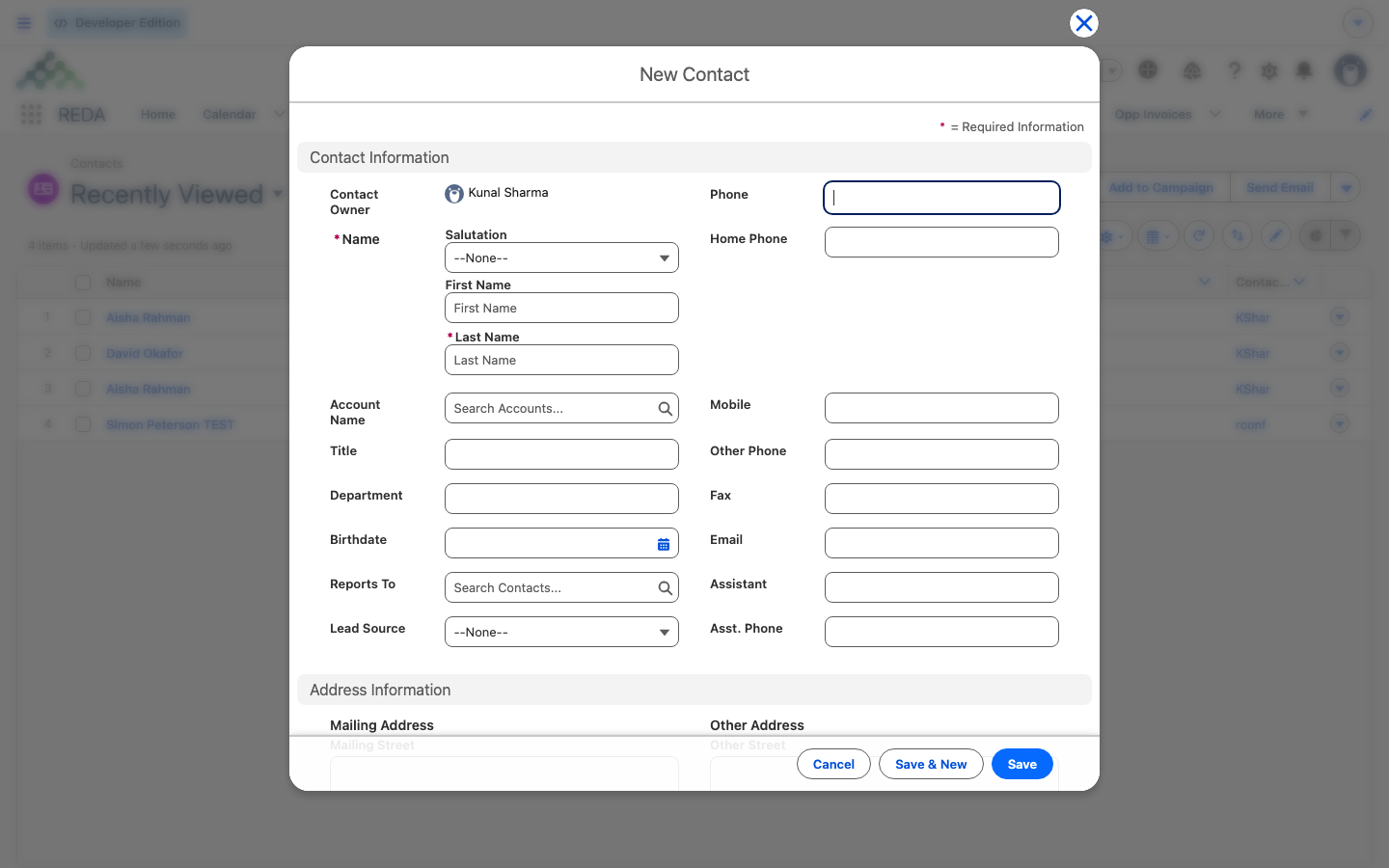
Contacts carry no REDA-specific save rules — creating one is standard Salesforce behavior, and the only hard requirement is a Last Name.
Creating a contact
There are three ways a contact comes into being, and the third is the most common in REDA:
There's also a fourth path worth knowing: when you add a person to a deal with Add Contact on the deal's Contact Roles list, REDA checks for an existing contact by email and reuses it — otherwise it creates a new contact and its contact role in one step. That deal-side path is covered fully in Contact Roles.
Linking a contact to records
Two links matter. The Account field is the contact's parent — one account per contact. Deals are reached through Contact Roles: a person can be on many deals, each with its own role, and each role is a separate record pointing at the deal. If you're ever tempted to look for a "deal" field on the contact, there isn't one by design — add the role instead.
What conversion writes onto a contact
When conversion creates a new contact, it copies these values from the inquiry, at label level:
| Inquiry field | Contact field |
|---|---|
| First Name | First Name |
| Last Name | Last Name |
| Phone | Business Phone |
| Mobile | Mobile Phone |
| Street | Mailing Street |
| City | Mailing City |
| State | Mailing State/Province |
| Postal Code | Mailing Zip/Postal Code |
| Country | Mailing Country |
The new contact's Account is the account picked or created in the same conversion, and conversion also creates exactly one Contact Role, flagged primary, with its role defaulted by the deal type (a leasing deal defaults to Lessee). So a converted person arrives already linked to their account, already on their deal, and already the primary contact — see Contact Roles.
Portal- and payment-relevant fields
A few things on (or around) the contact feed REDA features downstream. You rarely touch these directly, but it helps to know they exist:
Reference: what conversion copies
The full set of inquiry-to-contact field mappings on a new contact:
| From the inquiry | Onto the contact |
|---|---|
| First Name / Last Name | First Name / Last Name |
| Phone / Mobile | Business Phone / Mobile Phone |
| Street / City / State | Mailing Street / City / State/Province |
| Postal Code / Country | Mailing Zip/Postal Code / Country |
| (the chosen or created account) | Account |
Worked example: Aisha's contact
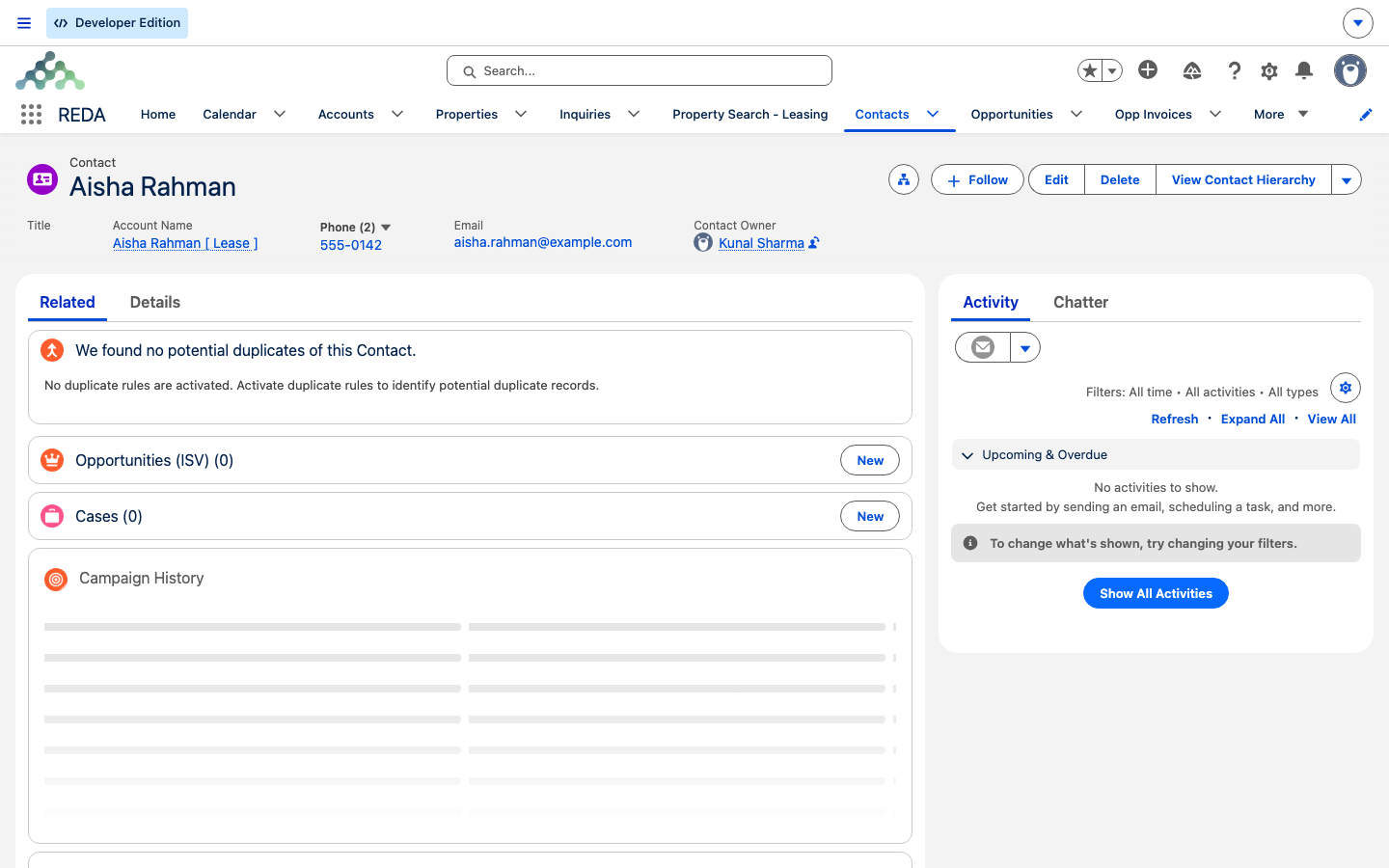
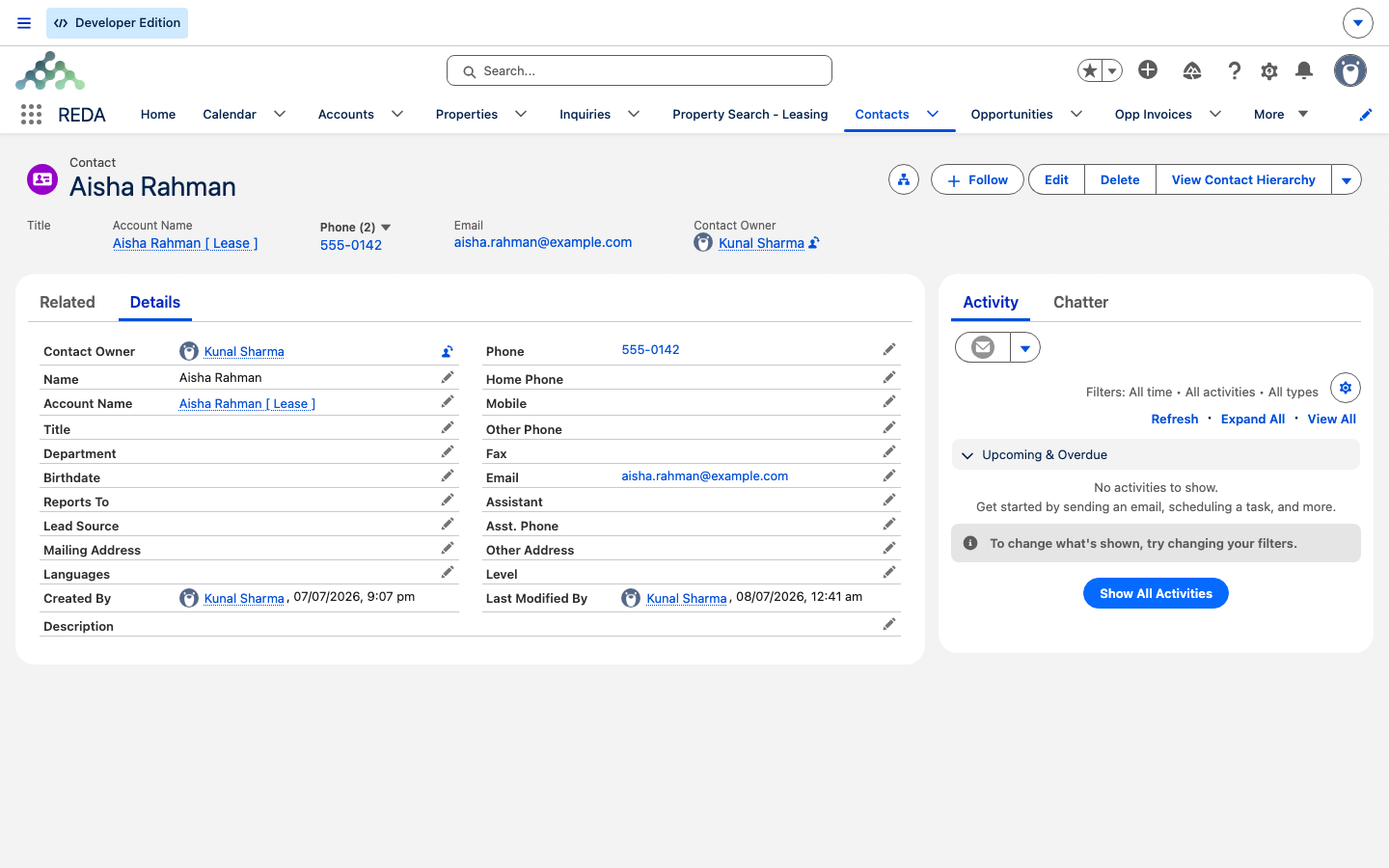
Aisha Rahman enquires about a unit at Meridian Court. On conversion, with both Convert-dialog pickers left blank, REDA creates the contact Aisha Rahman under the new account the conversion builds, copying her email, phone, mobile, and mailing address from the inquiry, and creating one primary Lessee contact role on the lease. Later, a leasing agent adds her co-tenant with Add Contact on the deal; REDA finds no existing contact for that email, so it creates the contact and an Occupant role in one step. When the lease turns billing-active and the region's resident portal is switched on, Aisha's contact anchors her portal login.
Where to go next
- Contact Roles — how a person is attached to a deal (the essential companion to this page).
- Accounts in REDA — the parent account a contact belongs to.
- Converting an Inquiry — where auto-created contacts come from.
- The Resident Portal — how a tenant contact gets portal access.
- Posting a Payment — where the payee flag is used.
Frequently asked questions
Contact is a standard Salesforce object, granted separately by your administrator — no REDA permission set includes Contact rights. Ask your administrator to add Contact access alongside your line-of-business set.
You don't link the contact to the deal directly — you add a Contact Role. Use Add Contact on the deal's Contact Roles list, choosing an existing contact or creating a new one in the same step. See Contact Roles.
The account chosen or created in the same conversion. If you left the account picker blank, it's the new account the conversion created.
Conversion copies the inquiry's street, city, state, postal code, and country into the contact's mailing address.
The portal resolves the user to their contact, then to the contact's roles on the lease. Provisioning is driven by the contact role on a billing-active lease — see The Resident Portal.
The payee is a flag on the contact role (set automatically for a Lessee), not on the contact itself. The Post Payment action offers the flagged payees — see Posting a Payment.
Was this article helpful?