
Report Folders & Sharing Access
Here's the rule that surprises most people the first time they build a report: in Salesforce, who can see a report is decided by the folder the report lives in, not by the report itself. Save a report into your private folder and nobody else sees it, however useful it is. REDA leans on this by shipping its reports pre-sorted into business-line folders. This article maps those folders by their real names, shows where your own reports should go so your team can find them, and covers the short path to sharing a folder. The folder-sharing dialog itself is standard Salesforce, so we hand off to the official documentation for its exact controls.
Access you'll need. Report and folder access is granted by your administrator, separately from your REDA permission sets — if you can't open the Reports tab, ask your admin. Creating or sharing a folder needs folder-management rights, which your administrator also grants.
Folders organize — and gate — reports
A report's visibility is controlled by its folder, not by the report record. So there are really two everyday consequences to remember:
- To share a report, you share (or save it into) the right folder — you don't share the report on its own.
- Saving a report into "My Personal Reports" keeps it private to you; saving it into a shared team folder makes it visible to everyone that folder is shared with.
REDA ships its reports already sorted into folders named for each business line, so the reference reports are organized before you write a single one of your own.
The REDA report folders
On the Reports tab, these are the folders REDA installs. Folders ending in "(Sample)" are REDA's starter report sets for a business line.
| Folder | What's inside |
|---|---|
| REDA - Leasing (Sample) | Leasing opportunities; move-in, move-out, renewal, eviction, and termination tickets; new inquiries; leasable properties; showings. |
| REDA - Leasing Admin | The billing engine's working reports — recurring-charge rolls, late-fee runs, MTM charges, income forecasts, booking slots. |
| REDA - Executive Intelligence (Leasing) | Occupancy & yield, straight-line analysis, outstanding balances, ongoing evictions, scheduled move-ins/outs, billing variances. |
| REDA - Acquisition (Sample) | Acquisition opportunities and agreements, exit strategy, new inquiries, properties added. |
| REDA - Sales (Sample) | Property-sales opportunities, sales-agreement tickets, new sales inquiries. |
| REDA - Lending (Sample) | Lending opportunities, disbursements, payoffs, debt summary, settlement charges. |
| REDA - PM (Sample) | Property-management opportunities, PMA tickets, properties added. |
| Property Reports | Building occupancy (by floor / by floor & area) and rent-charge setup history (new / renewal). |
| Leasing Promotions | Promotion usage, performance trend, and stats against related inquiries. |
| Invoices Report | Opp Invoices by Opportunity — the report behind the balance charts on the lease record page. |
For the report-by-report catalog inside these folders, see Prebuilt REDA Reports.
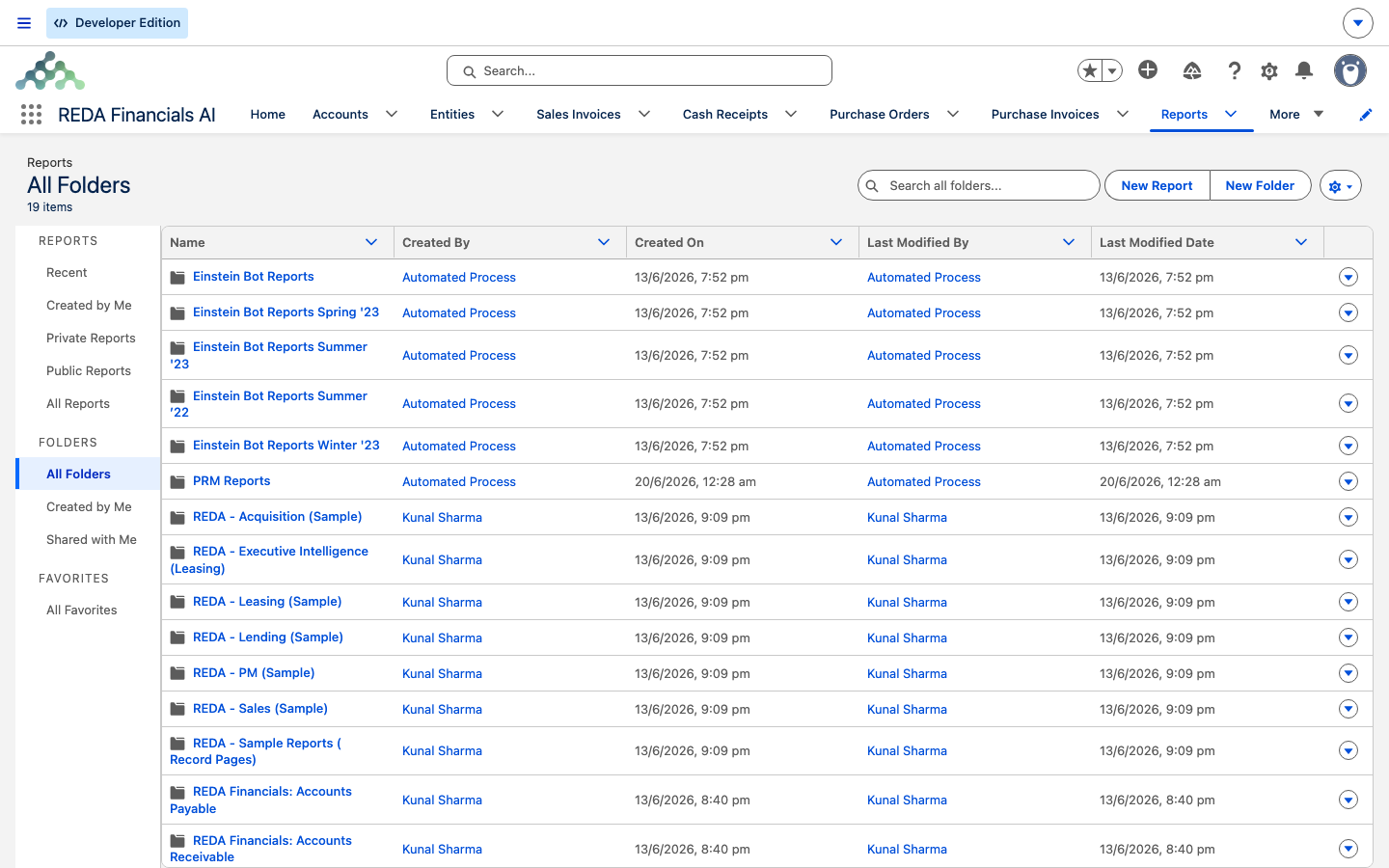
Where your own reports should go
When you build a report, save it into a shared team folder, not "My Personal Reports." A report in your personal folder is invisible to everyone else — the single most common reason a colleague "can't see the report you just made." If your team doesn't have a folder yet, create one, save reports into it, and share it once (below); every report you drop in afterward inherits that folder's sharing. Leave the packaged "(Sample)" folders as your reference set and build into your own.
Sharing a folder
To let your team see a folder's reports:
Worked example: sharing a Meridian leasing folder
Meridian's leasing manager builds a Promotion with Inquiries report (see Building Your Own Reports) and saves it into a new Meridian Leasing Team folder — deliberately not "My Personal Reports." They then open that folder, click Share, add the leasing team's public group at View access so agents can run the report but not change it, and leave the packaged REDA - Leasing (Sample) folder untouched as the reference set. Now every agent sees the report, and future reports saved to the same folder are shared automatically.
Where to go next
- Building Your Own Reports — create the report you'll file into a folder.
- REDA Report Types to Start From — the joined starting points for custom reports.
- Prebuilt REDA Reports — everything already in the packaged folders.
- Subscribing to & Scheduling Reports — deliver a folder's report on a schedule.
Frequently asked questions
On the Reports tab, in business-line folders — Property Reports, Leasing Promotions, Invoices Report, and the "(Sample)" folders for Leasing, Sales, Lending, Acquisition, and PM, plus Executive Intelligence and Leasing Admin.
It's probably in My Personal Reports, which is private. Save or move it into a shared folder, and make sure that folder is shared with your teammate.
Open the folder, click Share, and add the users, roles, or public groups with the access level you want — this is standard Salesforce (see the linked Help). You need folder-management rights, granted by your administrator.
You can, but the safer pattern is to leave the shipped folders as a reference set and build your own reports into new folders. Some REDA - Leasing Admin reports back operational processes — don't remove those.
Report access is granted by your administrator, separately from your REDA permission sets. Ask your admin to grant report access.
Was this article helpful?