
How Billing Works in REDA
An invoice appeared on a lease — or, more often, one didn't, and you want to know why. This is the article that gives you the mental model behind all of REDA's billing. You'll learn the difference between a charge (the contracted term) and an invoice (one bill raised from it), the two switches that must both be on before REDA ever bills anything automatically, and which figures on an invoice REDA fills in versus which come from the accounting extension. No prior REDA experience is assumed — every term is defined as we reach it.
Access you'll need. Creating and editing invoices requires the REDA - Invoice Management Admin or REDA - Property Leasing User permission set; the REDA - Invoice Management Read Only set can view them but not change them.
Charges versus invoices — the template and the bill
Everything in billing rests on one distinction. A charge is the contracted term: what to bill, how much, how often, and from when to when. An invoice is a single billed instance of that charge — one bill, for one period, that the tenant actually owes. One recurring charge produces many invoices over the life of a lease: a rent charge running for a twelve-month term produces roughly twelve monthly invoices.
So when you set up a lease you create charges; REDA then generates invoices from them, either the moment you opt a charge in or on a schedule. The charge is the recipe; the invoice is each meal served.
The four families of billing records
Billing money flows through four groups of records. You don't need to master all of them to raise a lease invoice, but knowing the map keeps you oriented:
| Record | What it is | Where you meet it |
|---|---|---|
| Charge Code | A reusable billing category — Rent, Security Deposit, Late Fee, Management Fee (master data) | REDA Admin → Charge Codes |
| Opportunity Charge | A contracted charge line on a specific lease | Lease → Accounting / Terms & Charges |
| Opp Invoice | One billed instance of a charge | Opp Invoices tab; lease Accounting tab |
| Opp Invoice Batch | A consolidated bill grouping two or more invoices together | Opp Invoice Batches tab |
Setup master data (charge codes, rent and admin charge setups) feeds the deal's charges; the charges generate invoices; groupable invoices are optionally consolidated into batches. Sales and commissions add a few more record types on top, but for lease billing this is the spine.
Billing is opt-in — twice
This is the single most important rule in the section, and the answer to most "why hasn't it billed?" questions. Before REDA raises an automated invoice from a charge, two separate switches must be on:
Miss either one and nothing bills, quietly. When a tenant closes their term and you renew the lease, closing the renewal ticket re-ticks Create Opp Invoice on the lease's charges for you, so billing carries on into the renewed term without you re-opting each charge by hand.
What runs the billing — and when
Two mechanisms turn charges into invoices. The first is immediate: the moment you tick Create Opp Invoice on a charge (whether at creation or later), REDA raises the invoice on the spot. A one-time charge bills at once; a recurring charge bills straight away only if its scheduled pickup date has already arrived.
The second is the recurring engine — a set of background jobs that produce the ongoing monthly, weekly and daily invoices. These are the workhorses of rent billing, and they carry one crucial caveat:
There is exactly one billing-related job that does ship scheduled: a daily run at 2:00 AM in your org's local time that posts sale payment schedules. Every other billing job is yours to schedule.
Who fills in the invoice: REDA versus the accounting extension
An Opp Invoice is written by two parties. REDA computes the core of the bill; the accounting extension (REDA Financials, on the reference setup) layers tax and cash on top. Knowing the split explains why some fields are yours to edit and others simply update on their own:
| On the invoice | Written by | When |
|---|---|---|
| Base Amount, From/To period, Billing Date, Due Date | REDA | At generation |
| Account (bill-to), Default Receivable Account, Property | REDA | At generation, by the routing rules |
| Billing Comment | REDA | From the charge's description, plus the period suffix |
| Tax Amount | Accounting extension | By the tax engine |
| Received/Applied Amount | Accounting extension | When cash is applied |
| Waived Amount, Adjustment Amount | Accounting extension | By credit control |
| Total Amount, Balance Amount | Calculated (reads both sides) | Always current |
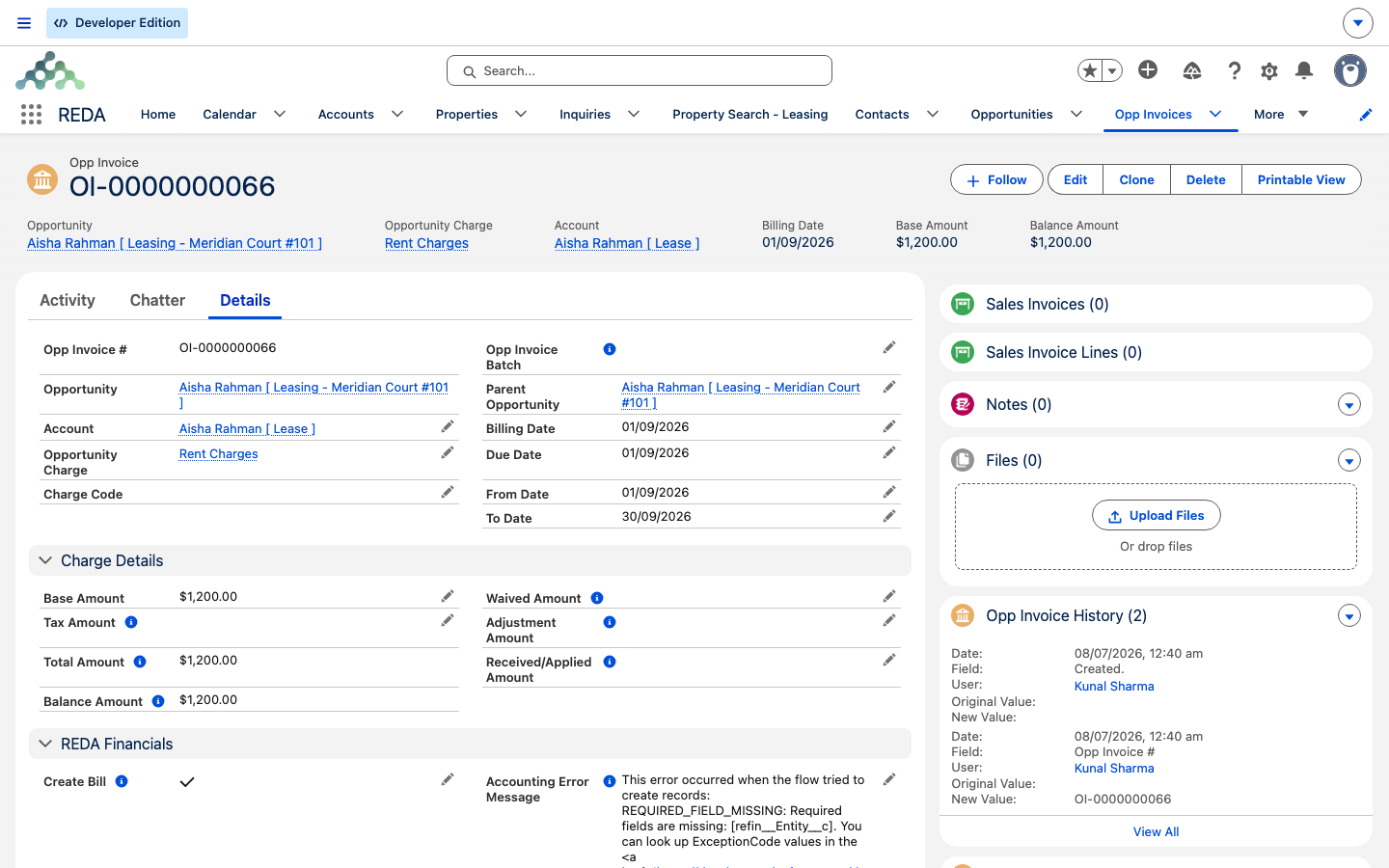
The two calculated fields tie it together: Total Amount = Base Amount + Tax Amount, and Balance Amount = (Base + Tax) − (Received + Waived + Adjustment). That's why you can't type into Tax or Received — those belong to the accounting side. Each Opp Invoice is also mirrored into a Sales Invoice in REDA Financials, where receipts and tax are handled; see The REDA Financials Bridge for that hand-off.
Where the money shows up
Every lease has an Accounting tab, and it's split in two. The Active sub-tab lists the live invoices, charges and consolidated bills for the current arrangement; the Inactive sub-tab holds the ones that have been superseded or cancelled. This is the first place to look when a tenant queries a bill.
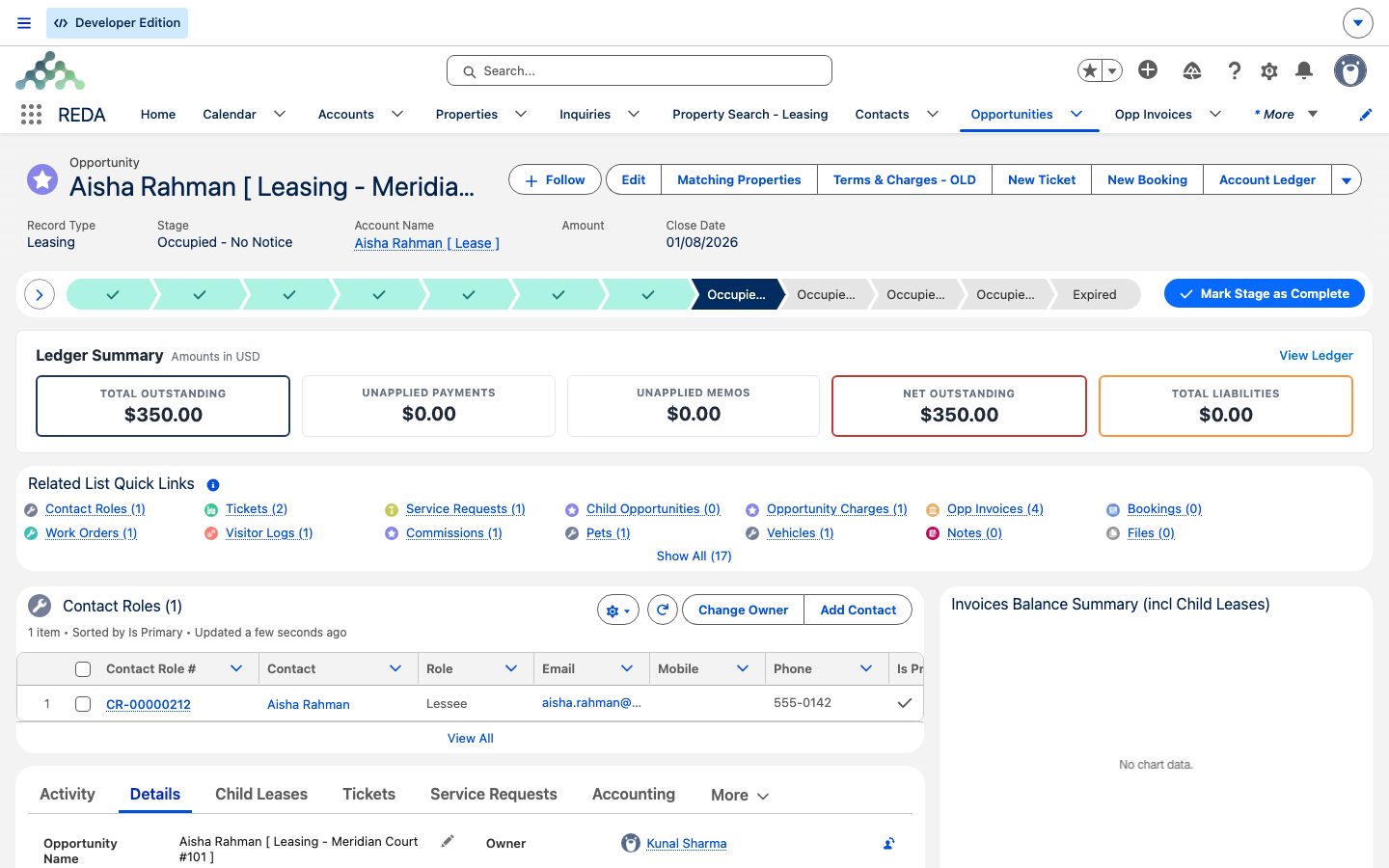
A Ledger Summary sits at the top of the lease so you can read its financial position at a glance, without opening a single invoice. It shows five running figures:
| Tile | What it tells you |
|---|---|
| Total Outstanding | Everything still owed across the lease's invoices and consolidated bills |
| Unapplied Payments | Money received but not yet matched to a specific invoice |
| Unapplied Memos | Credit memos not yet applied against a balance |
| Net Outstanding | Total Outstanding after the unapplied payments and memos are taken into account — the true balance |
| Total Liabilities | What the lease owes onward — for example deposits and pass-through amounts held on someone else's behalf |
If Net Outstanding reads zero the tenant is square, even when Total Outstanding still shows a figure — that just means a payment or memo is sitting unapplied and hasn't been matched to its invoice yet. The individual amounts on each invoice are maintained by the accounting extension, as the next section explains.
Worked example: Aisha's rent
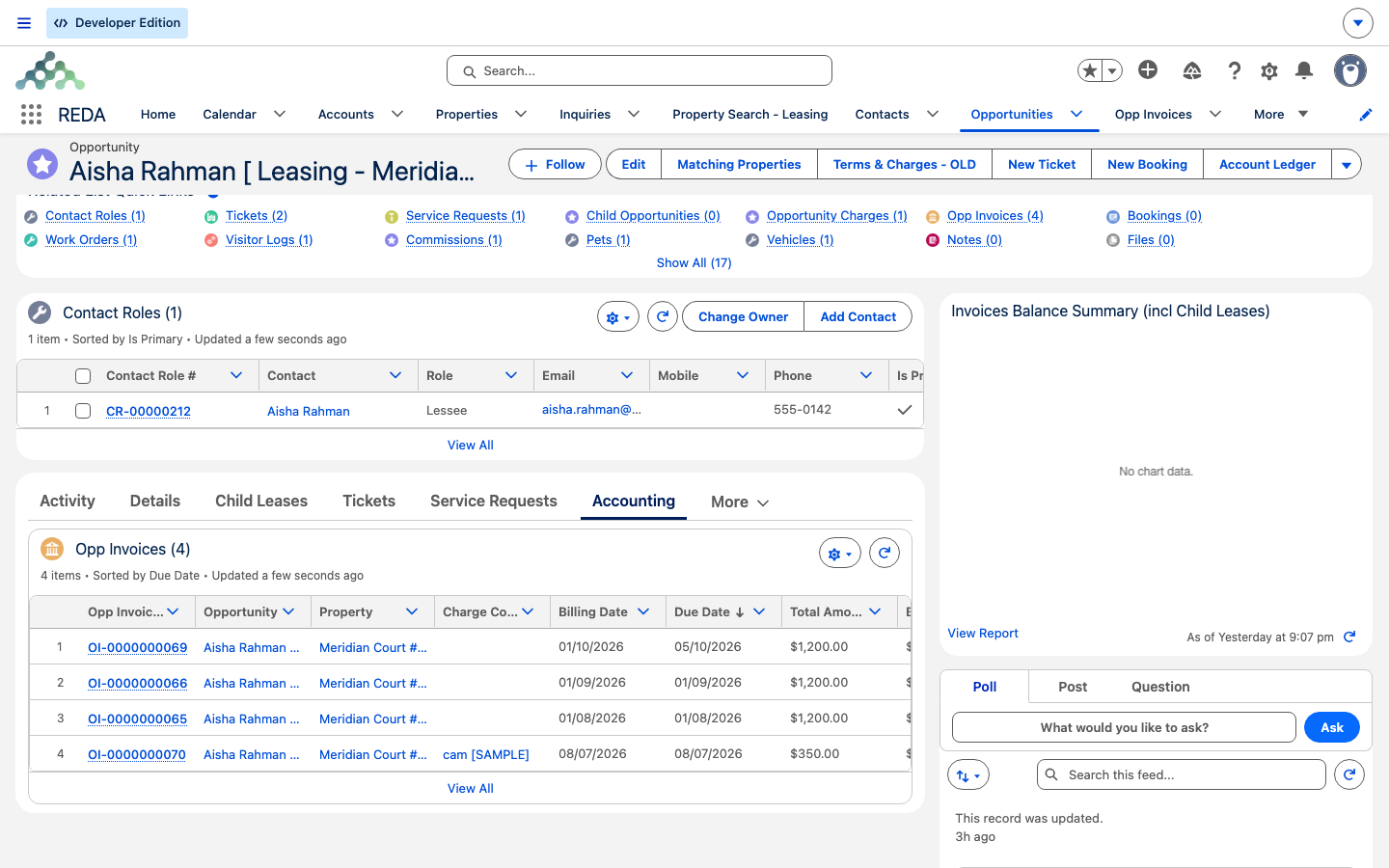
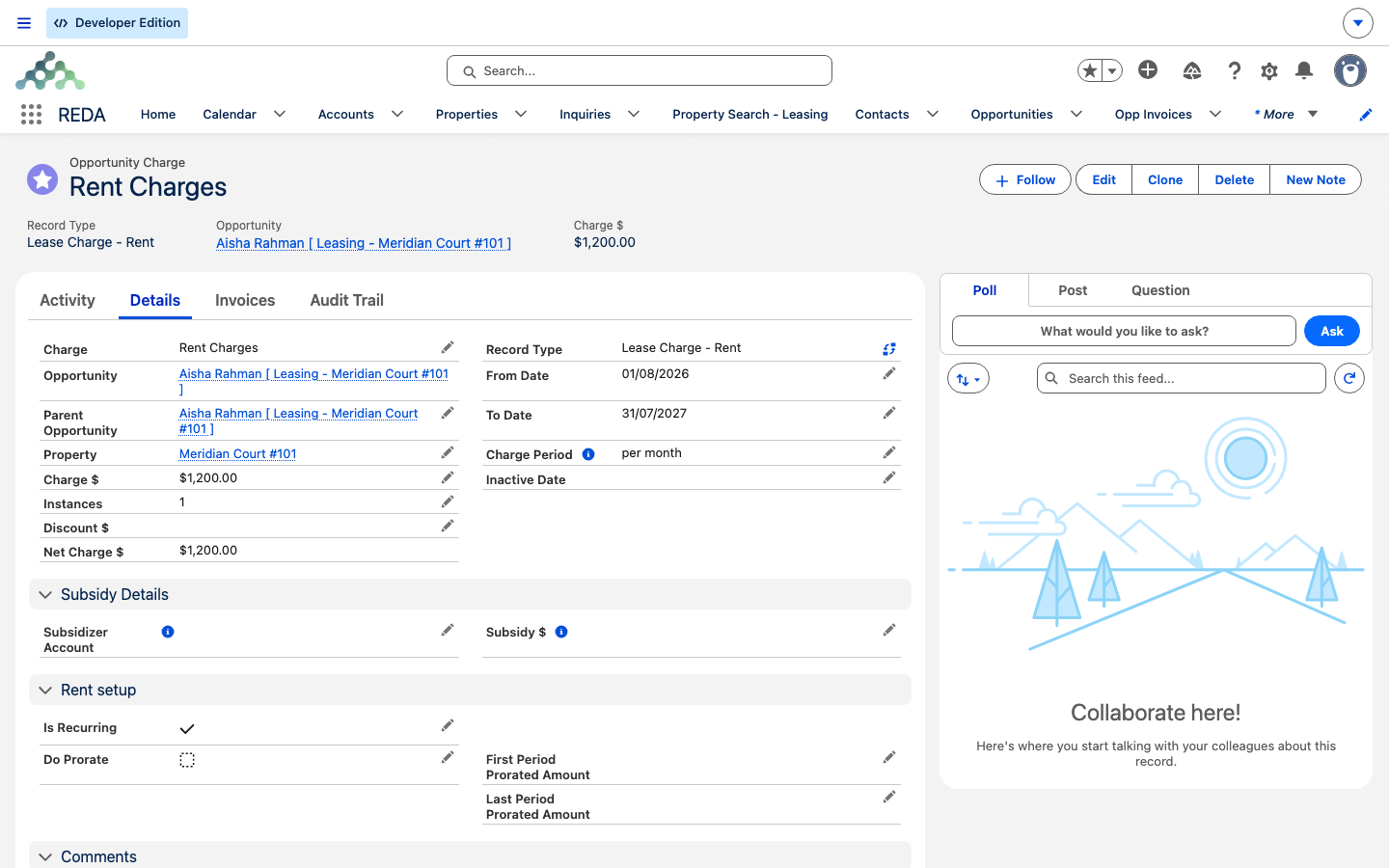
Aisha Rahman leases Meridian Court #101 at 1,200.00 a month. Her rent charge has Create Opp Invoice ticked and her lease is accounting-active, so each monthly run produces one 1,200.00 invoice for the coming period. Until the accounting extension records a payment, the invoice's Tax stays 0, Received stays 0, and the Balance reads 1,200.00. Once Aisha pays, the extension writes the Received amount and the Balance falls to zero — REDA never touches those figures.
Now flip one switch off. Untick Create Opp Invoice, or let the lease sit before it becomes accounting-active, and the same charge produces zero invoices — and no error tells you so. That silence is exactly what the twice-opt-in rule predicts.
How to recognize where an invoice came from
Not every invoice comes from a recurring rent charge. When you open one, a single provenance field tells you its origin:
| Origin | Tell-tale on the invoice |
|---|---|
| Recurring charge | Source charge linked, a From/To period, and a "[from - to]" suffix on the Billing Comment |
| One-time charge | Source charge linked, no period, Billing Date is the day it was raised |
| Late fee | Parent Invoice populated (shown in the "Related Invoices" list) |
| Month-to-month (holdover) fee | No source charge linked |
| Booking | Booking lookup populated |
| Work order | Work Order lookup populated |
| Expense recovery | Expense Reconciliation Line lookup populated |
Where to go next
- Charge Codes — the billing categories that decide routing, grouping and grace days.
- Invoices Explained — read every block of an Opp Invoice with confidence.
- How Recurring Invoicing Works — when the next rent invoice generates, and the first-month double invoice.
- Proration — why a partial first month isn't the full rent.
- Scheduling Background Jobs — the jobs that must be scheduled for recurring billing to run.
- The REDA Financials Bridge — where tax, receipts and the accounting side live.
Frequently asked questions
Billing is opt-in twice: the charge's Create Opp Invoice box must be ticked and the lease must be accounting-active. Recurring runs also require the background job to have been scheduled by your administrator. Check all three.
No. In the current release the box stays ticked by design — the help text is outdated. It's a persistent opt-in, not a one-time flag.
Those fields belong to the accounting extension — the tax engine and cash application maintain them. REDA never writes them, so they aren't yours to edit here.
Deletion is blocked once money has been applied (the Balance no longer equals the Total) or the invoice sits in a batch: "This Opp Invoice cannot be deleted." Reverse the applied amounts or remove it from the batch first.
Approved leases lock their charges: "The record is locked for editing. Charges can not be created and updated if the opportunity or opportunity's parent opportunity or associated ticket is Approved." Make the change through a ticket instead.
Was this article helpful?