
Navigation Basics in the REDA App
Before you can lease a unit, log a maintenance request, or raise an invoice, you need to be able to move around. This article is the absolute-basics orientation for anyone opening REDA for the first time: how to switch apps with the App Launcher, read the row of tabs across the top, use global search to jump straight to any property or tenant, and understand the strip of tools along the bottom of the window. No prior Salesforce experience is assumed — every piece is named and explained as we reach it. The full tab-by-tab tour and the anatomy of a record page live in their own articles; this one teaches the mechanics, then hands off.
Access you'll need. Any REDA permission set gives you the REDA app and its tabs; which tabs you see depends on the sets you've been assigned. Standard tabs such as Accounts, Contacts, and Reports are granted separately by your administrator — they are not part of the REDA permission sets.
The Lightning frame
REDA runs inside Salesforce Lightning — the same frame that surrounds every Salesforce app. That frame gives you four things you'll use constantly: the App Launcher for switching between apps, the tab bar for moving between kinds of records, global search for jumping to a specific record, and the utility bar for always-available tools. Learn these four and you can find your way to anything in REDA. The rest of this article walks each one in turn.
The App Launcher: switching apps
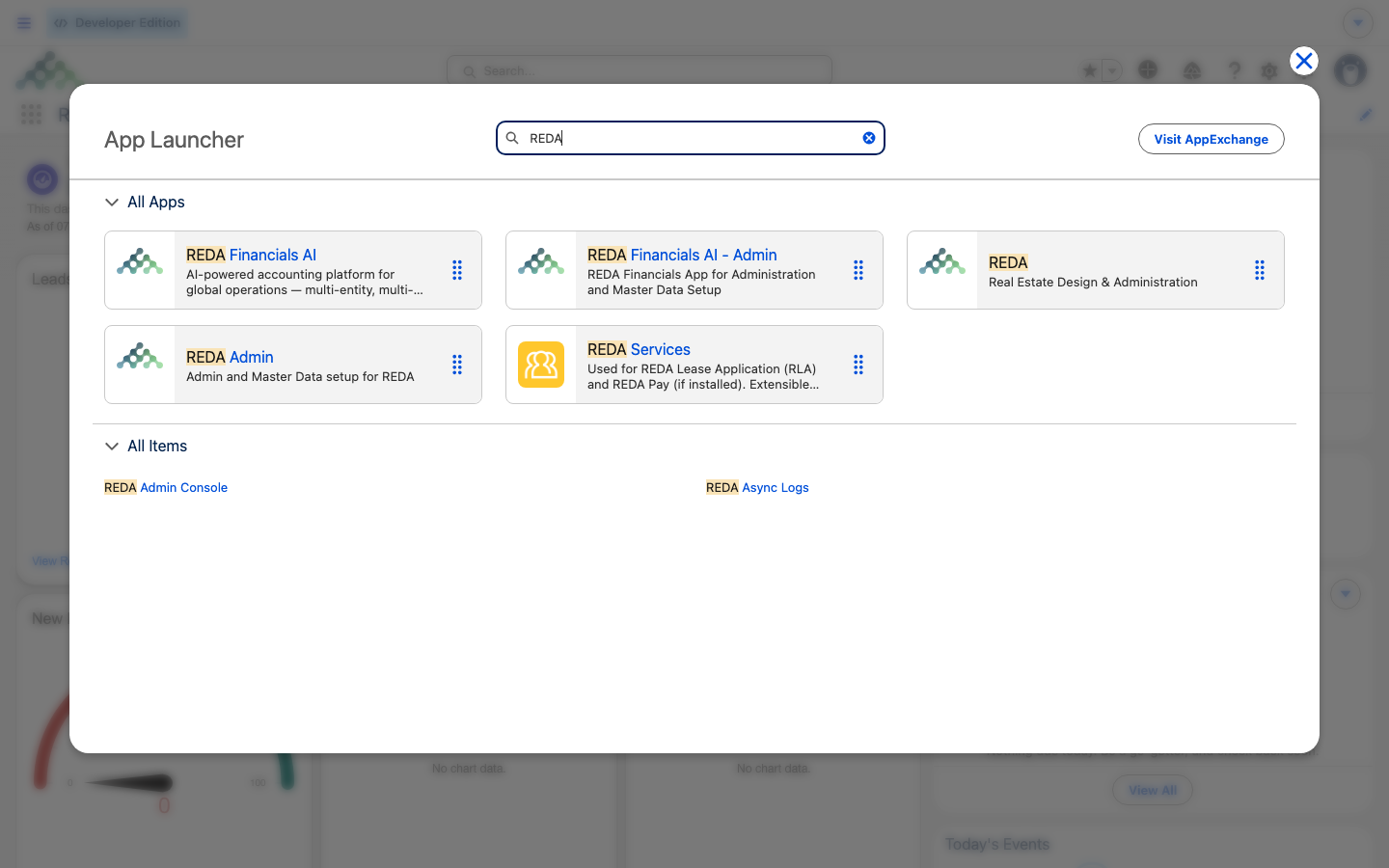
The App Launcher is the grid (or "waffle") icon at the top-left corner of every page. Click it and you get a panel of all the apps and items you can open. REDA installs two apps, and you'll switch between them constantly:
You don't have to scroll to find an app or a tab. The App Launcher has its own search box at the top of the panel — type "REDA", "Properties", or "Leasing Rules" and it filters to matches, so you can jump straight to what you need. REDA works on desktop and mobile, and the App Launcher is the entry point on both.
The tab bar
Once you're in the REDA app, the tab bar runs across the top of the window — a row of tabs, each one a different kind of record. The REDA app has twenty-six of them. When they don't all fit on screen, the overflow tucks under a More dropdown at the end of the bar, so if you can't see a tab, open More before assuming it's missing.
Tab labels use the plural form of the object — Properties, Inquiries, Opportunities, Opp Invoices, Tickets, Bookings, and so on. There is one small trap worth remembering: the tab reads Promotions, while the record it holds is labeled Promotion in the singular. Everywhere else, tab and object line up cleanly.
You don't need to memorize the whole list — the full tour is in Getting Around: the REDA & REDA Admin Apps. Here, the habit to build is simple: scan the bar, and if you don't see the tab you want, open More.
Global search
The search box at the very top of every page is global search — the fastest way to open a specific record. Type a property name, a tenant, a lease, or a ticket, and open it straight from the results. If the results are broad, you can narrow them to a single kind of record — for example, only Properties — from the results page. The rule of thumb: search for anything, then filter down.
A few habits make it faster. You don't have to type the whole name — a distinctive fragment such as Harbour is usually enough to surface Harbour Tower and Harbour Villa 7, and you pick from there. Because a lease is an Opportunity and a tenant is a Contact, searching a person's name like Aisha Rahman brings back her contact record and any deals tied to her; open the contact and follow the link to the lease, or filter the results to Opportunities. If a search comes back empty, it's almost always a spelling or an access matter — you can only find records you've been given permission to see.
The utility bar
The utility bar is the strip along the bottom of the window that holds always-available tools — things you can open without leaving the record you're on. It's a standard Salesforce feature, and administrators can stock it with items like a notes pad, a history list, or a phone dialer.
Opening and moving between records
The pattern for reaching any record is the same across REDA. Click a tab and you land on a list view — a table of records of that kind. Click a row to open the record. To move between records, use your browser's back button and the app's Recent Items, which keeps the records you've opened most recently within easy reach.
List views themselves — filtering them, switching between them, and the Kanban board — have their own article: List Views & Kanban. For now, the takeaway is the loop: tab → list view → record.
A quick nav drill
Here's the whole toolkit in one short run, as a new leasing agent at Meridian Properties might use it on their first morning — three tasks, no data entry, each just a couple of clicks:
Four moves, and you've switched apps, searched, used the tab bar, and opened a record — the complete set of navigation basics.
Where to go next
- Getting Around: the REDA & REDA Admin Apps — the full tab-by-tab tour of both apps.
- Anatomy of a REDA Record Page — what you're looking at once you open a record.
- List Views & Kanban — filtering lists and working the Kanban board.
- Property Search — the dedicated Property Search - Leasing tool.
- How Access Works in REDA — why you see the tabs you see.
Frequently asked questions
Click the App Launcher — the grid icon at the top-left of any page — and pick the app you want. REDA is for day-to-day work; REDA Admin is for setup and master data.
First, check the More dropdown at the end of the tab bar — if the bar is full, tabs overflow into it. If it's still not there, tab visibility comes from your permission sets, so ask your administrator. Standard tabs like Accounts, Contacts, and Reports are granted separately from the REDA sets.
Use the global search box at the top of any page. Type the name, then filter the results to the kind of record you want.
That's the utility bar, which holds always-available tools. In REDA it's empty by default — anything you see there was added by your administrator.
No. Property Search - Leasing is a separate, dedicated tool for finding leasable properties, with its own filters and a 200-row cap. Global search finds any record you already know the name of.
Was this article helpful?