
Packaged Reports & Dashboards
REDA installs with analytics already built. Where a bring-your-own-analytics product hands you an empty Reports tab, REDA ships ready-to-run reports and dashboards for every business line, a dashboard embedded on your Home page, and charts embedded on the record pages you work from. This page is the orientation to all of it: what ships, where each piece lives, and — the detail that trips people up most — who grants access to reports, since that's your Salesforce administrator, not your REDA permission sets. From here, the other articles in this section drill into each layer.
Access you'll need. Report and dashboard access is granted by your administrator, separately from your REDA permission sets — no REDA set includes it. If you can't see the Reports or Dashboards tabs, ask your admin to grant report access. What each report or dashboard shows is still limited to the records you're allowed to see.
What REDA ships
Out of the box, REDA gives you four layers of analytics:
- Packaged reports — dozens of ready-to-run reports, organized into business-line folders on the Reports tab.
- Packaged dashboards — a dashboard per business line on the Dashboards tab, plus one embedded on your Home page.
- REDA report types — seven joined starting points for building your own reports.
- Embedded record-page charts — charts that appear directly on the records you work with, such as a lease's invoice balances.
The rest of this page tours each layer at a glance and points to the article that covers it in full.
Packaged dashboards
The Dashboards tab holds a dashboard for each business line, grouped into folders — for example Leasing: Leads and Showings Current FQ and Leasing Stats - Current FQ in the Leasing folder, Acquisition Stats - Current FQ, Sales & PMA Stats - Current FQ, Debt Summary for lending, and REDA - Executive Intelligence (Leasing) for the executive view. Separately, the REDA Home page opens with a dashboard already embedded; because it's configured for your org we call it your home dashboard rather than naming it. For the full list and how to build your own, see REDA Dashboards.
Packaged reports
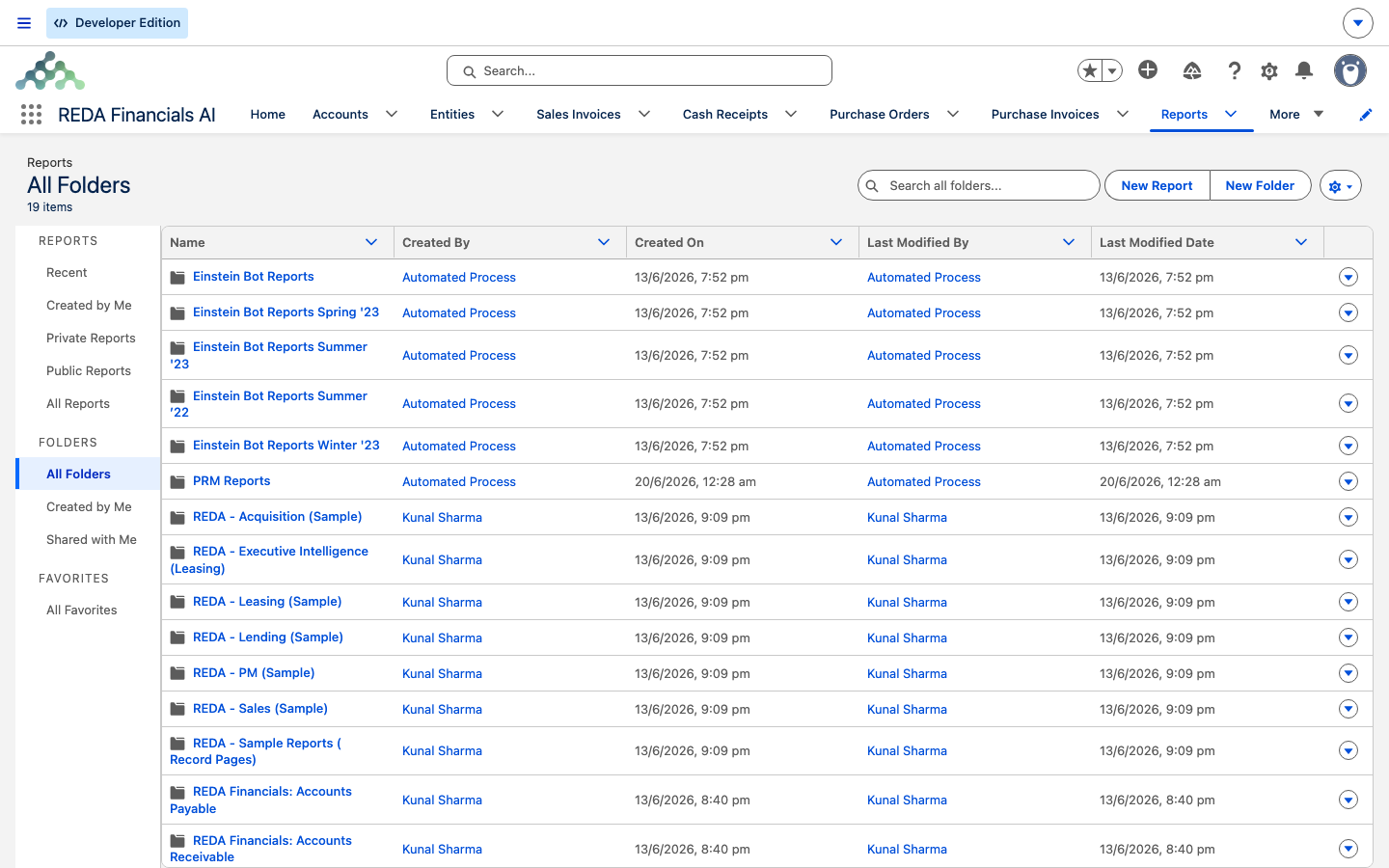
The Reports tab organizes REDA's reports into business-line folders — Leasing, Acquisition, Sales, Lending, PM, Executive Intelligence, and the operational Leasing Admin set — plus Property Reports, Leasing Promotions, and an Invoices report. These answer the questions teams ask most often, from New Leasing Inquiries By Date-Current FQ to occupancy and outstanding-balance analytics. The full catalog, report by report, is in Prebuilt REDA Reports; the folder map and how sharing works is in Report Folders & Sharing Access.
The REDA report types
When no packaged report fits, you build your own from a report type — the starting template that decides which records and fields a report can pull. REDA installs seven that pre-join its records:
| Report type | Answers |
|---|---|
| Acq Opportunities with Lending Opportunities | acquisition deals joined to their loans |
| Inquiries with Property Fields | inquiry pipeline by property type, region, or neighbourhood |
| Leasing Promotion with Opp Charge with Opp Invoice | the promotion billing chain — promotion to charge to invoice |
| Promotion with Inquiries | promotion return-on-investment and stats |
| Properties with Child Properties | building-to-unit hierarchy reporting |
| Properties with Showing Events | showings per property |
| Straight Line Schedule with Periods (Custom) | straight-line schedules with period and property detail |
Each type is defined in full in REDA Report Types to Start From, and Building Your Own Reports walks through creating a report from one.
Reports embedded on record pages
Some reports don't live on the Reports tab at all — they render as charts directly on the records you work with. On a lease (the leasing opportunity record), the Accounting tab carries two invoice-balance charts: Invoices Balance Summary and Invoices Balance Summary (incl Child Leases), so the money on a lease is visible without leaving the record. The property record page also carries a report chart. These are powered by packaged reports, which is why the folder guidance warns against deleting or renaming the reports behind them.
Where to go next
- Prebuilt REDA Reports — the full report catalog, folder by folder.
- REDA Dashboards — the packaged dashboards and how to build your own.
- REDA Report Types to Start From — the seven joined starting points.
- Building Your Own Reports — build a report when none of the packaged ones fit.
- Report Folders & Sharing Access — where reports live and how to share them.
- Subscribing to & Scheduling Reports — get reports delivered on a schedule.
Frequently asked questions
Report access is granted by your Salesforce administrator, separately from your REDA permission sets — no REDA set includes it. Ask your admin to grant report access.
Dashboards render whatever your org's data contains and what you're allowed to see. A fresh install shows no chart data until business records exist.
The safe pattern is to clone the packaged report into your own folder and edit the copy, leaving the shipped report intact so an upgrade doesn't overwrite it. Some reports also feed on-page charts, so changing the original can break those.
The Executive Intelligence reports summarise occupancy and yield. The underlying computed occupancy analytics are held as reconciliation-snapshot records, not as packaged reports.
Was this article helpful?