
Bank EFT / NACHA Processing
If you collect rent from tenants or pay owners and vendors electronically, you don't want to key each payment into your bank's portal by hand. REDA Financials can produce a bank-ready file instead — a file in NACHA format, the standard US banks ingest for ACH transfers — so a whole run of collections or payments becomes one upload. This guide is for the finance administrator who sets that up. No prior knowledge is assumed: we define every term as we go. By the end you'll be able to prepare the bank account and the payee details, create a recurring EFT instruction and understand every field on it, run the processor, read the resulting batch and its statuses, and trace a single instruction all the way to a line in the file the bank reads — and know how the instruction rolls itself forward for next time.
Access you'll need. This is a finance-administrator task, and because it involves bank data it should be tightly restricted. Working with EFT instructions and batches from their tabs requires the REDA OEM Financials Admin permission set. If you can't reach the tabs or the processor, ask your administrator to assign it.
The pipeline at a glance
Four things work in sequence. It's worth holding the whole shape in mind before you set anything up, because each piece feeds the next:
| Piece | What it is |
|---|---|
| EFT Instruction | A standing order — collect from or pay a particular party, how much, how often, and the next date it's due |
| The run | You start the processor for a date; it gathers every instruction that's due and turns each into an accounting document |
| EFT Batch | The record of one run: a header with a status and total, and one line per payment in it |
| The bank file | The NACHA-format file produced from the batch, which you download and upload to your bank |
So the flow is: you set up instructions once; on the day you run the processor, REDA gathers the due ones, creates a collection or payment document for each, and records them as a batch; you then generate a file from that batch and hand it to the bank. Afterwards, each instruction quietly advances its own due date so it's ready for next time. The two directions have names worth learning up front: a Receipt instruction collects money in (a tenant rent debit), and a Disbursement instruction pays money out (an owner draw or a vendor payment).
Set up the originating bank account
Every EFT file has two sides: who's sending (you) and who's receiving (each payee). This section is the sending side. The originating bank account is your organization's own bank account — the one money is collected into or paid out of — and it has to carry the identifying details a bank file needs in its header. You set these once per bank account, on the accounting side.
| Bank account field | What it holds |
|---|---|
| EFT Enabled | Marks this bank account as usable for EFT. An instruction can only use an EFT-enabled bank account. |
| Originator ID | Your company's identifier at the bank — the “who's sending” id that goes in the file header (from your bank) |
| Originator Name | Your company's name as it should appear in the file header |
| Destination Routing | The routing number of the bank that receives and processes the file (from your bank) |
| GL Account | The bank account's ledger account — required for EFT, and used as the cash account when a payment (a Disbursement) is booked |
If any of the first three are missing, an instruction that points at this bank account can't be made active — the app blocks it with a clear message (see the FAQ). Get these right first and everything downstream just works.
Stage payee details on the client account
The receiving side is the payee's bank details. You can type these onto every instruction, but it's easier to stage them once on the client account — the tenant, owner or vendor you'll transact with — so they auto-fill each new instruction you create for that party. A client account carries its own EFT payee section:
| Account EFT field | Holds |
|---|---|
| EFT Enabled | Whether this account is set up for electronic transfer |
| EFT Account Name | The name on the party's bank account |
| EFT Account Number | The party's account number (sensitive — mask) |
| EFT Account Type | Checking or Savings — this must be right, or the bank rejects the entry |
| EFT Bank Name | The party's bank |
| EFT Routing Number | The party's 9-digit routing number (sensitive — mask) |
You can set these while you're activating the account — see Activating a Client Account as a Financial Entity. Staging them here means the person creating instructions never has to re-key sensitive numbers.
Create an EFT instruction
An instruction is the standing order for one recurring collection or payment. It's the heart of the feature, so it's worth understanding every field on it. From the EFT Instruction tab, click New, then work through these groups.
Run the processor: instruction to batch
When you're ready to process, you open the EFT processor and give it a process date. The run works in two moves.
First it finds what's due: every instruction that is active, in Active status, and whose next process date is on or before your process date. If nothing qualifies, it tells you so and stops. Then it groups and books the due instructions. Instructions are grouped by originating bank account, direction, and entity — so one batch covers one bank account, one direction, and one set of books. For each due instruction it creates the matching accounting document and records a line on the batch:
| Instruction type | What the run creates | Party role |
|---|---|---|
| Receipt (collect) | A Cash Receipt in REDA Financials, marked for ACH, in Draft | The account is the customer being debited |
| Disbursement (pay) | A Cash Disbursement in REDA Financials, marked for ACH, in Draft | The account is the vendor/owner being credited |
Each batch line carries the amount, the payee name and routing number, and a link to the receipt or disbursement it produced — so you can always tie a line back to the document it settles. For protection, the line stores only the last four digits of the payee account number; the full number stays on the instruction and is used only inside the generated file. The property and cost-center context you set on the instruction is copied onto the document too.
The batch itself is created in Draft status with its format set to NACHA, and its total and line count are filled in as the run finishes. How the resulting Cash Receipt or Cash Disbursement then posts to your ledger is accounting territory — see the REDA Financials help center.
Generate the bank file
A Draft batch is a list of payments; the file is what the bank actually reads. From the batch, you generate the file. Two things are worth knowing:
What's in the file
The file is in NACHA format — the fixed-width layout, 94 characters per line, that US banks read to move ACH money. You don't need to read it by hand, but it helps to know what's in it. It combines the two sides you set up: your company details from the originating bank account (who's sending) form the header, and then there's one entry per payee from the batch lines (who's being paid, and how much). Each entry uses the payee's account type — Checking or Savings — to tell the bank what kind of account to touch, which is why getting that field right matters. Collections and payments are marked differently, so the bank knows which entries pull money in and which push it out.
Worked example: collecting rent by EFT
Meridian Properties collects 1,200.00 in monthly rent from tenant Aisha Rahman by ACH, into its operating bank account. In a test workspace with clearly fake bank numbers, here's the whole trace.
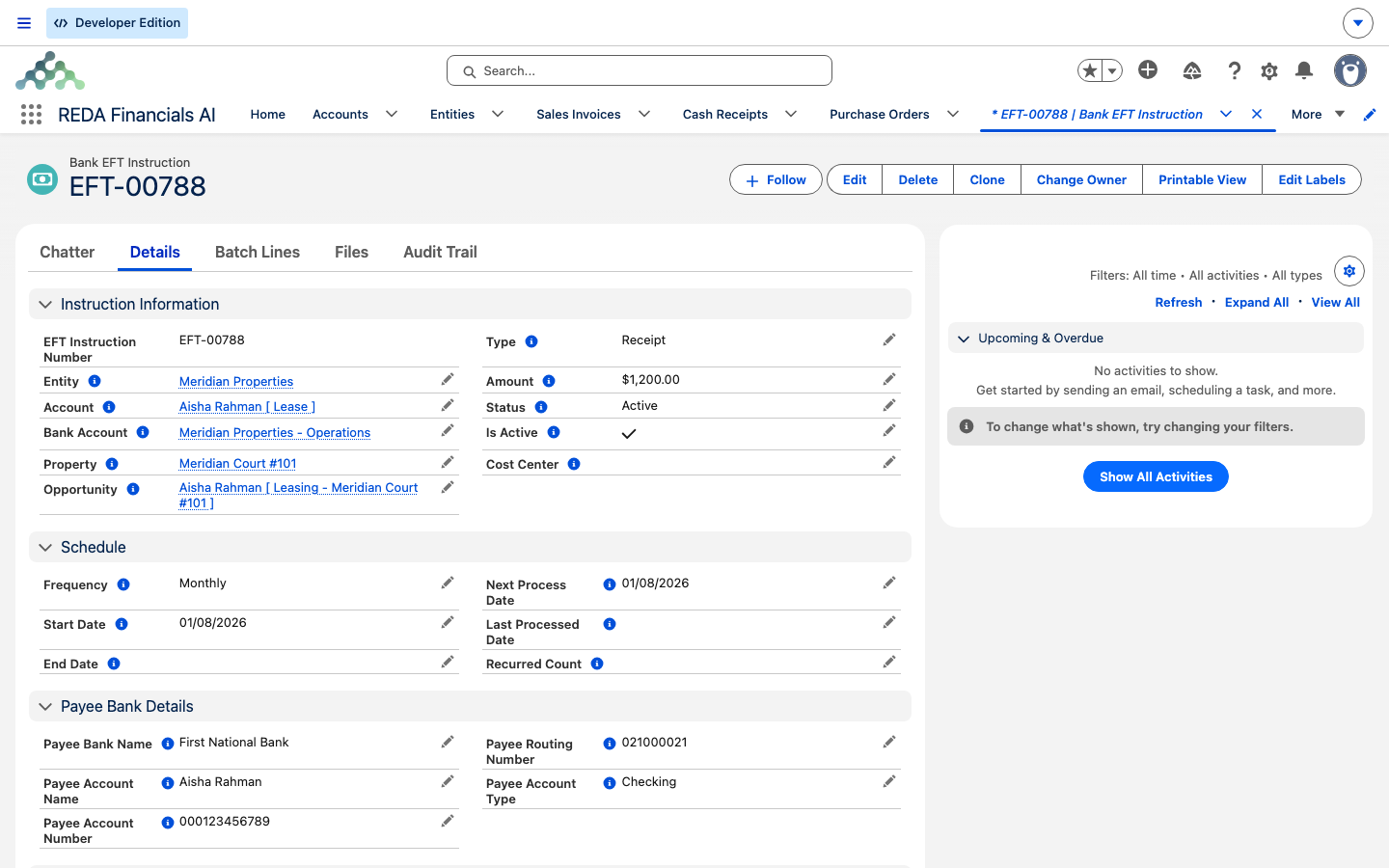
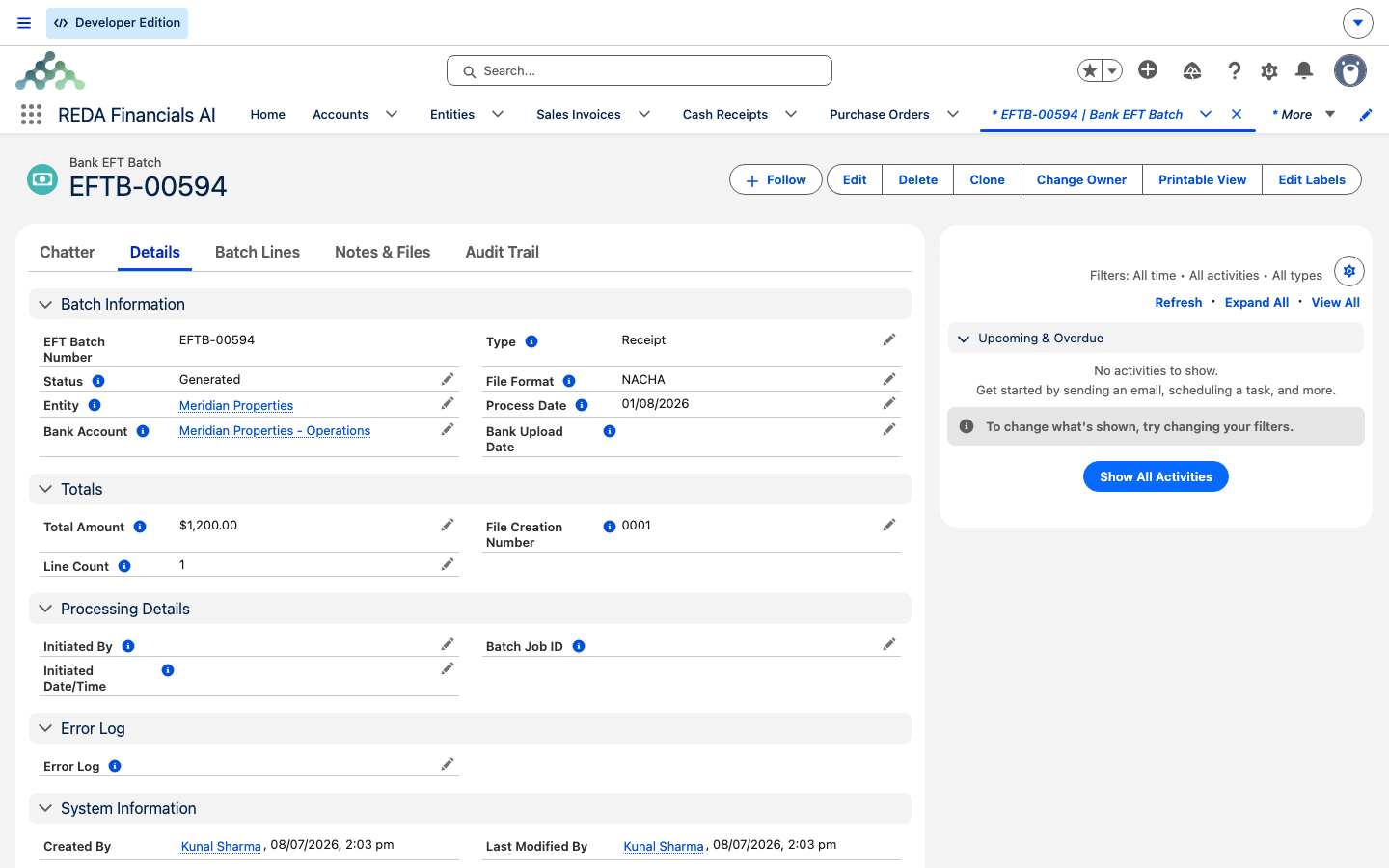
Reference tables
EFT instruction fields. Everything on a standing order, grouped by what it does:
| Field | What it holds | What it drives |
|---|---|---|
| Type | Receipt or Disbursement | Whether a collection or a payment is created |
| Account | The party | Customer on a Receipt, vendor/owner on a Disbursement |
| Entity | The set of books | Where the document posts; sets the currency |
| Bank Account | Your originating bank account | Supplies the company header in the file; must be EFT-enabled |
| Amount | Per-cycle amount (> 0) | The line and document amount |
| Frequency | One-Time / Weekly / Bi-Weekly / Monthly / Quarterly / Semi-Annual / Annual | How far the next process date advances each run |
| Start Date | First eligible date | The initial next process date |
| Next Process Date | When it's next due | Eligibility for a run; rolls forward automatically |
| End Date | Optional stop date | Instruction expires once the schedule passes it |
| Last Processed Date | When it last ran | Audit; stamped each run |
| Recurred Count | Times processed | Audit |
| Payee Account Name / Number / Routing / Type / Bank Name | The payee's bank details | The entry written into the file (routing = 9 digits; number sensitive) |
| Property / Cost Center | Reporting context | Copied onto the collection or payment |
| Opportunity / Description | Lease link / memo | Context and the document memo |
| Is Active + Status | The two on/off switches | Only Active + Active status is processed |
Batch statuses. What each one means and what you do next:
| Status | Meaning | What you do |
|---|---|---|
| Draft | The run created it; lines and total are set; no file yet | Review the lines and total, then generate the file |
| Processing | The file is being generated | Wait |
| Generated | The file is produced and attached; lines succeeded | Download it, upload to your bank |
| Sent to Bank | You've marked it uploaded | Set the bank upload date; done |
| Failed | Generation hit a problem (for example, no lines) | Read the error log and re-run the setup |
| Cancelled | Cancelled by hand | Nothing further |
How the next process date advances, by frequency:
| Frequency | Next date moves |
|---|---|
| One-Time | Doesn't — the instruction expires after one run |
| Weekly | +7 days |
| Bi-Weekly | +14 days |
| Monthly | +1 month |
| Quarterly | +3 months |
| Semi-Annual | +6 months |
| Annual | +12 months |
Setup checklist
Where to go next
- Owner Draws & Owner Statements — the payouts you'll often send by EFT.
- Management Fee Automation — settlements you may pay the same way.
- Activating a Client Account as a Financial Entity — where a client account's EFT payee details and the operating bank are set.
- How REDA Works with REDA Financials — the whole seam this sits inside.
Frequently asked questions
No. REDA produces the bank-format file; uploading it to your bank is your own banking process, through your bank's channel. Once you've uploaded it, you mark the batch Sent to Bank. There's no direct connection from REDA to the bank.
A run only picks up instructions that are active on both switches — the Is Active box and Status set to Active — and whose next process date is on or before the process date. Instructions that are Suspended, Expired or Cancelled, or simply not yet due, are skipped. If nothing qualifies, the run reports “No eligible EFT instructions found for process date” and stops.
The instruction's amount must be positive. The full message is “Amount must be greater than zero.” Enter the per-cycle amount you want to collect or pay.
The originating bank account you selected hasn't been set up for EFT. The message is “The selected Bank Account must have Originator ID, Originator Name, and Destination Routing configured for EFT processing.” Fill those three details on the bank account before activating the instruction — see Set up the originating bank account.
The originating bank account needs its ledger (GL) account set — the message is “The selected Bank Account must have a GL Account configured.” It's used as the cash account when a payment (a Disbursement) is booked. Your accounting administrator sets this on the bank account.
An active instruction must carry the payee's bank details. You'll see “Payee Account Number is required when the EFT Instruction is active,” and the matching messages for Payee Account Type and Payee Routing Number. Staging these on the client account fills them in for you.
A routing number is exactly nine digits, with no spaces or dashes — the message is “Payee Routing Number must be exactly 9 digits.” Re-enter it as nine plain digits.
The end date can't be before the start date — “End Date must be on or after the Start Date.” Either clear the end date or set it on or after the start.
Its next process date advances by the frequency after each run — a Monthly instruction moves to next month, Weekly to next week, and so on. A One-Time instruction, or one whose next date would pass its end date, is marked Expired and stops. You don't reschedule it by hand.
For protection. The batch line stores only the last four digits; the full account number stays on the instruction and is used only inside the generated file.
Only a Draft batch can be turned into a file: “Only Draft batches can be submitted for file generation.” A batch that's already Generated or Sent to Bank can't be regenerated, which prevents two files going out for the same run. Correct the underlying instructions and process a fresh batch instead.
NACHA (US ACH) is the format that ships. Other national formats are an implementation project — a conversation with your REDA partner — rather than a setting you switch on.
Was this article helpful?