
Commission Rules & Splits
A commission rule is where you define, once, who earns what when a deal closes. When a property sale or a lease reaches its winning stage, REDA reads the rule attached to that deal and produces the payout records automatically. This article walks the three-level model REDA uses — the rule, its rule items, and optional splits on an account — and, just as importantly, calls out the two things REDA deliberately does not enforce, because both are silent ways to over- or under-pay. No prior REDA setup experience is assumed; every term is defined as we reach it.
Access you'll need. Full control of commission rules requires the REDA - Master Data - Admin permission set; REDA - Commission Manager can create and edit rules. REDA - Master Data - Read Only, REDA - Commission User, and REDA - Commission User Read Only can view them but not change them.
The three-level model
Commissions in REDA are built from three kinds of record, each nested inside the one before it:
When a deal closes, REDA reads the rule attached to the deal's Commission Rule field, walks each item, resolves the recipient, applies any splits on that recipient's account, and writes one Commission record per payout. That last step — the calculation itself — is covered in How Commissions Calculate; this article is about building the rule so the calculation has something to read.
The rule header
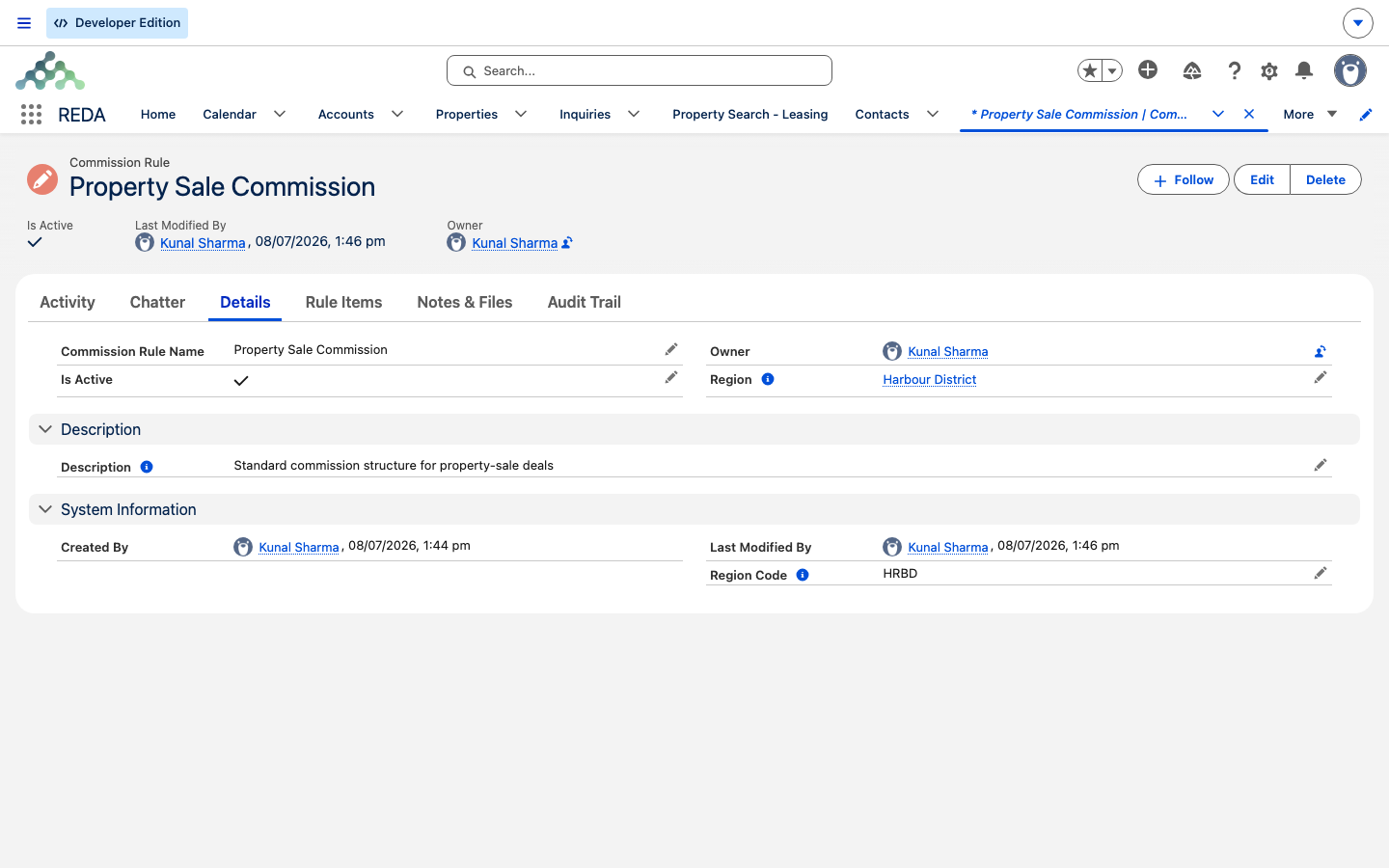
The rule header carries just a handful of fields, because all the real logic lives on the items:
| Field | What it does |
|---|---|
| Commission Rule Name | The rule's display name, shown wherever it's picked. |
| Description | An internal note for administrators. |
| Is Active | Whether the rule is switched on. New rules start unticked — see the warning below. |
| Region | Sets who can see the rule (region-based sharing). The region code text is filled in by REDA. |
Rules are scoped by Region: a regional team sees the rules for its own region, and REDA stamps the region code onto the rule for you — you never type it.
The rule items — who earns what
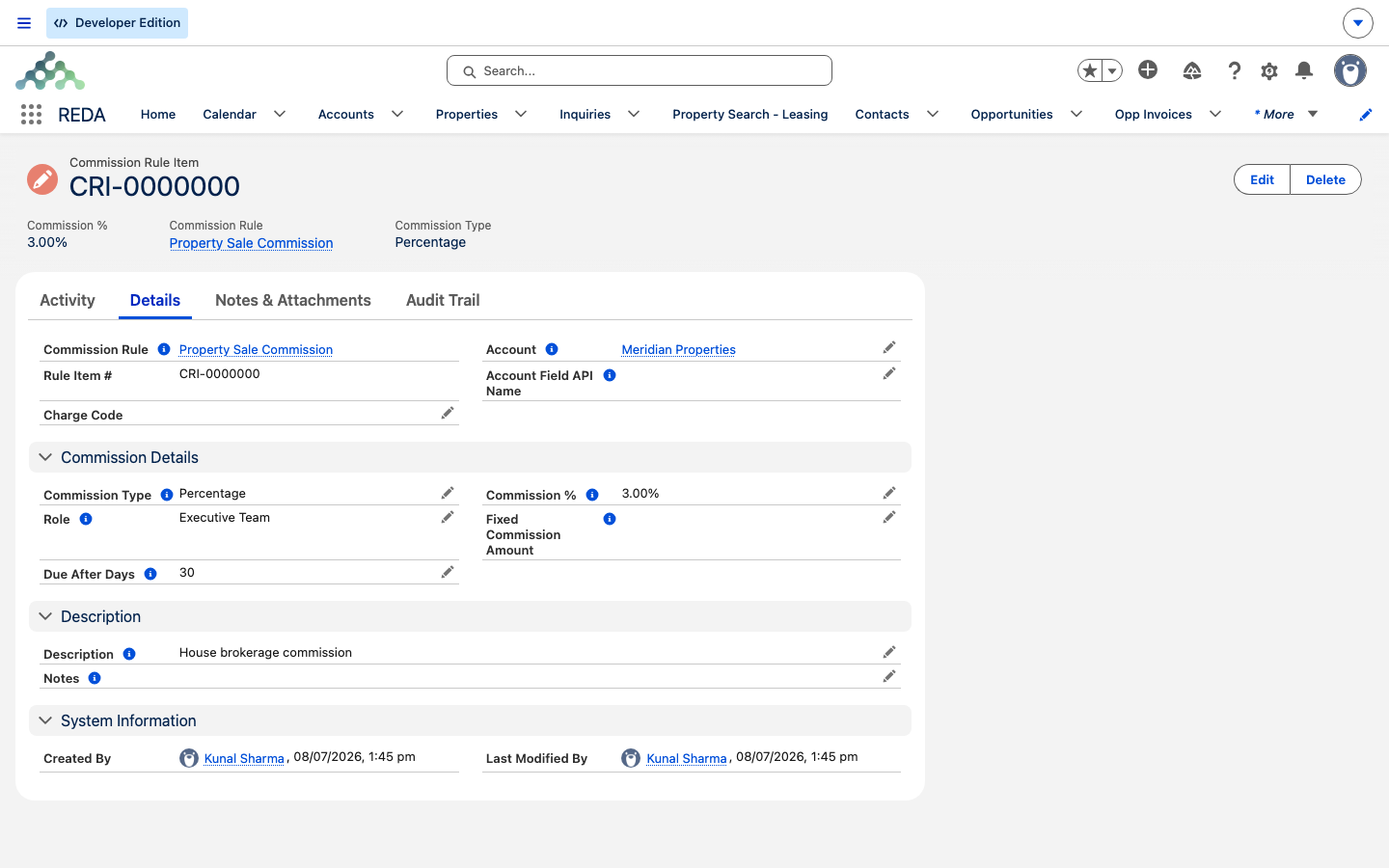
Each rule item is one payout line. There are four decisions to make on every item: who gets paid, in what role, how much, and when it's due.
Who: static or dynamic recipient
Every item names a recipient in one of two ways, and exactly one of them must be filled in:
- A specific account — you pick the earning account directly (a named brokerage or partner). The same account earns on every deal that uses this rule.
- A field on the deal — instead of a fixed account, you point the item at a field on the deal that holds an account. Whoever is on that field at the moment the deal closes gets the commission. Use this when the earner varies deal by deal, such as the listing agent recorded on each sale.
Leave both blank and REDA won't save the item:
Role, type, and amount
Each item also carries a Role — one of Marketing Team, Executive Team, Opportunity Owner, or Partner — which labels the payout for reporting, and a Commission Type that decides how the amount is figured:
- Fixed — a flat amount you enter in Fixed Commission Amount.
- Percentage — a rate you enter in Commission %, applied to the deal's commission base (the dollar figure, such as the sale price or annual rent, the percentage is calculated against) when the payout is calculated.
The type you choose decides which amount field REDA insists on. Miss it and you'll see one of:
"Please provide the Commission %."
Due date offset and charge code
Two more fields round out the item:
- Due After Days — how many days after the deal's key date the payout falls due. The key date is the lease start date on a lease, or the under-contract date on a sale. (The mechanics of the due-date stamp are covered in How Commissions Calculate.)
- Charge Code — the category used when the payout is treated as a payable. See Charge Codes.
Splits: fanning a payout out across accounts
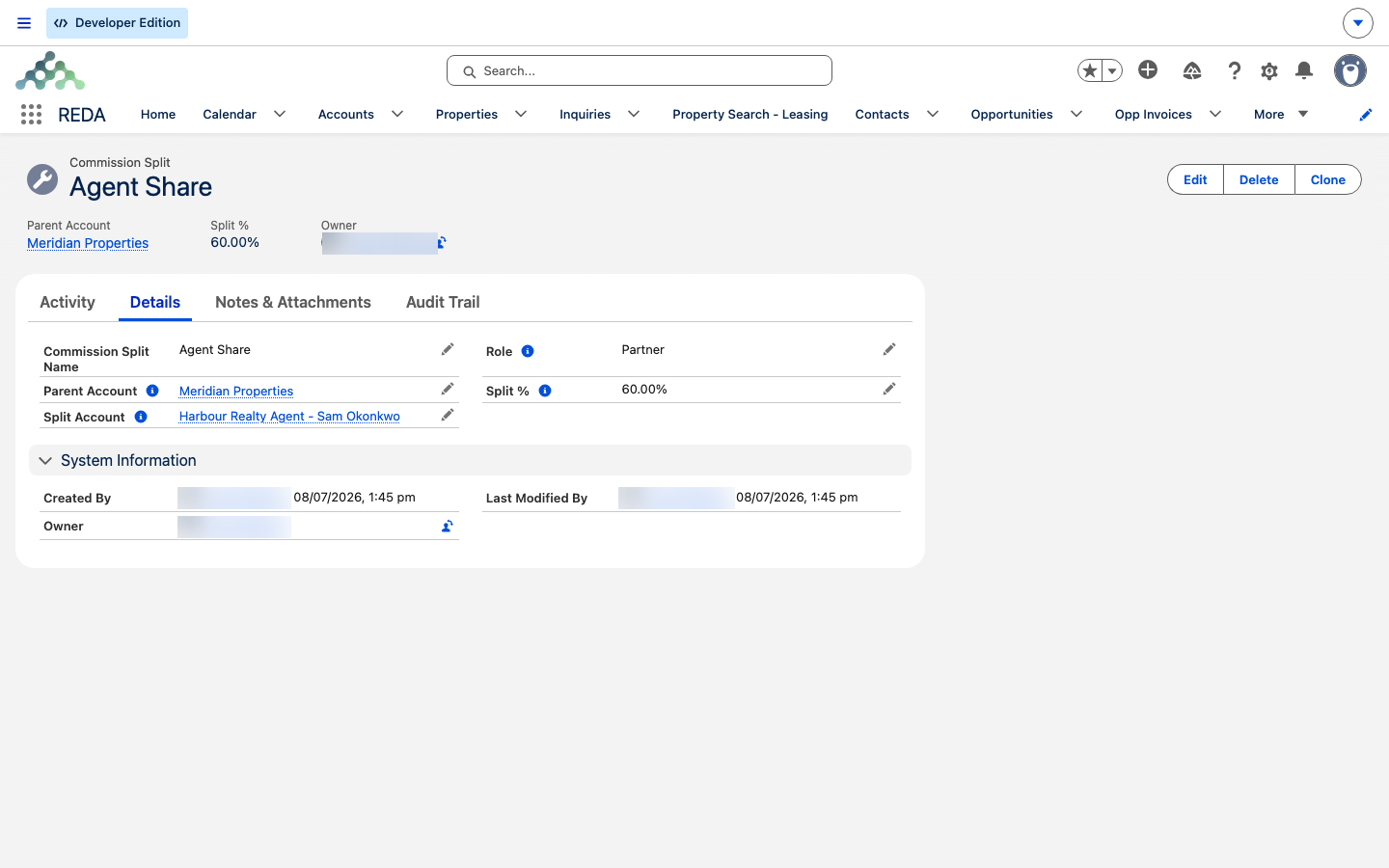
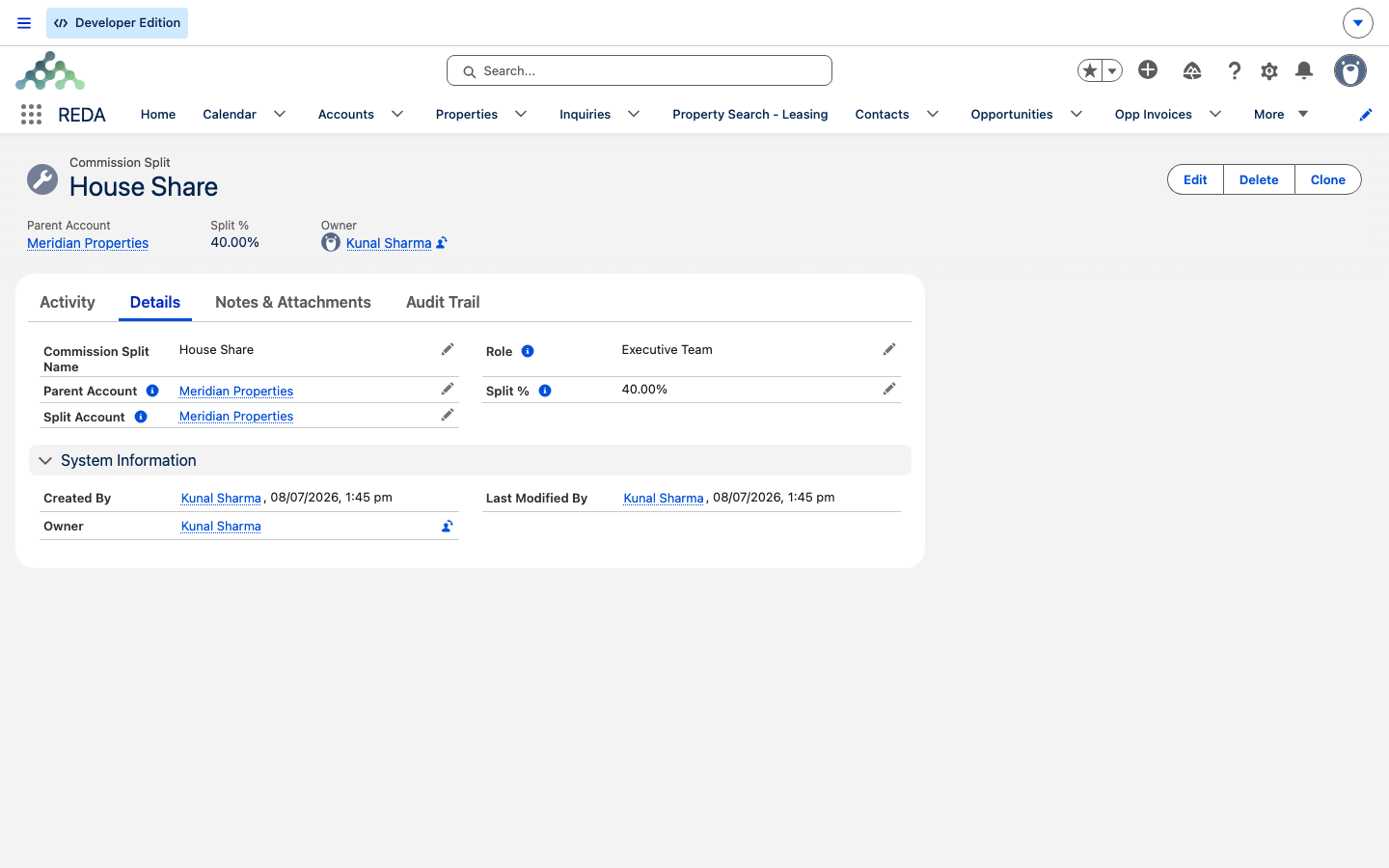
Sometimes a single earning account really represents several parties — a brokerage that keeps a house share and passes the rest to an agent. Splits handle that. A split lives on the earning account's Commission Splits related list and has four fields:
| Field | What it means |
|---|---|
| Parent Account | The earning account — the one whose commissions get split. |
| Split Account | Who receives this share. |
| Split % | The share this account receives. Not validated to total 100% — see below. |
| Role | Copied onto the resulting payout for reporting. Not matched against the rule item — see below. |
When a rule item's recipient account has splits, REDA produces one payout per split instead of one to the account — each split account paid its share, with the earning account kept on the payout as its parent. A recipient with no splits simply gets one payout at 100%.
These split records are private, so a colleague may not see the split setup you built on an account even when they can see the rule itself — worth knowing if someone reports that a split "isn't there."
Building a rule, step by step
Worked example: a residential sales rule
The rates, amounts, and splits below are illustrative, picked to show the model; use your own when you build a real rule.
You build a rule Residential Sales — Standard in the Harbour District region and activate it. It has two items:
- Item A — Percentage, 1.5%, recipient = the brokerage account Meridian Properties, role Partner, Due After Days 30. Meridian Properties has splits on its account: House 40% and Agent 60%.
- Item B — Fixed, 5,000.00, recipient = a field on the deal that names the marketing-source account, role Marketing Team.
When a sale to David Okafor closes with a commission base of 1,000,000.00, this rule produces three payouts — the House and Agent shares of Item A, plus the flat Item B. The exact amounts, the due dates, and how the base becomes each payout are walked through in How Commissions Calculate, which shares this same example.
The same three-level model drives leasing commissions too. A simpler rule — one Percentage item paying leasing agent Nadia Khan's account, role Opportunity Owner, with no splits — is all it takes to pay her a commission when she signs tenant Aisha Rahman to a lease. On a lease the payout's key date is the lease start date rather than a sale's under-contract date, and there's no automatic close step, so someone runs the calculation by hand. That leasing walk-through lives in How Commissions Calculate.
Field reference
Rule item fields:
| Field | Meaning |
|---|---|
| Account | A specific recipient account (the static option). |
| Account Field API Name | The deal field that holds the recipient (the dynamic option). |
| Role | Marketing Team · Executive Team · Opportunity Owner · Partner. |
| Commission Type | Fixed · Percentage. |
| Fixed Commission Amount | The flat amount, required for Fixed items. |
| Commission % | The rate, required for Percentage items. |
| Due After Days | Days after the deal's key date until the payout is due. |
| Charge Code | The category used when the payout is treated as a payable. |
| Description / Notes | Documentation. |
Commission split fields (on the account):
| Field | Meaning |
|---|---|
| Parent Account | The earning account whose commissions are split. |
| Split Account | Who receives the share. |
| Split % | The share — not validated to total 100%. |
| Role | Informational — copied to the payout, not matched against items. |
Where to go next
- How Commissions Calculate — what happens when a deal closes, and the destructive recalculation you must understand before recalculating.
- Charge Codes — the category you set on each rule item.
- How Billing Works in REDA — the mental model behind charges, invoices, and payouts.
- Settlement Codes — the sibling vocabulary for closing costs on deals.
Frequently asked questions
Is Active starts unticked. Open the rule and activate it — only active rules appear in the lists that default a commission rule onto deals.
Every item needs a recipient: "Either the Account reference or Account Field API Name must be provided." Give it a specific account, or point it at a field on the deal.
The required amount follows the type. A Fixed item needs "Please provide the Fixed Commission Amount."; a Percentage item needs "Please provide the Commission %."
That's expected. Splits apply per account regardless of role — the role on a split is informational and is copied onto the payout, not matched against the rule item. If you need role-specific splitting, use separate accounts or keep one consistent split set per account.
Nowhere. REDA doesn't force split percentages to add up to 100%, so the missing 10% is simply never paid. Audit the split total on each account.
Was this article helpful?