
Charge Code Accounting Setup
A Charge Code is the label REDA puts on every kind of money a tenant owes — rent, a deposit, a utility recovery, a late fee. When you run REDA Financials, each Charge Code also carries a small set of accounting instructions, and those instructions decide exactly where the resulting invoice lands in the ledger: which revenue account it posts to, which product and cost center it wears, which tax applies, and where a tenant's payment goes first. There is also a second, related setup that this article covers: flagging the right income and expense accounts as property-management GL accounts, which is what makes the management-fee and owner-draw numbers come out right. This guide is for the administrator wiring billing into accounting. No accounting background is assumed — we'll define each term as we go. After reading, you'll be able to fill in all six accounting fields on a Charge Code, explain the GL fallback rule, know why there are two tax-profile fields, set the cash-application order that decides which invoice a payment settles first, and understand exactly what the property-management GL flag does and which of your accounts need it.
Access you'll need. Setting the charge-code fields requires the REDA - Master Data - Admin permission set. The REDA - Master Data - Read Only set can view charge codes but not change them. Flagging GL accounts is an accounting-administrator task in REDA Financials.
The six accounting fields
Every Charge Code carries six accounting fields. Together they fully describe how an invoice built from this charge code should appear on the accounting side. Before we take them one at a time, here is the whole set:
| Field | What it controls | Where it lands |
|---|---|---|
| GL Account | The revenue account the invoice line posts to | The invoice line's GL account |
| Product | The accounting product on the line — and the GL fallback source | The invoice line's product |
| Cost Center | A cost-center analysis tag on the line | The invoice line's cost center |
| Tax Profile | The tax input for a single invoice | The line, on the single-invoice path |
| Tax Profile (Batch) | The tax input for a consolidated batch | The line, on the batch path |
| Cash Application Sort Order | The priority used when a payment covers several invoices | The invoice's application priority |
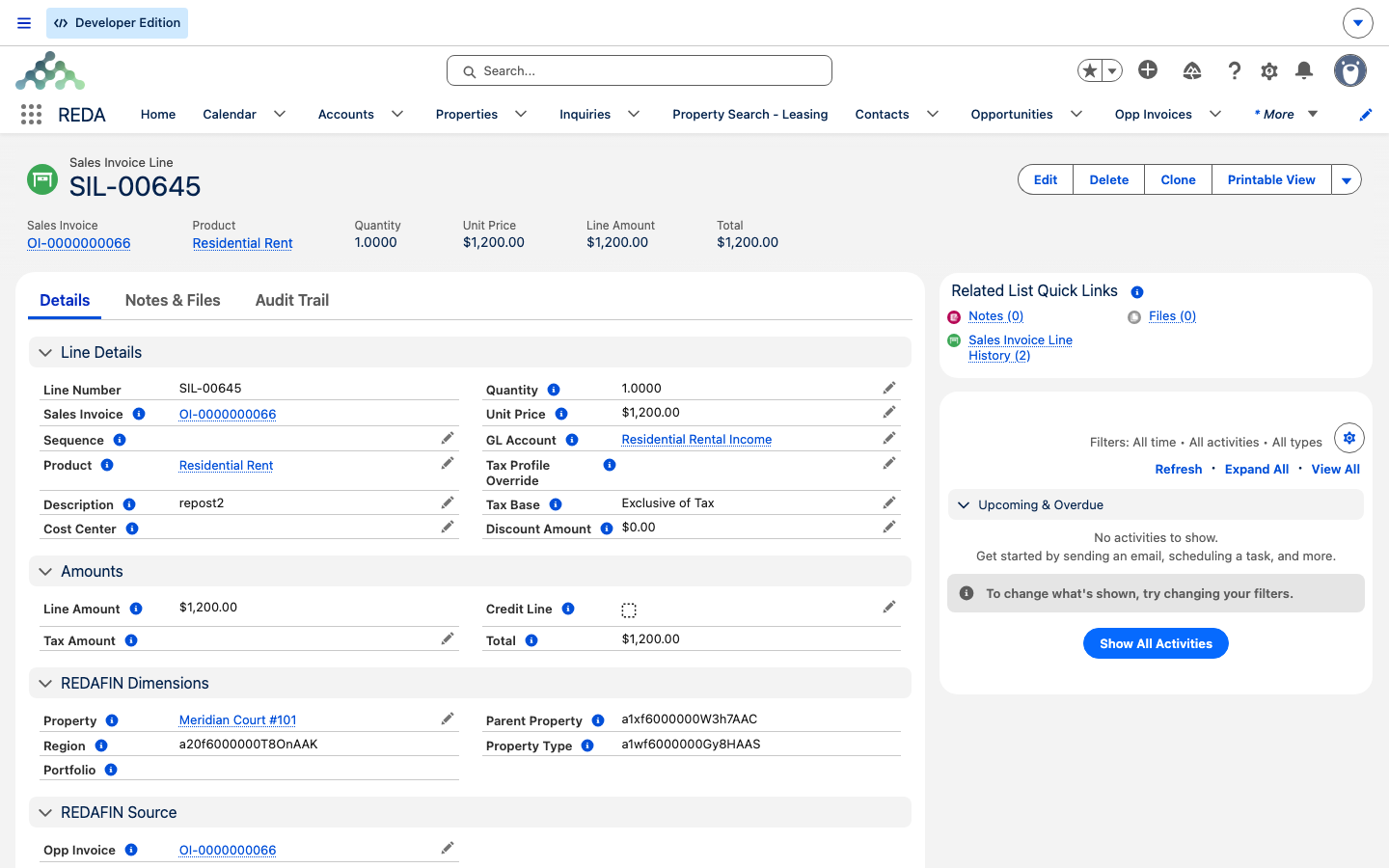
When an invoice crosses over to accounting, REDA Financials builds exactly one line for it: the quantity is always one, the unit price is the invoice amount, and the line is marked as a credit when the amount is negative (that's how a refund or credit note is handled). Everything else on that line — the account it posts to, its product, its cost center, its tax — comes straight from the six fields above. That's the whole point of setting them: you configure the routing once on the charge code, and every invoice inherits it automatically.
How the GL account is resolved
The GL account — general-ledger account — is the specific revenue line in your chart of accounts that a charge posts to, such as a rental-income account. You have two ways to tell REDA which revenue account a charge code uses, and they work as a fallback pair:
In short: set the GL directly, or leave it blank and let the product's default revenue account apply — but never leave both empty. This one rule is the difference between an invoice that posts on the first try and one that stalls.
Product is required; Cost Center is optional
Two of the six fields are worth calling out on their own, because they behave differently from the rest.
The Product is not optional. Every invoice line that crosses over must carry a product, so a charge code without one can't produce a postable line. Beyond being mandatory, the product does double duty: as you saw above, it's also the source of the fallback GL account. So the safest habit is to give every charge code a product, and to make sure that product has a Default Revenue GL Account — that way the line always has both a product and an account, whether or not you set the GL directly on the charge code.
The Cost Center is optional. A cost center is an analysis tag — a way to group results by team, building, or operating unit for reporting. If your charge code has one, it's copied straight through to the invoice line; if it's blank, the line simply carries no cost center. Set it only if your reporting actually uses cost centers.
Tax profiles: single invoices vs. consolidated batches
There are two tax-profile fields for a reason. A Tax Profile is the accounting setting that tells REDA Financials how to tax a line — the rate and treatment to apply. REDA can bill an invoice on its own, or roll several invoices into one consolidated batch, and the two paths read different tax-profile fields:
| Path | Tax profile used |
|---|---|
| A single invoice crosses over on its own | Tax Profile |
| An invoice is part of a consolidated batch | Tax Profile (Batch) |
Unless your organization never consolidates invoices, set both. They are usually the same profile — the split exists so you can tax consolidated invoices differently if a jurisdiction requires it, not because you normally would. If you set only one, invoices that take the other path have no tax profile to apply. What a profile actually computes is a REDA Financials setting; this article only points the charge code at the right one.
Cash-application sort order
When a tenant's payment covers more than one invoice, something has to decide which invoice it settles first. That's what Cash Application Sort Order does. The number on the Charge Code becomes the invoice's application priority in REDA Financials, and a lower number is settled first. So by giving rent a lower number than, say, a utility recovery, you make sure a partial payment clears the rent before it touches anything else.
For a consolidated batch — one invoice built from several charges — the invoice takes a single application priority: the highest sort-order number across its lines. Because a lower number settles first, that means a consolidated invoice inherits the priority of its least-urgent charge, and it settles as a whole rather than line by line. Set a deliberate order across your charge codes (for example, rent lowest, so a standalone rent invoice always settles ahead of ancillary charges), and cash application follows it automatically when payments are applied on the accounting side. You don't decide the order payment-by-payment; you decide it once, here.
Property-management GL tagging
Everything so far routes a single invoice into the ledger. The second setup in this article works in the other direction: it tells REDA which accounts to read back when it calculates a management fee or an owner draw. This is a different job, done on a different record, and it's just as important to get right.
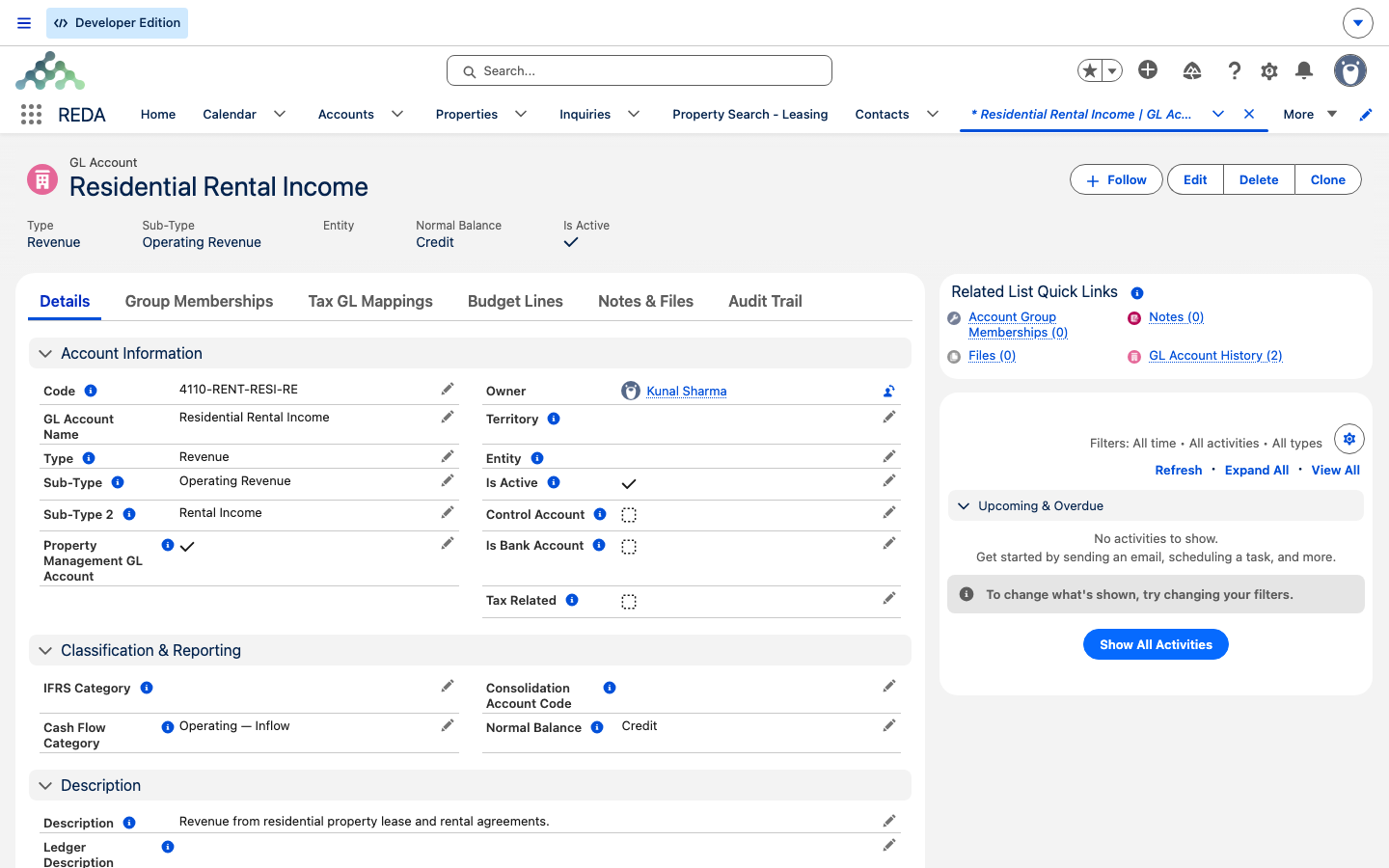
On each GL Account record in REDA Financials there is a checkbox, Property Management GL Account. Ticking it marks that account as one of your property-management operating accounts — an account whose activity REDA should include when it works out fees and draws. Every general-ledger account also has a Type — Revenue, Expense, Asset, Liability, or Equity — and the type decides what a tagged account feeds:
| Account Type, when tagged | What REDA reads it as | Which run uses it |
|---|---|---|
| Revenue | Collected rent — the money tenants actually paid, netted for the period. This is the basis the management fee is charged on. | Management fee |
| Expense | Fees already billed this period — subtracted from the new fee so a re-run never bills the same fee twice. | Management fee |
| Asset | The owner's cash and receivables — what's being held on their behalf. | Owner draw |
| Liability | Deposits and accruals the owner still owes. | Owner draw |
| Equity | Owner distributions, shown on owner statements (not part of the fee or draw basis). | Owner statement |
The management fee reads your tagged Revenue accounts to find collected rent, then charges the fee on it and subtracts anything your tagged Expense accounts show as already billed. The owner draw reads your tagged Asset and Liability accounts to work out how much of an owner's balance is genuinely theirs to take out — put plainly, Available to Owner = Asset − Liability, and the drawable amount is that figure minus any reserve you hold back. (The full draw arithmetic lives in Owner Draws & Owner Statements; here it's enough to see why tagging the right asset and liability accounts is what makes the answer correct.)
Setting up a charge code, step by step
Here's the full pass for a Rent charge code.
Traced example: a Rent charge code, end to end
Meridian Properties manages Meridian Court for the owner Continental Holdings. Rent is 1,200.00 a month. Here are two charge codes configured the two different ways, and what each one does downstream.
| Charge code | GL Account | Product | Sort Order | Where the line posts |
|---|---|---|---|---|
| Rent | 4210 Rental Income | Rent | 1 | Directly to 4210 |
| Utility Recovery | (blank) | Utility Recovery | 2 | To the product's default revenue account (4260 Utility Recovery) |
Follow the Rent charge code across. A 1,200.00 rent invoice crosses over to a single invoice line: quantity one, unit price 1,200.00, posting to account 4210 Rental Income, product Rent, with tax taken from the charge code's Tax Profile. Because the GL Account is set directly, there's no fallback to think about — the line goes straight to 4210.
Now follow Utility Recovery. Its GL Account is deliberately left blank, but its Product — Utility Recovery — has a Default Revenue GL Account of 4260 Utility Recovery. So a utility charge still lands correctly, on 4260, through the fallback. And because rent's sort order (1) is lower than utilities' (2), a tenant payment that only partly covers both settles the rent first.
Then follow the property-management side, which is where the second setup earns its keep. The 4210 Rental Income account is a Revenue-type account that has been tagged Property Management GL Account. When the month's rent posts against 4210, a management-fee run reads 4210 as collected rent for Meridian Court — so when it charges, say, an 8% fee, it charges on the right number. The two setups meet here: the charge code put the rent onto 4210, and the tag told the fee run to read 4210 back. If 4210 were not tagged, the fee run would find no rent and — with no other tagged revenue account — refuse to start.
Reference: the fields at a glance
The six charge-code fields:
| Field | Used when | Can it be blank? |
|---|---|---|
| GL Account | Setting the line's revenue account directly | Yes — falls back to the Product's Default Revenue GL Account |
| Product | Every line (mandatory); also the GL fallback source | No, in practice — a line must carry a product |
| Cost Center | Cost-center reporting | Yes — copied through only when set |
| Tax Profile | Single invoices | Set it unless you never bill single invoices |
| Tax Profile (Batch) | Consolidated batches | Set it unless you never consolidate |
| Cash Application Sort Order | Ordering which invoice a payment settles first (lower settles first; a consolidated batch takes the highest number among its lines) | Yes — set it to control the order deliberately |
And the property-management GL tag, by account type:
| Account Type, when tagged | Feeds | Run |
|---|---|---|
| Revenue | Collected rent — the fee basis | Management fee |
| Expense | Fees already billed (deducted to avoid double-billing) | Management fee |
| Asset | Owner cash / receivables | Owner draw |
| Liability | Owner deposits / accruals owed | Owner draw |
| Equity | Owner distributions (shown on statements) | Owner statement |
Where to go next
- How REDA Works with REDA Financials — how a charge code's instructions reach the accounting document in the first place.
- Activating a Client Account as a Financial Entity — the other prerequisite for a bridged invoice.
- Management Fee Automation — where your tagged revenue and expense accounts become the fee basis.
- Owner Draws & Owner Statements — where your tagged asset and liability accounts become the drawable balance.
- Payment & Balance Sync — fixing an invoice whose line landed with no GL account.
- Recording Tenant Payments — where the returned-payment fee charge code is used.
Frequently asked questions
The charge code has neither a direct GL Account nor a Product with a Default Revenue GL Account, so the fallback found nothing. Set one of the two on the charge code, then clear the error and re-trigger the bridge — see Payment & Balance Sync.
Tax Profile applies when an invoice crosses over on its own; Tax Profile (Batch) applies when it's part of a consolidated batch. They're usually the same profile — set both unless your organization never consolidates invoices.
Only if your reporting uses cost centers. It's copied through to the invoice line when set, and left off when blank.
It marks a general-ledger account as one the fee and draw runs read. Tagged Revenue accounts count as collected rent; tagged Expense accounts count as fees already billed; tagged Asset and Liability accounts feed owner-draw balances. Without the right accounts tagged, those runs return nothing.
Your rent-income accounts aren't tagged. The run stops with "No Property Management GL Accounts found with Type = Revenue. Please flag rent collection GL Accounts as Property Management GL Accounts." Open each rent-income GL Account and tick Property Management GL Account, then run again.
The one whose charge code has the lower Cash Application Sort Order — a lower number settles first. A consolidated batch is different: the whole invoice takes one priority, the highest sort-order number among its lines, and settles as a single invoice rather than line by line.
Charge codes are master data, so editing them requires the REDA - Master Data - Admin permission set. Tagging GL accounts is done by an accounting administrator in REDA Financials.
Was this article helpful?